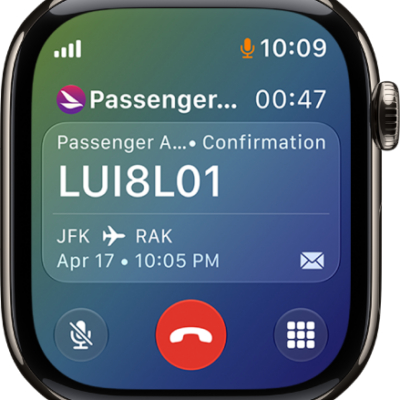
Make phone and FaceTime audio calls, start a Group FaceTime call from Messages, and set up Wi-Fi calling.
You can call a favorite by turning the Digital Crown, call a contact, or dial a recent number. You can also enter a phone number, and bring a Messages conversation into a FaceTime audio call, where you can even add more people. With Wi-Fi calling, you can make calls even when your paired iPhone isn’t with you.
Here’s how to make calls on Apple Watch.

Call a contact
- Start the Phone app on your Apple Watch.
- Do one of the following:
- Call a favorite: Turn the Digital Crown down, then tap a favorite.
- Call a contact: Turn the Digital Crown upward, tap Contacts, and tap a contact.
- Dial a recent number: Turn the Digital Crown upward to scroll through recent contacts, then tap a contact.
Start a Group FaceTime call from Messages
If you’re in a Messages conversation, you can bring it into a FaceTime audio call and then add more people to the call.
- Start the Messages app on your Apple Watch.
- In a conversation, tap the Contact’s profile picture at the top right. Tap FaceTime audio.
- To invite more people to the call, tap the More Options button, tap Add People, and then choose a contact.
Enter a phone number
- Start the Phone app on your Apple Watch.
-
Tap the Dialer button at the top right. Then enter the number.
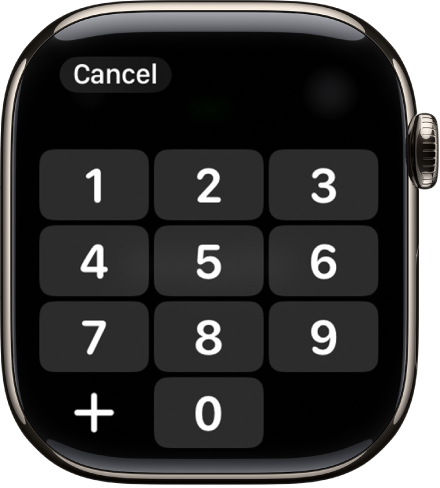
- To start the call, tap the Call button.
Quick tip: If you need to enter additional numbers during a call, like an extension or a verification code, tap the More Options button, tap Keypad, and then tap the digits.
Set up Wi-Fi calling
If your cellular carrier offers Wi-Fi calling, your Apple Watch can make and receive calls over Wi-Fi rather than the cellular network, and that works even when your paired iPhone is turned off or isn’t with you. Your Apple Watch only needs to be within range of a Wi-Fi network your iPhone has connected to in the past.
To see if your carrier offers Wi-Fi calling, see Make a call with Wi-Fi calling, and enable Wi-Fi calling on your iPhone.
- Start the Settings app on your iPhone.
- Tap Cellular and tap Wi-Fi Calling.
- Turn on Wi-Fi Calling on This iPhone and turn on Add Wi-Fi Calling For Other Devices.
Note: For the most accurate location during emergency calls, use cellular instead of Wi-Fi when possible. You can temporarily disconnect from Wi-Fi on your Apple Watch to prioritize the cellular connection.
See also