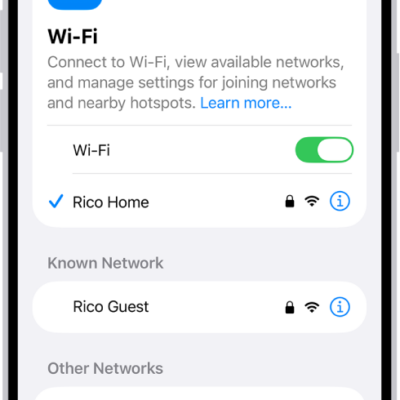
Connect Apple Watch to a compatible Wi-Fi network so you can use many of its features even when you don’t have your iPhone with you.
It works with 802.11b/g/n 2.4 GHz or 5 GHz networks, but not captive networks that require logins, subscriptions, or profiles. When it’s on Wi-Fi instead of your iPhone, you’ll see the Wi-Fi icon at the top of Control Center. You can also use a private network address and disconnect from Wi-Fi.
Wi-Fi networks compatible with Apple Watch
- 802.11b/g/n 2.4 GHz or 5 GHz
- A network that your iPhone previously used while connected to Apple Watch
Note: Apple Watch won’t connect to public networks that require logins, subscriptions, or profiles, also called captive networks. These can be free or pay networks at places like businesses, schools, dorms, apartments, hotels, and stores.
Connect to a compatible Wi-Fi network
- Press the side button to open Control Center.
- Touch and hold the Wi-Fi button and tap the name of a compatible Wi-Fi network.
- If the network requires a password, enter the password or tap the Password button. Choose a password from the list.
- Tap Join.
The Wi-Fi icon at the top of Control Center means Apple Watch is connected to a Wi-Fi network rather than your iPhone.
Use a private network address on Apple Watch
To help protect your privacy, Apple Watch uses a unique private network address, called a media access control (MAC) address, on each Wi-Fi network it joins, Apple says. Using a private address helps reduce tracking of your Apple Watch across different Wi-Fi networks.
- Press the side button to open Control Center.
- Touch and hold the Wi-Fi button. Then tap the name of the network you joined.
-
Tap Private Wi-Fi Address and then choose Off, Fixed, or Rotating.
Important: For better privacy, choose Fixed or Rotating for all networks that support a private address.
Some networks can’t use a private address, like ones that provide parental controls or need to identify Apple Watch as authorized to join. For those, you can stop using a private address.
Disconnect from Wi-Fi
Control Center lets you temporarily disconnect from a Wi-Fi network, and if your Apple Watch has a cellular plan, an available cellular connection can take over.
- Press the side button to open Control Center.
-
Tap the Wi-Fi button.
“Disconnected” appears at the top of the screen.
Apple Watch temporarily disconnects from the Wi-Fi network. If you have an Apple Watch with cellular, the cellular connection activates if you have coverage. When you leave and later return to the place where you were connected to Wi-Fi, Apple Watch automatically joins that network again unless you’ve forgotten it on your iPhone.
Quick tip: Touch and hold the Wi-Fi button in Control Center for quick access to Wi-Fi settings on Apple Watch.
Forget a network
- Press the side button to open Control Center.
- Touch and hold the Wi-Fi button, then tap the name of the network.
- Tap Forget This Network.
Rejoining that network later means you’ll reenter its password, if it requires one.
See also