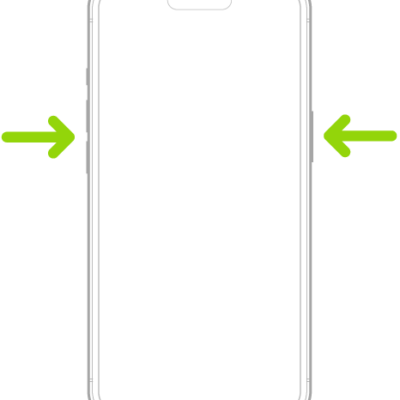
In case of an emergency, use your Apple Watch to quickly call for help, share your Medical ID, and alert your emergency contacts.
How your watch reaches emergency services depends on your device model, location, and network availability. You can also keep your Medical ID and emergency contacts up to date, and update your emergency address if it’s changed.
Requirements
Your Apple Watch attempts to contact emergency services in the following ways, depending on your device model, location, and network availability:
- Standard emergency calls: Your Apple Watch or nearby iPhone needs a cellular connection or Wi-Fi calling with an internet connection.
- International emergency calls: Requires Apple Watch SE, Apple Watch Series 5, Apple Watch Ultra, or later models. When you start an Emergency SOS call while abroad, your watch connects to local emergency services, but it may not be able to send your location or a text message to your emergency contacts. In certain areas, international emergency calling works even if you haven’t set up cellular service on the watch.
- Emergency SOS via satellite: On supported Apple Watch Ultra models*, you can contact emergency services even when you’re off the grid without cellular and Wi-Fi coverage. See Use Emergency SOS via satellite.
Contact emergency services
Do one of the following:
-
Start an emergency call: Press and hold the side button until the sliders appear, then drag the Emergency Call slider to the right.
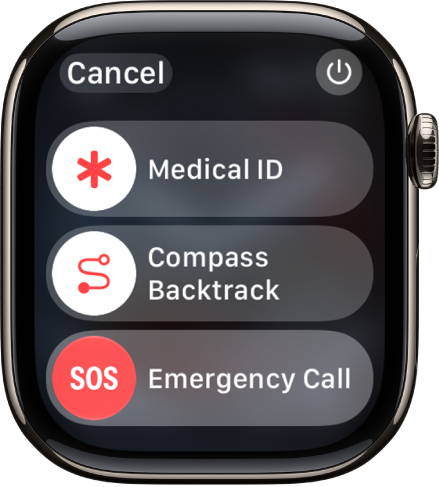
Your Apple Watch calls the emergency services in your region—for example, 911. (In some regions, you may be required to press a keypad number to complete the call.)
-
Use only the side button: Press and keep holding the side button until your Apple Watch issues a warning sound and starts a countdown. When the countdown ends, your Apple Watch calls emergency services. The Apple Watch makes the warning sound even if it’s in Silent Mode. So if you’re in an emergency situation where you don’t want to make noise, use the Emergency Call slider to call emergency services without a countdown.
If you don’t want your Apple Watch to automatically start the emergency countdown when you press and hold the side button, turn off Automatic Dialing. Go to the Settings app on your Apple Watch, tap SOS, tap Hold Side Button, then turn off Hold Side Button. (Or go to the Apple Watch app on your iPhone, tap My Watch, tap Emergency SOS, then turn off Hold Side Button to Dial.) You can still make an emergency call with the Emergency Call slider.
- Make a voice call: Ask Siri to call your local emergency number (such as 911, 112, or 999). Or go to the Phone app, tap the Dialer button, then dial your local emergency number.
- Send a text message: Ask Siri to text your local emergency number (such as 911, 112, or 999). Or go to the Messages app, tap the New Message button, then text your local emergency number.
Apple Watch may automatically contact emergency services in the following situations:
- When a hard fall is detected: If Fall Detection is turned on and you have been immobile for about a minute, Apple Watch automatically attempts to call emergency services. See Manage Fall Detection.
- When a severe car crash is detected: If Crash Detection is turned on, Apple Watch displays an alert and can initiate an emergency phone call after 30 seconds. See Manage Crash Detection.
Important: If an emergency call has been made, but you don’t need emergency services, don’t hang up. Wait until a responder answers, then explain that you don’t need help.
Keep your Medical ID and emergency contacts up to date
After an emergency call ends, your Apple Watch alerts your emergency contacts and active Check In contact with a text message, unless you choose to cancel. Your Apple Watch sends your current location, and for a period of time after you enter SOS mode, your emergency contacts and active Check In contact receive updates when your location changes.
Note: If you use Emergency SOS, your emergency contacts won’t be automatically notified if the Messages app isn’t the selected text messaging app or is deleted.
To update emergency contacts, go to the Health app on your paired iPhone.
Update your emergency address
If emergency services can’t locate you, they go to your emergency address.
- Open the Settings app on your iPhone.
- Tap Apps, tap Phone, tap Wi-Fi Calling, and then tap Update Emergency Address.
- Enter your emergency address.
*Satellite features aren’t available on Apple Watch Ultra 2 and earlier models, aren’t available in all countries and regions, and aren’t offered on models sold in certain countries and regions. Satellite features are free for 2 years after the activation of your Apple Watch Ultra. Messages and location sharing via satellite require an active carrier plan.
See also
- Activate the siren on Apple Watch Ultra
- About cellular and emergency call waypoints
- Use satellite features on Apple Watch Ultra