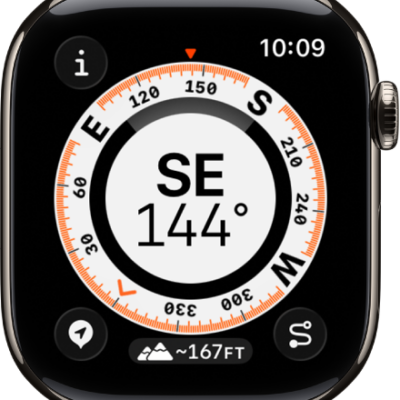
You can create waypoints to mark locations in Compass, then display them on your watch. It’s handy. Cellular waypoints need an Apple Watch with a cellular plan, while emergency call waypoints work only in the U.S., Canada, and Australia. Apple Watch automatically generates waypoints for the following:
- Where you parked your car.
- The last location where your Apple Watch or iPhone could make a cellular connection.
- Where Emergency SOS was last available (not supported in all countries or regions).
About cellular and emergency call waypoints
When available, cellular waypoints mark the most recent or closest approximate location where either your Apple Watch or iPhone connected to your carrier’s cellular network. When available, emergency call waypoints mark the most recent or closest approximate location where either your Apple Watch or iPhone detected that service from a carrier might be available to make an emergency call. Your surroundings, environmental conditions, and other factors may impact call connectivity or waypoint availability. Reconnecting may not be possible near these waypoints depending on these conditions.
To use the cellular waypoints feature, you need an iPhone using iOS 17 or later and an Apple Watch with a cellular plan.
Note: Emergency call waypoints are available only in the U.S., Canada, and Australia.
Create a waypoint
- Go to the Compass app on your Apple Watch.
- Tap the Waypoint button to add a waypoint.
- Do any of the following:
- Create a waypoint of your current location: Enter waypoint information such as label, color, or symbol (car or home, for example). Then tap the Checkmark button.
- Create a waypoint of another location: Turn the Digital Crown to scroll to the bottom of the screen. Tap Coordinates. Tap Latitude or Longitude, enter the coordinates, and tap Done. Tap the Back button, then tap the Checkmark button
Quick tip: Pressing the Action button on Apple Watch Ultra models is a quick way to drop a waypoint. Read our article, Use the Action button on Apple Watch Ultra models.
Display waypoints
- Open the Compass app on your Apple Watch.
-
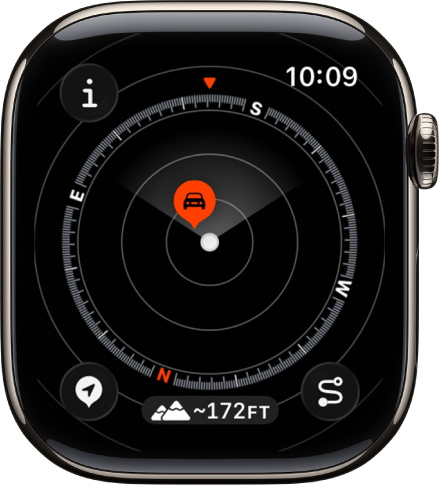
Turn the Digital Crown down to see the waypoints near you. Keep turning the Digital Crown to expand the range up to 50 miles.
-
Do any of the following:
-
View waypoints relative to your current elevation: Tap the Elevation button.
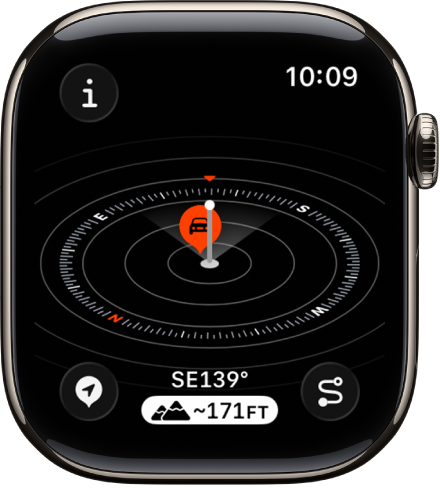
- See the distance, direction, and relative elevation of a waypoint: Tap a waypoint, turn the Digital Crown to select a waypoint, and tap Select.
- Browse waypoints: Tap the Info button, then tap Waypoints.
-
View waypoints relative to your current elevation: Tap the Elevation button.
See also