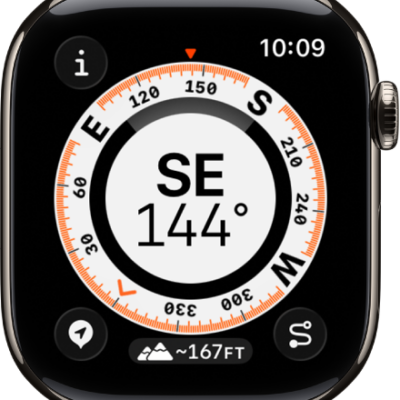
The Compass app shows you the direction iPhone is pointing in, your current location, and the elevation.
For accurate bearings, you hold iPhone flat. And to see your location, you allow Compass to access it.
Here’s how to use the compass on iPhone.
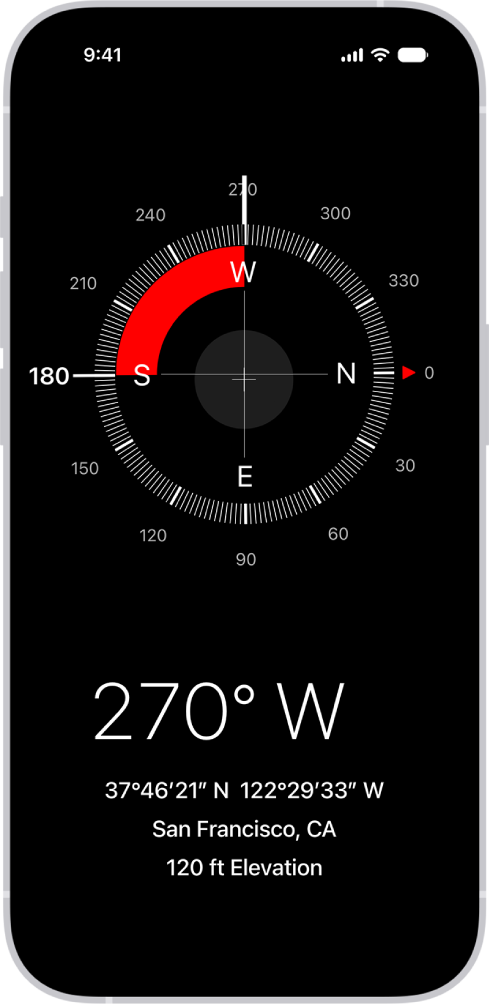
Note: Your coordinates and elevation may not be available in certain countries or regions.
See your bearings, coordinates, and elevation
Your bearings, coordinates, and elevation are shown on the screen.
- Start the Compass app on your iPhone.
- For accurate bearings, hold iPhone flat to align the crosshairs at the center of the compass.
- To lock your current direction, tap the compass dial.
A red band appears when you’re off course.
To open your location in Maps, tap the coordinates.
Allow Compass to access your location
If your location isn’t available in Compass, make sure you’ve turned on Location Services.
- Start the Settings app on your iPhone.
- Tap Privacy & Security and tap Location Services. Turn on Location Services.
- Tap Compass, then tap While Using the App.
Important: The accuracy of the compass can be affected by magnetic or environmental interference. Use the digital compass only for basic navigation assistance. Don’t rely on it to determine precise location, proximity, distance, or direction.