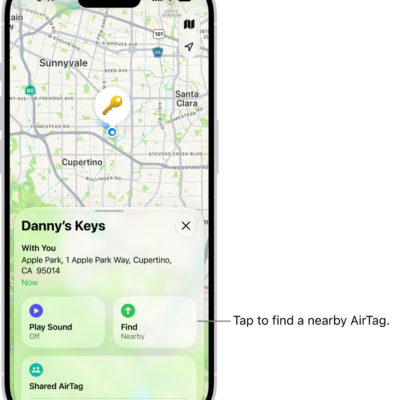
Before you can use the Find My app to locate a lost iPhone, you need to connect the device to your Apple Account. When you add your iPhone to Find My, you can also get notified if you leave it behind.
Find My can locate your iPhone even when it’s offline, using the Find My network, for up to 24 hours after it’s turned off on a supported iPhone. Activation Lock also stops anyone else from using your device, even if it’s completely erased.
Add your iPhone
-
On your iPhone, open Settings, tap [your name], and then tap Find My.
If you’re asked to sign in, enter your Apple Account information. If you don’t have an Apple Account, tap “Don’t have an Apple Account or forgot it?” then follow the instructions.
- Tap Find My iPhone and turn on Find My iPhone.
-
You can also turn on or off either of the following:
-
Find My network: If your device is offline (not connected to Wi-Fi or cellular), Find My can locate it using the Find My network.
On a supported iPhone, turning on the Find My network allows you to locate your iPhone for up to 24 hours after it’s turned off, or up to 5 hours when it’s in power reserve mode.
- Send Last Location: If your device’s battery charge level becomes critically low, its location is sent to Apple automatically.
-
Find My network: If your device is offline (not connected to Wi-Fi or cellular), Find My can locate it using the Find My network.
Your iPhone also includes Activation Lock, a feature that prevents anyone else from activating and using your device. It works even if the device is completely erased.
Add a family member’s device
If you set up Family Sharing first, you can see your family members’ devices in Find My. They appear below yours in the Devices list.
You can’t add friends’ devices to Find My. Friends who lose a device can go to Find Devices on iCloud.com and sign in to their Apple Account.