How to print PDFs or images in Preview on iPhone
You can print a PDF or image in the Preview app on your iPhone. Print is in the Actions Menu next to the filename, and from there, you can select a printer and send your PDF or image to it.
- Start the Preview app on your iPhone.
- Open a PDF or image.
- Tap the Actions Menu button next to the filename. Then tap Print.
- Select a printer, then tap the Print button.
Read Next
You can annotate a PDF or image in Preview on iPhone: highlight, underline, or strike through text, and add stickers, signatures, shapes, or text.
You can share a PDF or image from Preview on iPhone to collaborate on it, send a copy, or copy it to paste into another app.
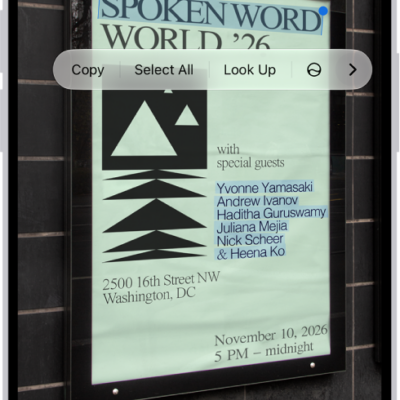
You can use Live Text in Preview on iPhone to copy, translate, or look up text in an image, and call, email, or open a website.