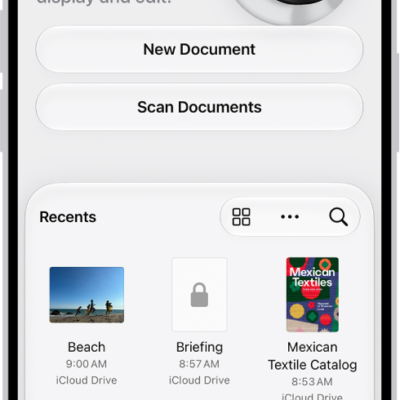
When you create an image in the Preview app, you can start with a blank image or with pasted content that was copied to the Clipboard. It can come from the Photos app, the Files app, or Preview. You can then annotate an empty image or an image from the Clipboard with a shape, sticker, or text.
Create an empty image
- Start the Preview app on your iPhone.
- Tap New Document and then choose New Empty Image.
Quick tip: From the Home Screen, touch and hold the Preview icon and tap New Empty Image.
Use an image from the Clipboard
- Do any of the following to copy an image to the Clipboard:
- From the Photos app: Select an image, tap the Share button, and then tap Copy Photo.
- From the Files app: Touch and hold an image file, then tap Copy.
- From the Preview app: Touch and hold an image file and tap Copy. You can also open an image file, tap the Share button, and then tap Copy.
- Start the Preview app on your iPhone.
- Tap New Document, then choose New from Clipboard.
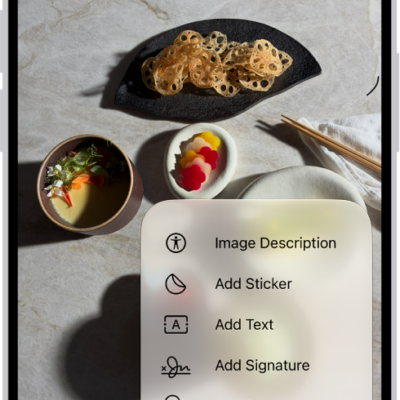
You can annotate an empty image or an image from the Clipboard. Tap the Markup button, choose a drawing tool, then draw with your finger. You can also tap the Add button, then choose an option such as a shape, sticker, or text.
Tag: Preview