Got a tip for us?

Preview

You can scan text or a document to create a PDF in the Preview app on your iPhone. iPhone automatically captures the page, though you’ll be able to capture the scan yourself instead, and you can crop, rotate, or adjust the coloring of each scan.

  1. Start the Preview app on your iPhone.
  2. Tap Scan Documents.
  3. Position the iPhone camera so the text or document appears on the screen.

    iPhone automatically captures the page. To capture the scan yourself instead of automatically, tap Auto (the label changes to Manual), then tap the Shutter button.

  4. Repeat the step above to scan additional pages.
  5. Tap the thumbnails to crop, rotate, or adjust the coloring of the scan.
  6. Tap the Done button when you’re finished scanning.
Tag: Preview

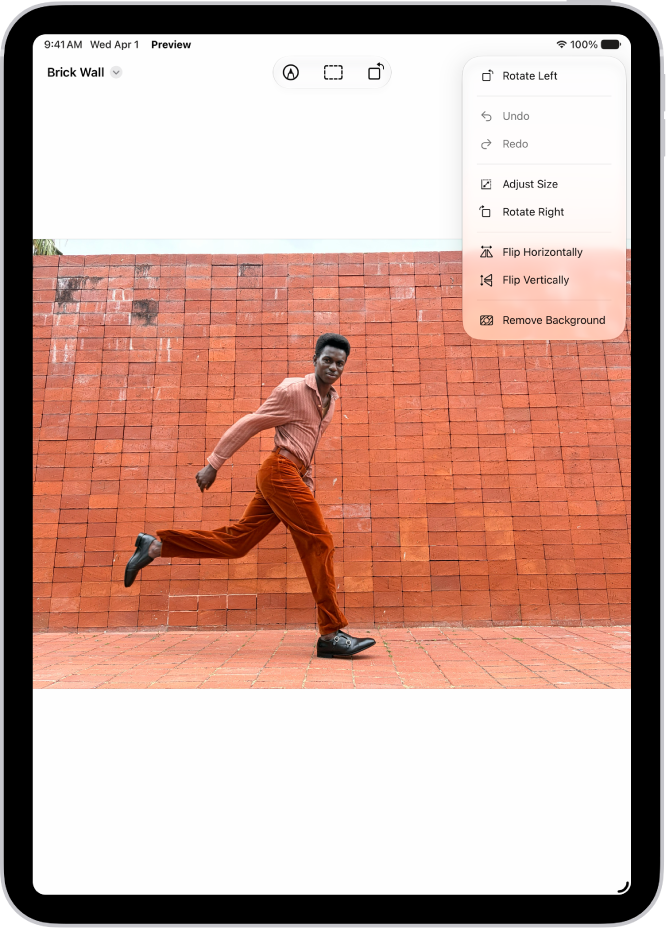
On an iPhone, you can crop, rotate, or flip an image in Preview. You can also remove the background or adjust the image size.

To rotate the image, you can choose Rotate Left or Rotate Right, and to flip the image, there’s Flip Horizontally or Flip Vertically. The Remove Background option appears only when Preview finds a subject, such as a person, animal, or object. You can also undo a change if you make one you don’t want.

Crop an image

  1. Open the Preview app on your iPhone.
  2. Open an image.
  3. Tap the Crop button.
  4. Drag the blue handles to select an area and then tap Crop. (If Crop doesn’t appear, tap within the selected area.)

Rotate or flip an image

  1. Open the Preview app on your iPhone.
  2. Open an image.
  3. Do any of the following:
    • Rotate the image: Tap the More button. Choose Rotate Left or Rotate Right.
    • Flip the image: Tap the More button and then choose Flip Horizontally or Flip Vertically.

Remove the background from an image

  1. Open the Preview app on your iPhone.
  2. Open an image.
  3. Tap the More button, then tap Remove Background.

Note: You’ll only see the Remove Background option if Preview detects a subject in the image, such as a person, animal, or object.

Adjust the size of an image

  1. Open the Preview app on your iPhone.
  2. Open an image.
  3. Tap the More button, then tap Adjust Size. Choose options, then tap Done.

To undo a change, tap the More button, then tap Undo.

Tag: Preview

You can copy, highlight, underline, or strike through text in a PDF file. You can also annotate a PDF or image with stickers, signatures, shapes, or text.

You can pick a highlight color, and images can also get an image description or a loupe. Text you copy can be pasted into another document or app, and any change can be undone.

Here’s how to annotate a PDF or image in Preview on iPhone.

A fillable PDF form with options to highlight and underline text.

Select and copy text

  1. Start the Preview app on your iPhone.
  2. Open a PDF.
  3. To select text, touch and hold the first word and then move the grab points.
  4. To copy the selection, tap Copy.

The text is then ready to paste into another document or app.

Highlight, underline, or strike through text

  1. Start the Preview app on your iPhone.
  2. Open a PDF.
  3. Select and copy text, then tap Highlight.
  4. Choose a highlight color, or tap the underline or strike through button.

Add an annotation

An image open in the Preview app. A menu shows options that can be added to it, such as stickers and text. The Markup, Info, and More buttons appear at the top of the screen, and annotation tools appear at the bottom of the screen.

  1. Start the Preview app on your iPhone.
  2. Open a PDF.
  3. Tap the Markup button and tap the Add button. Then choose an option, such as a sticker, signature, shape, or text. For images, you can also add an image description or a loupe.

To undo a change, tap the More button, then tap Undo.

Tag: Preview