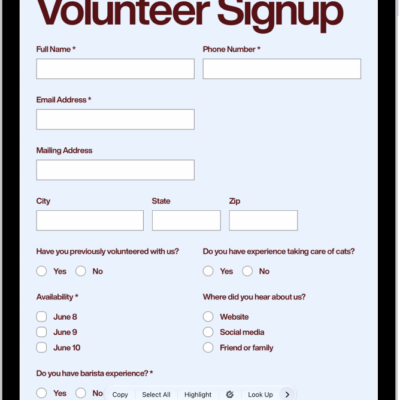
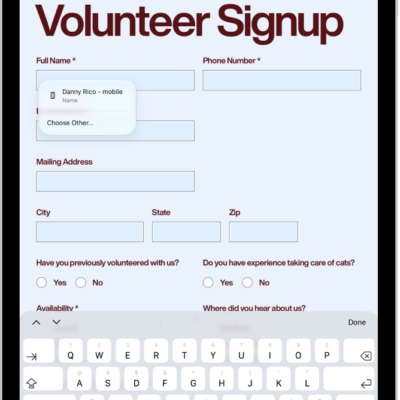
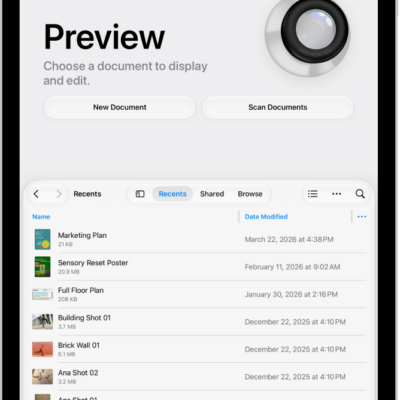
You can reply to an email with a PDF attachment in Preview on iPad. You just fill out or annotate the PDF attachment in the Preview app and attach the updated PDF to your reply in the Mail app. You can optionally add text to the reply, too.
- Go to the Mail app on your iPad.
- Open an email with a PDF attached and then tap the attachment to open it in the Preview app.
- Fill out or annotate the PDF.
- Go back to the Mail app and open the original email.
- Tap the Reply button, tap the Attachment button, and tap Attach File.
- Locate the updated PDF, then tap to select it.
- Optionally, add text to the reply.
- Tap the Send button.
See also