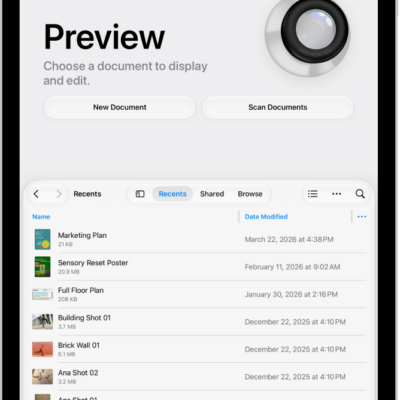
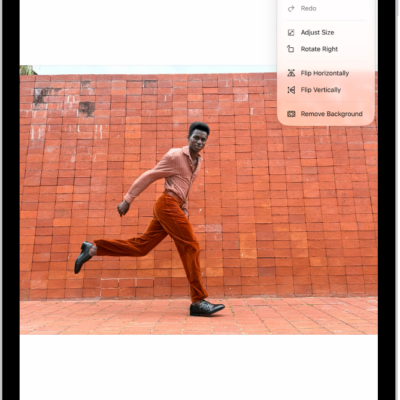
You can add, delete, rotate, reorder, or crop pages in a PDF in the Preview app on your iPad.
You can insert a blank page, insert a PDF or image, or insert a scanned document, and you can delete the selected page. You can also rotate a page left or right, move a page above or below another one, and crop a page to the area you select. And if you change your mind, you can undo a change.
Add or delete pages
- Start the Preview app on your iPad.
- Open a PDF.
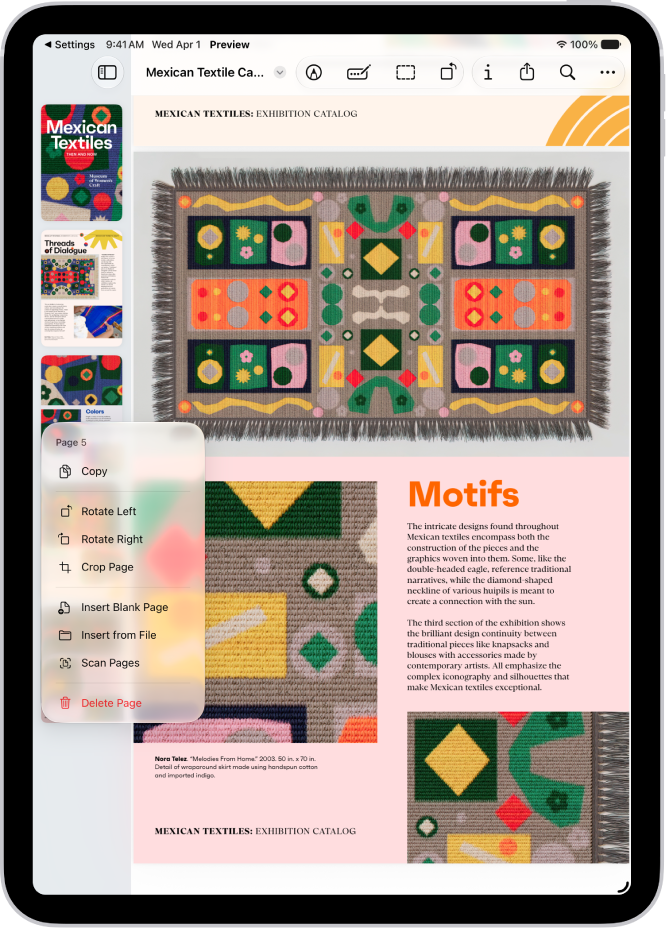
- Tap the Toggle Sidebar button and then touch and hold a thumbnail.
- Do any of the following:
- Insert a blank page: Tap Insert Blank Page.
- Insert a PDF or image: Tap Insert from File.
- Insert a scanned document: Tap Scan Pages, scan the document, then tap the Done button. See Scan text and documents.
- Delete the selected page: Tap Delete Page.
Rotate a page
- Start the Preview app on your iPad.
- Open a PDF.
- Tap the Rotate Left button in the toolbar. You can also tap the More button. Then choose Rotate Left or Rotate Right.
Move a page
- Start the Preview app on your iPad.
- Open a PDF.
- Tap the Toggle Sidebar button and touch and hold a thumbnail until menu options appear. Drag the page thumbnail above or below another one.
Crop a page
- Start the Preview app on your iPad.
- Open a PDF.
- Select a page and tap the Crop button.
- Drag the blue handles to select an area and tap within the selected area. Then tap Crop.
To undo a change, tap the More button, then tap Undo.
See also
Tag: Preview