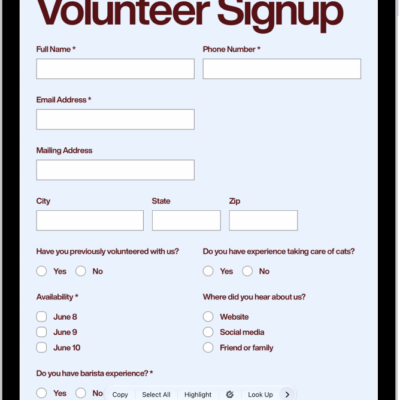
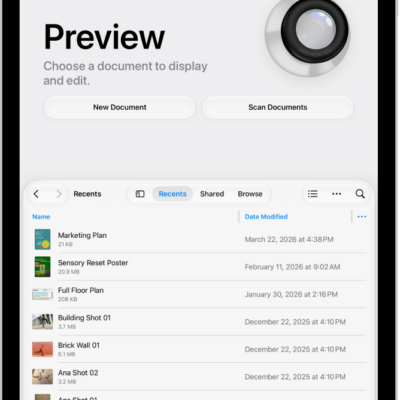
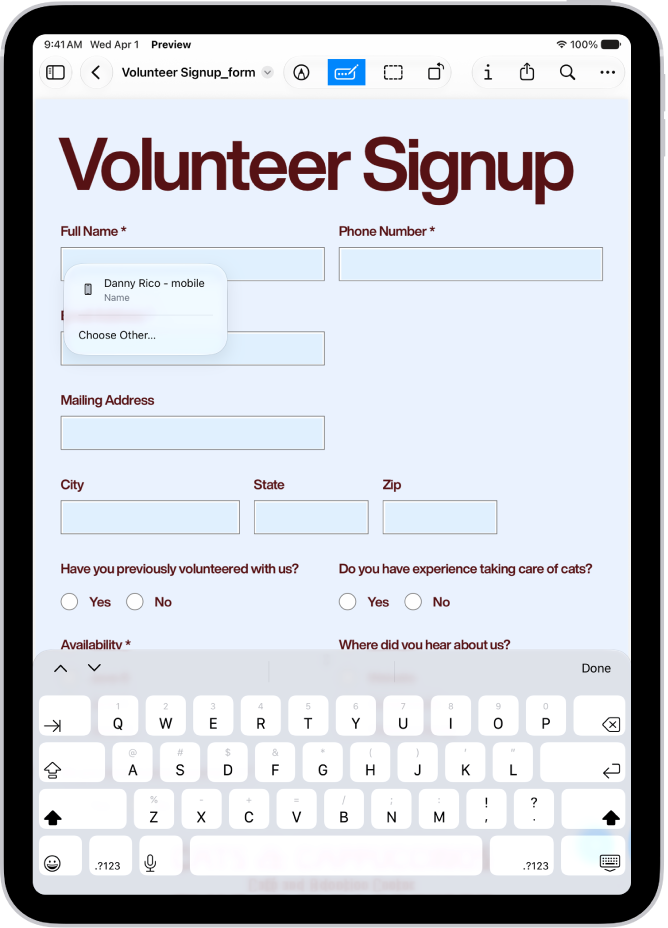
You can fill out and sign PDF forms in the Preview app on your iPad. You just enter information in a blue field, or select contact information in the bar above the onscreen keyboard, then add a signature or a text box. You can create a signature with an Apple Pencil or draw with your finger.
- Start the Preview app on your iPad.
- Open a PDF form.
- Tap the Form Fill button.
- Tap a blue field and then enter information (or select contact information in the bar above the onscreen keyboard).
-
Tap the Add button to add a signature or a text box.
Tip: You can use an Apple Pencil (with a compatible iPad) or draw with your finger to create a signature. See Apple Pencil compatibility with iPad models.
See also
- Annotate a PDF or image in Preview on iPad
- Add, delete, rotate, move, or crop PDF pages in Preview on iPad
- Fill out forms, sign documents, and create signatures on iPad
Tag: Preview