








Got a tip for us?

Compass

You can create waypoints to mark locations in Compass, then display them on your watch. It’s handy. Cellular waypoints need an Apple Watch with a cellular plan, while emergency call waypoints work only in the U.S., Canada, and Australia. Apple Watch automatically generates waypoints for the following:

  • Where you parked your car.
  • The last location where your Apple Watch or iPhone could make a cellular connection.
  • Where Emergency SOS was last available (not supported in all countries or regions).

About cellular and emergency call waypoints

When available, cellular waypoints mark the most recent or closest approximate location where either your Apple Watch or iPhone connected to your carrier’s cellular network. When available, emergency call waypoints mark the most recent or closest approximate location where either your Apple Watch or iPhone detected that service from a carrier might be available to make an emergency call. Your surroundings, environmental conditions, and other factors may impact call connectivity or waypoint availability. Reconnecting may not be possible near these waypoints depending on these conditions.

To use the cellular waypoints feature, you need an iPhone using iOS 17 or later and an Apple Watch with a cellular plan.

Note: Emergency call waypoints are available only in the U.S., Canada, and Australia.

Create a waypoint

  1. Go to the Compass app on your Apple Watch.
  2. Tap the Waypoint button to add a waypoint.
  3. Do any of the following:
    • Create a waypoint of your current location: Enter waypoint information such as label, color, or symbol (car or home, for example). Then tap the Checkmark button.
    • Create a waypoint of another location: Turn the Digital Crown to scroll to the bottom of the screen. Tap Coordinates. Tap Latitude or Longitude, enter the coordinates, and tap Done. Tap the Back button, then tap the Checkmark button

Quick tip: Pressing the Action button on Apple Watch Ultra models is a quick way to drop a waypoint. Read our article, Use the Action button on Apple Watch Ultra models.

Display waypoints

  1. Open the Compass app on your Apple Watch.
  2. Turn the Digital Crown down to see the waypoints near you. Keep turning the Digital Crown to expand the range up to 50 miles.

    The Compass app showing a waypoint within a dial. The Info button is at the top left, the Waypoints button is at the bottom left, the Elevation button is at the middle bottom, and the Backtrack button is at the bottom right.

  3. Do any of the following:

    • View waypoints relative to your current elevation: Tap the Elevation button.

      The Compass app showing the Elevation view. A waypoint is on a tilted dial. A white post indicates the current elevation, which is taller than the other waypoints on the dial. The Info button is at the top left, the Waypoints button is at the bottom left, the Elevation button is at the middle bottom, and the Backtrack button is at the bottom right.

    • See the distance, direction, and relative elevation of a waypoint: Tap a waypoint, turn the Digital Crown to select a waypoint, and tap Select.
    • Browse waypoints: Tap the Info button, then tap Waypoints.

See also

Tag: Compass

The Compass app shows the direction your Apple Watch is facing, as well as your current location and elevation. You can create waypoints and then find the distance and direction between them, or be alerted when you’ve exceeded a particular elevation.

It can even estimate the point where your Apple Watch was last able to establish a cellular connection or make an SOS call. And you can use Backtrack to retrace your steps, or use true north rather than magnetic north. You can see your bearing, elevation, and coordinates, too.

Note: Your coordinates and elevation may not be available in certain countries or regions. If you remove the Compass app from your iPhone, it’s also removed from Apple Watch.

View your bearing, elevation, and coordinates

  1. Open the Compass app on your Apple Watch.
  2. See your bearing in the center and your elevation at the bottom.

    The Compass app showing a dial with the compass heading in the middle, a dot representing a waypoint in the inner ring, and compass points on the outer ring. The Info button is at the top left, the Waypoints button is at the lower left, the Elevation button is at the middle bottom, and the Backtrack button is at the lower right.

  3. Do any of the following:

    • See your heading: Turn the Digital Crown up.

      The Compass app showing a large arrow pointing in the direction of the heading that appears below. The Info button is at the top left.

    • See the latitude and longitude: Tap the Info button.

      The Compass app showing the Info screen. The bearing appears at the middle left with compass direction (southeast) and degrees (114 degrees). Current incline and elevation are shown below. A compass indicator is on the right. A close button is at the top left.

Set a bearing and target elevation alert

  1. Open the Compass app on your Apple Watch.
  2. Tap the Info button.
  3. Set any of the following:

    • Bearing: Tap Bearing, turn the Digital Crown to the intended bearing, and then tap the Checkmark button.
    • Target elevation alert: Tap Set Target Alert, turn the Digital Crown to the target elevation, and then tap the Checkmark button.

      The Compass app showing the Target Elevation screen. A scrolling list of elevations appears in the middle of the screen. Below the list is an indication of how far the selected elevation is above or below your current elevation. At the top are Close and Check buttons.

Use true north

To use true north rather than magnetic north, do the following:

  1. Open the Settings app on your Apple Watch.
  2. Tap Compass, then turn on Use True North.

On the Compass settings screen, you can also choose a grid system, such as DMS, decimal degrees, MGRS/USNG, or UTM.

If you see a red spinning radar screen

A red spinning radar screen that appears when you open the Compass app may be caused by any of the following:

  • Apple Watch may be in a poor magnetic environment: Compass can be affected by magnetic materials in some watch bands.
  • Location Services is turned off: To turn Location Services on or off, go to the Settings app on your Apple Watch, tap Privacy, then tap Location Services.
  • Compass Calibration is disabled: To turn Compass Calibration on or off, go to the Settings app on your iPhone, go to Privacy & Security > Location Services, then tap System Services.

See also

Tag: Compass

You can use Backtrack in the Compass app to track your route and then help you retrace your steps in case you get lost.

On Apple Watch Ultra models, you can even start Backtrack with the Action button.

Here’s how to use Backtrack to retrace your steps on Apple Watch.

Note: Backtrack is for use in remote settings—away from familiar places like your home or workplace—and outside densely populated areas with Wi-Fi. Backtrack does not account for external conditions, such as changes in elevation or objects in the environment.

Record and retrace your path

  1. Open the Compass app on your Apple Watch.
  2. To begin recording your route, tap the Backtrack button. Then tap Record Path.
  3. To retrace your steps, tap the Record Steps button. Tap Retrace Path.

    The path back to the location where you first tapped the Backtrack button appears on the screen. The initial location appears as a white dot at the beginning of the path.

  4. Follow the path back to return to where you first turned on Backtrack.
  5. When you’re finished, tap the Retrace Steps button, then tap Delete Path.

Quick tip: On Apple Watch Ultra models, pressing the Action button starts Backtrack quickly. See our guide, Use the Action button on Apple Watch Ultra models.

See also

Tag: Compass

The Compass app shows you the direction iPhone is pointing in, your current location, and the elevation.

For accurate bearings, you hold iPhone flat. And to see your location, you allow Compass to access it.

Here’s how to use the compass on iPhone.
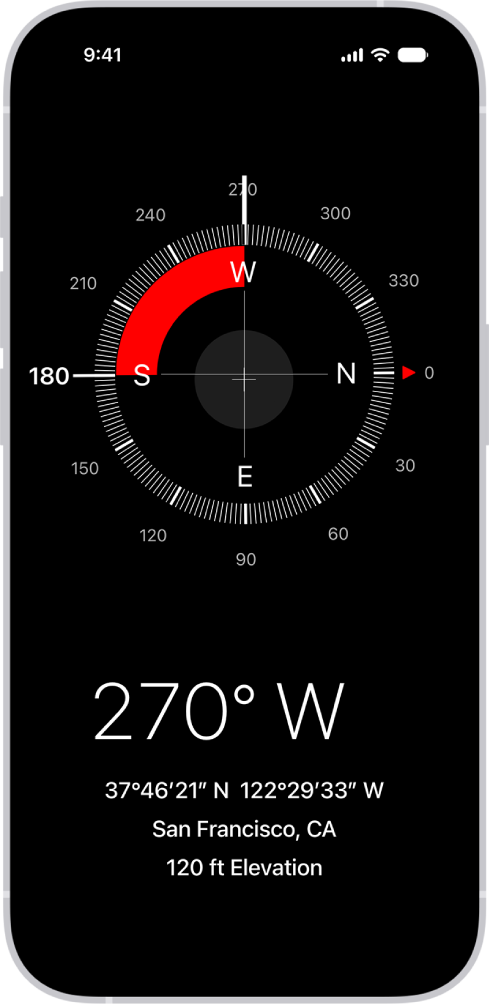
The Compass screen showing the direction iPhone is pointing in, the current location, and the elevation.

Note: Your coordinates and elevation may not be available in certain countries or regions.

See your bearings, coordinates, and elevation

Your bearings, coordinates, and elevation are shown on the screen.

  1. Start the Compass app on your iPhone.
  2. For accurate bearings, hold iPhone flat to align the crosshairs at the center of the compass.
  3. To lock your current direction, tap the compass dial.

A red band appears when you’re off course.

To open your location in Maps, tap the coordinates.

Allow Compass to access your location

If your location isn’t available in Compass, make sure you’ve turned on Location Services.

  1. Start the Settings app on your iPhone.
  2. Tap Privacy & Security and tap Location Services. Turn on Location Services.
  3. Tap Compass, then tap While Using the App.

Important: The accuracy of the compass can be affected by magnetic or environmental interference. Use the digital compass only for basic navigation assistance. Don’t rely on it to determine precise location, proximity, distance, or direction.

Tag: Compass