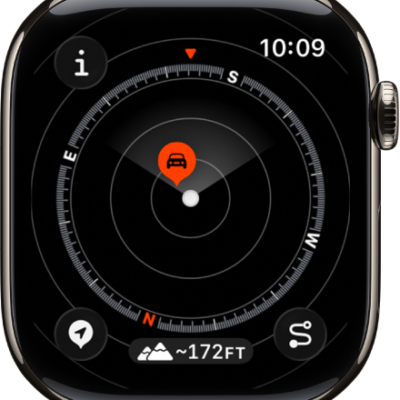
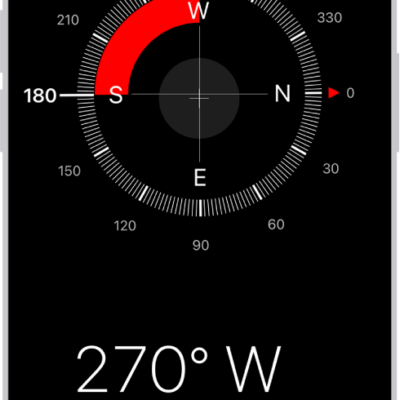
The Compass app shows the direction your Apple Watch is facing, as well as your current location and elevation. You can create waypoints and then find the distance and direction between them, or be alerted when you’ve exceeded a particular elevation.
It can even estimate the point where your Apple Watch was last able to establish a cellular connection or make an SOS call. And you can use Backtrack to retrace your steps, or use true north rather than magnetic north. You can see your bearing, elevation, and coordinates, too.
Note: Your coordinates and elevation may not be available in certain countries or regions. If you remove the Compass app from your iPhone, it’s also removed from Apple Watch.
View your bearing, elevation, and coordinates
- Open the Compass app on your Apple Watch.
-
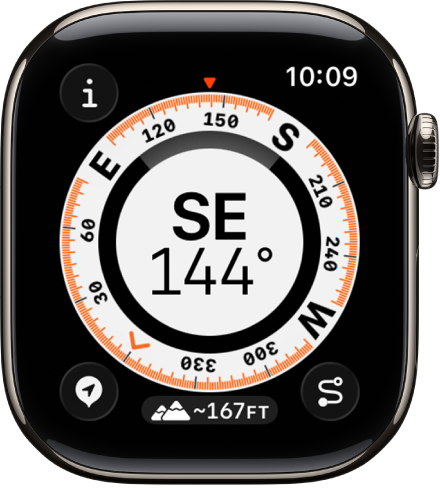
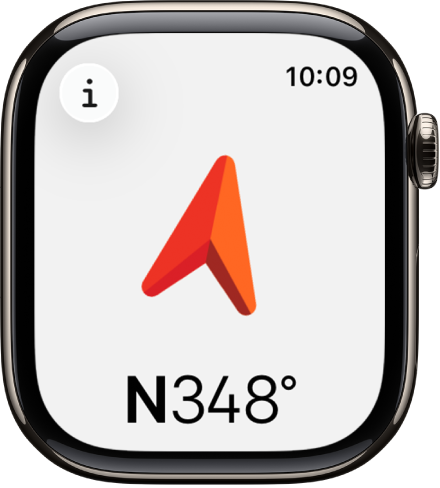
See your bearing in the center and your elevation at the bottom.
-
Do any of the following:
-
See your heading: Turn the Digital Crown up.
-
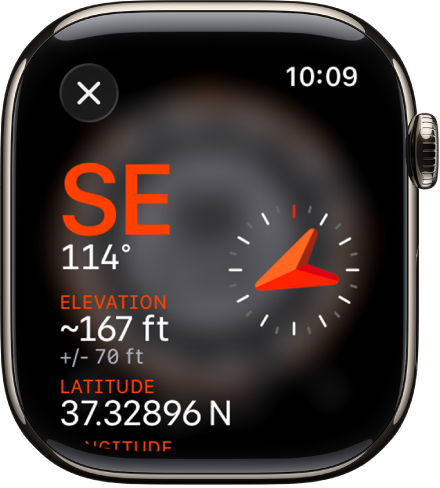
See the latitude and longitude: Tap the Info button.
-
See your heading: Turn the Digital Crown up.
Set a bearing and target elevation alert
- Open the Compass app on your Apple Watch.
- Tap the Info button.
-
Set any of the following:
- Bearing: Tap Bearing, turn the Digital Crown to the intended bearing, and then tap the Checkmark button.
-
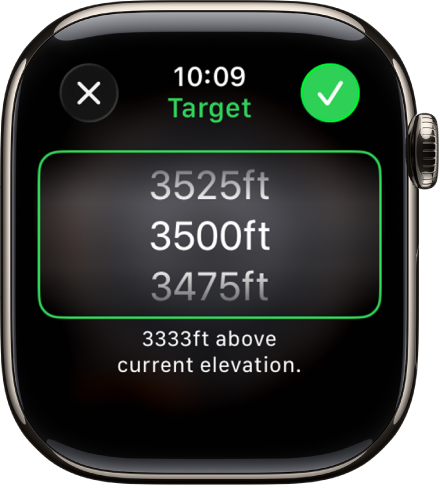
Target elevation alert: Tap Set Target Alert, turn the Digital Crown to the target elevation, and then tap the Checkmark button.
Use true north
To use true north rather than magnetic north, do the following:
- Open the Settings app on your Apple Watch.
- Tap Compass, then turn on Use True North.
On the Compass settings screen, you can also choose a grid system, such as DMS, decimal degrees, MGRS/USNG, or UTM.
If you see a red spinning radar screen
A red spinning radar screen that appears when you open the Compass app may be caused by any of the following:
- Apple Watch may be in a poor magnetic environment: Compass can be affected by magnetic materials in some watch bands.
- Location Services is turned off: To turn Location Services on or off, go to the Settings app on your Apple Watch, tap Privacy, then tap Location Services.
- Compass Calibration is disabled: To turn Compass Calibration on or off, go to the Settings app on your iPhone, go to Privacy & Security > Location Services, then tap System Services.
See also