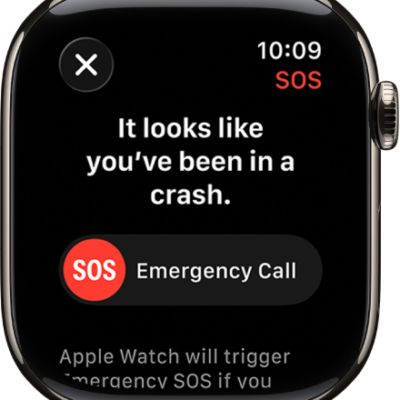
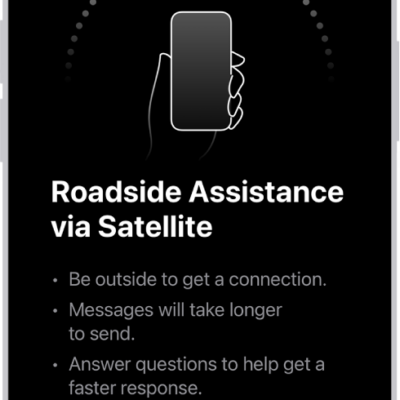
On supported Apple Watch Ultra models, you can connect to a satellite to text emergency services, message friends and family, and share your location—all while you’re off the grid without cellular and Wi-Fi coverage.
Look for the satellite icon at the top of the screen, which indicates the availability of satellite features at your location. If your iPhone is nearby and in Airplane mode, though, satellite features aren’t available on your watch.
Note: Satellite features aren’t available on Apple Watch Ultra 2 and earlier models, aren’t available in all countries and regions, and aren’t offered on models sold in certain countries and regions. Satellite features are free for 2 years after the activation of your Apple Watch Ultra. Messages and location sharing via satellite require an active carrier plan.
According to Apple, connection and response times may vary based on location, environmental conditions, and other factors. Wi-Fi, cellular, and Bluetooth connectivity may be impacted when connected to a satellite. Satellite features aren’t available on Apple Watch Ultra if your iPhone is nearby and in Airplane mode.
Connect to Emergency SOS via satellite
After you’ve set up Emergency SOS via satellite on Apple Watch Ultra, you can contact emergency services even when you’re outside of cellular and Wi-Fi coverage.
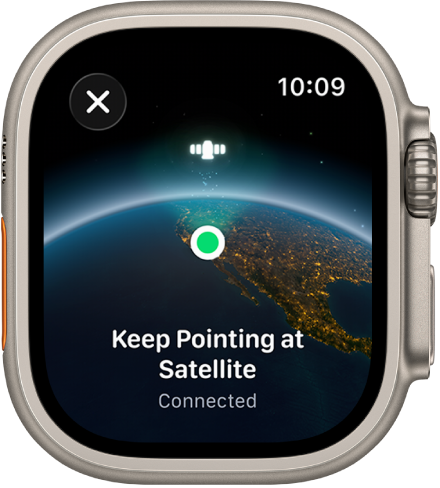
- Wear Apple Watch Ultra naturally on your wrist. Then ensure it has a clear line of sight to the sky. If you’re under heavy foliage, surrounded by other obstructions, or indoors, you might not be able to connect to a satellite.
-
Try calling your local emergency number (such as 911, 112, or 999), even if you’re outside of cellular and Wi-Fi coverage.
If your carrier’s cellular network isn’t available, Apple Watch Ultra displays the satellite icon and attempts to route any emergency calls through other networks, if available.
You can also go to the Messages app, then text your local emergency number (such as 911, 112, or 999).
-
If the call or message doesn’t go through, tap Emergency Text via Satellite.
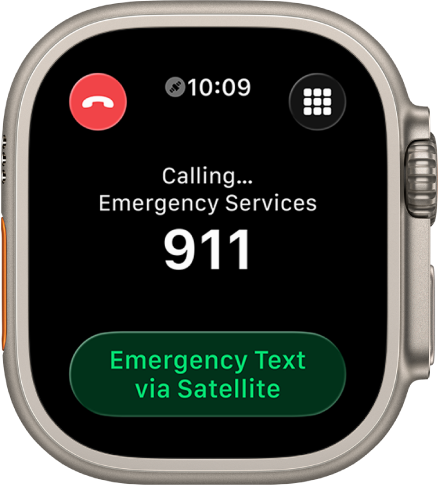
Note: While off-grid, satellite features aren’t available on Apple Watch Ultra if your iPhone is nearby and in Airplane mode.
-
Tap Report Emergency and follow the onscreen instructions, which include an emergency questionnaire.
After you’ve completed the questionnaire, Apple Watch Ultra starts a text conversation by sharing important information including your Medical ID and emergency contact details (if you’ve already set them up). It also shares your answers to the emergency questionnaire, your location (including elevation), and the battery level of Apple Watch Ultra. You can also choose to share the information you send to emergency services with your emergency contacts.
Important: If an Emergency SOS via satellite session has started and you don’t need emergency services, don’t disconnect the satellite session. Exchange messages with the responder to tell them you don’t need help.
Other satellite-enabled services may also become available, including Messages via satellite and location sharing via satellite.
Send and receive messages via satellite
If you’ve set up Messages via satellite on Apple Watch Ultra, you can swap texts, Tapbacks, and emoji with friends and family over iMessage and SMS, even outside of cellular and Wi-Fi coverage. Before they’re sent, messages are encrypted end-to-end.
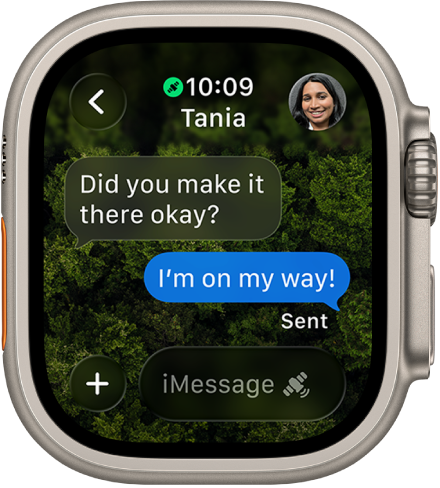
Note: Messages via satellite is designed for casual communication with family and friends, not for emergency situations. To connect with emergency services, use Connect to Emergency SOS via satellite. SMS messages via satellite require your paired iPhone to be connected to a cellular or Wi-Fi network.
- Wear Apple Watch Ultra naturally on your wrist. Then ensure it has a clear line of sight to the sky. If you’re under heavy foliage or surrounded by other obstructions, you might not be able to connect to a satellite.
-
On the watch face or in Control Center, tap the satellite icon and then tap Messages.
You can also go to the Messages app. If you see an alert that you’re outside of cellular and Wi-Fi coverage, tap Use Messages via Satellite.
- Follow the instructions to connect to a satellite, while remaining aware of your surroundings. You may be instructed to adjust your position.
- Enter your message and tap Send.
Important: It might take a few minutes to send your message via satellite; continue to follow the onscreen instructions until the message is sent.
Send your location via satellite
Sending your location works even outside of cellular and Wi-Fi coverage, as long as you’ve set up location sharing via satellite on Apple Watch Ultra.
- Wear Apple Watch Ultra naturally on your wrist. Then ensure it has a clear line of sight to the sky. If you’re under heavy foliage or surrounded by other obstructions, you might not be able to connect to a satellite.
-
On the watch face or in Control Center, tap the satellite icon and then tap Send Location.
You can also go to the Find My app.
-
Tap Update Location (available only when you’re outside of cellular and Wi-Fi coverage).
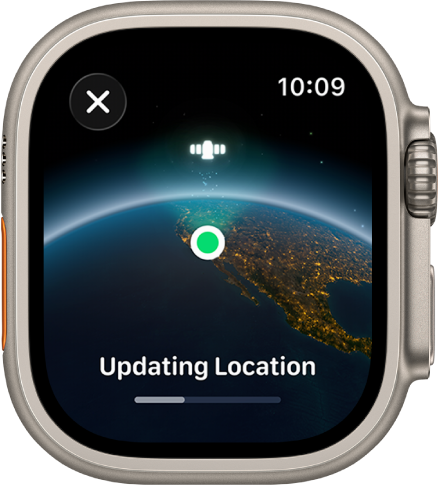
- Follow the instructions to connect to a satellite, while remaining aware of your surroundings. You may be instructed to adjust your position.
Important: It might take a few minutes to send your location via satellite; continue to follow the onscreen instructions until the location is sent. You can send your location once every 15 minutes. When you send your location via satellite, you don’t see your friend’s location in the Find My app.
See a friend’s location sent via satellite
In the Find My app, a satellite icon appears next to the picture and location of any contact who sends you their location via satellite, and their most recent location stays viewable for up to 7 days.
See also