With Crash Detection turned on, Apple Watch can help alert emergency services when a severe car crash has been detected and notify your emergency contacts.
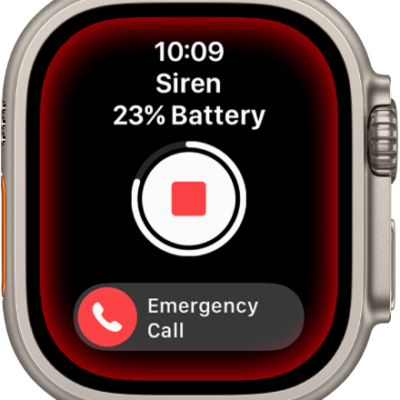
When it detects a severe crash, your watch displays an alert and initiates an emergency call unless you cancel.
Here’s how to manage Crash Detection on Apple Watch.
What is Crash Detection?
If your Apple Watch detects a severe car crash, Crash Detection can help connect you to emergency services and notify your emergency contacts.
Note: Apple Watch cannot detect all car crashes.
How Crash Detection works
When your Apple Watch detects a severe car crash, it displays an alert and initiates an emergency call unless you cancel. Crash Detection doesn’t override any existing emergency calls that were placed by other means.
-
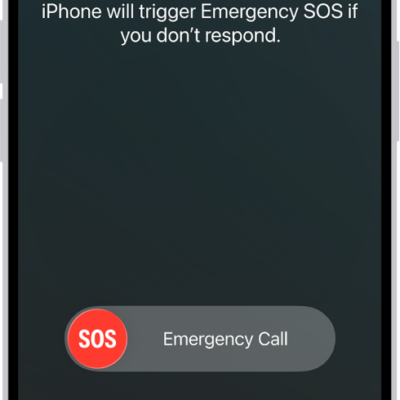
If you’re able to respond: To call emergency services, drag the Emergency Call slider to the right. Your Apple Watch makes the call to emergency services and you can speak to a responder.
If you don’t need emergency services and the call has been made, don’t hang up. Wait until a responder answers, then explain that you don’t need help.
-
If you’re unresponsive: When you haven’t initiated a call or canceled the alert after 10 seconds, your Apple Watch begins a 30-second countdown. During this countdown, Apple Watch sounds an alarm and taps your wrist to get your attention.
If you still don’t respond, your device automatically calls emergency services at the end of the countdown. It plays an audio message for emergency services, which informs them that you’ve been in a severe car crash and shares your current location as latitude and longitude coordinates with an approximate search radius. If you’ve added emergency contacts, your device sends a message to share your location and tell them you’ve been in a severe car crash.
Note: To contact emergency services, your Apple Watch or nearby iPhone needs a cellular connection or Wi-Fi calling with an internet connection.
If you’re off the grid without cellular and Wi-Fi coverage, Apple Watch can try to contact emergency services via satellite. (Available on supported Apple Watch Ultra models* or other Apple Watch models paired with iPhone 14 or later.)
Turn Crash Detection on or off
Crash Detection is on by default. To turn Crash Detection on or off, do the following:
- Start the Settings app on your Apple Watch.
- Tap SOS, tap Crash Detection, and tap Call After Severe Crash.
*Satellite features aren’t available on Apple Watch Ultra 2 and earlier models, aren’t available in all countries and regions, and aren’t offered on models sold in certain countries and regions. Satellite features are free for 2 years after the activation of your Apple Watch Ultra. Messages and location sharing via satellite require an active carrier plan.
See also
- Use satellite features on Apple Watch Ultra
- Set up satellite communications on Apple Watch Ultra
- Safety features on Apple Watch