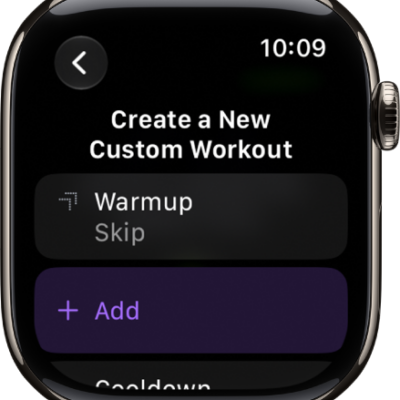
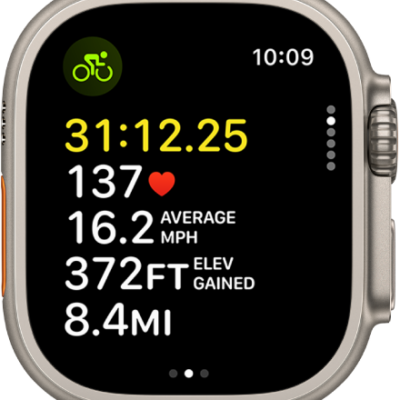
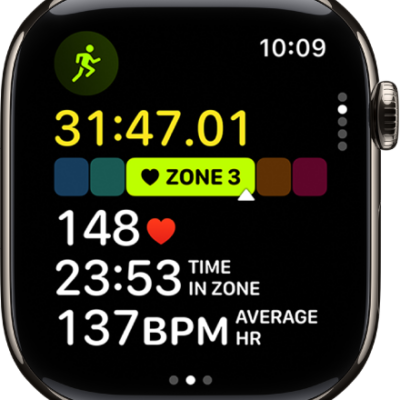
In Workout on Apple Watch, combine multiple activities into a single workout on your Apple Watch. You can also create a multisport workout with running, cycling, and swimming legs.
Your Apple Watch automatically recognizes when you’ve switched legs in a multisport workout. You can begin with an outdoor run, for example, and add an outdoor bike ride when you’re ready to start a different activity. For an outdoor workout, you can even leave your iPhone at home, since the built-in GPS gives you accurate distance measurements.
Combine multiple activities in a single workout
- Go to the Workout app on your Apple Watch.
- Begin your first workout—an outdoor run, for example.
- When you’re ready to start a different activity—like an outdoor bike ride—swipe right, tap New and choose the workout.
- When you finish all your activities, swipe right, tap End, and then tap End Workout.
- Turn the Digital Crown to scroll through the results summary.
- Scroll to the bottom and tap Done to save the workout.
Quick tip: The built-in GPS gives you accurate distance measurements, so you can leave your iPhone at home for an outdoor workout.
Create a Multisport workout
A Multisport workout combines swimming, cycling, and running workouts, and your Apple Watch recognizes on its own when you’ve switched between them.
- Open the Workout app on your Apple Watch.
-
Do one of the following:
- If this is your first multisport workout: Swipe to Multisport, then tap the Add button
- If you’ve done a multisport workout previously: Tap the More Options button, then tap the Add button.
- Tap the Add button, tap Add, and tap an activity—Outdoor Run, for example.
-
Continue adding activities by tapping Add for each activity.
You can also touch and hold activities to reorder them.
- Tap Untitled below Custom Title and enter a name for your workout.
- When you’ve added all the activities, tap Create Workout to save the workout.
- When you’re ready to start a multisport workout you’ve created, swipe to Multisport and then tap the Start button.
To delete a Multisport workout, tap the Goals button in the Multisport workout tile, swipe left on the workout, then tap the Delete button.
See also