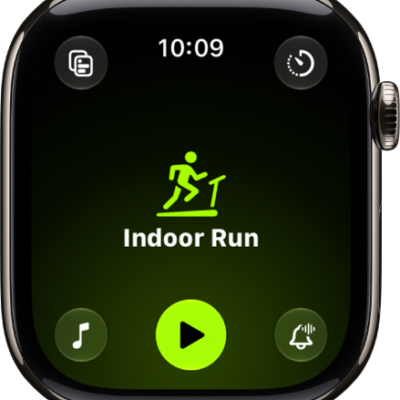
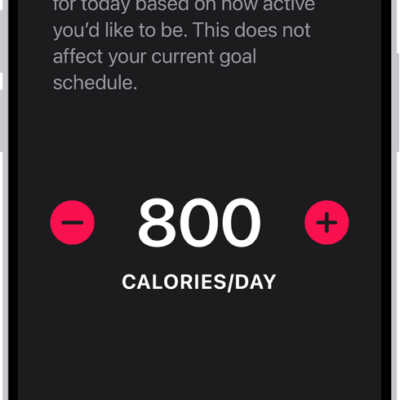
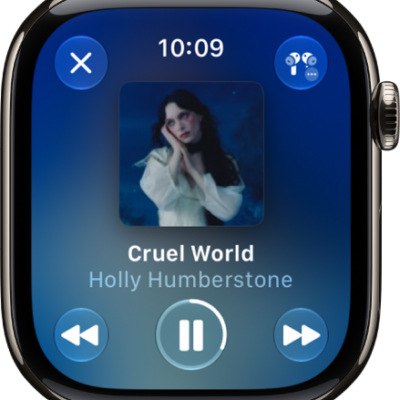
You can create a custom workout on your Apple Watch to support your fitness goals. Custom workouts include warmup and cooldown periods, and repeating work and recovery intervals. You can also add time, calorie, and distance goals; set a pace for outdoor workouts, and more.
You can add multiple work and recovery intervals, too, and even add alerts to a workout.
Here’s how to create a Custom Workout on Apple Watch.
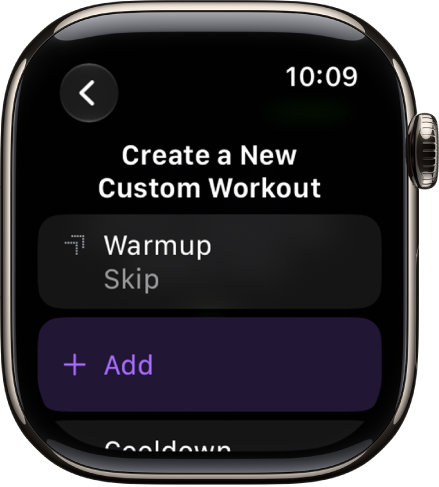
Create a Custom Workout
You’re able to tailor workouts with a time to cool down, a warmup period, and repeating work and recovery intervals.
- Go to the Workout app on your Apple Watch.
- Turn the Digital Crown to the workout you want to do.
- Tap the Goals button and tap Custom. Then tap the Add button.
-
Do any of the following:
- Add a warmup period: Tap Warmup, then tap Time, Distance, or Open. You can also add a heart rate alert to the warmup period.
-
Add work and recovery intervals: Tap Add and tap Work or Recovery. Choose Time, Distance, or Open.
You can add multiple work and recovery intervals.
- Add a cooldown period: Tap Cooldown and tap Time, Distance, or Open. When you choose Open, you can also add a heart rate alert.
- Name the workout: Tap New Custom Workout below Custom Title. Then enter a name.
Note: If you’re doing a stationary workout—Elliptical or Pilates, for example—Distance isn’t an option.
-
Tap Create Workout.
Note: The Create Workout button is active only if you’ve added a work or recovery interval.
To remove warmup or cooldown periods, tap the More button next to the workout, tap Custom, tap the Edit button in the Custom Workout tile, tap Warmup or Cooldown, tap Goal Type, then tap Skip. To remove a work or recovery interval, swipe left, then tap the Delete button.
All workout types offer Custom Workouts. Multisport and Open Water Swim are the exceptions.
Add a workout goal
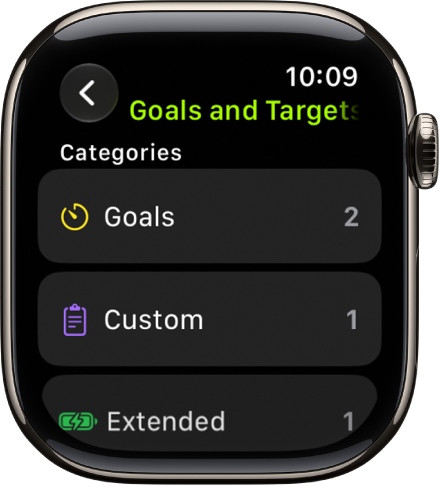
Each workout type can have its own time, distance, and calorie goals.
- Open the Workout app on your Apple Watch.
- Turn the Digital Crown to the workout you want to do.
- Tap the Goals button and tap Custom. Then tap the Add button.
- Tap a goal such as Calories, Distance, or Time; choose a value; then tap Done.
- Tap the goal to begin the workout.
To edit goals for a workout, scroll to the workout, tap the More Options button, tap Goals, tap the Edit button next to the goal, tap the goal, make your change, then tap Done.
To delete a goal, swipe left on the goal, then tap the Delete button.
Use the Up Next workout view
During a Custom Workout, check the Up Next workout view. It shows what’s remaining in your current interval and what’s coming next.
- Open the Workout app on your Apple Watch.
- During a workout, turn the Digital Crown to the Up Next workout view.
Add alerts to a workout
A variety of alerts can come up during a workout. On an Outdoor Run workout, for example, you’ll get an alert when your heart rate falls within 133 – 141 beats per minute.
- Open the Workout app on your Apple Watch.
- Turn the Digital Crown to the workout you want to do.
- Tap the Alerts button, tap an alert you want to receive, and configure the alert.
Any alerts you add apply whenever you do that workout.
See also
- Combine multiple workouts on Apple Watch
- Start a workout on Apple Watch
- Go for a swim with Apple Watch