You can set media to automatically play when you begin a workout type—either media selected for you by Apple Music based on the workout type and the music you love (Apple Music subscription required), or media you choose yourself. You’ll set it up separately for each workout type.
Note: To automatically play audio during a workout, you need Bluetooth® headphones or speakers, since audio won’t play automatically through the Apple Watch speaker (supported models). For more, see our guide, Choose an audio destination.
Choose audio for a workout
- Go to the Workout app on your Apple Watch.
-
Turn the Digital Crown to the workout you want to do.
To view all workouts, tap the Add button at the bottom of the screen.
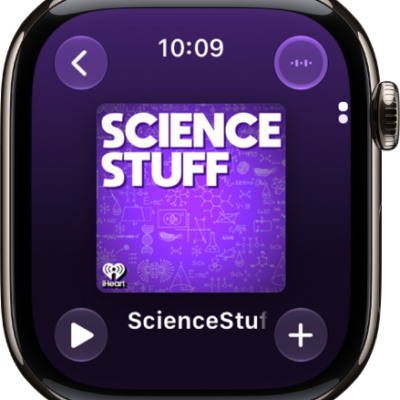
- Tap the Media Playback button. Then turn on Autoplay Media.
-
Pick what media is played:
- To have media play automatically based on what you listen to and the type of workout, tap Picked for You (Apple Music subscription required).
-
To choose a suggested option, tap Choose Media, tap Add Media, then tap an option below Suggestions.
Note: Suggestion for a workout type are based on what you’ve recently listened to. To view more options, tap Music or Podcasts below Sources.
- To choose a playlist, tap Choose Media, tap Add Media, tap Music, tap Playlist, then choose a playlist.
- When you’re finished, tap the Back button.
- When you’re ready start your workout, tap the Start button.
Note: If you’re already listening to music or other audio before you begin your workout, it continues to play.
See also