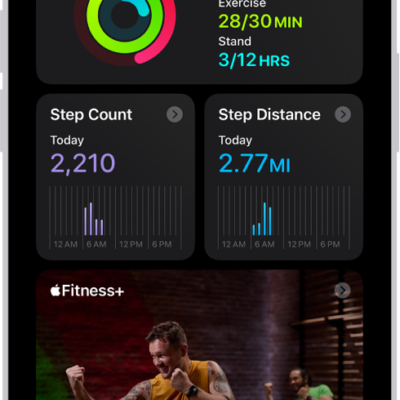
You can set notifications to help you reach your daily activity goals. You can also update your health details, change goals, set unit of measurement preferences, and change settings for your workouts.
In your workout settings, you can have Siri read your workout alerts, automatically pause workouts when you stop moving, and receive a confirmation when you’re ready to end your workout. All of these settings start from your picture or initials in the Fitness app’s Summary tab.
Change Fitness notifications
- Open the Fitness app on your iPhone.
- Tap Summary, then tap your picture or initials.
- Tap Notifications, then turn off the notifications you no longer want to see.
Update your health details
Update your height, weight, or wheelchair status, or add a pregnancy in Health.
- Open the Fitness app on your iPhone.
- Tap Summary, then tap your picture or initials.
- Tap Health Details and then make any changes.
Set unit of measurement preferences
- Open the Fitness app on your iPhone.
- Tap Summary, then tap your picture or initials.
- Tap Units of Measure, then make any changes.
Change settings for your workouts
- Open the Fitness app on your iPhone.
- Tap Summary, then tap your picture or initials.
- Tap Workout, then do any of the following:
- Have Siri read your workout alerts: Turn Voice Feedback on or off.
- Get a reminder to send a Workout Check In: Turn Check In Reminders on or off.
- Automatically pause workouts when you stop moving: Tap Auto-Pause, then turn Auto-Pause on or off.
- Receive a confirmation when you’re ready to end your workout: Turn End Workout Confirmation on or off.
- Choose units of measurement: Tap Units of Measure, then make any changes.
Tag: Fitness