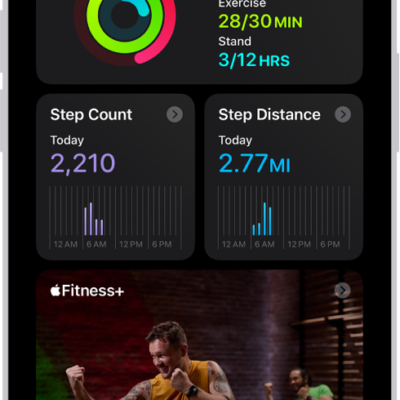
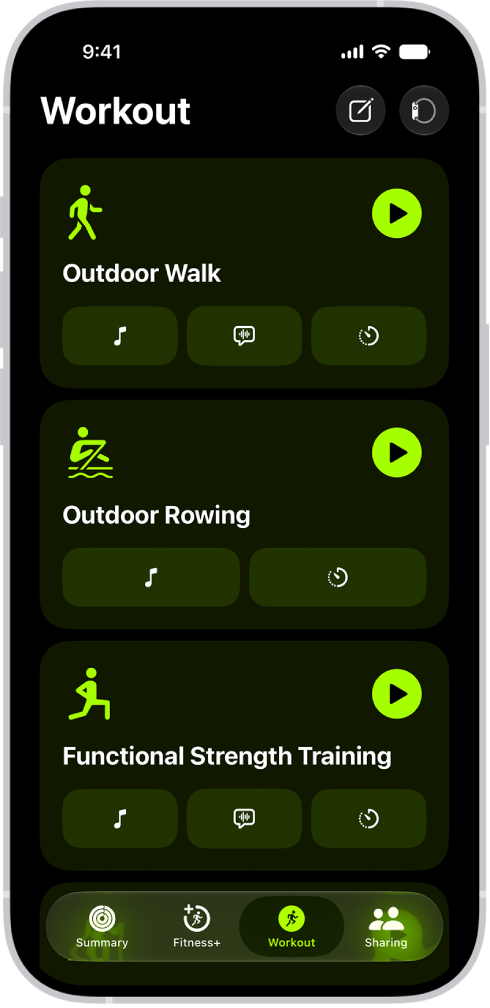
You can start individual workout sessions, from cardio-focused options such as High Intensity Interval Training (HIIT), Outdoor Run, and Outdoor Cycle, to strength-based workouts like Functional Strength Training, Core Training, and Kickboxing.
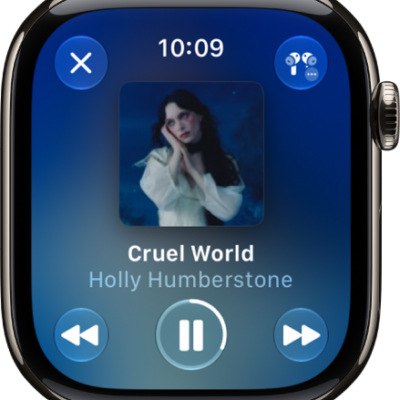
You can also set media to automatically play when you begin a workout type. If you subscribe to Apple Music, Apple Music selects media based on the workout type and the music you love, or you can choose media yourself. Workout metrics can appear on your iPhone screen, too, when it’s connected to an Apple Watch or a compatible heart rate monitor.
With just an iPhone, these are the workout types you can do:
- Outdoor Walk
- Outdoor Run
- Hiking
- Outdoor Push Walking Pace
- Outdoor Push Running Pace
- Outdoor Cycle
Connecting Powerbeats Pro 2, AirPods Pro 3, an Apple Watch, or a compatible Bluetooth enabled third-party heart rate monitor lets you see workout metrics on the screen during a workout.
Note: Connecting iPhone to AirPods Pro 3 or a third-party heart rate monitor gives you more workout types, like Kickboxing and Pilates. With an Apple Watch, you get all workout types.
Connect a heart rate device
Before you start a workout on your iPhone, check that you’ve connected Powerbeats Pro 2, AirPods Pro 3, an Apple Watch, or Bluetooth® enabled third-party heart rate monitors linked to the Health app.
If you do not have a heart rate device connected, do the following:
- Start the Fitness app on your iPhone.
- Tap Workout, then tap the Heart Rate Devices button.
- Tap Bluetooth Settings and then pair your iPhone with a Bluetooth accessory.
Start a workout
- Start the Fitness app on your iPhone.
-
Tap Workout and scroll to the workout type you want to do.
To see more workout types, tap the Add button.
- To start the workout, tap the Start button.
Choose audio for a workout
Media can play automatically when you begin a workout type, whether it’s media you choose yourself or media picked for you based on what you normally listen to.
- Start the Fitness app on your iPhone.
- Tap Workout, scroll to a workout type, and then tap the Media Playback Off button.
- Turn on Autoplay Media.
- If you subscribe to Apple Music, you can have media play automatically based on the workout type and the music you listen to. Tap Picked for You.
-
To choose your own media, tap Choose Media and tap Add Media. Do one of the following:
-
Choose a suggested option: Tap an option below Suggestions.
Tip: To view more suggestions, tap Music or Podcasts below Sources.
- Choose a playlist: Tap Music, tap Playlists, and then choose a playlist.
-
Choose a suggested option: Tap an option below Suggestions.
- When you’re finished, tap the Done button.
Note: Music or other audio you’re already listening to keeps playing when you begin your workout.
Use the workout controls
During a workout, you can lock controls, send a Check In, mark a segment, pause, and more, then view a summary of how you did when you finish.
- Start the Fitness app on your iPhone.
-
Start a workout, then do any of the following:
- Pause the workout: Tap the Pause button.
- Resume the workout: Tap the Resume button.
- Mark a segment: Tap the Segments button.
- Connect a heart rate device: Tap Connected Devices.
- End the workout: Swipe up from the bottom of the screen and tap End Workout. Review the workout summary and tap the Done button.
- Mute Workout Buddy: Swipe up from the bottom of the screen and then tap Mute.
- Start a Check-In: Swipe up from the bottom of the screen, tap Check-In, then follow the onscreen instructions.
-
Stop viewing metrics on iPhone (Apple Watch required): Swipe up from the bottom of the screen. Tap Stop Viewing.
Note: To start viewing again, swipe right on your Apple Watch, then tap View.
- Lock the workout controls: Swipe up from the bottom of the screen, then tap Lock Controls.