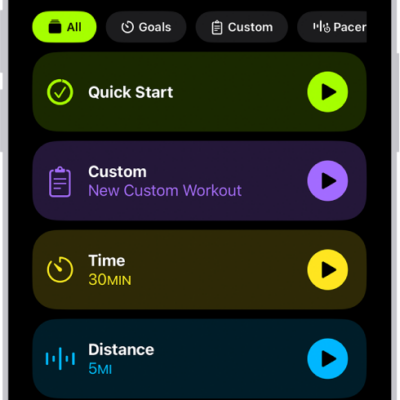
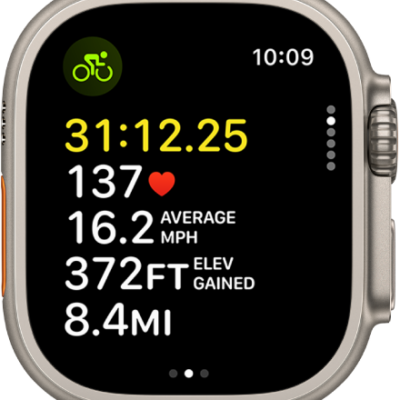
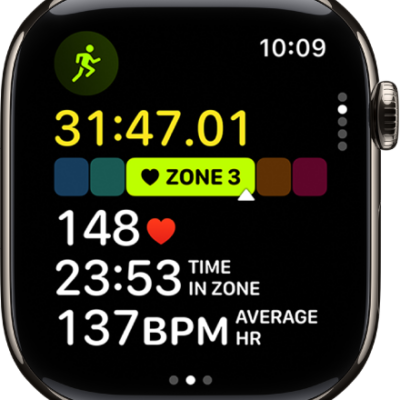
Choose a target pace for a running workout, and your watch shows if you’re ahead or behind that pace. You can also race against your last or best time on a route you do often. And for a track workout, your Apple Watch helps detect when you arrive at a track.
Start a running workout
- Go to the Workout app on your Apple Watch.
- Turn the Digital Crown to Outdoor Run.
- When you’re ready to go, tap the Start button.
Create a Pacer workout
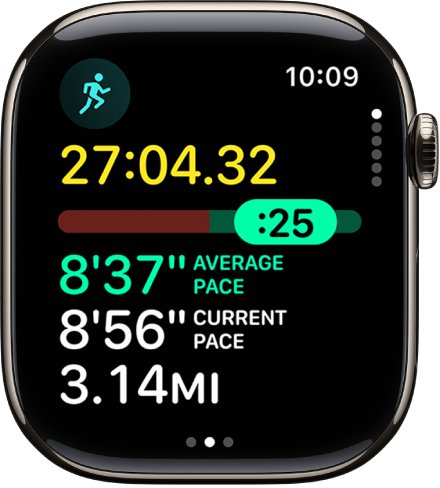
If you choose a target pace for a running or outdoor cycle workout, your Apple Watch shows if you’re ahead or behind that pace.
- Start the Workout app on your Apple Watch.
- Turn the Digital Crown to Outdoor Run, Indoor Run, or Outdoor Cycle and then tap the Goals button.
- Tap Pacer and then tap the Add button.
- Adjust the distance—5 miles, for example—then tap Next.
-
Adjust the target time for running or cycling that distance. Tap Done.
During your workout, your Apple Watch shows your average pace and your current pace, and a graph shows whether you are ahead or behind your chosen pace.
Your Apple Watch remembers your target pace across workouts. To change it, swipe to Outdoor Run, tap the Goals button, tap Pacer, tap the Edit button in the Pacer tile, tap Distance • Time, then edit the distance and time.
Use Race Route to race your last or best time
On a route you run or cycle often, you can race against your last or best time. Routes generate automatically and become available after you’ve done the same route at least two or more times with little to no deviation.
- Start the Workout app on your Apple Watch.
- Tap the Goals button next to an Outdoor Run or Outdoor Cycle workout.
-
Tap Race Route, then select Last or Personal Best.
During the workout, your Apple Watch shows how far ahead or behind you are compared with the route you’re racing as well as the remaining distance. If you deviate from the route, Proceed To Route appears on the screen until you return to the original route.
Available Race Routes appear as a suggested workout when you’re close to the starting point of a route you’ve previously run. You can view all available routes by tapping Suggested, then selecting Route.
Run on a track
Your Apple Watch automatically helps detect when you’ve arrived at a track. Start an Outdoor Run workout there, and your watch offers to start a Track workout.
- Start the Workout app on your Apple Watch.
-
Swipe to Outdoor Run.
If your Apple Watch detects that you’re at a track, you’re prompted to choose a lane.
-
Tap Choose Lane, use the plus or minus button to choose a lane and then tap Confirm.
Note: If you change lanes while you’re working out, swipe right on the watch face, tap Lane, then enter your new lane.
-
If this is the first time you’ve performed a Track workout, choose a measurement unit (Miles or Meters) and tap Confirm.
To change the measurement unit later, go to the Settings app, go to Workout > Units of Measure, then choose a unit below Automatic Track Detection.
Note: Your Apple Watch alerts you if you leave a track during your workout.
To receive an alert that shows your distance, time, and pace when completing a lap around the track, swipe to Outdoor Run, tap the Alerts button, scroll down, tap Track Lap, then turn on Lap Alert.
See also