Got a tip for us?

Fitness

On Apple Watch, the workout views you see depend on the kind of workout you’re doing. Cardio-focused workouts have more workout views by default, but you can edit some of them to suit your workout style.

You can also reorder workout views. On Apple Watch Ultra models, you can even add a fifth metric to Metrics and Metrics 2, which show four by default.

Here’s how to customize workout views on Apple Watch.

Customize workout views

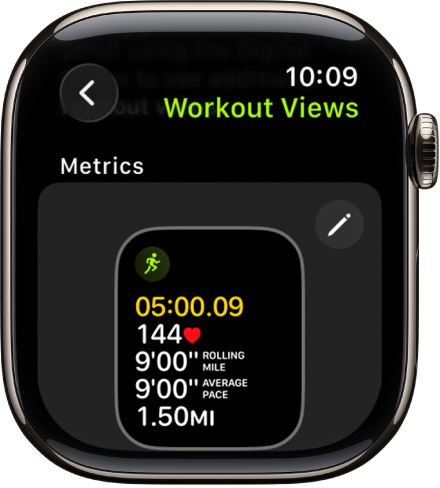
The Workout Views screen, showing the Metrics workout view for a Hiking workout.

  1. Go to the Workout app on your Apple Watch.
  2. Turn the Digital Crown to the workout you want.
  3. Tap the Views button, scroll through the workout views, and tap Include next to the workout views you want to appear during the workout.
  4. To select the metrics that appear in the first two workout views, tap the Edit button in the Metrics or Metrics 2 set and tap a metric. Then choose a different metric.

Quick tip: Metrics and Metrics 2 show four metrics by default on Apple Watch Ultra models, and you can add a fifth. Choose a workout, tap Preferences, and then tap [workout] Workout Views. Next, tap the Edit button in the Metrics or Metrics 2 tile and tap the empty field at the bottom of the list, and then choose another metric.

Reorder workout views

  1. Open the Workout app on your Apple Watch.
  2. Turn the Digital Crown to the workout you want to do.
  3. Tap the Views button, scroll down, and then tap Reorder.
  4. Touch and hold a workout view. Drag it to change the order.

See also

Tag: Fitness

Calibrating your Apple Watch improves the accuracy of your distance, pace, and calorie measurements, and it can help your watch learn your fitness level and stride. That improves accuracy when GPS is limited or unavailable. And if you prefer meters to yards or kilojoules to calories, the Workout app can use different measurement units.

Calibrate your Apple Watch

To improve the accuracy of your distance, pace, and calorie measurements, you can calibrate your Apple Watch. Doing so also helps your watch learn your fitness level and stride, for better accuracy when GPS is limited or unavailable.

  1. While wearing your Apple Watch, go to a flat, open outdoor area that offers good GPS reception and clear skies.
  2. Go to the Workout app, swipe to Outdoor Walk or Outdoor Run, and then tap the Start button.

    To set a goal before starting, see Add a workout goal.

  3. Walk or run at your normal pace for about 20 minutes.

The 20 minutes don’t have to happen in one workout, since you can complete them over multiple outdoor Workout sessions. For workouts at different speeds, calibrate for 20 minutes at each of the speeds you walk or run, too.

Change measurement units

The measurement units the Workout app uses can switch to meters instead of yards or kilojoules instead of calories, if you prefer.

  1. Open the Settings app on your Apple Watch.
  2. Tap Workout and scroll down. Then tap Units of Measure.

Units for walking and running workouts, cycling workouts, pool length, and energy are all adjustable.

Turn Precision Start on or off (Apple Watch Ultra models)

Precision Start, on Apple Watch Ultra models, starts a workout without a countdown.

  1. Open the Settings app on your Apple Watch.
  2. Tap Workout and turn on Precision Start.

After selecting a workout, swipe left and tap Start (or press the Action button if you’ve set it to Workout).

Pause running and cycling workouts automatically

  1. Open the Settings app on your Apple Watch.
  2. Tap Workout, tap Auto-Pause, and turn on Auto-Pause.

Your Apple Watch automatically pauses and resumes your outdoor running and cycling workouts—for example, if you stop to cross the street or get a drink of water. You can manually pause your workouts by pressing the side button and Digital Crown at the same time.

Turn End Workout Confirmation on or off

When you’re finished working out, a confirmation can let you know you’re ready to end your workout.

  1. Open the Settings app on your Apple Watch.
  2. Tap Workout, then turn on End Workout Confirmation.

Turn workout reminders on or off

Your Apple Watch senses when you’re moving during walking, running, swimming, and other workouts, and alerts you to start the Workout app, even giving you credit for the exercise you’ve already done. In case you get distracted when you’re cooling down, it also reminds you to end your workout, or to resume one you’ve paused.

  1. Open the Settings app on your Apple Watch.
  2. Tap Workout and then change the Start Workout, Resume Workout, and End Workout reminder settings. (Workout reminders are on by default.)

You can also open the Apple Watch app on your iPhone, tap My Watch, tap Workout, then change the workout reminder settings.

Avoid accidental taps

If the exercise you’re doing or the gear you’re wearing causes accidental taps on your Apple Watch, you can turn on the water lock so your workout isn’t interrupted.

  1. Press the side button to open Control Center on Apple Watch.
  2. Tap the Water Lock button.

You can create a custom workout on your Apple Watch to support your fitness goals. Custom workouts include warmup and cooldown periods, and repeating work and recovery intervals. You can also add time, calorie, and distance goals; set a pace for outdoor workouts, and more.

You can add multiple work and recovery intervals, too, and even add alerts to a workout.

Here’s how to create a Custom Workout on Apple Watch.

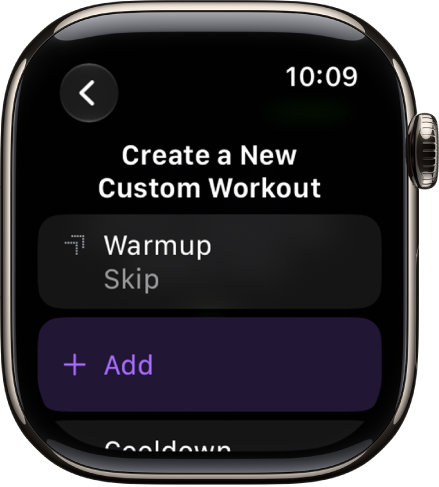
The Workout app showing a screen for creating a Custom Workout.

Create a Custom Workout

You’re able to tailor workouts with a time to cool down, a warmup period, and repeating work and recovery intervals.

  1. Go to the Workout app on your Apple Watch.
  2. Turn the Digital Crown to the workout you want to do.
  3. Tap the Goals button and tap Custom. Then tap the Add button.
  4. Do any of the following:

    • Add a warmup period: Tap Warmup, then tap Time, Distance, or Open. You can also add a heart rate alert to the warmup period.
    • Add work and recovery intervals: Tap Add and tap Work or Recovery. Choose Time, Distance, or Open.

      You can add multiple work and recovery intervals.

    • Add a cooldown period: Tap Cooldown and tap Time, Distance, or Open. When you choose Open, you can also add a heart rate alert.
    • Name the workout: Tap New Custom Workout below Custom Title. Then enter a name.

    Note: If you’re doing a stationary workout—Elliptical or Pilates, for example—Distance isn’t an option.

  5. Tap Create Workout.

    Note: The Create Workout button is active only if you’ve added a work or recovery interval.

To remove warmup or cooldown periods, tap the More button next to the workout, tap Custom, tap the Edit button in the Custom Workout tile, tap Warmup or Cooldown, tap Goal Type, then tap Skip. To remove a work or recovery interval, swipe left, then tap the Delete button.

All workout types offer Custom Workouts. Multisport and Open Water Swim are the exceptions.

Add a workout goal

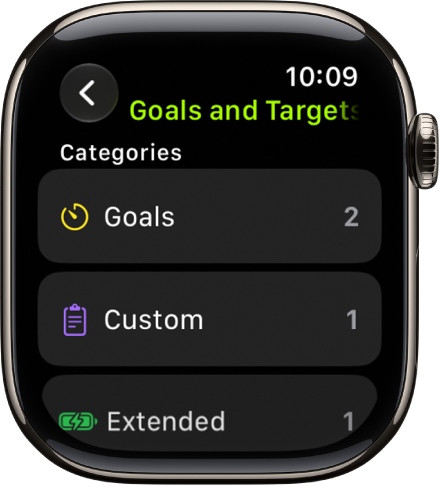
The Workout app showing created goals, Custom Workouts, and a Pacer workout.

Each workout type can have its own time, distance, and calorie goals.

  1. Open the Workout app on your Apple Watch.
  2. Turn the Digital Crown to the workout you want to do.
  3. Tap the Goals button and tap Custom. Then tap the Add button.
  4. Tap a goal such as Calories, Distance, or Time; choose a value; then tap Done.
  5. Tap the goal to begin the workout.

To edit goals for a workout, scroll to the workout, tap the More Options button, tap Goals, tap the Edit button next to the goal, tap the goal, make your change, then tap Done.

To delete a goal, swipe left on the goal, then tap the Delete button.

Use the Up Next workout view

During a Custom Workout, check the Up Next workout view. It shows what’s remaining in your current interval and what’s coming next.

  1. Open the Workout app on your Apple Watch.
  2. During a workout, turn the Digital Crown to the Up Next workout view.

Add alerts to a workout

A variety of alerts can come up during a workout. On an Outdoor Run workout, for example, you’ll get an alert when your heart rate falls within 133 – 141 beats per minute.

  1. Open the Workout app on your Apple Watch.
  2. Turn the Digital Crown to the workout you want to do.
  3. Tap the Alerts button, tap an alert you want to receive, and configure the alert.

Any alerts you add apply whenever you do that workout.

See also

Tag: Fitness

Apple Watch can track your swims. When you start a swimming workout, your Apple Watch locks the screen with Water Lock to avoid accidental taps. A Pool Swim workout automatically tracks your sets and when you rest, and the summary displays the kinds of strokes you used and the total distance.

Start a swimming workout

  1. Go to the Workout app on your Apple Watch.
  2. Turn the Digital Crown to Open Water Swim or Pool Swim.
  3. Tap the Start button.

    For Pool Swim workouts, set the pool length, then tap Start.

  4. When you’re finished, press and hold the Digital Crown to unlock your Apple Watch and tap End.

    The pool swim workout automatically tracks your sets and when you rest. The summary on your Apple Watch displays the kinds of strokes you used and the total distance you swam. You can find the pace for each set in the workout summary on your iPhone.

To pause or resume your swim, press the Digital Crown and side button at the same time. To review your swimming workout summary, unlock your Apple Watch, then tap End.

Manually clear water after swimming

When you start a swimming workout, your Apple Watch automatically locks the screen with Water Lock to avoid accidental taps.

  1. After your swim, press the side button to open Control Center and then tap the Water Lock button.
  2. Press and hold the Digital Crown to unlock the screen and clear water from the speaker.

    You hear sounds and may feel some water on your wrist.

See also

Tag: Fitness

The Workout app offers a variety of fitness options—from cardio-focused workouts such as High Intensity Interval Training (HIIT), Outdoor Run, and Outdoor Cycle, to strength-based workouts like Functional Strength Training, Core Training, and Kickboxing. During your workout, you can pause and resume, mark segments, start a Check-In, and more.

The order of workouts reflects your preferences as you use the app. And for wheelchair users, there’s an outdoor push workout that tracks pushes instead of steps, at a walking pace or running pace.

Siri: Ask Siri something like, “Start a 30-minute outdoor run.”

Start a workout

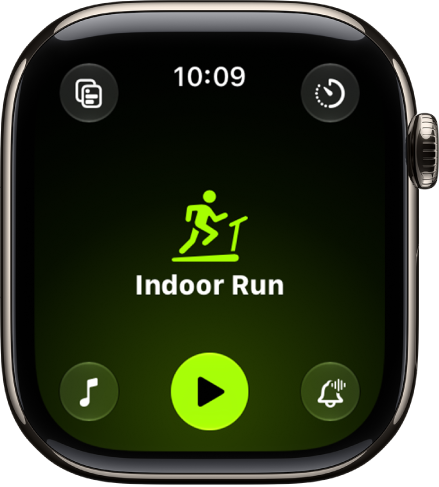
The Workout screen with the Outdoor Run workout highlighted.

  1. Open the Workout app on your Apple Watch.
  2. Turn the Digital Crown to the workout you want to do.

    To view all workouts, scroll down, then tap the Add button at the bottom of the workout list.

  3. When you’re ready to start your workout, tap the Play button.

    Tip: You can also tap the center of the screen to quickly start your workout. And on Apple Watch Ultra models, you can start a workout with the Action button. See Customize the Action button.

As you use the app and choose workouts, the order of workouts reflects your preferences.

Quick tip: A workout widget in your Smart Stack can show your three most recent workout types. See our article, Use the Smart Stack to show timely widgets.

Start an outdoor push workout

If you’ve specified that you use a wheelchair, the Workout app can start an outdoor push workout, with your Apple Watch tracking pushes instead of steps. You can choose walking pace or running pace, too. Read our guide, Track daily activity with Apple Watch.

  1. Open the Workout app on your Apple Watch.
  2. Turn the Digital Crown to Outdoor Push Running Pace or Outdoor Push Walking Pace.
  3. When you’re ready to start your workout, tap the Start button.

Conserve power during workouts

Starting an Extended Workout turns on Low Power Mode, and certain workout metrics are unavailable depending on the workout type. For Outdoor Walk, Outdoor Run, and Hiking workouts, you can also start a Max Extended Workout, where certain metrics and splits aren’t available.

  1. Open the Workout app on your Apple Watch.
  2. Turn the Digital Crown to the workout you want to do.
  3. Tap the Goals button, tap Extended, and tap Extended Workout or Max Extended Workout (if available).

You can also automatically turn on Low Power Mode for all workouts. Go to the Settings app, tap Workout, then turn on Low Power Mode.

During workouts, Low Power Mode turns off certain features, such as Always On Display, background heart rate and blood oxygen measurements, and heart rate notifications. Other notifications may be delayed, emergency alerts may not arrive, and certain cellular and Wi-Fi connections are limited. Cellular is turned off until you require it—when you stream music or send a message, for example.

Use the workout controls

  1. Open the Workout app on your Apple Watch.
  2. Start a workout.
  3. Swipe right, then do any of the following:

    • Pause the workout: Tap Pause.

      Tip: To pause the workout at any time, press the side button and the Digital Crown at the same time.

    • Add a workout: Tap New and tap a workout type. Tap Quick Start, or select a custom workout.
    • Mark a segment: Tap Segment. You can also double-tap the display.
    • Stop viewing the workout on your iPhone: Tap Stop. To resume viewing on iPhone, tap View.
    • Mute Workout Buddy*: Tap Mute. To learn more, see Set Up Workout Buddy.
    • Start a Check In: Tap Check In and then follow the onscreen instructions. To learn more, see Start a Check In from Workout.
    • End the workout: Tap End. Turn the Digital Crown to rate your effort and view the workout summary and tap the End button at the top.

Check your progress during a workout

  1. Open the Workout app on your Apple Watch.
  2. Start a workout.
  3. Do any of the following:

    • See your workout stats: Raise your wrist to see your workout stats, including your goal completion ring, elapsed time, average pace, distance covered, calories burned, and heart rate.

      Note: There’s no goal ring if you haven’t set a goal.

    • Switch workout views: Turn the Digital Crown.

      To change the workout views you want to see during a workout, see Customize workout views.

You can also receive voice feedback for key alerts and progress against your Activity rings. To turn Voice Feedback on or off, go to the Settings app on your Apple Watch, tap Workout, then tap Voice Feedback.

Rate your effort

You can adjust estimated ratings of how hard you exercised after completing a cardio-focused workout. Each rating factors in your VO2 max, heart rate, and personal data like age, height, and weight.

  1. Open the Workout app on your Apple Watch.
  2. Start a workout.
  3. When you’re finished with your workout, swipe right, then tap End.
  4. Turn the Digital Crown to indicate your effort. Then tap the Done button.

    Note: To change your rating, turn the Digital Crown to scroll through the workout summary, tap Effort, then make a change.

  5. When you’re finished, tap the End button at the top.

To edit your effort rating on iPhone, go to the Fitness app on your iPhone, tap Sessions, tap a workout, tap Effort, drag the slider to change your rating, then tap Update.

*Apple Intelligence is available with Siri and device language set to Chinese (Simplified), Chinese (Traditional), Danish, Dutch, English, French, German, Italian, Japanese, Korean, Norwegian, Portuguese, Spanish, Swedish, Turkish, or Vietnamese. Some features may not be available in all regions or languages. Some devices may not be available in all regions. Siri AI is available in beta in iOS 27, iPadOS 27, macOS 27, watchOS 27, and visionOS 27 and requires an Apple Intelligence–enabled device set to a supported language. Available in English to start. Siri AI will not be initially available in the EU on iOS, iPadOS, and watchOS. Certain Apple Intelligence features that rely on server-side models are subject to daily usage limits, including but not limited to Siri AI, Intelligent Photo Editing Tools, Image Playground, and AFM 3 Cloud models in Shortcuts. Daily limits may vary by feature, request complexity, system demand, system policies, and other factors. Expanded access to such features will be available for a fee in the future. Use of these features is subject to the Apple Intelligence Terms and Conditions.

See also

Tag: Fitness

You can set media to automatically play when you begin a workout type—either media selected for you by Apple Music based on the workout type and the music you love (Apple Music subscription required), or media you choose yourself. You’ll set it up separately for each workout type.

Note: To automatically play audio during a workout, you need Bluetooth® headphones or speakers, since audio won’t play automatically through the Apple Watch speaker (supported models). For more, see our guide, Choose an audio destination.

Choose audio for a workout

  1. Go to the Workout app on your Apple Watch.
  2. Turn the Digital Crown to the workout you want to do.

    To view all workouts, tap the Add button at the bottom of the screen.

  3. Tap the Media Playback button. Then turn on Autoplay Media.
  4. Pick what media is played:

    • To have media play automatically based on what you listen to and the type of workout, tap Picked for You (Apple Music subscription required).
    • To choose a suggested option, tap Choose Media, tap Add Media, then tap an option below Suggestions.

      Note: Suggestion for a workout type are based on what you’ve recently listened to. To view more options, tap Music or Podcasts below Sources.

    • To choose a playlist, tap Choose Media, tap Add Media, tap Music, tap Playlist, then choose a playlist.
  5. When you’re finished, tap the Back button.
  6. When you’re ready start your workout, tap the Start button.

Note: If you’re already listening to music or other audio before you begin your workout, it continues to play.

See also

Tags: Fitness, Music

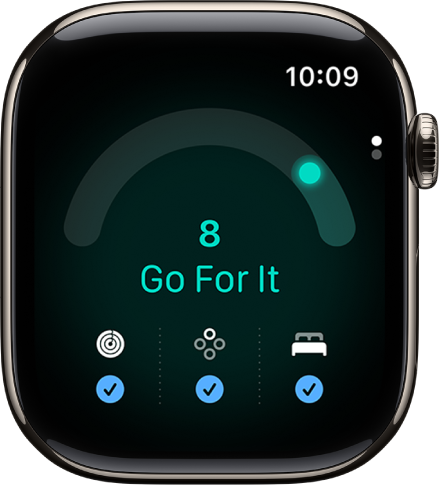
In the Readiness app on Apple Watch, you can view a readiness score that helps you understand when you are likely ready to push yourself and when it’s time to take a rest. You’ll need to set up Activity and Sleep, and wear your watch to bed for at least 7 nights first.

The Readiness app showing a readiness score.

Note: The Readiness app is available on Apple Watch Series 12 and Apple Watch Ultra 4 for ages 13 and older.

Ranging from 0-10, your readiness score takes into account the following metrics:

  • Activity: Recent Activity data including active calories, workout effort ratings, and training load data.
  • Vitals: Overnight metrics like heart rate, respiratory rate, wrist temperature, heart rate variability (HRV), and blood oxygen, and heart rate measured during the day. These are analyzed versus your recent baseline, which requires you to sleep with your watch at least 7 of the past 49 nights.
  • Sleep: Recent sleep score data.

Note: Readiness does not account for all health factors such as existing conditions or medications, and should not be solely relied on to determine whether and when it is safe to exercise. For important information about using the Readiness app safely, see Important safety information for Apple Watch. For models of Apple Watch purchased in the United States on or after January 18, 2024 with part numbers ending in LW/A or LS/A, Blood Oxygen is not available in the Vitals app.

Set up Readiness

Before you can see your readiness score, check that you’ve done the following:

View your readiness score

To view your readiness score, do the following:

  1. Open the Readiness app on your Apple Watch.
  2. Tap the Activity, Vitals, and Sleep buttons to learn more.

    Note: Your readiness score updates throughout the day based on calories burned, naps, and your daytime heart rate.

You can also view your readiness score in the Fitness app on iPhone to learn more. Go to the Fitness app, then tap Readiness (you may need to scroll to the bottom of the screen).

Possible readiness scores

Your readiness score, which ranges from 0-10, has the following breakdown:

  • Recover: 0-1
  • Pace Yourself: 2-4
  • Ready: 5-7
  • Go For It: 8-10

Not all features are available in all areas and on all models, Apple notes.

See also

Tag: Fitness

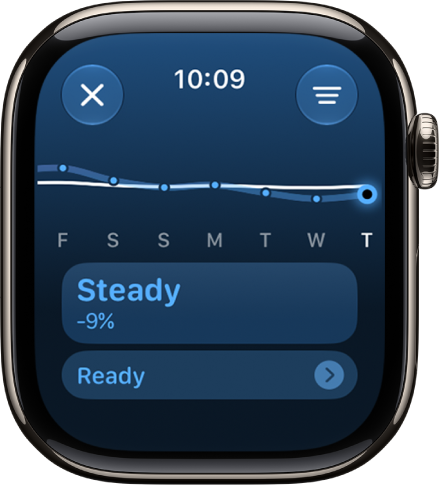
Check your training load on your Apple Watch to see how the intensity of your workouts may impact your body over time. In this way, you can make more informed decisions about how and when to adjust your workouts—especially when you’re training for a big event.

Training load compares your last 7 days of workouts to the previous 28 days. You can filter it by workout type, and see your overnight vitals for additional insights.

A screen in the Activity app showing a training load estimation.

Review your training load

Training load looks at your workouts’ intensity and duration over the last 7 days and compares them to what you’ve done over the previous 28 days. Your current training load then gets classified on a scale from well below to well above, which helps you understand the relative strain on your body and judge whether it’s sustainable.

  1. Go to the Activity app on your Apple Watch.
  2. Tap the Workload button and then turn the Digital Crown to view your training load over the last 7 days.
  3. Tap your training load below the graph. Then tap a workout to view its details.

    To edit your effort on a workout, see Rate your effort.

When you’re viewing your training load on the current day, you can tap the Vitals data at the bottom of the screen to view your overnight vitals in the Vitals app. See View your overnight vitals.

Filter your training load

You can filter your training load by workout type.

  1. Open the Activity app on your Apple Watch.
  2. Tap the Workload button and then tap the Filter button.
  3. Turn the Digital Crown to view your training load for that workout over the last 7 days.

See also

Tag: Fitness

The Activity app on your Apple Watch helps you keep track of your movement throughout the day and encourages you to meet your fitness goals. It tracks how often you stand, how much you move, and how many minutes of exercise you do, and three rings in different colors summarize your progress. The goal is to sit less, move more, and get some exercise by completing each ring every day.

The Fitness app on your iPhone keeps a record of your activity. If you’ve tracked at least 6 months of activity, it displays daily trend data, from active calories and exercise minutes to stand hours, walking pace, and cardio fitness, so you can see how you’re doing compared with your average activity.

Note: Your Apple Watch is not a medical device. For important information about using the wellness apps safely, see Important safety information for Apple Watch.

Get started

You’re asked if you’d like to configure the Activity app when you set up your Apple Watch. If you choose not to, you can do it the first time you open the Activity app.

  1. Start the Activity app on your Apple Watch.
  2. Use the Digital Crown to read the Move, Exercise, and Stand descriptions. Tap Get Started.

Check your progress

Go to the Activity app on your Apple Watch at any time to see how you’re doing. The Activity app displays three rings:

  • The red Move ring shows how many active calories you’ve burned.
  • The green Exercise ring shows how many minutes of brisk activity you’ve done.
  • The blue Stand ring shows how many times in the day you’ve stood and moved for at least 1 minute per hour.
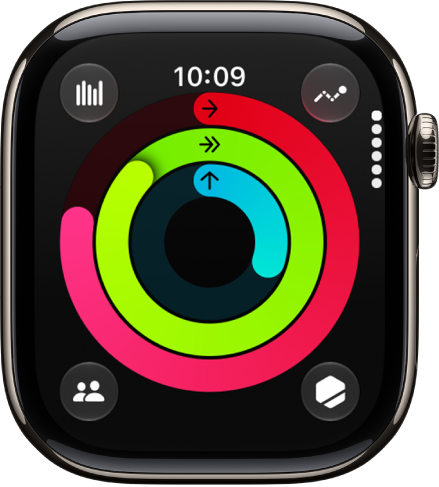
The Activity screen, showing the Move, Exercise, and Stand rings.

When you’ve specified that you use a wheelchair, the blue Stand ring turns into the Roll ring, showing how many times you’ve rolled for at least one minute per hour during the day.

When you turn the Digital Crown, your current totals appear, and if you keep scrolling, you’ll see your progress for each of your rings, plus your total steps, total distance, flights climbed, and activity history.

An overlapping ring means you exceeded your goal. Tap the Weekly Summary button to see how you’re doing for the week.

See your weekly summary

  1. Start the Activity app on your Apple Watch.
  2. Tap the Weekly Summary button.

You’ll find a daily average and weekly total of your progress toward closing your rings in the summary.

Check your activity history

  1. Start the Fitness app on your iPhone and then tap Summary.
  2. Tap the Activity rings, tap the Calendar button, and then tap a date.

Check your trends

The Trends area in the Fitness app on iPhone shows daily trend data for active calories, exercise minutes, stand hours, and walking distance, along with stand minutes, cardio fitness, walking pace, and running pace. Trends weighs your last 90 days of activity against the last 365.

To see more detail, follow these steps:

  1. Start the Fitness app on your iPhone.
  2. In the Trends area, tap a trend to see the history.

A Trend arrow pointing up for a particular metric means you’re maintaining or improving your fitness levels. When an arrow points down, it means your 90 day average for that metric has started to decline, and you’ll receive coaching, like “Walk an extra quarter of a mile a day,” to help motivate you to turn the trend around.

See your awards

You can earn awards for personal records, streaks, and major milestones using your Apple Watch. To see all your awards, including Activity Competition awards and awards you’re making progress towards, follow these steps:

  1. Start the Activity app on your Apple Watch.
  2. Tap the Awards button.
  3. Tap an award category (like Monthly Challenges). Then tap an award to learn more about it.

You can also open the Fitness app on your iPhone, then tap Awards.

See Compete with your friends for more information about competitions.
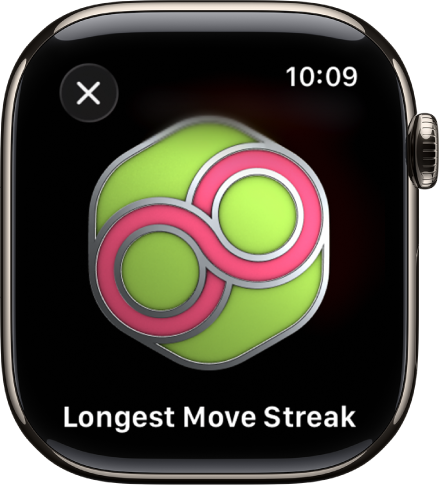
An award achievement showing on Apple Watch. Below the award is a description of the award. You can drag to rotate the award.

See your workout, meditation, and dive history

For workouts, dives, and meditations you’ve completed in Apple Fitness+, the Workout app, the Depth app, and compatible third-party apps, you can see data like your average heart rate, how long you worked out, total calories burned, and more.

  1. Start the Activity app on your Apple Watch.
  2. Scroll to the bottom of the screen.
  3. To review a workout, meditation, or dive, tap it.

Control activity reminders

Reminders can help when it comes to meeting goals. Your Apple Watch lets you know if you’re on track or falling behind your Activity goals. To choose which reminders and alerts you’d like to see, follow these steps:

  1. Start the Settings app on your Apple Watch.
  2. Tap Activity and then configure the notifications.

You can also open the Apple Watch app on your iPhone, tap My Watch, tap Apps, then tap Activity.

Suspend daily coaching

To turn off activity reminders, follow these steps:

  1. Start the Settings app on your Apple Watch.
  2. Tap Activity, then turn off Daily Coaching.

You can also open the Apple Watch app on your iPhone, tap My Watch, tap Activity, then turn off Daily Coaching.

See also

Tag: Fitness

You can change your Activity goals and customize your Activity ring goals by the day of the week. You can also pause your Activity rings and resume them at any time.

It helps if you find your goals either too challenging or not challenging enough. And every Monday, you’re notified about the previous week’s achievements, so you can adjust your goals for the next week. Apple Watch even suggests goals based on your previous performance.

Change your goals

If your Activity goals feel either too challenging or not challenging enough, you can change them.

  1. Go to the Activity app on your Apple Watch.
  2. Turn the Digital Crown to a ring. Then tap the Change Goals button.
  3. Tap one of the following:

    • Change for Today: Set a temporary goal for your Activity ring for today.
    • Change Daily Goal: Customize your Activity ring goal by the day of the week.

      To customize your goal by the day of the week, tap the Goal Type button in the top-right corner, then tap Schedule.

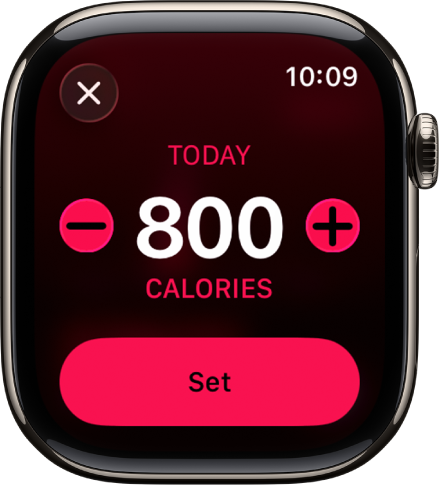
  4. Tap the Minus button or the Plus button to adjust a goal and tap Set or Set Schedule.

You’re notified every Monday about the previous week’s achievements, and that’s when you can adjust your goals for the next week, with your Apple Watch suggesting goals based on your previous performance.

The Change Goals screen showing buttons to increase or decrease the Move goal.

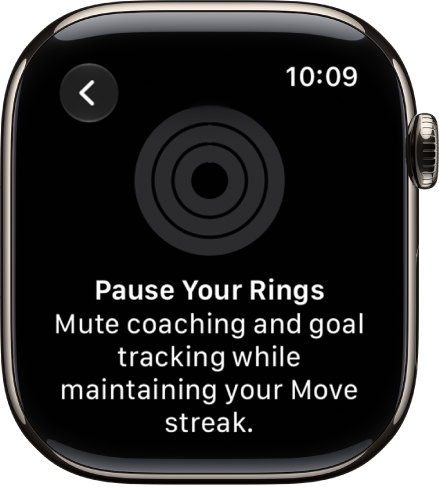
Pause your rings

Need a break? Pause your Activity rings for up to 90 days, and your award streak won’t break. You can resume at any time.

  1. Open the Activity app on your Apple Watch.
  2. Tap the Activity rings, then tap Pause Rings.
  3. Tap a duration, or tap Custom to set a custom duration.

To resume your rings, tap the Activity rings, then tap Resume Rings. To edit the duration of your pause, tap Edit Pause, turn the Digital Crown to set a custom duration, then tap Set.

The Pause Your Rings screen.

See also

Tag: Fitness