Got a tip for us?

Fitness

Keep your fitness routine on track by sharing your activity with family and friends—you can even share with a trainer or coach. You can get notifications when your friends meet their goals, finish workouts, and earn achievements.

You can check your friends’ progress, and even challenge a friend to a competition, earning points as you close your Activity rings. You can also mute a friend’s notifications or hide your activity from them.

Here’s how to share your activity from Apple Watch.

Add or remove a friend

  1. Go to the Activity app on your Apple Watch.
  2. Tap the Sharing button.
  3. Tap Invite a Friend, turn the Digital Crown to scroll through your contacts, and tap a name.

Check your friends’ progress

  1. Start the Activity app on your Apple Watch.
  2. Tap the Sharing button.
  3. Turn the Digital Crown to scroll through your friends list.
  4. Tap a friend’s name to see their stats for the day.

Compete with your friends

A little healthy competition can keep you motivated. Challenge a friend to a competition, and you earn points based on the percentage of your Activity Rings you close, with a point for each percent you add to your rings every day. Over the 7 days a competition lasts, you can earn up to 600 points a day, or a maximum of 4,200 for the week. Whoever has the most points at the end wins. Along the way, alerts show the score and tell you if you’re ahead of your competitor or falling behind.

  1. Start the Activity app on your Apple Watch.
  2. Tap the Sharing button, then tap a friend’s name.
  3. Scroll down and tap Compete.
  4. Tap Invite [your friend’s name]. Then wait for your friend to accept.

Or, when you receive an Activity sharing notification—your friend just closed their rings or doubled their move goal, for example—you can scroll down and tap Compete.

You can also open the Fitness app on your iPhone, tap Sharing, tap a friend, tap Compete, then tap Invite [your friend’s name].

Change your friend settings

  1. Start the Activity app on your Apple Watch.
  2. Tap the Sharing button, tap a friend, scroll down, and do any of the following:
    • Mute notifications for the friend: Tap Mute Notifications.
    • Hide your activity from the friend: Tap Hide my Activity.
    • Remove the friend: Tap Remove Friend.

See also
Tag: Fitness

Used in conjunction with Apple Watch, Apple Fitness+ is a subscription service with a catalog of workouts, led by expert trainers, that you can choose from. While you follow a workout on your iPad, in-session metrics like heart rate and calories burned appear on your screen.

Those metrics are captured by your watch, which needs watchOS 7.2 or later. Apple Watch is sold separately, though, so you’ll need one to use Fitness+ on your iPad. And Apple Fitness+ availability varies by country or region.

You can create a custom workout on your iPhone to support your fitness goals. Add warmup and cooldown times; add work and recovery intervals; set time, calorie, and distance goals; set a pace; and more.

Each one starts from a workout type in the Fitness app, and you can include a warmup, repeating work and recovery intervals, and a cooldown. You’ll need an Apple Watch paired to your iPhone, too.

Here’s how to customize a workout in Fitness on iPhone.

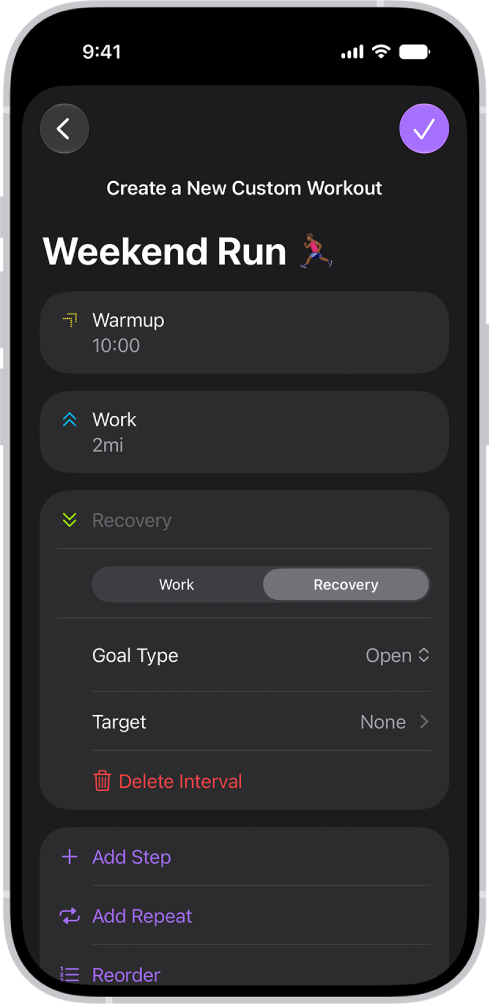
The Fitness Custom Workout screen showing warmup, work, and recovery intervals. At the bottom of the screen are buttons to add a step, repeat an interval, and reorder intervals.

Note: To use custom workouts, you need an Apple Watch with watchOS 26 or later that is paired to your iPhone. Any you create on your iPhone sync to your Apple Watch automatically.

Create a custom workout

You can tailor your workouts with a warmup period and a time to cool down, plus repeating work and recovery intervals.

  1. Open the Fitness app on your iPhone.
  2. Tap Workout, scroll to a workout type, and tap the Goals button.
  3. Tap Custom, then tap the Add button.
  4. Do any of the following:

    • Add a warmup or cooldown period: Tap Warmup or Cooldown and tap Goal Type. Tap Time, Distance, or Open.

      Note: If you want to skip a warmup or cooldown interval, tap Warmup or Cooldown, then tap Skip.

    • Add work and recovery intervals: Tap Add Step and tap Work or Recovery. Next to Goal Type, choose Time, Distance, or Open.

      Tip: You can also tap Add Repeat to repeat a work or recovery interval as many times as you want in your custom workout.

    • Reorder work and recovery intervals: Tap Reorder, touch and hold an interval, and reposition it. When you’re finished, tap the Done button.
    • Delete a work or recovery interval: Tap an interval, then tap Delete Interval.
    • Name the custom workout: Tap New Custom Workout, then enter a name.

      Note: Tap Target to add a goal to an interval. You can also name each interval of the workout.

  5. When you’re finished, tap the Done button.

Add a workout goal

For each workout type, you can set time, distance, and calorie goals.

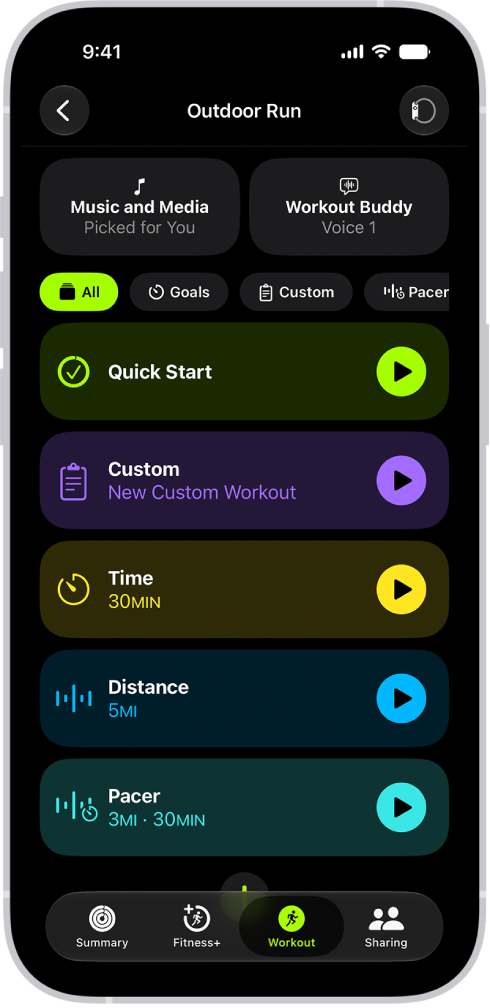
The Fitness Workout screen showing details for an Outdoor Run workout. Below Outdoor Run are options to choose media and set up Workout Buddy. In the center, from top to bottom, are options to start a workout, a custom workout, a pacer workout, and workouts with distance and calorie goals.

  1. Open the Fitness app on your iPhone.
  2. Tap Workout, scroll to a workout type, and tap the Goals button.
  3. Tap Goals, then tap the Add button.
  4. Do any of the following:
    • Set a calorie goal: Tap Calories, tap the number, and then choose an option.
    • Set a distance goal: Tap Distance, tap the number and unit of measure, and then choose an option.
    • Set a time goal: Tap Time and tap the time. Then choose an option.
  5. When you’re finished, tap the Done button. To immediately start your workout after setting a goal, tap Start Workout.

Create a Pacer workout

For a running or outdoor cycle workout, you can choose a target pace. Your iPhone and Apple Watch then show if you’re ahead of or behind it.

  1. Open the Fitness app on your iPhone.
  2. Tap Workout, scroll to Outdoor Run, Indoor Run, or Outdoor Cycle, and tap the Goals button.
  3. Tap Pacer and then tap the Add button.
  4. Do the following:
    • Set a distance goal: Tap the number and unit of measure next to Distance. Then choose an option.
    • Set a time goal: Tap the time, then choose an option.
  5. When you’re finished, tap the Done button. To immediately start your workout after setting your pace, tap Start Workout.

Your iPhone and Apple Watch show your average and current pace during your workout, along with a graph showing whether you’re ahead of or behind your chosen pace.

Use Race Route to race against your last or best time

If you run or cycle a route often, you can race against your last or best time. Once you’ve traveled the same route at least twice with little to no deviation, it’s automatically generated and available to you.

  1. Open the Fitness app on your iPhone.
  2. Tap Workout and scroll to Outdoor Run or Outdoor Cycle. Tap the Goals button.
  3. Swipe left below Music and Media, tap Race Route, and tap Personal Best or Most Recent.
  4. Tap Start Workout.

Share or delete custom workouts and goals

  1. Open the Fitness app on your iPhone.
  2. Tap Workout, scroll to a workout type, and tap the Goals button.
  3. Tap a workout goal, custom workout, or Pacer workout and tap the More button.
  4. Do one of the following:
    • Share an option: Tap Share Workout and choose a sharing option.
    • Delete an option: Tap Delete Workout.
Tag: Fitness

With GymKit, your iPhone can pair and sync data with compatible gym equipment such as treadmills, ellipticals, indoor bikes, and more, so you can get more accurate information about your workout. You can also choose media for a GymKit workout and use Workout Buddy.

Once GymKit is on and your iPhone is connected to the equipment, you can start a workout.

Here’s how to use gym equipment in Fitness on iPhone.

Turn on GymKit

  1. Start the Fitness app on your iPhone.
  2. Tap Summary, then tap your picture or initials.
  3. Tap GymKit, then turn on Detect Gym Equipment.

Connect and start a workout with gym equipment

  1. Hold your iPhone within a few centimeters of the contactless reader on the gym equipment.
  2. Tap Continue. Then tap the GymKit workout you want to start.

    Note: If you’re starting a workout from the Lock Screen, you may need to unlock your iPhone.

  3. Press Start on the gym equipment to begin.

To end the workout, go to the Fitness app, swipe up from the bottom of the screen, then tap End Workout.

Start a GymKit workout in the Fitness app

  1. Start the Fitness app on your iPhone.
  2. Tap Workout and scroll to the bottom of the screen. Then tap GymKit.
  3. Tap a workout. Then hold your iPhone within a few centimeters of the contactless reader on the gym equipment.
  4. Press Start on the gym equipment.
Tag: Fitness

Use the Fitness app on iPhone to help you meet your fitness goals. You can track your progress, view completed workouts, change your goals, and share your activity with others.

The Summary tab shows your Activity rings, steps, distance traveled, trends, and more, and you can customize it to include the metrics you want to see. You can also change your goals and start a workout.

Here’s how to get started with Fitness on iPhone.

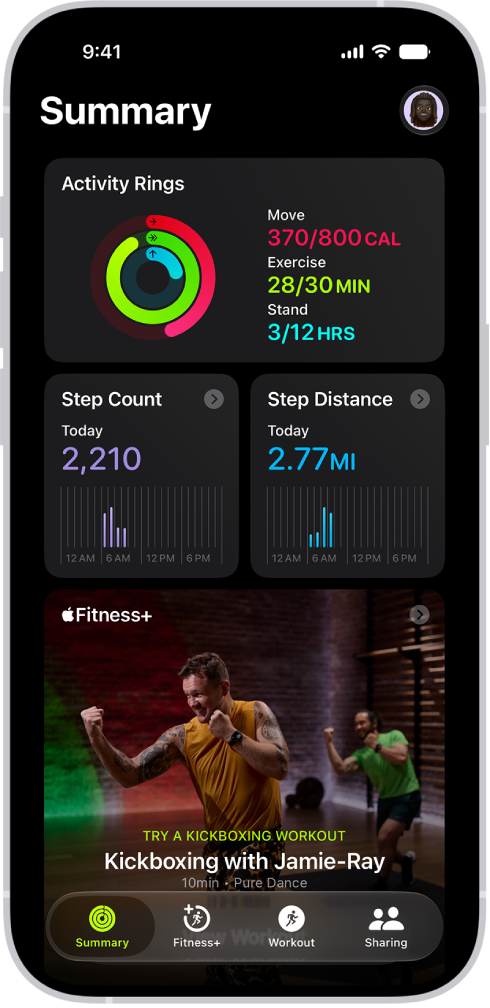
The Summary screen in Fitness, showing the Activity Rings, Step Count, Step Distance, and Apple Fitness+ areas.

See your summary

Open the Fitness app to see a summary of your Activity rings, the number of steps you’ve taken, distance traveled, trends, and more. You can also customize the Summary tab to include the metrics that you want to see. Tap Summary , scroll down, then tap Edit Summary.

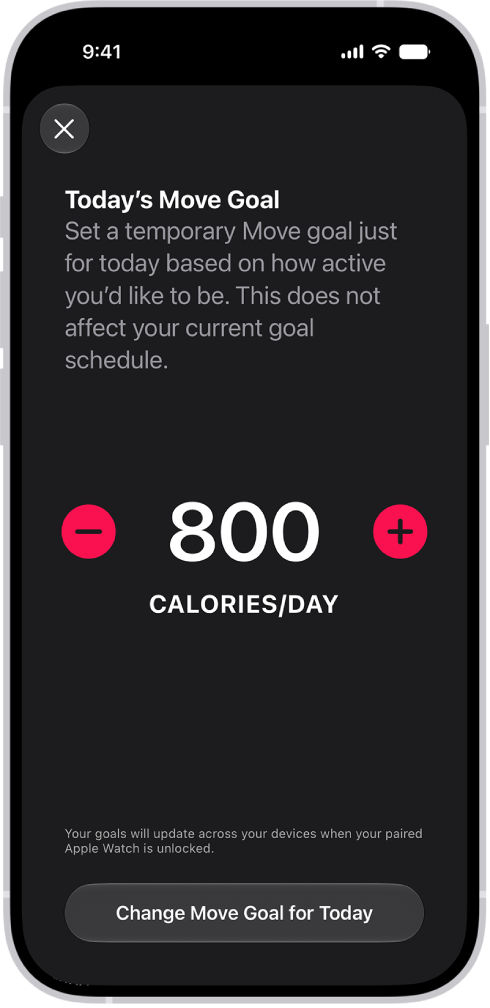
The Fitness Move Goal Schedule screen showing buttons to increase or decrease the Move goal.

Change your goals

You can change your daily goals for each of your Activity rings. You can also customize your Activity ring goals by the day of the week. In the Summary tab, tap the Activity rings, scroll down, then tap Change Goals.

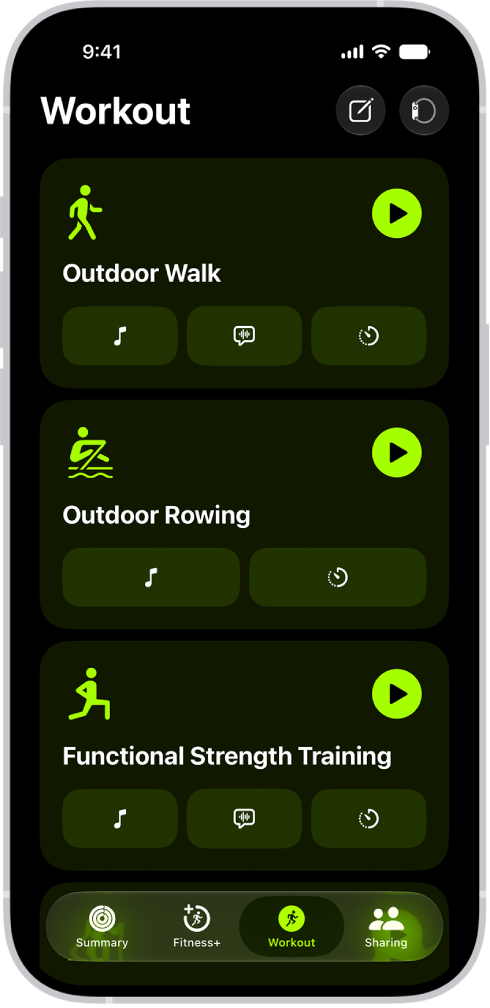
The Fitness workout screen showing three workouts.

Start a workout

You can start individual workout sessions—from cardio-focused activities such as High Intensity Interval Training (HIIT), Outdoor Run, and Outdoor Cycle, to strength-based workouts like Functional Strength Training, Core Training, and Kickboxing. Tap Workout , then tap the Start button next to a workout type.

With a compatible Bluetooth® enabled third-party heart rate monitor, Powerbeats Pro 2, AirPods Pro 3, or an Apple Watch connected, you can do a workout with your workout metrics on the screen.

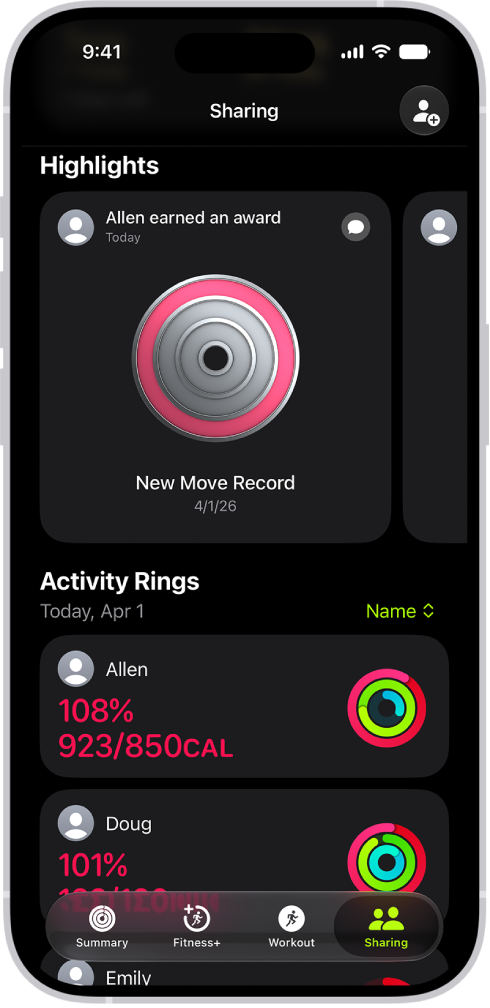
The Fitness Sharing screen, with activity rings and activity highlights shared between a person and their friends.

Share your activity with friends

Tap Sharing , then tap Invite a Friend to share the progress you’re making toward your fitness goals. You can view highlights of your friends’ activity and get notifications when they meet their goals, finish workouts, and more.

Tag: Fitness

You can start individual workout sessions, from cardio-focused options such as High Intensity Interval Training (HIIT), Outdoor Run, and Outdoor Cycle, to strength-based workouts like Functional Strength Training, Core Training, and Kickboxing.

You can also set media to automatically play when you begin a workout type. If you subscribe to Apple Music, Apple Music selects media based on the workout type and the music you love, or you can choose media yourself. Workout metrics can appear on your iPhone screen, too, when it’s connected to an Apple Watch or a compatible heart rate monitor.

With just an iPhone, these are the workout types you can do:

  • Outdoor Walk
  • Outdoor Run
  • Hiking
  • Outdoor Push Walking Pace
  • Outdoor Push Running Pace
  • Outdoor Cycle

Connecting Powerbeats Pro 2, AirPods Pro 3, an Apple Watch, or a compatible Bluetooth enabled third-party heart rate monitor lets you see workout metrics on the screen during a workout.

Note: Connecting iPhone to AirPods Pro 3 or a third-party heart rate monitor gives you more workout types, like Kickboxing and Pilates. With an Apple Watch, you get all workout types.

The Fitness workout screen showing three workout types. Buttons to log a workout and connect a heart rate monitor are at the top of the screen.

Connect a heart rate device

Before you start a workout on your iPhone, check that you’ve connected Powerbeats Pro 2, AirPods Pro 3, an Apple Watch, or Bluetooth® enabled third-party heart rate monitors linked to the Health app.

If you do not have a heart rate device connected, do the following:

  1. Start the Fitness app on your iPhone.
  2. Tap Workout, then tap the Heart Rate Devices button.
  3. Tap Bluetooth Settings and then pair your iPhone with a Bluetooth accessory.

Start a workout

  1. Start the Fitness app on your iPhone.
  2. Tap Workout and scroll to the workout type you want to do.

    To see more workout types, tap the Add button.

  3. To start the workout, tap the Start button.

Choose audio for a workout

Media can play automatically when you begin a workout type, whether it’s media you choose yourself or media picked for you based on what you normally listen to.

  1. Start the Fitness app on your iPhone.
  2. Tap Workout, scroll to a workout type, and then tap the Media Playback Off button.
  3. Turn on Autoplay Media.
  4. If you subscribe to Apple Music, you can have media play automatically based on the workout type and the music you listen to. Tap Picked for You.
  5. To choose your own media, tap Choose Media and tap Add Media. Do one of the following:

    • Choose a suggested option: Tap an option below Suggestions.

      Tip: To view more suggestions, tap Music or Podcasts below Sources.

    • Choose a playlist: Tap Music, tap Playlists, and then choose a playlist.
  6. When you’re finished, tap the Done button.

Note: Music or other audio you’re already listening to keeps playing when you begin your workout.

Use the workout controls

During a workout, you can lock controls, send a Check In, mark a segment, pause, and more, then view a summary of how you did when you finish.

  1. Start the Fitness app on your iPhone.
  2. Start a workout, then do any of the following:

    • Pause the workout: Tap the Pause button.
    • Resume the workout: Tap the Resume button.
    • Mark a segment: Tap the Segments button.
    • Connect a heart rate device: Tap Connected Devices.
    • End the workout: Swipe up from the bottom of the screen and tap End Workout. Review the workout summary and tap the Done button.
    • Mute Workout Buddy: Swipe up from the bottom of the screen and then tap Mute.
    • Start a Check-In: Swipe up from the bottom of the screen, tap Check-In, then follow the onscreen instructions.
    • Stop viewing metrics on iPhone (Apple Watch required): Swipe up from the bottom of the screen. Tap Stop Viewing.

      Note: To start viewing again, swipe right on your Apple Watch, then tap View.

    • Lock the workout controls: Swipe up from the bottom of the screen, then tap Lock Controls.
Tag: Fitness

You can sync a compatible third-party workout app to the Fitness app on iPhone to help you meet your fitness goals. Fitness suggests workout apps that you can download from the App Store. Once it’s synced, any workout you complete in that app shows up in your activity summary and counts toward closing your Move ring.

  1. Open the Fitness app on your iPhone.
  2. Tap the Activity rings, then scroll down to Add To Your Rings.

    Note: You can also browse apps in the App Store.

  3. Choose an app. Then download it from the App Store.
  4. Open the app and if prompted, grant permission to share data with the Health app.

When you complete a workout in a compatible third-party app, it appears in your activity summary and adds to your progress toward closing your Move ring in the Fitness app.

Tag: Fitness

You can set notifications to help you reach your daily activity goals. You can also update your health details, change goals, set unit of measurement preferences, and change settings for your workouts.

In your workout settings, you can have Siri read your workout alerts, automatically pause workouts when you stop moving, and receive a confirmation when you’re ready to end your workout. All of these settings start from your picture or initials in the Fitness app’s Summary tab.

Change Fitness notifications

  1. Open the Fitness app on your iPhone.
  2. Tap Summary, then tap your picture or initials.
  3. Tap Notifications, then turn off the notifications you no longer want to see.

Update your health details

Update your height, weight, or wheelchair status, or add a pregnancy in Health.

  1. Open the Fitness app on your iPhone.
  2. Tap Summary, then tap your picture or initials.
  3. Tap Health Details and then make any changes.

Set unit of measurement preferences

  1. Open the Fitness app on your iPhone.
  2. Tap Summary, then tap your picture or initials.
  3. Tap Units of Measure, then make any changes.

Change settings for your workouts

  1. Open the Fitness app on your iPhone.
  2. Tap Summary, then tap your picture or initials.
  3. Tap Workout, then do any of the following:
    • Have Siri read your workout alerts: Turn Voice Feedback on or off.
    • Get a reminder to send a Workout Check In: Turn Check In Reminders on or off.
    • Automatically pause workouts when you stop moving: Tap Auto-Pause, then turn Auto-Pause on or off.
    • Receive a confirmation when you’re ready to end your workout: Turn End Workout Confirmation on or off.
    • Choose units of measurement: Tap Units of Measure, then make any changes.
Tag: Fitness

On iPhone, you can log workouts you previously completed. You can also delete completed workouts.

You can add distance, workout duration, and an estimate of active calories burned, and choose a start date and time for the workout. With an Apple Watch, you can even rate your effort. The workout data is then added to the Sessions card in your Activity summary.

Here’s how to log a workout in Fitness on iPhone.

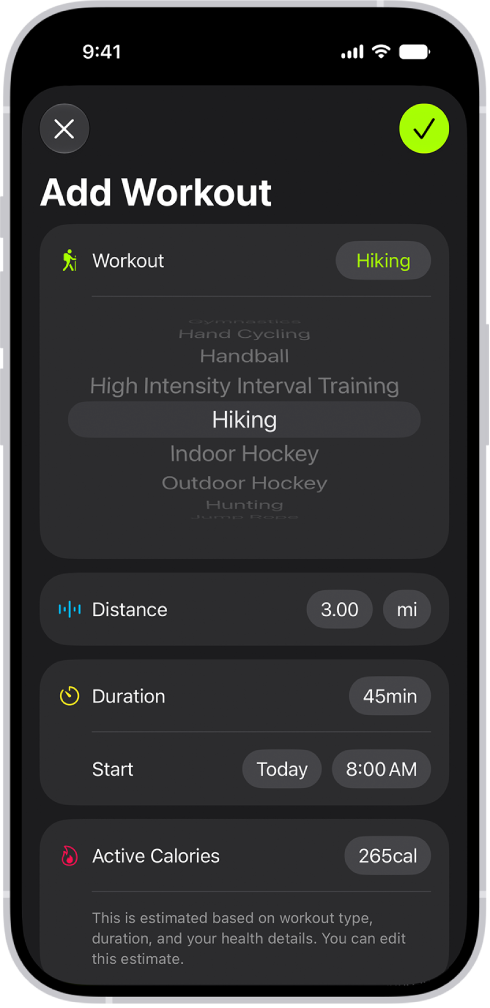
A screen in the Fitness app showing a logged workout. Metrics for the distance traveled, duration, date, and active calories burned appear below the list of workouts.

Log a completed workout

Workouts you previously completed can be logged, with metrics like an estimate of active calories burned, workout duration, and distance.

  1. Open the Fitness app on your iPhone.
  2. Tap Workout, then tap the Compose button.
  3. Tap Select, scroll to a workout type, and then do any of the following to edit the details of your workout:
    • Choose the duration of the workout: Next to Duration, tap the time.
    • Choose a start date and time: Next to Start, tap the date and time.
    • Enter an estimate of active calories: Tap Active Calories and choose an option.
    • Rate your effort (Apple Watch required): Tap Effort, move the slider to a number. Tap the Done button.
  4. When you’re finished, tap the Selected button.

You’ll find the workout data in the Sessions card in your Activity summary.

Delete a workout

  1. Open the Fitness app on your iPhone.
  2. Tap Summary and then tap Sessions.

    Note: You may need to add the Sessions card to your activity summary.

  3. Swipe left on a workout and then tap the Delete button.
  4. Do one of the following:

    • Delete the workout and health data: Tap Delete Workout & Data.
    • Delete the workout: Tap Delete Workout Only.
Tag: Fitness

You can change your personal health details, change your Activity ring goals, and customize your Activity ring goals by the day of the week. You can also pause your Activity rings and resume at any time.

When you need a break, your Activity rings can be paused for up to 90 days without breaking your award streak. Every Monday, you’re notified about the previous week’s achievements, and goals are suggested based on your performance in the previous week.

Change your Activity ring goals

You can change the daily goal for each of your Activity rings, and it’s even possible to customize your Activity ring goals by the day of the week.

The Fitness Move Goal Schedule screen showing buttons to increase or decrease the Move goal by the day of the week.

  1. Start the Fitness app on your iPhone.
  2. Tap the Activity rings and tap the Edit Goal button next to an Activity ring.
  3. Tap one of the following:

    • Adjust Goal for Today: Set a temporary goal for your Activity ring for today.
    • Change Daily Goal: Set a goal based on how active you are, or how active you want to be, each day.

    Tip: To customize your Activity ring goal by the day of the week, tap Change Daily Goal, then tap the Schedule button.

  4. Tap the Delete button or the Add button to adjust the goal.
  5. When you’re finished, tap Change [activity] Goal for Today, Change [activity] Goal, or Set [activity] Goal Schedule.

Every Monday, you’re notified about the previous week’s achievements and can adjust your goals for the upcoming week. The suggested goals are based on your performance in the previous week.

Pause your rings

If you need to take a break, pause your Activity rings for up to 90 days, and your award streak won’t break. Resume them at any time.

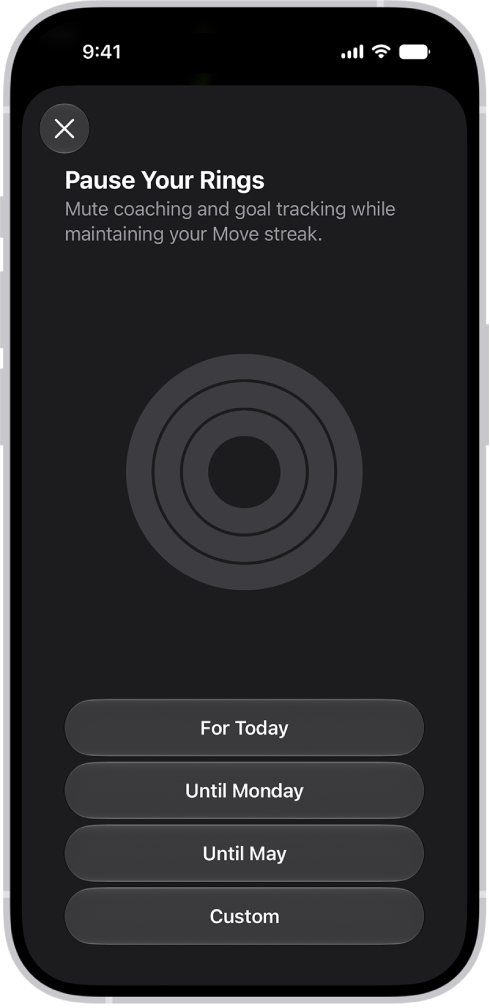
The Pause Your Rings screen in Fitness, showing options to pause Activity rings.

  1. Start the Fitness app on your iPhone.
  2. Tap the Activity rings, scroll down, and tap Pause Rings.
  3. Do one of the following:
    • Pause for a preset duration of time: Tap a duration.
    • Pause for a custom duration of time: Tap Custom, select a duration, and then tap Set.

To resume your rings, tap the Activity rings, then tap Resume Rings. To edit the duration of your pause, tap Edit Pause, set a custom duration, then tap Set.

Tag: Fitness