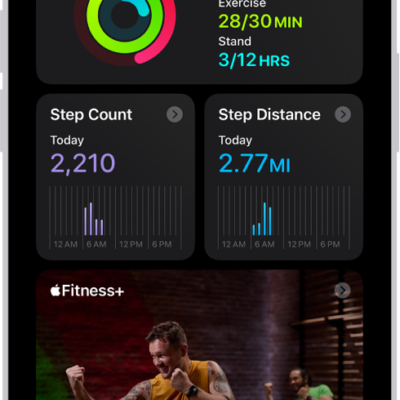
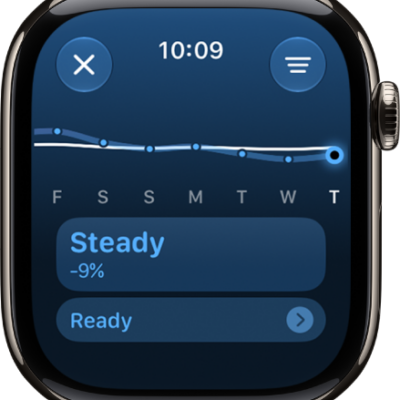
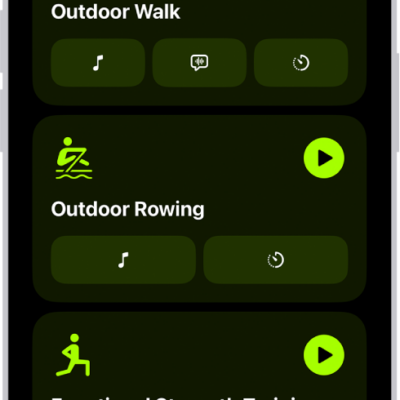
On iPhone, you can log workouts you previously completed. You can also delete completed workouts.
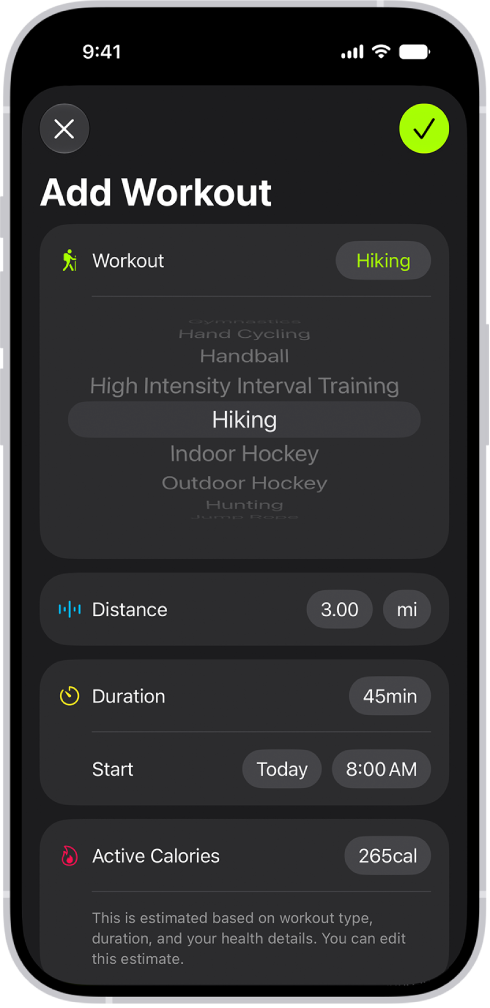
You can add distance, workout duration, and an estimate of active calories burned, and choose a start date and time for the workout. With an Apple Watch, you can even rate your effort. The workout data is then added to the Sessions card in your Activity summary.
Here’s how to log a workout in Fitness on iPhone.
Log a completed workout
Workouts you previously completed can be logged, with metrics like an estimate of active calories burned, workout duration, and distance.
- Open the Fitness app on your iPhone.
- Tap Workout, then tap the Compose button.
- Tap Select, scroll to a workout type, and then do any of the following to edit the details of your workout:
- Choose the duration of the workout: Next to Duration, tap the time.
- Choose a start date and time: Next to Start, tap the date and time.
- Enter an estimate of active calories: Tap Active Calories and choose an option.
- Rate your effort (Apple Watch required): Tap Effort, move the slider to a number. Tap the Done button.
- When you’re finished, tap the Selected button.
You’ll find the workout data in the Sessions card in your Activity summary.
Delete a workout
- Open the Fitness app on your iPhone.
-
Tap Summary and then tap Sessions.
Note: You may need to add the Sessions card to your activity summary.
- Swipe left on a workout and then tap the Delete button.
-
Do one of the following:
- Delete the workout and health data: Tap Delete Workout & Data.
- Delete the workout: Tap Delete Workout Only.
Tag: Fitness