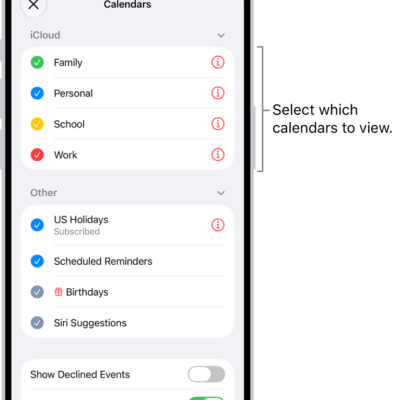
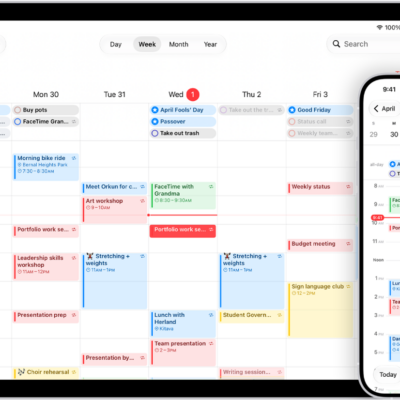
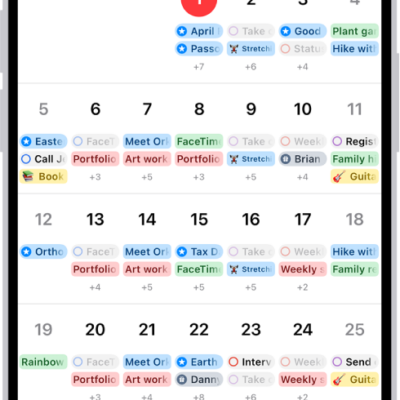
You can customize the notifications that let you know about upcoming calendar events, invitations, and more. You can also make sure your events and other calendar information are kept up to date on all your devices.
You can choose whether notifications appear for specific occasions, like upcoming events, and turn on customized notifications for specific calendars. iCloud keeps your calendar current on all your devices. If you don’t want to use iCloud for your calendar, you’ll sync your calendar information between your iPhone and your computer instead.
Customize Calendar notifications
- Open the Settings app on your iPhone.
- Tap Notifications and tap Calendar.
- Turn on Allow Notifications.
- Choose how and where you want the notifications to appear—for example, on the Lock Screen, in Notification Center, as banners at the top of the screen, with an alert sound, and so on.
Turn on customized notifications for specific calendar events
When you’ve customized Calendar notifications, you can choose whether they appear for specific occasions, like upcoming events or invitee responses.
- Open the Settings app on your iPhone.
- Tap Notifications and tap Calendar.
- Scroll down and tap Customize Notifications.
- Turn the specific customized notifications on or off.
Keep your calendar up to date across your devices
If you’re signed in to the same Apple Account on all your devices, iCloud can keep your calendar information up to date on each one.
- Open the Settings app on your iPhone.
- Tap your name, then tap iCloud.
- Tap See All next to Saved to iCloud.
- Tap iCloud Calendar and turn on Use on this iPhone.
Rather not use iCloud for your calendar? Sync your calendar information between your iPhone and your computer instead.