Got a tip for us?

Calendar

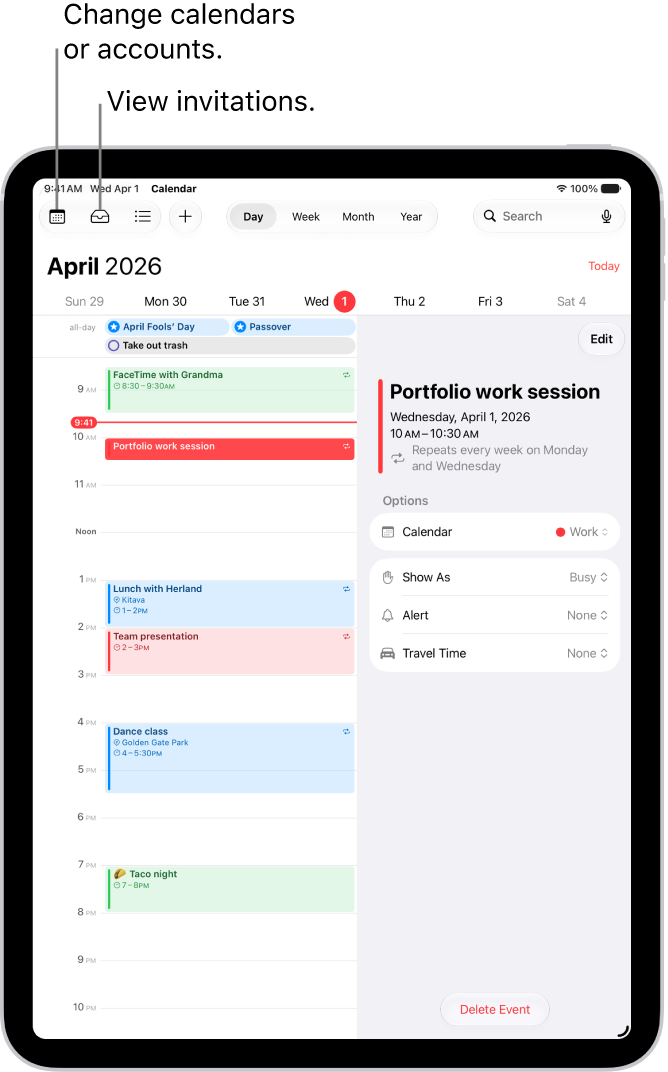
In the Calendar app, you can set up multiple calendars to keep track of different kinds of events. You can keep track of all your events and appointments in one calendar, but additional calendars are easy to set up and a great way to stay organized.

You can see multiple calendars at once, change a calendar’s color, move an event to another calendar, and turn on calendar event alerts. You can also unsubscribe from a calendar.

The Calendars list, with checkmarks indicating which calendars are active. The Done button for closing the list is in the top-right corner.

Set up a calendar

  1. Open the Calendar app on your iPhone.
  2. Tap the Calendars button, then tap Add Calendar.
  3. Do one of the following:
    • Create an iCloud calendar: Tap Add Calendar and enter a name for the calendar. Choose a color for it.
    • Subscribe to an external, read-only calendar: Tap Add Subscription Calendar, enter the URL of the .ics file you want to subscribe to (and any other required server information), and then tap Find.
    • Add a Holiday calendar: Tap Add Holiday Calendar, then tap the holiday calendar you want to subscribe to.

You can also subscribe to an iCalendar (.ics) calendar by tapping a link to it.

Unsubscribe from a calendar

When you unsubscribe from a calendar you’re subscribed to, you can also report it as junk.

  1. Open the Calendar app on your iPhone.
  2. Tap the Calendars button.
  3. Tap the Info button next to the calendar you want to unsubscribe from.
  4. Tap Unsubscribe and tap Unsubscribe or Unsubscribe and Report Junk.

Note: If you tap Unsubscribe and Report Junk, the calendar gets reported to Apple as a suspected junk subscription.

See multiple calendars at once

  1. Open the Calendar app on your iPhone.
  2. Tap the Calendars button and then do any of the following:
    • Select the calendars you want to view.
    • Tap US Holidays to include national holidays with your events.
    • Tap Birthdays to include birthdays from Contacts with your events.

Turn on calendar event alerts

For calendars you create or subscribe to, you can turn on event notifications.

  1. Open the Calendar app on your iPhone.
  2. Tap the Calendars button.
  3. Tap the Info button next to a calendar.
  4. Turn Event Alerts on or off.
  5. Tap the Done button.

Change a calendar’s color

  1. Open the Calendar app on your iPhone.
  2. Tap the Calendars button.
  3. Tap the Info button next to the calendar, then choose a color.
  4. Tap the Done button.

For some calendar accounts, like Google, the server sets the color.

Move an event to another calendar

  1. Open the Calendar app on your iPhone.
  2. Tap the event and tap Calendar. Select a calendar to move the event to.

You can view events across the span of a month, week, or multiple days, or view a list of upcoming events. In Month view, there’s a choice of a single bar indicator for the events on each day, a bar indicator for each event, or event titles.

A calendar in Month view showing events and reminders.

See events in Month view

Your Month view can show either event indicators or details.

  1. Start the Calendar app on your iPhone.
  2. In Month view, tap the Month view icon and then do one of the following:
    • Show a single bar indicator for the events on each day: Tap Compact.
    • Show a bar indicator for each event: Tap Stacked.
    • Show event titles: Tap Details.

View events across multiple days

  1. Start the Calendar app on your iPhone.
  2. Do any of the following:
    • View multiple days: In Day view, tap the Day view icon and choose Multi Day.
    • View a weekly calendar: In Month or Day view, rotate iPhone sideways.

View events in a list

  1. Start the Calendar app on your iPhone.
  2. Do any of the following:
    • View a list of events for each day: In Month view, tap the Month view icon and choose List. Tap each day to see a list of events.
    • View a complete list of upcoming events: In Day view, tap the Day view icon and choose List.

In the Calendar app, you can add multiple accounts such as iCloud, Google, Microsoft Exchange, and Yahoo. You can change default settings to make it easier to create new events and to display your calendar in a way that works best for you. For example, you can choose the default calendar for new events, change the duration of new events, and more.

You can also add a CalDAV account by entering your server and account information.

Here’s how to change your Calendar settings on iPhone.

Set up iCloud, Google, Exchange, or Yahoo calendar accounts

  1. Start the Settings app on your iPhone.
  2. Tap Apps and then tap Calendar.
  3. Tap Calendar Accounts and then tap Add Account.
  4. Tap a service (iCloud, Microsoft Exchange, or Google, for example). Sign in.

Add a CalDAV account

  1. Start the Settings app on your iPhone.
  2. Tap Apps and then tap Calendar.
  3. Tap Calendar Accounts and then tap Add Account.
  4. Tap Add Other Account, then tap CalDAV account.
  5. Enter your server and account information.

Note: For an account that doesn’t support Push notifications, set a Fetch schedule to update your calendar from it. First, go to Settings > Apps > Calendar. Tap Calendar Accounts, and then tap Fetch New Data. Under Fetch, choose a schedule, or choose Automatically to download new data when your iPhone is charging and connected to Wi-Fi.

Choose a default calendar

With multiple calendars, you can choose a default one, and new events you create land in that calendar automatically.

  1. Start the Settings app on your iPhone.
  2. Tap Apps and then tap Calendar.
  3. Tap Default Calendar, then select the calendar you want to use as your default calendar.

Note: Even after you create an event, you can always move it to a different calendar.

Set default event settings

Calendar events have default settings you can change, too, such as the duration for new events or getting an alert when it’s time to leave for an upcoming event.

  1. Start the Settings app on your iPhone.
  2. Tap Apps and then tap Calendar.
  3. Do any of the following:
    • Choose when to get alerts for different types of events: Tap Default Alert Times, tap Birthdays, Events, or All-Day Events, and choose an option.
    • Choose whether to be alerted when it’s time to leave for an upcoming event: Tap Default Alert Times. Turn Time to Leave on or off.
    • Change the default duration for new events: Tap Duration for New Events. Choose a length of time.
    • Choose whether Calendar suggests a location when you create a new event: Turn Location Suggestions on or off.

Change how your calendar is displayed

To help highlight the information that’s most important to you, customize the way your calendar is displayed. You might choose which day to start the week with, for example, or display the Chinese, Hebrew, or Hijri calendar alongside the Gregorian calendar.

  1. Start the Settings app on your iPhone.
  2. Tap Apps and then tap Calendar.
  3. Do any of the following:
    • Display the Chinese, Hebrew, or Hijri calendar: Tap Alternate Calendars and choose a calendar.
    • Display the week number next to every week of the year: Turn on Week Numbers.
    • Show the current day as the first day in Week view: Turn on Week View Starts On Today.
    • Choose a different day to start the week: Tap Start Week On, then tap a day.

You can allow Siri to make suggestions across apps based on the way you use Calendar. Go to Settings > Apps > Calendar, tap Siri, then turn on Learn from this App. You can also allow suggestions and content from Calendar to appear in Search, widgets, and as notifications.

In the Calendar app, you can share an iCloud calendar with other iCloud users. When you share a calendar, others can see it, and you can let them add or change events. You can also share a read-only version that anyone can view but not change.

You can change a person’s access to a shared calendar, and turn off notifications for shared calendars.

Here’s how to share iCloud calendars on iPhone.

Create an iCloud calendar

  1. Start the Calendar app on your iPhone.
  2. Tap the Calendars button.
  3. Tap Add Calendar.
  4. Tap Add Calendar, enter a name for the new calendar, and tap the Done button.

If iCloud isn’t your default calendar, tap Accounts, then tap iCloud.

Share an iCloud calendar

Share a calendar in iCloud with one or more people, and each person you invite receives an invitation to join it.

  1. Start the Calendar app on your iPhone.
  2. Tap the Calendars button.
  3. Tap the Info button next to the iCloud calendar you want to share.
  4. Tap Add Person and enter a name or email address, or tap the Add button to browse your contacts.

Note: To share an iCloud calendar with your contacts, they need an email address.

Tap the Done button.

Change a person’s access to a shared calendar

After you invite someone to share your calendar, you can turn their ability to edit the calendar on or off, or stop sharing the calendar with them entirely.

  1. Start the Calendar app on your iPhone.
  2. Tap the Calendars button and tap the Info button next to the shared calendar. Tap the person’s name.
  3. Do any of the following:
    • Turn Allow Editing on or off.
    • Tap Delete.

Turn off notifications for shared calendars

When someone modifies a calendar you’re sharing, you get notified of the change. You can turn off those notifications if you don’t want them.

  1. Start the Settings app on your iPhone.
  2. Tap Notifications and tap Calendar.
  3. Tap Customize Notifications, then turn off Shared Calendar Changes.

Share a read-only calendar with anyone

  1. Start the Calendar app on your iPhone.
  2. Tap the Calendars button then tap the Info button next to the iCloud calendar you want to share.
  3. Turn on Public Calendar. Then tap Share Link to copy or send the URL for your calendar.
  4. Choose a method for sending the URL—Messages, Mail, and so on.

Anyone you send the URL to can subscribe to the calendar in a compatible app, like Calendar for macOS.

Delete a calendar

  1. Start the Calendar app on your iPhone.
  2. Tap the Calendars button.
  3. Tap the Info button next to the iCloud calendar you want to delete.
  4. Tap Delete Calendar at the bottom of the list.

In the Calendar app, you can send meeting and event invitations. iCloud, Microsoft Exchange, and some CalDAV servers also let you send meeting invitations, though not all calendar servers support every feature.

There’s one thing to check first. Before you can invite people to events you’ve scheduled, your calendar accounts need to be turned on. And once an event is scheduled, you can quickly email attendees.

Here’s how to send invitations in Calendar on iPhone.

Before you begin

To invite people to events you’ve scheduled, your calendar accounts need to be turned on first.

  1. Start the Settings app on your iPhone.
  2. Tap Apps and then tap Calendar.
  3. Tap Calendar Accounts and select an account. Then check to see if Calendar is turned on.

Invite others to an event

You can invite people to an event you’ve scheduled.

  1. Start the Calendar app on your iPhone.
  2. Tap the event, then tap Edit.
  3. Tap Invitees.
  4. Do any of the following:

    • Add a name from your contacts: Enter a contact’s name, tap the name, and then tap the Done button.

      You can also tap the Add button to select contacts.

      Note: The contact must have an email address or phone number (supported in China and India).

    • Add an email address: Enter an email address, tap Return, and tap the Done button.
    • Add a phone number: Enter a phone number, tap Return, and then tap the Done button.

      Note: Sending a calendar invitation to a phone number is supported only in China and India.

  5. To make an invitation optional, tap Invitees, swipe left on an invitee, and then tap Make Optional.
  6. When you’re finished, tap the Done button.

If you don’t want to be notified when someone declines a meeting, go to Settings > Apps > Calendar, then turn off Show Invitee Declines.

Note: Even if you’re not the one who scheduled an event, Microsoft Exchange and some other exchange servers let you invite people to it.

Quickly email attendees

If you want to share event details, for example, you can email all attendees of an event.

  1. Start the Calendar app on your iPhone.
  2. Tap an event that has attendees.
  3. Tap Invitees and tap the Send Mail to Invitees button.

Use the Calendar app to create and edit events, appointments, and meetings.

You can add alerts and attachments, find events in other apps, and copy and paste an event. With Apple Intelligence, you can even describe your event, like a soccer game on Saturday, and you can paste a FaceTime link in the Location field. You can edit or delete an event later, too.

Here’s how to create and edit events in Calendar on iPhone.

Siri: Ask Siri something like, “Set up a meeting with Gordon at 9.”

Add an event

  1. Open the Calendar app on your iPhone.
  2. In Day view, tap the Add button.
  3. Enter the title of the event.

    Tip: With Apple Intelligence, you can also enter a description of your event—for example, “Soccer game on Saturday from 11 a.m. – 1 p.m.” or “Vacation in Bahamas Mon-Fri.” Suggestions for filling in the event details appear in the event card.

  4. Tap Location or Video Call. Then enter a physical location or tap FaceTime to enter a video link for a remote event.

    You can also copy a FaceTime link you created or received and paste it in the Location field.

  5. Enter the start and end times for the event, the travel time, invitees, attachments, and so on. (Swipe up, if necessary, to enter all the meeting information.)
  6. Tap the Done button.

Note: Apple Intelligence on iOS 27 or later is available on an Apple Intelligence-enabled iPhone 15 Pro, iPhone 15 Pro Max, or iPhone 16 model or later. Apple Intelligence is not available in all languages or regions. Usage limits may apply.*

Add an alert

To be reminded of an event beforehand, set an alert.

  1. Open the Calendar app on your iPhone.
  2. Tap the event, then tap Edit.
  3. In the event details, tap Alert.
  4. Choose when you want to be reminded.

    For example, “At time of event,” “5 minutes before,” or another choice.

    Note: If you add the address of the event’s location, Calendar uses Apple Maps to look up locations, traffic conditions, and transit options to tell you when it’s time to leave.

  5. Tap the Done button.

Add an attachment

To share an attachment with invitees, you can add it to a calendar event.

  1. Open the Calendar app on your iPhone.
  2. Tap the event, then tap Edit.
  3. In the event details, tap Add attachment.
  4. Locate the file you want to attach.

    To find the file, you can enter its name in the search field, scroll, tap folders to open them, tap Browse to look in other locations (such as iCloud Drive), and so on.

  5. Tap the Done button.

To remove the attachment, tap the event, tap Edit, swipe left over the attachment, then tap Remove.

Find events in other apps

Siri can suggest events found in Mail, Messages, and Safari—such as flight reservations and hotel bookings—so you can add them easily in Calendar.

  1. Open the Settings app on your iPhone.
  2. Tap Apps and then tap Calendar.
  3. Tap Siri and then turn on Show in App to allow Siri to suggest events found in other apps.

Turn on Learn from this App, and Siri can make suggestions in other apps based on how you use Calendar.

Copy and paste an event

Copy an event, and you can paste it to another date.

  1. Open the Calendar app on your iPhone.
  2. Touch and hold the event and then tap Copy.
  3. On another date, touch and hold the time where you want to paste the event.

    When you release, the New Event screen appears and the copied event appears below Title with the date and time where you want to paste the event.

    Tip: You can also tap the Add button after copying an event.

  4. Tap the copied event below Title.
  5. Tap the Done button.

Edit an event

Besides the time of an event, you can change any of the other event details.

  1. Open the Calendar app on your iPhone.
  2. Do any of the following:
    • Quickly change the event time or duration: In Day or Week view, touch and hold the event and then drag it to a new time, or adjust the grab points.
    • Change event details: Tap the event and tap Edit. In the event details, tap a setting to change it, or tap in a field to type new information.

Delete an event

  1. Open the Calendar app on your iPhone.
  2. In Day view, tap the event and tap Delete Event.

*Apple Intelligence is available with Siri and device language set to Chinese (Simplified), Chinese (Traditional), Danish, Dutch, English, French, German, Italian, Japanese, Korean, Norwegian, Portuguese, Spanish, Swedish, Turkish, or Vietnamese. Some features may not be available in all regions or languages. Some devices may not be available in all regions. Siri AI is available in beta in iOS 27, iPadOS 27, macOS 27, watchOS 27, and visionOS 27 and requires an Apple Intelligence–enabled device set to a supported language. Available in English to start. Siri AI will not be initially available in the EU on iOS, iPadOS, and watchOS. Certain Apple Intelligence features that rely on server-side models are subject to daily usage limits, including but not limited to Siri AI, Intelligent Photo Editing Tools, Image Playground, and AFM 3 Cloud models in Shortcuts. Daily limits may vary by feature, request complexity, system demand, system policies, and other factors. Expanded access to such features will be available for a fee in the future. Use of these features is subject to the Apple Intelligence Terms and Conditions.