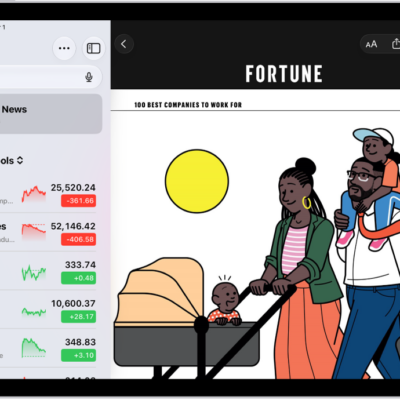
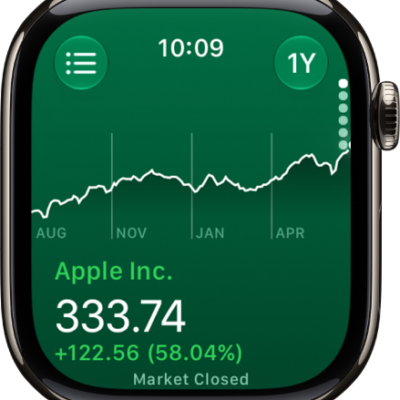
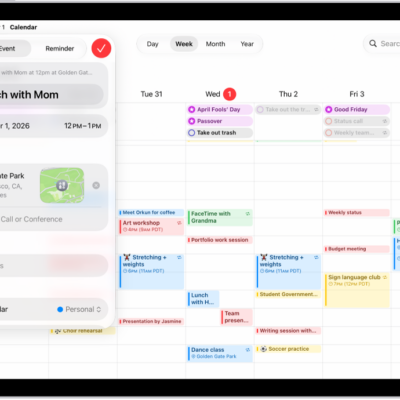
You can see when a company has an upcoming earnings report and add it as an event in the Calendar app.
The earnings report is saved as an all-day event, and Calendar sends you a reminder on the day of the report. You can add one for any stock with an upcoming earnings report, and delete the event later.
Here’s how to add earnings reports to your calendar in Stocks on iPad.
Add an earnings report event to your calendar
You can add a stock’s upcoming earnings report in the Calendar app.
- Go to the Stocks app on your iPad.
- Tap a ticker symbol in your watchlist, or use the search field to search for a symbol.
- If an earnings report is upcoming, tap Add to Calendar and tap the Done button.
Calendar saves the earnings report as an all-day event, then sends you an event reminder on the day of the report.
Delete an earnings report event from your calendar
- Start the Stocks app on your iPad.
- Tap the ticker symbol in your watchlist, or use the search field to search for the symbol.
- Tap View to switch to the Calendar app.
- In the Calendar app, tap the event, tap Delete Event (you may have to scroll down), and confirm by tapping Delete Event again.
See also