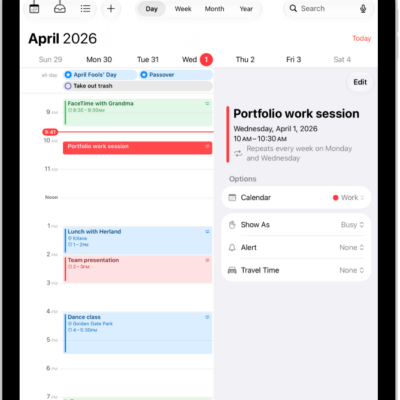
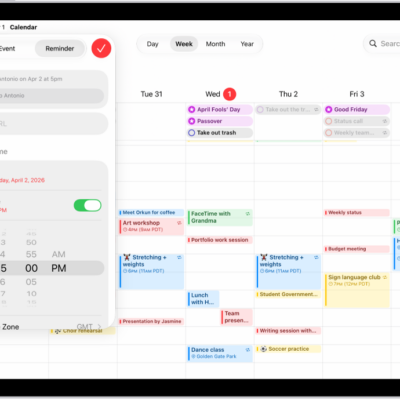
Use the Calendar app to create and edit events, appointments, and meetings.
You can add alerts and attachments, find events in other apps, and copy and paste an event. With Apple Intelligence, you can even describe your event, like a soccer game on Saturday, and you can paste a FaceTime link in the Location field. You can edit or delete an event later, too.
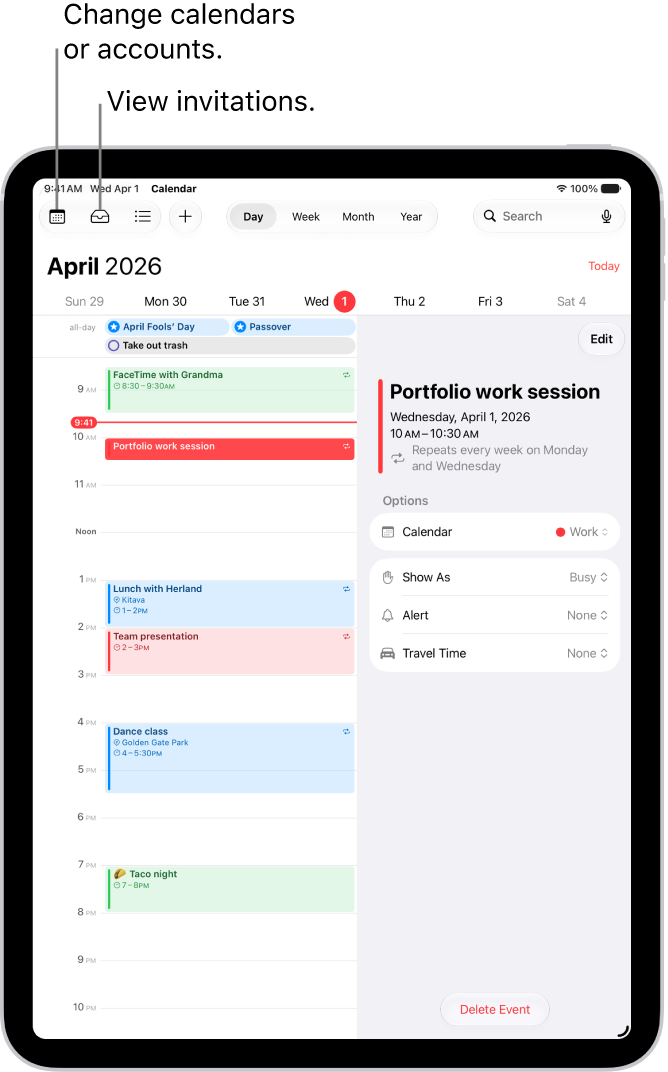
Here’s how to create and edit events in Calendar on iPad.
Siri: Ask Siri something like, “Set up a meeting with Gordon at 9.” Learn how to use Siri.
Add an event
- Start the Calendar app on your iPad.
- In Day view, tap the Add button at the top of the screen.
-
Enter the title of the event.
Tip: With Apple Intelligence, you can also enter a description of your event. For example, “Soccer game on Saturday from 11 a.m. – 1 p.m.” or “Vacation in Bahamas Mon-Fri.” Suggestions for filling in the event details appear in the event card.
-
Tap Location or Video Call. Then enter a physical location or tap FaceTime to enter a video link for a remote event.
You can also copy a FaceTime link you created or received and paste it in the Location field. See Create a link to a FaceTime call.
- Enter the start and end times for the event, the travel time, invitees, attachments, and so on. (Swipe up, if necessary, to enter all the meeting information.)
- Tap the Done button.
Note: Apple Intelligence on iPadOS 27 or later is available on an Apple Intelligence-enabled iPad mini (A17 Pro) and iPad models with M1 or later. Apple Intelligence is not available in all languages or regions. Usage limits may apply.*
Add an alert
You can set an alert to be reminded of an event beforehand.
- Start the Calendar app on your iPad.
- Tap the event, then tap Edit.
- In the event details, tap Alert.
-
Choose when you want to be reminded.
For example, “At time of event,” “5 minutes before,” or another choice.
Note: If you add the address of the event’s location, Calendar uses Apple Maps to look up locations, traffic conditions, and transit options to tell you when it’s time to leave.
- Tap the Done button.
Add an attachment
You can add an attachment to a calendar event to share with invitees.
- Start the Calendar app on your iPad.
- Tap the event, then tap Edit.
- In the event details, tap Add attachment.
-
Locate the file you want to attach.
To find the file, you can enter its name in the search field, scroll, tap folders to open them, tap Browse to look in other locations (such as iCloud Drive), and so on. See Modify files, folders, and view downloads in Files.
- Tap the Done button.
To remove the attachment, tap the event, tap Edit near the top right, swipe left over the attachment, then tap Remove.
Find events in other apps
Siri can suggest events found in Mail, Messages, and Safari—such as flight reservations and hotel bookings—so you can add them easily in Calendar.
- Start the Settings app on your iPad.
- Tap Apps and then tap Calendar.
- Tap Siri and then turn on Show in App to allow Siri to suggest events found in other apps.
Learn from this App lets Siri make suggestions in other apps based on how you use Calendar, once it’s on.
Copy and paste an event
You can copy an event and paste it to another date.
- Start the Calendar app on your iPad.
- Touch and hold the event and then tap Copy.
-
On another date, touch and hold the time where you want to paste the event.
When you release, the New Event page appears and the copied event appears under Title with the date and time where you want to paste the event.
Tip: You can also tap the Add button at the top of the screen after copying an event.
- Tap the copied event below Title.
- Tap the Done button.
Edit an event
You can change the time of an event and any of the other event details.
- Start the Calendar app on your iPad.
- Do any of the following:
- Quickly change the event time and duration: In Day or Week view, touch and hold the event and then drag it to a new time, or adjust the grab points.
- Change event details: Tap the event and then tap Edit near the top right. In the event details, tap a setting to change it, or tap in a field to type new information.
Delete an event
- Start the Calendar app on your iPad.
- Tap the event. Then tap Delete Event at the bottom of the screen.
*Apple Intelligence is available with Siri and device language set to Chinese (Simplified), Chinese (Traditional), Danish, Dutch, English, French, German, Italian, Japanese, Korean, Norwegian, Portuguese, Spanish, Swedish, Turkish, or Vietnamese. Some features may not be available in all regions or languages. Some devices may not be available in all regions. Siri AI is available in beta in iOS 27, iPadOS 27, macOS 27, watchOS 27, and visionOS 27 and requires an Apple Intelligence–enabled device set to a supported language. Available in English to start. Siri AI will not be initially available in the EU on iOS, iPadOS, and watchOS. Certain Apple Intelligence features that rely on server-side models are subject to daily usage limits, including but not limited to Siri AI, Intelligent Photo Editing Tools, Image Playground, and AFM 3 Cloud models in Shortcuts. Daily limits may vary by feature, request complexity, system demand, system policies, and other factors. Expanded access to such features will be available for a fee in the future. Use of these features is subject to the Apple Intelligence Terms and Conditions.
See also