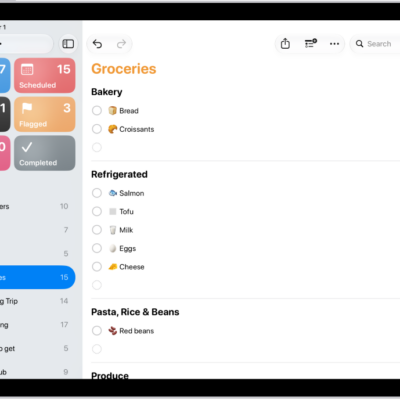
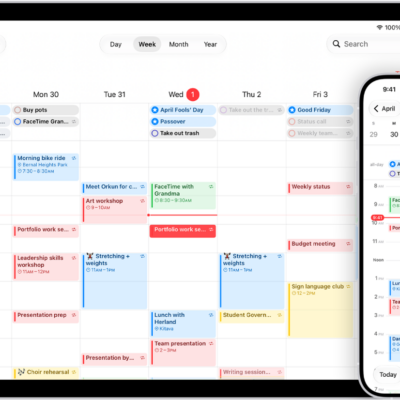
You can view, create, complete, and edit reminders from the Reminders app right in Calendar.
Your scheduled reminders appear alongside your events, at their time in the full-day schedule, or at the top of the calendar if they’re all day. You can create reminders, complete reminders, hide reminders, and edit or delete reminders. You can also add images, notes, or a priority level to a reminder, and choose a specific reminders list for new ones.
Show reminders
You can show scheduled reminders you added to the Reminders app in Calendar.
- Go to the Calendar app on your iPad.
- Tap the Calendars button at the top left and then select Scheduled Reminders.
The all-day section at the top of the calendar shows reminders scheduled as all day, while a reminder scheduled at a specific time shows up at that time in the full-day schedule.
Create reminders
- Start the Calendar app on your iPad.
- Tap the Add button at the top of the screen.
- Tap Reminder, then enter a title.
- To choose a date for the reminder, tap Date.
-
Optionally, turn on Time and choose a specific time for the reminder.
You can also add other information—like images, notes, or a priority level to a reminder. See Add details.
Note: It’s possible to select a specific reminders list for new scheduled reminders. If you don’t select one, they go into the default list you chose for Reminders. Read our guide, Change your Reminders settings.
Complete reminders
- Start the Calendar app on your iPad.
-
Tap the circle next to a reminder’s name.
Complete reminders are dimmed. Deselect the circle next to a reminder to mark it as incomplete.
Note: If you set a scheduled reminder to repeat, its future instances are dimmed, and you can’t mark them complete until the most current instance is marked complete.
Hide reminders
- Start the Calendar app on your iPad.
- Tap the Calendars button at the top left.
- Deselect Scheduled Reminders.
Removing reminders from Calendar doesn’t delete the reminders from the Reminders app.
Edit or delete reminders
- Start the Calendar app on your iPad.
-
Tap a reminder and tap Edit to edit the details or Delete Reminder to delete.
Deleted reminders go to the Recently Deleted list in Reminders for 30 days before being permanently deleted.
See also