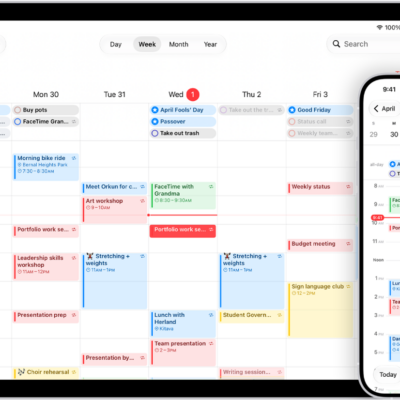
In the Calendar app, you can share an iCloud calendar with other iCloud users. When you share a calendar, others can see it, and you can let them add or change events. You can also share a read-only version that anyone can view but not change.
The people you invite receive an invitation to join, and your contacts need an email address to be invited. You can change a person’s access later.
Create an iCloud calendar
- Open the Calendar app on your iPad.
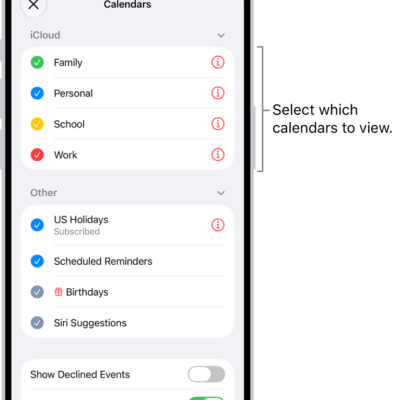
- Tap the Calendars button at the top left.
- Tap Add Calendar.
-
Tap Add Calendar, enter a name for the new calendar, and tap the Done button.
If iCloud isn’t your default calendar, tap Accounts, then tap iCloud. See Change your Calendar settings.
Share an iCloud calendar
When you share a calendar in iCloud with one or more people, each of them gets an invitation to join the calendar.
- Open the Calendar app on your iPad.
- Tap the Calendars button at the top left.
- Tap the Info button next to the iCloud calendar you want to share.
-
Tap Add Person and enter a name or email address, or tap the Add button to browse your contacts.
Note: Your contacts must have an email address to share an iCloud calendar. See Add and use contact information.
- Tap the Done button.
Change a person’s access to a shared calendar
For anyone you’ve invited to share your calendar, you can turn their ability to edit it on or off, or stop sharing with that person altogether.
- Open the Calendar app on your iPad.
- Tap the Calendars button, tap the Info button next to the shared calendar, and then tap the person.
- Do any of the following:
- Turn Allow Editing on or off.
- Tap Delete.
Turn off notifications for shared calendars
You get notified whenever someone modifies a calendar you’re sharing, though you can turn off notifications for shared calendars if you’d rather not receive them.
- Open the Settings app on your iPad.
- Tap Notifications and tap Calendar.
- Tap Customize Notifications, then turn off Shared Calendar Changes.
Share a read-only calendar with anyone
- Open the Calendar app on your iPad.
- Tap the Calendars button and tap the Info button next to the iCloud calendar you want to share.
- Turn on Public Calendar. Then tap Share Link to copy or send the URL for your calendar.
- Choose a method for sending the URL—Message, Mail, and so on.
The URL lets anyone you send it to subscribe to the calendar in a compatible app, such as Calendar for macOS.
Delete a calendar
- Open the Calendar app on your iPad.
- Tap the Calendars button at the top left.
- Tap the Info button next to the iCloud calendar you want to delete.
- Tap Delete Calendar at the bottom of the list.
See also