In the Calendar app, you can share an iCloud calendar with other iCloud users. When you share a calendar, others can see it, and you can let them add or change events. You can also share a read-only version that anyone can view but not change.
You can change a person’s access to a shared calendar, and turn off notifications for shared calendars.
Here’s how to share iCloud calendars on iPhone.
Create an iCloud calendar
- Start the Calendar app on your iPhone.
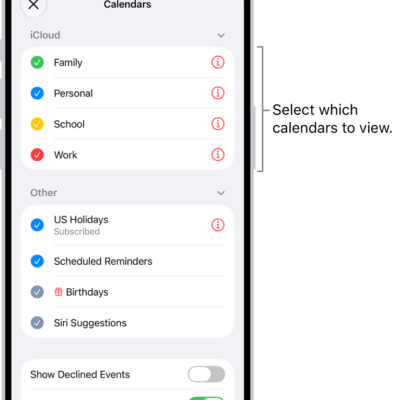
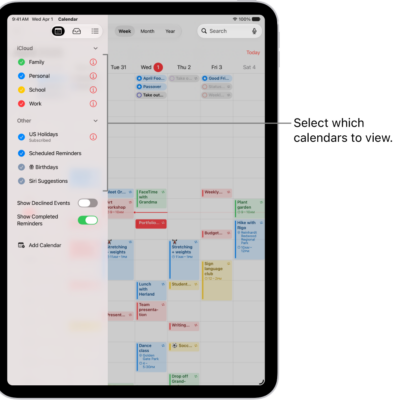
- Tap the Calendars button.
- Tap Add Calendar.
- Tap Add Calendar, enter a name for the new calendar, and tap the Done button.
If iCloud isn’t your default calendar, tap Accounts, then tap iCloud.
Share an iCloud calendar
Share a calendar in iCloud with one or more people, and each person you invite receives an invitation to join it.
- Start the Calendar app on your iPhone.
- Tap the Calendars button.
- Tap the Info button next to the iCloud calendar you want to share.
- Tap Add Person and enter a name or email address, or tap the Add button to browse your contacts.
Note: To share an iCloud calendar with your contacts, they need an email address.
Tap the Done button.
Change a person’s access to a shared calendar
After you invite someone to share your calendar, you can turn their ability to edit the calendar on or off, or stop sharing the calendar with them entirely.
- Start the Calendar app on your iPhone.
- Tap the Calendars button and tap the Info button next to the shared calendar. Tap the person’s name.
- Do any of the following:
- Turn Allow Editing on or off.
- Tap Delete.
Turn off notifications for shared calendars
When someone modifies a calendar you’re sharing, you get notified of the change. You can turn off those notifications if you don’t want them.
- Start the Settings app on your iPhone.
- Tap Notifications and tap Calendar.
- Tap Customize Notifications, then turn off Shared Calendar Changes.
Share a read-only calendar with anyone
- Start the Calendar app on your iPhone.
- Tap the Calendars button then tap the Info button next to the iCloud calendar you want to share.
- Turn on Public Calendar. Then tap Share Link to copy or send the URL for your calendar.
- Choose a method for sending the URL—Messages, Mail, and so on.
Anyone you send the URL to can subscribe to the calendar in a compatible app, like Calendar for macOS.
Delete a calendar
- Start the Calendar app on your iPhone.
- Tap the Calendars button.
- Tap the Info button next to the iCloud calendar you want to delete.
- Tap Delete Calendar at the bottom of the list.