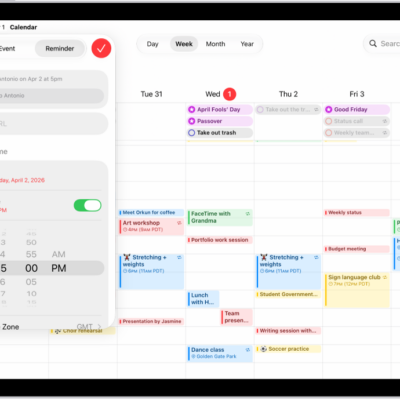
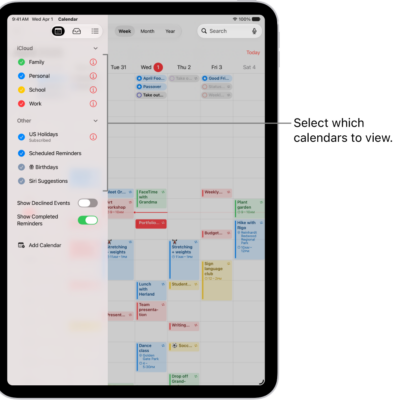
In the Calendar app, you can add multiple accounts such as iCloud, Google, Microsoft Exchange, and Yahoo. You can change default settings to make it easier to create new events and to display your calendar in a way that works best for you.
For example, you can choose the default calendar for new events, change the duration of new events, and more. You can also add a CalDAV account, and new events you create go to your default calendar automatically.
Set up iCloud, Google, Exchange, or Yahoo calendar accounts
- Start the Settings app on your iPad.
- Tap Apps and then tap Calendar.
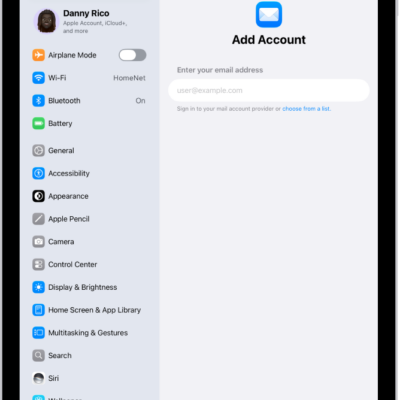
- Tap Calendar Accounts and then tap Add Account.
- Tap a service (iCloud, Microsoft Exchange, or Google, for example). Sign in.
Add a CalDAV account
- Start the Settings app on your iPad.
- Tap Apps and then tap Calendar.
- Tap Calendar Accounts and then tap Add Account.
- Tap Add Other Account, then tap Add CalDAV account.
- Enter your server and account information.
Note: Some accounts don’t support Push notifications, but a Fetch schedule can still update your calendar from them. Go to Settings > Apps > Calendar, tap Calendar Accounts, and tap Fetch New Data. Next, choose a schedule under Fetch; if you choose Automatically, new data downloads to your iPad when it’s charging and connected to Wi-Fi.
Choose a default calendar
You might have multiple calendars. If so, pick a default calendar, and any new events you create go there automatically.
- Start the Settings app on your iPad.
- Tap Apps and then tap Calendar.
- Tap Default Calendar, then select the calendar you want to use as your default calendar.
Note: An event can always move to a different calendar after you’ve created it. For more on using multiple calendars, check out our guide, Set up multiple calendars.
Set default event settings
Calendar events have default settings you can change, such as how long new events last, alerts for when it’s time to leave for an upcoming event, and more.
- Start the Settings app on your iPad.
- Tap Apps and then tap Calendar.
- Do any of the following:
- Set default alert times for events: Tap Default Alert Times, tap Birthdays, Events, or All-Day Events, and choose an option.
- Choose whether to be alerted when it’s time to leave for an upcoming event: Tap Default Alert Times. Turn Time to Leave on or off.
- Change the default duration for new events: Tap Duration for New Events. Choose a length of time.
- Choose whether Calendar suggests a location when you create a new event: Turn Location Suggestions on or off.
Change how your calendar is displayed
To make the information that matters most to you stand out, customize the way your calendar is displayed. Start the week on whichever day you want, for example, or show the Chinese, Hebrew, or Hijri calendar next to the Gregorian calendar.
- Start the Settings app on your iPad.
- Tap Apps and then tap Calendar.
- Do any of the following:
- Display the Chinese, Hebrew, or Hijri calendar: Tap Alternate Calendars and choose a calendar.
- Display the week number next to every week of the year: Turn on Week Numbers.
- Show the current day as the first day in Week view: Turn on Week View Starts On Today.
- Choose a different day to start the week: Tap Start Week On, then tap a day.
You can allow Siri to make suggestions across apps based on the way you use Calendar. Go to Settings > Apps > Calendar, tap Siri, then turn on “Learn from this App.” You can also allow suggestions and content from Calendar to appear in Search, widgets, and as notifications.
See also
- Schedule or display events in a different time zone in Calendar on iPad
- Keep track of events in Calendar on iPad
- Change how you view events in Calendar on iPad