Got a tip for us?

Calendar

Use the Calendar app to track meetings, appointments, and reminders, all in one place. You can add calendar accounts from providers like iCloud, Google, or Microsoft Exchange, create events, add quick reminders alongside them, and sync your calendar across devices.
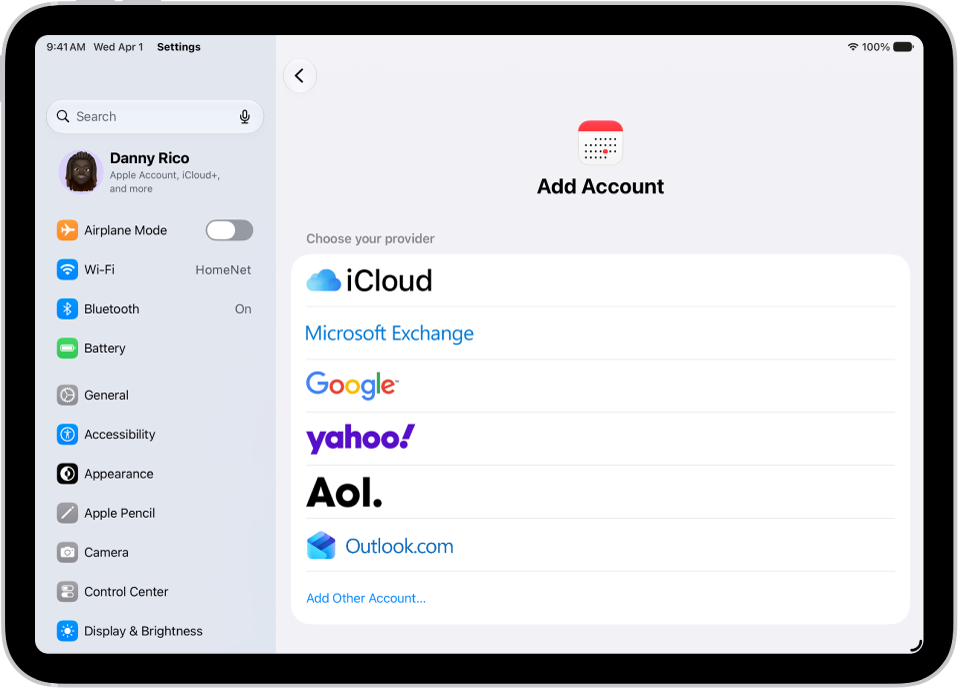
The add calendar account settings showing different calendar providers.

All your events in one place

With Calendar, you can add multiple calendar accounts from providers like iCloud, Google, or Microsoft Exchange. To add an account, go to Settings > Apps > Calendar. Tap Calendar Accounts, then choose Add Account.
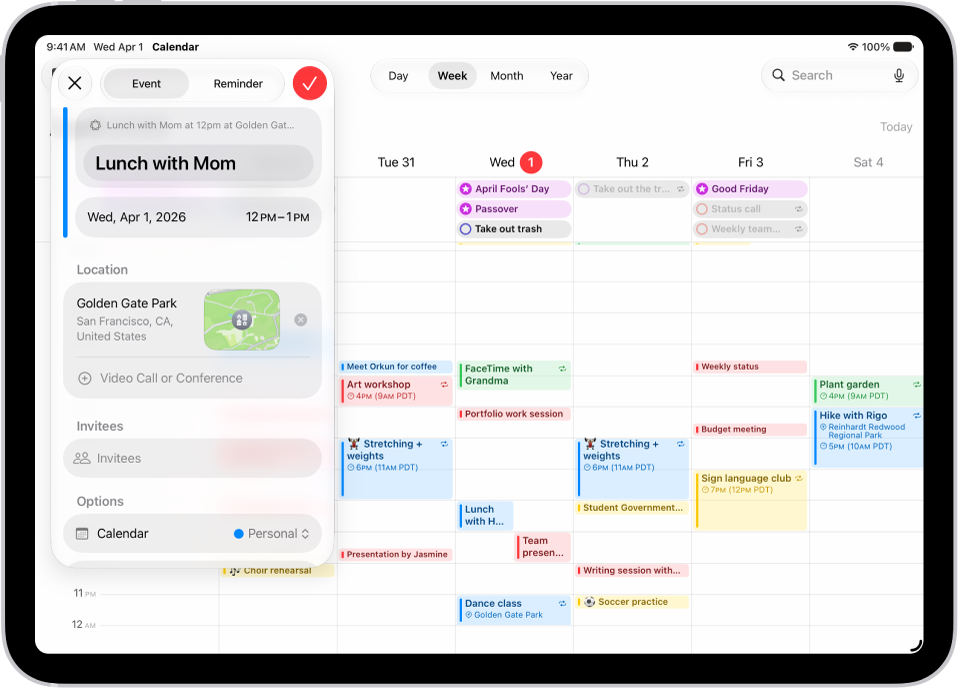
A calendar in Week view showing the create event window.

Create events

Create events to keep track of everything—from work meetings to family fun. Tap the Add button at the top of the screen, enter your details, then tap the Done button.
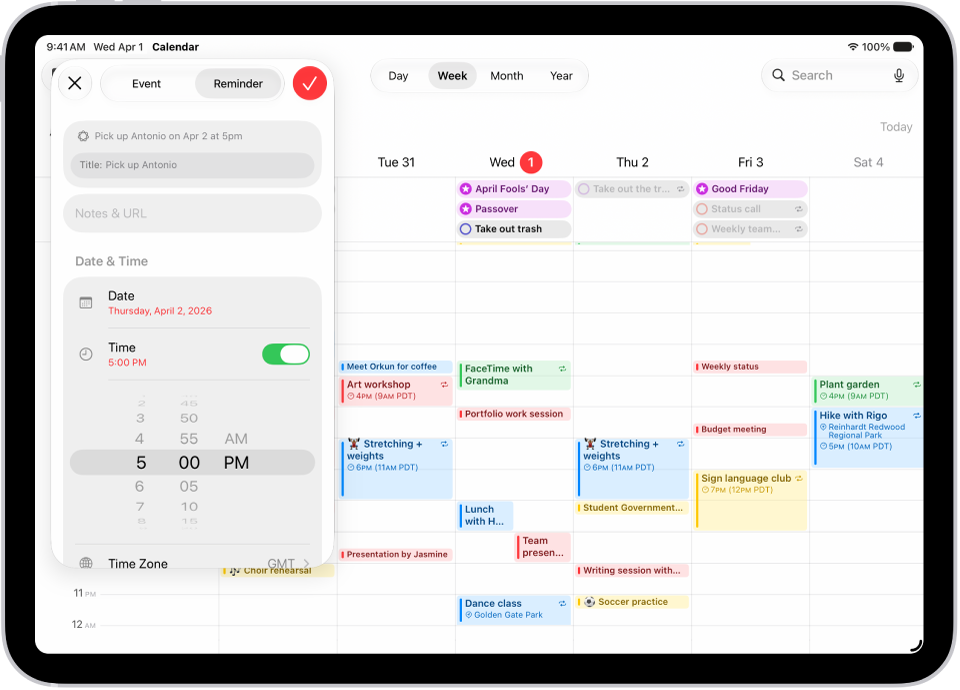
A calendar in Week view showing the create reminder window.

Add a quick reminder

Stay organized by adding reminders alongside your events. Tap the Add button at the top of the screen, then tap Reminder and enter a title. Tap Date to choose a date for the reminder, then tap the Done button.
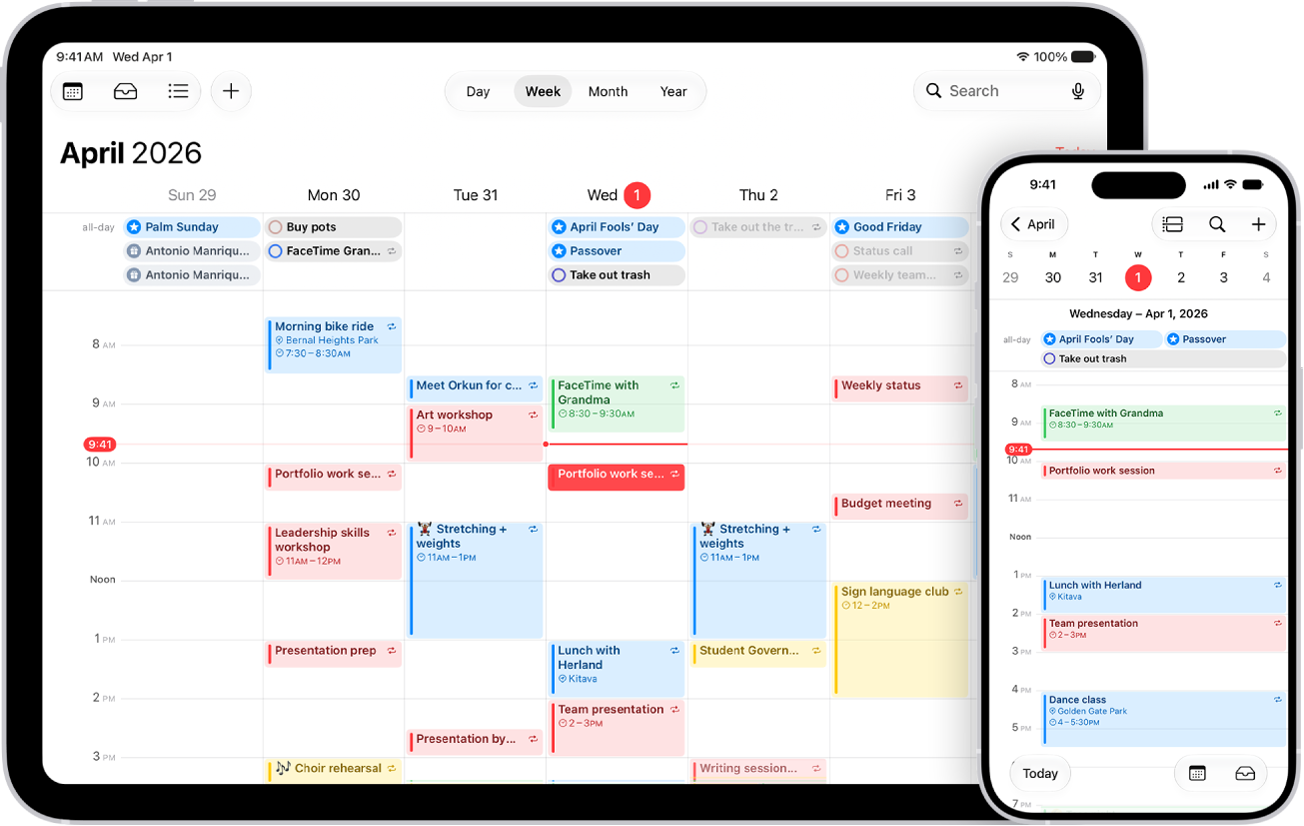
A calendar on iPad in Week view and the same calendar on iPhone in Day view.

Sync your calendar across devices

You can use iCloud to keep your calendar information up to date on all your devices where you’re signed in to the same Apple Account. Go to Settings > [your name] > iCloud. Tap See All next to Saved to iCloud, then turn on Calendar.

These guides cover more of what Calendar can do:

You can view, create, complete, and edit reminders from the Reminders app right in Calendar.

Your scheduled reminders appear alongside your events, at their time in the full-day schedule, or at the top of the calendar if they’re all day. You can create reminders, complete reminders, hide reminders, and edit or delete reminders. You can also add images, notes, or a priority level to a reminder, and choose a specific reminders list for new ones.

Show reminders

You can show scheduled reminders you added to the Reminders app in Calendar.

  1. Go to the Calendar app on your iPad.
  2. Tap the Calendars button at the top left and then select Scheduled Reminders.

The all-day section at the top of the calendar shows reminders scheduled as all day, while a reminder scheduled at a specific time shows up at that time in the full-day schedule.

Create reminders

  1. Start the Calendar app on your iPad.
  2. Tap the Add button at the top of the screen.
  3. Tap Reminder, then enter a title.
  4. To choose a date for the reminder, tap Date.
  5. Optionally, turn on Time and choose a specific time for the reminder.

    You can also add other information—like images, notes, or a priority level to a reminder. See Add details.

Note: It’s possible to select a specific reminders list for new scheduled reminders. If you don’t select one, they go into the default list you chose for Reminders. Read our guide, Change your Reminders settings.

Complete reminders

  1. Start the Calendar app on your iPad.
  2. Tap the circle next to a reminder’s name.

    Complete reminders are dimmed. Deselect the circle next to a reminder to mark it as incomplete.

Note: If you set a scheduled reminder to repeat, its future instances are dimmed, and you can’t mark them complete until the most current instance is marked complete.

Hide reminders

  1. Start the Calendar app on your iPad.
  2. Tap the Calendars button at the top left.
  3. Deselect Scheduled Reminders.

Removing reminders from Calendar doesn’t delete the reminders from the Reminders app.

Edit or delete reminders

  1. Start the Calendar app on your iPad.
  2. Tap a reminder and tap Edit to edit the details or Delete Reminder to delete.

    Deleted reminders go to the Recently Deleted list in Reminders for 30 days before being permanently deleted.

See also

You can customize the notifications that let you know about upcoming calendar events, invitations, and more. You can also make sure your events and other calendar information are kept up to date on all your devices.

You can choose whether notifications appear for specific occasions, like upcoming events, and turn on customized notifications for specific calendars. iCloud keeps your calendar current on all your devices. If you don’t want to use iCloud for your calendar, you’ll sync your calendar information between your iPad and your computer instead.

Customize Calendar notifications

  1. Open the Settings app on your iPad.
  2. Tap Notifications and tap Calendar.
  3. Turn on Allow Notifications.
  4. Choose how and where you want the notifications to appear—for example, on the Lock Screen, in Notification Center, as banners at the top of the screen, with an alert sound, and so on.

Turn on customized notifications for specific calendar events

After customizing Calendar notifications, you choose the specific occasions they appear for, like upcoming events or invitee responses.

  1. Open the Settings app on your iPad.
  2. Tap Notifications and tap Calendar.
  3. Tap Customize Notifications, turn the specific customized notifications on or off.

Keep your calendar up to date across your devices

When you’re signed in to the same Apple Account on every device, iCloud can keep your calendar information up to date on each.

  1. Open the Settings app on your iPad.
  2. Tap your name, then tap iCloud.
  3. Tap See All next to Saved to iCloud.
  4. Tap iCloud Calendar and turn on Use on this iPad.

You don’t have to use iCloud for your calendar. Instead, you can sync calendar information between your iPad and your computer. Check out our guide, Transfer files between your iPad and other devices.

See also

In the Calendar app, you can set up multiple calendars to keep track of different kinds of events. You can keep everything in one calendar, but additional calendars are easy to set up and a great way to stay organized.

You’ll create an iCloud calendar with a name and color. You can also subscribe to an external read-only calendar or a holiday calendar, see multiple calendars at once, and unsubscribe from a calendar later.

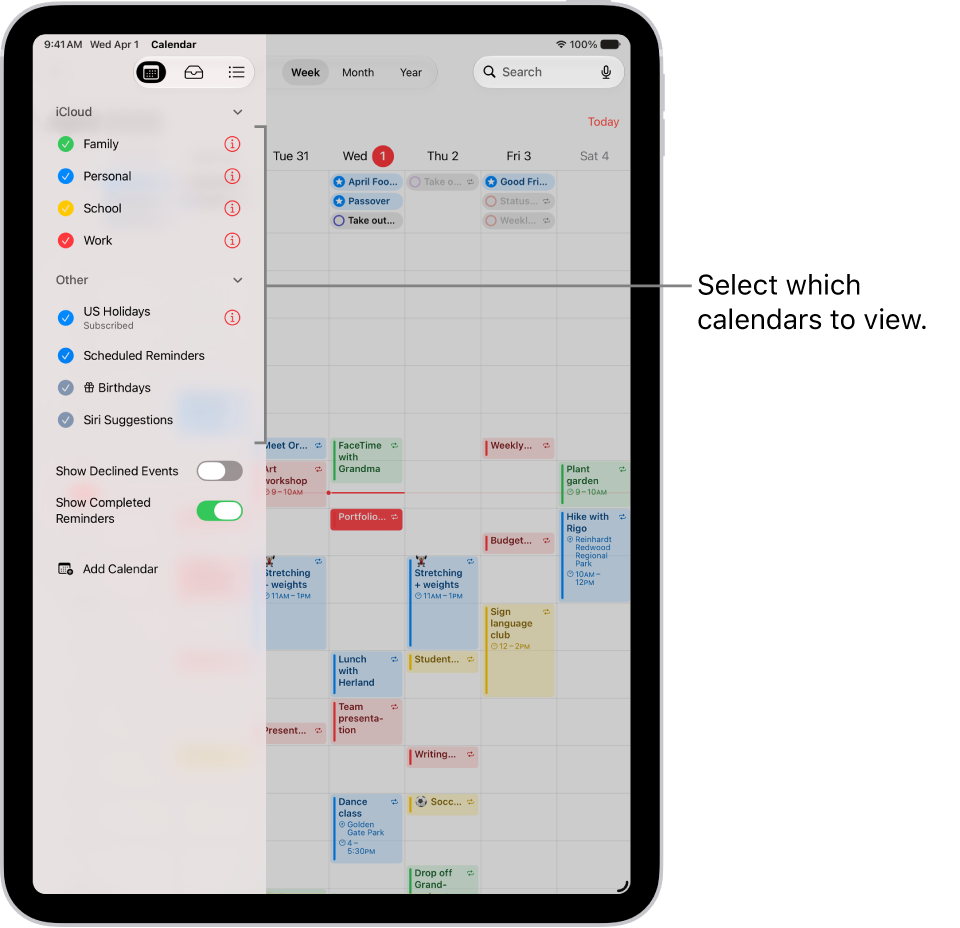
The Calendars list, with checkmarks indicating which calendars are active. The Done button for closing the list is in the top-right corner. The Add Calendar button is in the bottom-left corner.

Set up a calendar

  1. Open the Calendar app on your iPad.
  2. Tap the Calendars button at the top left and then tap Add Calendar at the bottom of the screen.
  3. Do one of the following:

    • Create an iCloud calendar: Tap Add Calendar and enter a name for the calendar. Choose a color for it.
    • Subscribe to an external read-only calendar: Tap Add Subscription Calendar, enter the URL of the .ics file you want to subscribe to (and any other required server information), and then tap Find.
    • Add a Holiday calendar: Tap Add Holiday Calendar, then tap the holiday calendar you want to subscribe to.

      See Use the Holidays calendar.

You can also subscribe to an iCalendar (.ics) calendar by tapping a link to it.

Unsubscribe from a calendar

You can unsubscribe from a calendar you’re subscribed to and also report the calendar as junk.

  1. Open the Calendar app on your iPad.
  2. Tap the Calendars button at the top left and tap the Info button next to the calendar you want to remove.
  3. Tap Unsubscribe and tap Unsubscribe or Unsubscribe and Report Junk.

    Note: When you tap Unsubscribe and Report Junk, the calendar is reported to Apple as a suspected junk subscription.

See multiple calendars at once

  1. Open the Calendar app on your iPad.
  2. To view multiple calendars, tap the Calendars button. Do any of the following:
    • Select the calendars you want to view.
    • Tap US Holidays to include national holidays with your events.
    • Tap Birthdays to include birthdays from Contacts with your events.

Turn on calendar event alerts

For calendars you create or subscribe to, event notifications are something you can turn on.

  1. Open the Calendar app on your iPad.
  2. Tap the Calendars button at the top left.
  3. Tap the Info button next to a calendar.
  4. Turn Event Alerts on or off.
  5. Tap the Done button.

Change a calendar’s color

  1. Open the Calendar app on your iPad.
  2. Tap the Calendars button at the top left.
  3. Tap the Info button next to the calendar, then choose a color.
  4. Tap the Done button.

The server sets the color for some calendar accounts, such as Google.

Move an event to another calendar

  1. Open the Calendar app on your iPad.
  2. Tap the event and tap Calendar. Select a calendar to move the event to.

See also

In addition to the apps that come with iPad and that you use with iCloud, iPad works with Microsoft Exchange and many of the most popular internet-based mail, contacts, and calendar services. You can set up accounts for these services.

You can choose your email service from a list, or add another account if yours isn’t listed. You can set up a contacts account and a calendar account with a provider like iCloud or Microsoft Exchange, too.

Here’s how to set up mail, contacts, and calendar accounts on iPad.

Set up a mail account

  1. Start the Settings app on your iPad.
  2. Tap Apps and then tap Mail.
  3. Tap Mail Accounts, then tap Add Account.
  4. Enter your email address, tap Next, and enter your email account information.

    You can also tap “choose from a list” under the email address field to select the email service you want to use—for example, iCloud, Microsoft Exchange, or Gmail (Google).

    If your email service isn’t listed, tap Add Other Account, tap Mail Account, then enter your email account information.

For the steps, read our guide, Add and remove email accounts.

Set up a contacts account

  1. Start the Settings app on your iPad.
  2. Tap Apps, then tap Contacts.
  3. Tap Contact Accounts and then tap Add Account.
  4. Do one of the following:
    • Tap a provider—for example, iCloud or Microsoft Exchange—then enter your account information.
    • Tap Other, tap Add LDAP Account or Add CardDAV Account (if your organization supports it), then enter the server and account information.

To manage Contacts accounts, see our article, Add or remove accounts in Contacts.

Set up a calendar account

  1. Start the Settings app on your iPad.
  2. Tap Apps and then tap Calendar.
  3. Tap Calendar Accounts, then Add Account.
  4. Do one of the following:
    • Choose a provider: Tap a provider—for example, iCloud or Microsoft Exchange—then enter your account information.
    • Add a CalDAV, CardDav, or LDAP account: Tap Add Other Account, choose an option, and then enter your server and account information.
    • Subscribe to iCal (.ics) calendars: Tap Other, tap Add Subscribed Calendar, and then enter the URL of the .ics file to subscribe to; or import an .ics file from Mail.

If you also use calendars, see our guide, Set up multiple calendars.

Turn on iCloud Keychain on your iPad, and your accounts stay up to date on every device that has iCloud Keychain turned on.

See also

Tags: Calendar, Mail

Use Calendar to check your schedule, add or update events, and see scheduled reminders. You can also respond to invitations, get directions to an event, and choose which calendars appear on your watch.

There’s a list view, a day view, and a month view. Each event shows details like time, location, invitee status, and notes, and you can even open Calendar right from the watch face.

Here’s how to check and update your calendar on Apple Watch.

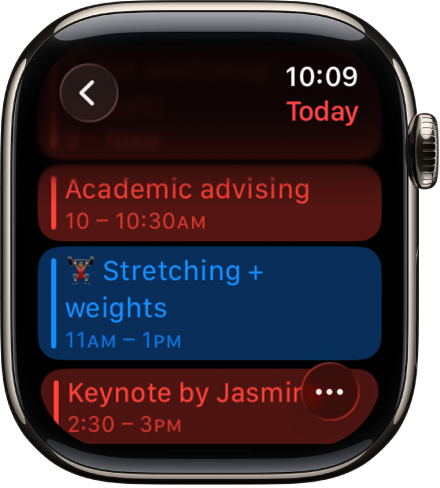
Calendar screen showing a list of the day’s events. Events are color coded to match the calendar they belong to.

View your calendar

See what’s coming up next in a list, day, or month view.

  1. Open the Calendar app on your Apple Watch.

    Tip: From the watch face, you can also tap the date or a calendar event.

  2. Turn the Digital Crown to scroll through upcoming events.
  3. To change the view, tap the More Options button and then choose an option.
  4. Tap an event to see details about it, including time, location, invitee status, and notes.

    Tip: If the event includes a location, tap the address to get directions. See Get directions in Maps on Apple Watch.

Add an event

Events you add to the Calendar app on your Apple Watch sync to your iPhone by default, and the other way around. Each event can include details like location and “leave now” alerts.

  1. Open the Calendar app on your Apple Watch.
  2. Tap the More Options button. Tap the Add button
  3. Enter event details, then choose the calendar you want to add the event to.

Edit or delete an event

  1. Open the Calendar app on your Apple Watch.
  2. Tap an event, then tap Edit or Delete.

View scheduled reminders

In Day or List view, Calendar puts scheduled reminders from the Reminders app alongside your events.

  1. Open the Calendar app on your Apple Watch.
  2. While using Day or List view, tap the reminder and tap Open in Reminders.

Change calendar settings and manage alerts

You can change the kind of calendar notifications you receive and pick which calendars appear on Apple Watch.

  1. Open the Apple Watch app on your iPhone.
  2. Tap My Watch and tap Apps. Then tap Calendar.

See also

In the Calendar app, reply to meeting and event invitations you’ve received.

You can respond with Accept, Maybe, or Decline. If you add comments to your response, the organizer can see them, but other attendees can’t. You can even suggest a different meeting time.

Reply to an event invitation

  1. To respond to an event notification, tap it.

    Or, in Calendar, tap the Inbox button, then tap an invitation.

  2. Tap your response—Accept, Maybe, or Decline.

To respond to an invitation you receive by email, tap the underlined text in the email, then tap Show in Calendar.

If you add comments to your response, your comments can be seen by the organizer but not by other attendees (comments may not be available for all calendars). To see events you declined, tap the Calendars button, then turn on Show Declined Events.

Suggest a different meeting time

If you’ve received a meeting invitation, you can suggest a different time for it.

  1. Start the Calendar app on your iPhone.
  2. Tap the meeting, then tap Propose New Time.
  3. Tap the time, then enter a new one.
  4. Tap the Done button, then tap Send.

The organizer gets either a counter-proposal or an email with your suggestion, depending on what your calendar server can do.

In the Calendar app, the Holidays calendar displays holidays based on the region set on your iPhone.

You can show or hide holidays, and add a holiday calendar from a different region. Since the Holidays calendar is a subscription calendar, though, you can’t add or delete holidays, because it can be modified only by the calendar provider.

Note: Because the Holidays calendar is a subscription calendar, only the calendar provider can modify it, so you can’t add or delete holidays.

Show or hide holidays

  1. Start the Calendar app on your iPhone.
  2. Tap the Calendars button.
  3. Select or deselect US Holidays (or the holiday calendar for your country or region).

Add a holiday calendar from a different region

  1. Start the Calendar app on your iPhone.
  2. Tap the Calendars button.
  3. Tap Add Calendar, then tap Add Holiday Calendar.
  4. Tap the holiday calendar you want to subscribe to and then tap the Done button.

You can search for events by title, invitees, location, and notes in the Calendar app on your iPhone, and Calendar shows you the events that match. You just enter the text you want to find in the search field. Siri can tell you what’s on your calendar, too.

  1. Start the Calendar app on your iPhone.
  2. Tap the Search button. Enter the text you want to find in the search field.

Siri: Ask Siri something like, “What’s on my calendar for Friday?”

You can see when a company has an upcoming earnings report and add it as an event in the Calendar app.

The earnings report is saved as an all-day event, and Calendar sends you a reminder on the day of the report. You can add one for any stock with an upcoming earnings report, and delete the event later.

Here’s how to add earnings reports to your calendar in Stocks on iPhone.

Add an earnings report event to your calendar

When a stock has an upcoming earnings report, you can add it to the Calendar app.

  1. Open the Stocks app on your iPhone.
  2. Tap a ticker symbol in your watchlist, or use the search field to search for a symbol.
  3. If an earnings report is upcoming, tap Add to Calendar and tap the Done button.

In the Calendar app, the report shows up as an all-day event, with an event reminder from Calendar on the day of the earnings report.

Delete an earnings report event from your calendar

  1. Open the Stocks app on your iPhone.
  2. Tap the ticker symbol in your watchlist or use the search field to search for the symbol.
  3. Tap View to switch to the Calendar app.
  4. In the Calendar app, tap the event, tap Delete Event (you may have to scroll down), and confirm by tapping Delete Event again.