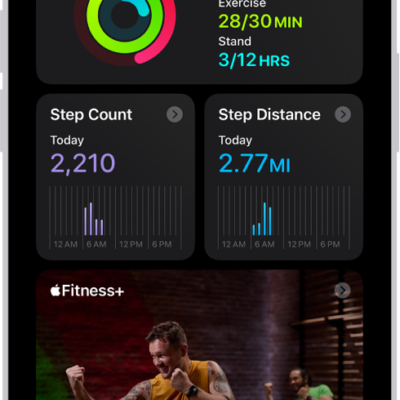
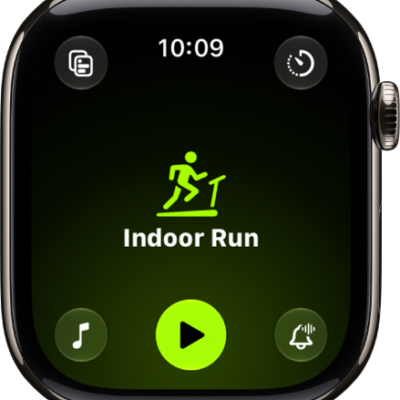
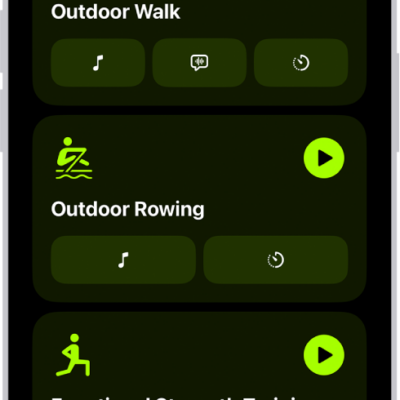
You can create a custom workout on your iPhone to support your fitness goals. Add warmup and cooldown times; add work and recovery intervals; set time, calorie, and distance goals; set a pace; and more.
Each one starts from a workout type in the Fitness app, and you can include a warmup, repeating work and recovery intervals, and a cooldown. You’ll need an Apple Watch paired to your iPhone, too.
Here’s how to customize a workout in Fitness on iPhone.
Note: To use custom workouts, you need an Apple Watch with watchOS 26 or later that is paired to your iPhone. Any you create on your iPhone sync to your Apple Watch automatically.
Create a custom workout
You can tailor your workouts with a warmup period and a time to cool down, plus repeating work and recovery intervals.
- Open the Fitness app on your iPhone.
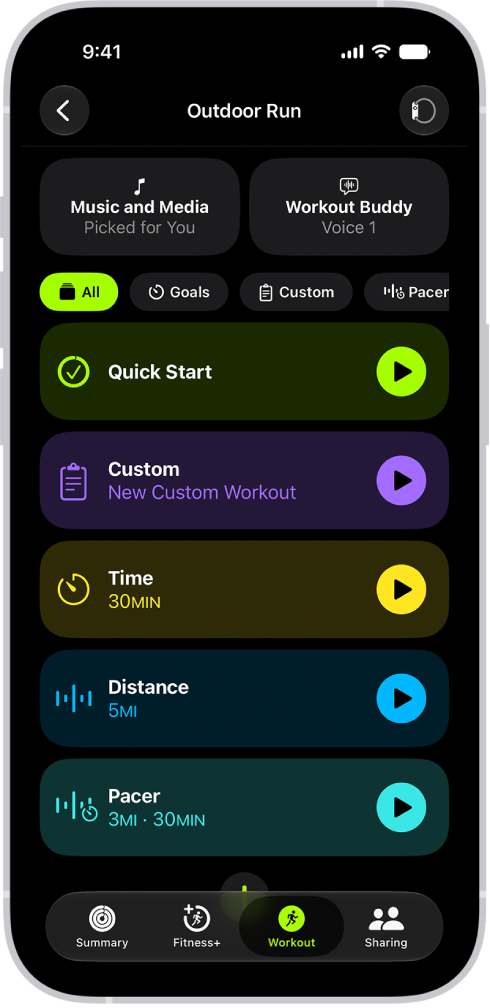
- Tap Workout, scroll to a workout type, and tap the Goals button.
- Tap Custom, then tap the Add button.
-
Do any of the following:
-
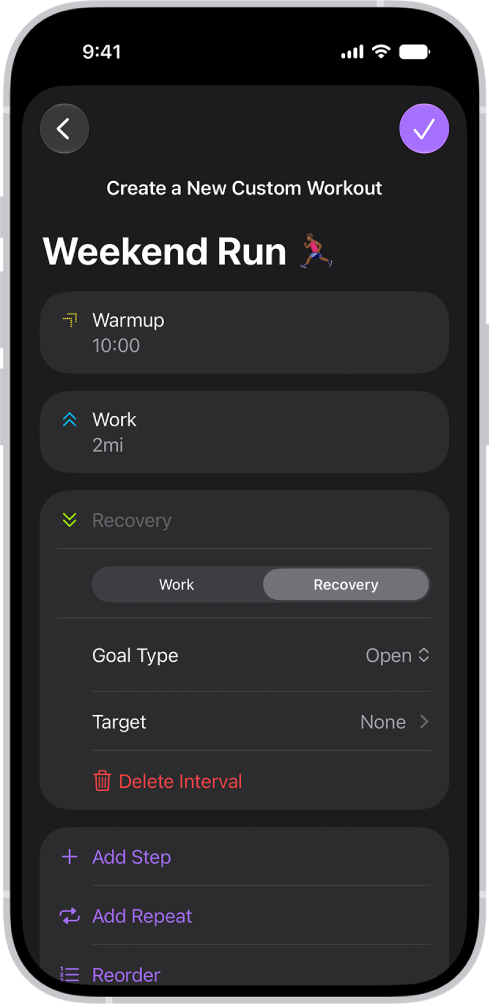
Add a warmup or cooldown period: Tap Warmup or Cooldown and tap Goal Type. Tap Time, Distance, or Open.
Note: If you want to skip a warmup or cooldown interval, tap Warmup or Cooldown, then tap Skip.
-
Add work and recovery intervals: Tap Add Step and tap Work or Recovery. Next to Goal Type, choose Time, Distance, or Open.
Tip: You can also tap Add Repeat to repeat a work or recovery interval as many times as you want in your custom workout.
- Reorder work and recovery intervals: Tap Reorder, touch and hold an interval, and reposition it. When you’re finished, tap the Done button.
- Delete a work or recovery interval: Tap an interval, then tap Delete Interval.
-
Name the custom workout: Tap New Custom Workout, then enter a name.
Note: Tap Target to add a goal to an interval. You can also name each interval of the workout.
-
Add a warmup or cooldown period: Tap Warmup or Cooldown and tap Goal Type. Tap Time, Distance, or Open.
- When you’re finished, tap the Done button.
Add a workout goal
For each workout type, you can set time, distance, and calorie goals.
- Open the Fitness app on your iPhone.
- Tap Workout, scroll to a workout type, and tap the Goals button.
- Tap Goals, then tap the Add button.
- Do any of the following:
- Set a calorie goal: Tap Calories, tap the number, and then choose an option.
- Set a distance goal: Tap Distance, tap the number and unit of measure, and then choose an option.
- Set a time goal: Tap Time and tap the time. Then choose an option.
- When you’re finished, tap the Done button. To immediately start your workout after setting a goal, tap Start Workout.
Create a Pacer workout
For a running or outdoor cycle workout, you can choose a target pace. Your iPhone and Apple Watch then show if you’re ahead of or behind it.
- Open the Fitness app on your iPhone.
- Tap Workout, scroll to Outdoor Run, Indoor Run, or Outdoor Cycle, and tap the Goals button.
- Tap Pacer and then tap the Add button.
- Do the following:
- Set a distance goal: Tap the number and unit of measure next to Distance. Then choose an option.
- Set a time goal: Tap the time, then choose an option.
- When you’re finished, tap the Done button. To immediately start your workout after setting your pace, tap Start Workout.
Your iPhone and Apple Watch show your average and current pace during your workout, along with a graph showing whether you’re ahead of or behind your chosen pace.
Use Race Route to race against your last or best time
If you run or cycle a route often, you can race against your last or best time. Once you’ve traveled the same route at least twice with little to no deviation, it’s automatically generated and available to you.
- Open the Fitness app on your iPhone.
- Tap Workout and scroll to Outdoor Run or Outdoor Cycle. Tap the Goals button.
- Swipe left below Music and Media, tap Race Route, and tap Personal Best or Most Recent.
- Tap Start Workout.
Share or delete custom workouts and goals
- Open the Fitness app on your iPhone.
- Tap Workout, scroll to a workout type, and tap the Goals button.
- Tap a workout goal, custom workout, or Pacer workout and tap the More button.
- Do one of the following:
- Share an option: Tap Share Workout and choose a sharing option.
- Delete an option: Tap Delete Workout.