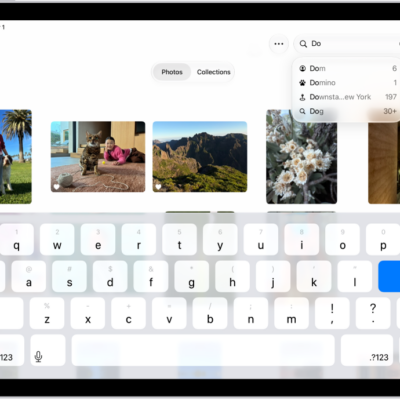
When you search in the Photos app, you’ll see suggestions of dates, locations, and people you’ve named in your photo library. You can search within your Library or Collections tabs, or within a specific album or collection, and you can search by place, category, business names, events, text such as an email address or phone number, and people or pets you’ve named.
With Apple Intelligence, you can search for specific images by describing what you want to find, and search video clips for key moments.
Apple Intelligence on iOS 27 or later is available on an Apple Intelligence-enabled iPhone 15 Pro, iPhone 15 Pro Max, or iPhone 16 model or later. Apple Intelligence is not available in all languages or regions. Usage limits may apply.*
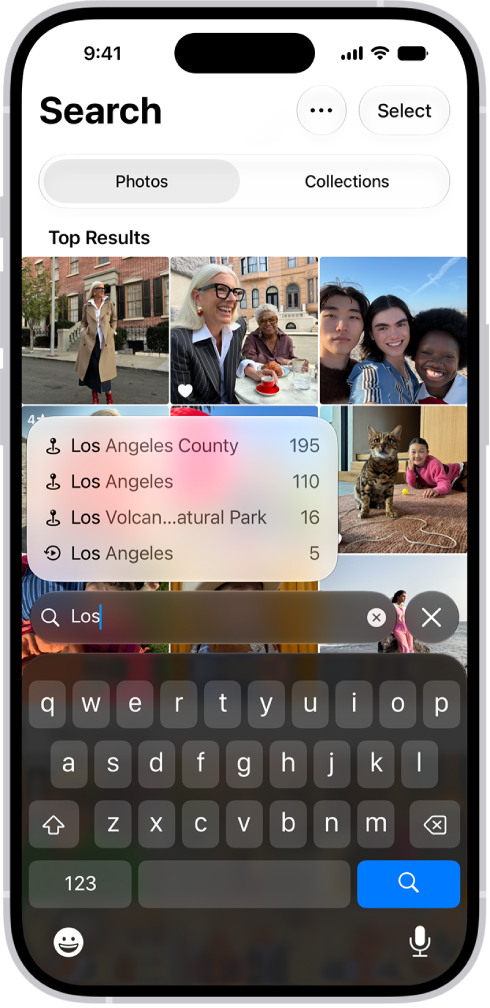
Search for photos and videos
- Open the Photos app on your iPhone.
- Tap the Search button in the bottom-right corner.
- Type what you’re looking for into the search field, such as:
- Date (month or year)
- Place (city or state)
- Business names (museums, for example)
- Category (beach or sunset, for example)
- Events (sports games or concerts, for example)
- People or pets you have named in your photo library
- Text (an email address or phone number, for example)
- Caption
- If you’re using Apple Intelligence, enter a description using natural language—”Maya skateboarding in a tie-dye shirt,” or “Sadie cartwheeling on the grass,” for example.
- Tap one of the suggestions or tap the Search button.
- Swipe up to browse the complete search results, or do any of the following:
- Select specific search results: Tap Select and select the photos and videos you want to share or add to an album.
- View albums or memories that contain the search result: Tap Collections.
- Sort search results: Tap the Sort and Filter button. Then tap Added to sort by the date added to your library, or tap Captured to sort by the date taken.
- Filter search results: Tap the Sort and Filter button. Then tap an option, such as Favorites or Edited.
- Tap the Close button to exit search.
Quick tip: Narrow your search by including a media type, such as Video or Portrait, in the search field.
Search by shared library participant
As a participant in an iCloud Shared Photo Library, you can also search by who added a photo or video to the library.
- Open the Photos app on your iPhone.
- Tap the Search button, then enter “Shared by.”
- Tap a suggested name.
*Apple Intelligence is available with Siri and device language set to Chinese (Simplified), Chinese (Traditional), Danish, Dutch, English, French, German, Italian, Japanese, Korean, Norwegian, Portuguese, Spanish, Swedish, Turkish, or Vietnamese. Some features may not be available in all regions or languages. Some devices may not be available in all regions. Siri AI is available in beta in iOS 27, iPadOS 27, macOS 27, watchOS 27, and visionOS 27 and requires an Apple Intelligence–enabled device set to a supported language. Available in English to start. Siri AI will not be initially available in the EU on iOS, iPadOS, and watchOS. Certain Apple Intelligence features that rely on server-side models are subject to daily usage limits, including but not limited to Siri AI, Intelligent Photo Editing Tools, Image Playground, and AFM 3 Cloud models in Shortcuts. Daily limits may vary by feature, request complexity, system demand, system policies, and other factors. Expanded access to such features will be available for a fee in the future. Use of these features is subject to the Apple Intelligence Terms and Conditions.