Got a tip for us?

Photos

Got yourself a new iPhone? Take your Android photos with you!

QUICK ANSWER

There are various ways to transfer photos from Android to iPhone, but we recommend only a few to most people. You can use Apple’s Move to iOS app, or upload all your photos to iCloud from any browser. Alternatively, using your computer to move all your photos is also possible.

Moving from Android to iPhone can feel like a daunting task—but it’s really not that bad. Photos are probably one of the most important things to transfer in the migration. We’ll show you a few ways to do it.

How to transfer photos from Android to iPhone

Method 1: Transfer photos from Android to iPhone without computer during setup

My go-to method for file transferring is Apple’s own Move to iOS service. Move to iOS makes it very simple to transfer photos from Android to iPhone without computer.

In order to transfer photos from Android to iPhone using Move to iOS app, you’ll have to be in the iOS Setup Assistant, which is the startup page when you first turn on your new iPhone — the one that cycles between "Hello" in different languages. If you’ve already set up your iPhone and can access the home screen, you’ll have to factory reset it to use Move to iOS. Otherwise, use other methods discussed in this guide.

Let’s show you how to move photos from Android to iPhone using Move to iOS tool.

  1. Download and install Move to iOS from the Google Play Store on your Android device.
  2. Open the Move to iOS app and follow the instructions to get it ready. Steps include agreeing to terms and allowing certain permissions.
  3. You will eventually reach a page that asks you for a code. When you get here, put down the Android device and move to the iPhone.
  4. During the iOS initial setup, you will reach a Quick Start page. Select Set Up Manually.
  5. Pick Move Data from Android.
  6. This is where your iPhone will provide the code we mentioned in step three. Please make note of it.
  7. Grab your Android phone and enter the code.
  8. During this step, the iPhone will create a temporary Wi-Fi network, and the Android phone will look for it. Hit Connect to continue.
  9. Ensure that Photos has a check next to it and tap Continue.
  10. Your Android device will now begin transferring the photos over to your iPhone. Depending on the number of photos that are being transferred, it could take a couple of minutes for the entire process to complete. It took me less than 10 minutes.
  11. Move to iOS will transfer photos into the Photos app on your iPhone. When the success message displays, tap done.

Method 2: Transfer Photos from Android to iPhone using iCloud

Move to iOS does a good job of transferring photos from Android to iPhone, but the method only works if your iPhone is brand new and is being set up for the first time. If you’ve already set up your iPhone, you can transfer photos from Android to iPhone is using iCloud. You can upload all your images using any browser, including Chrome for Android, which should already be on your Android device. Let’s walk you through the process.

  1. Using your Android device, open your browser and go to iCloud.com. Log in with your Apple ID and password.
  2. Tap on the Apps icon, which looks like a four-by-three app grid. It’s in the top-right corner.
  3. Select Photos.
  4. Locate the Upload button at the bottom and tap on it.
  5. Find the photos you want to upload and select them. Then, tap on done.
  6. Your photos will upload.

Once you do this, all your Photos will be on your iCloud account, which will also sync to your iPhone. If you don’t see your pictures in Photos app, make sure iCloud Photos is syncing on your iPhone. Head to Settings > Photos > iCloud Photos and toggle the option on.

Method 3: Transfer photos from Android to iPhone on a computer

If you prefer taking matters into your own hands, you can always transfer everything manually, using a computer. You will essentially have to transfer your photos from the Android device to the PC, then move them to the iPhone. Let’s walk you through the steps.

  1. Plug your Android device into the computer using a USB cable.
  2. On your Android phone, pull out the notification area and tap where it says Charging this device via USB. Tap on it again.
  3. Under Use USB for, select File transfer / Android Auto.
  4. On the PC, navigate to your Android device under This PC and locate your photos. They are usually in a folder labeled DCIM.
  5. Select, right-click, and copy the images you want to transfer and paste them into a temporary folder on your computer. I like using the desktop to keep files handy.
  6. When the files are in your computer, unplug the Android device
  7. Plug your iPhone into the computer.
  8. Your iPhone will ask for permission for the computer to access your files. Hit Allow.
  9. Now, you need to download and install iTunes. Do so, if you haven’t.
  10. After iTunes is set up, you will need to Trust the connection between the iPhone and the PC.
  11. Go to iTunes and click on the iPhone button.
  12. In the left sidebar, you’ll see the Settings section. Select Photos.
  13. Check the ”Sync Photos” box. Then select the dropdown menu under ”Copy photos from” and select Choose folder.
  14. Select the temporary folder you created and hit Select Folder.
  15. Click Done, and then Apply.
  16. The iPhone will now sync. All the photos will be on your iOS handset when the process is finished.

FAQs

Can I use the ‘Move to iOS’ app even if I already set up my iPhone?

No, unfortunately, you cannot use the file-transfer service if you already completed the iOS Setup Assistant. My best advice is to back up anything on your new iPhone that you’d like to keep, factory reset the iPhone, use the Move to iOS service, and then retrieve what was backed up. Again, just make sure you have enough storage to hold everything.

What is the fastest way to transfer photos from Android to an iPhone?

Apple’s Move to iOS service is the most seamless and efficient transferring service that I’ve used, especially when I’m still going through the initial phase of setup.

Can I transfer photos from Android to an iPhone after setup?

Sure. The best method is to use iCloud. You can upload all your images using any browser, including Chrome for Android, which should already be on your Android device.

Conclusion

With Apple’s "Move to iOS" app and iCloud access from the browser, it’s not terribly difficult to move your photos from Android to iPhone. While you’re here, you may want to learn how to transfer data from android to iPhone with computer.

Tag: Photos

Photos is where all the amazing photos you take with your iPhone live. Here are the best tips and tricks to make the most out of Photos app on your iPhone.

The Photos app on your iPhone contains many helpful features, but these can be easily missed. To that end, we rounded up a list of helpful tips and tricks so that you can use the iPhone’s Photos app to its fullest potential.

Best Tips and Tricks to Master Photos App on Your iPhone

1. Undo and Redo Individual Edits to Photos

When you select an image in your Photo Library and tap Edit to make changes, if at any point in the process you’re not happy with the results, you can tap the Undo icon in the upper left corner of the screen to revert each effect one by one, right back to the original image.

What’s more, if you find you preferred a specific adjustment after you’ve undone it, you can simply tap the Redo icon to re-apply the effect.

2. Copy and Paste Edits to Photos

If you have multiple photos that you want to edit in the same way, or if you’ve made changes to one photo that you want to replicate in another photo, you can use the copy and paste edits tools on iPhone.

To use this Photos app trick on your iPhone, first open an image, then tap Edit and make the adjustments to it that you want. When you’re finished, hit Done, and then tap on the ellipsis (three dots) icon in the upper right corner of the interface.

From there, tap Copy Edits in the dropdown menu to copy everything that you did to the image to the clipboard. Then open up another photo, tap on the ellipsis (three dot) icon again, and then tap Paste Edits to get the exact same adjustments.

3. Remove Duplicate Photos

Say you’ve imported the same images more than once. Or even say you took a lot of shots of the sky as you tried to capture that eagle in frame.

A cool Photos trick can detect multiple duplicate photos like this, and deal with them. Here’s how:

  1. In the photos app, tap on Albums.
  2. Scroll down and choose Duplicates.
  3. Check through each pair of duplicates and keep or merge them.

4. Copy subject in Photos

In the Photos app , you can use a cool trick to isolate the subject of a photo from the photo background, and then copy or share it in other documents and apps.

  1. Open a photo.
  2. Touch and briefly hold the subject of the photo.
  3. When it’s outlined, tap Copy, then paste the subject into an email, text message, or note. You can also tap Share, then choose a sharing option, such as AirDrop, Messages, or Mail.

5. Use Live Text in Videos

If you ever need to extract a piece of text or perform certain actions on it in a video, you can do so easily within the Photos app on your iPhone.

To use Live Text in a video, follow the steps below:

  1. Pause the video on the frame with the text you want to extract.
  2. Tap on the Live Text button (with three horizontal lines) in the bottom-right of the screen.
  3. When it’s finished identifying the text, you can select, copy, look up, translate, or share it.
  4. If the text contains a phone number, email, address, etc., it will turn into a link. You can then click this link to reveal relevant and supported actions. Alternatively, you can directly tap the text in the video to reveal the available actions.

6. Sort People By Name in Photos App on your iPhone

You can use this hidden Photos trick on iPhone to sort the order in which people appear inside the People album. This makes it easier than ever to find people and their photos on the iPhone.

To change the sort order inside the People album, follow the steps below:

  1. Open Photos app on your iPhone.
  2. Go to the People album.
  3. Tap the ellipsis button and select Name. It will automatically sort the people’s list alphabetically.

7. Turn Off Live Mode on Photos Quickly

At times, there will be scenarios where you accidentally capture a live image instead of a still. Thankfully, a cool Photos trick on iPhone makes it easy to disable the live aspect of an image.

  1. In the Photos app on your iPhone, open the photo on which you want to disable the Live option.
  2. Tap on the Live menu button on the left of the screen.
  3. Select Off.

8. View EXIF Metadata in the Photos App

In the Photos app on your iPhone, you can use a hidden trick to view information about a photo in your library, including EXIF metadata such as the camera it was taken on, the lens type, and the shutter speed used.

  1. Start the Photos app on your iPhone.
  2. Open the image for which you want to view the metadata.
  3. Tap the info button (the encircled “i” icon) below the image, or, simply swipe up the image. This will reveal details about where the photo was taken, the camera settings, etc.
  4. If you want to edit the photo’s metadata, tap Adjust. Here you can change the date and time that’s attached to the photo.
  5. Tap Done to save or Cancel to leave the original date and time details.

9. Find and identify people in Photos on iPhone

The Photos app on your iPhone recognizes faces in your photos and sorts them in the People album. When you add names to the faces, you can search for photos by a person’s name.

To name a person in a photo, follow the steps below:

  1. Open a photo of the person, then tap the Info button or swipe up to see the photo details.
  2. People identified in the photo appear in the bottom-left corner of the photo. Unnamed people have a question mark next to their picture.
  3. Tap the face of a person with a question mark next to their photo to identify them, then tap Tag with Name.
  4. Type their name, tap Next, then tap Done.

To find photos of a specific person, do either of the following:

  • Tap Albums, tap the People album, then tap the face of a person to see all of the photos they’re in.
  • Tap Search, then enter a person’s name in the search field.

10. Use Visual Lookup in Photos to Identify Landmarks, Plants, and Pets

A cool ‌Photos‌ app trick on your iPhone lets you identify various objects, landmarks, animals, books, plants, works of art, and more in your image library, and then offer information about them that it draws from the web.

This intelligent feature is called Visual Lookup, and the following steps show you how you can use it to get more clued up on the things you’ve taken pictures of with your ‌iPhone‌ through the years.

  1. Start the Photos app on your ‌iPhone‌ and select a picture with a clearly defined subject, such as a flower or animal.
  2. Check the info ("i") icon at the bottom of the screen. If it has a little star over it, tap it – this indicates there’s a Visual Lookup you can examine.
  3. Tap the little icon in the center of the photo to bring up the Lookup search results.

11. Create an iCloud Shared Photo Library

With a Shared Photo Library, you can share your snaps with as many as five other people. You’ll receive suggestions to share group photos that include anyone who’s a member of your shared library. If you do, the shared items pop up in each person’s Photos app, so they’re readily available. Other members can view, edit, favorite, and delete the photos and videos in the shared library, and even add their own.

To set up an iCloud Shared Photo Library, you—and anyone you wish to invite—must be running iOS 16.1 or later.

If you’re not already using iCloud Photos, you’ll need to enable that option. On your iPhone, go to Settings, click on your name, then open iCloud > Photos. Turn on the switch for Sync this iPhone and give your device a moment to sync your photos. The people you invite also must be using iCloud Photos.

To create a Shared Library on your iPhone, follow the steps below:

  1. Go to Settings > Photos.
  2. Select Shared Library and then tap the Get Started button.
  3. Select Add Participants to add people to your library.
  4. Type the name, email address, or phone number of someone you wish to add. You can also tap the icon to access your contacts and choose people from that list. Review the invited participants and then click Add
  5. when you’re ready to proceed. Review the list of people at the Add Participants screen and then tap Next.
  6. You are then asked to choose which photos you want to move into your Shared Library. You can opt to move all your photos and videos, ones chosen by date or people, or ones chosen manually.
  7. To grant people access, you can choose Invite via Messages to send an invite through the Message app. Otherwise, tap Share Link to generate a shareable link to send out to people.

12. Hide Photos on iPhone

Hear me out. We’ve all handed our phone over to someone to show them a few photos before. Maybe you want them to check out your vacation shots, or perhaps you want to show off your new apartment or remodeled bathroom.

But in the back of your mind, you’re hoping, praying they don’t swipe too far through your photo roll. Maybe you’re a bride preparing for your wedding and you don’t want your partner to see your dress. Maybe you’ve taken a photo of a potential birthday gift you don’t want your friend to see. Perhaps you’re embarrassed about the pictures you took of your beagle wearing a tu-tu. Or maybe you’ve got photos of…well, something else entirely.

You can use a neat Photos trick to keep your photos hidden and locked behind a password or Face ID.

  1. Open the Photos app on your iPhone.
  2. Select the photo or video that you need to hide.
  3. Tap the More button , then tap Hide.
  4. Confirm that you want to hide the photo or video.

To unhide photos on iPhone, follow the steps below:

  1. Open the Photos app on your iPhone and tap the Albums tab.
  2. Scroll down and tap Hidden under Utilities.
  3. Use Face ID or Touch ID to unlock your Hidden album.
  4. Tap the photo or video that you want to unhide.
  5. Tap the More button then tap Unhide.

13. Quickly Select Multiple Photos on iPhone

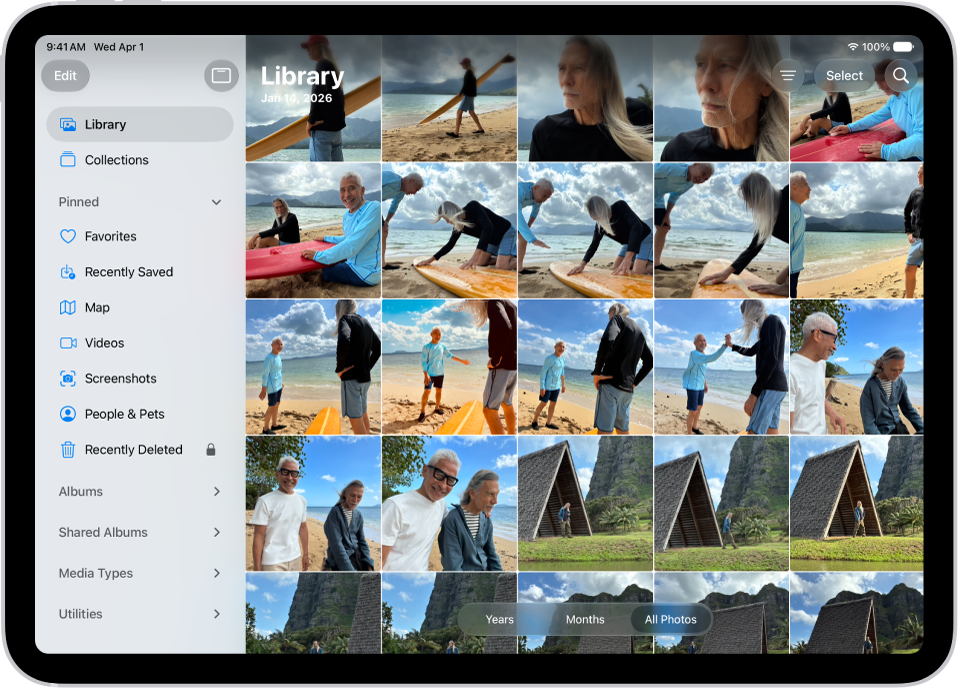
Whether you want to delete a few photos or share a bunch with another app, there are times when you need to select multiple photos on your iPhone at once. This would usually be annoying since you’d have to tap every photo you wanted to select. Stop tapping on each photo individually and try this instead.

  1. Pictures in the Photos app on your iPhone are automatically sorted into collections by year, date, and location. Open the collection you want to select photos from.
  2. Tap Select in the upper-right corner of the screen.
  3. Drag your finger across the photos you want to select. You will see a blue check mark on each one.
  4. Drag down to select an entire row of photos.
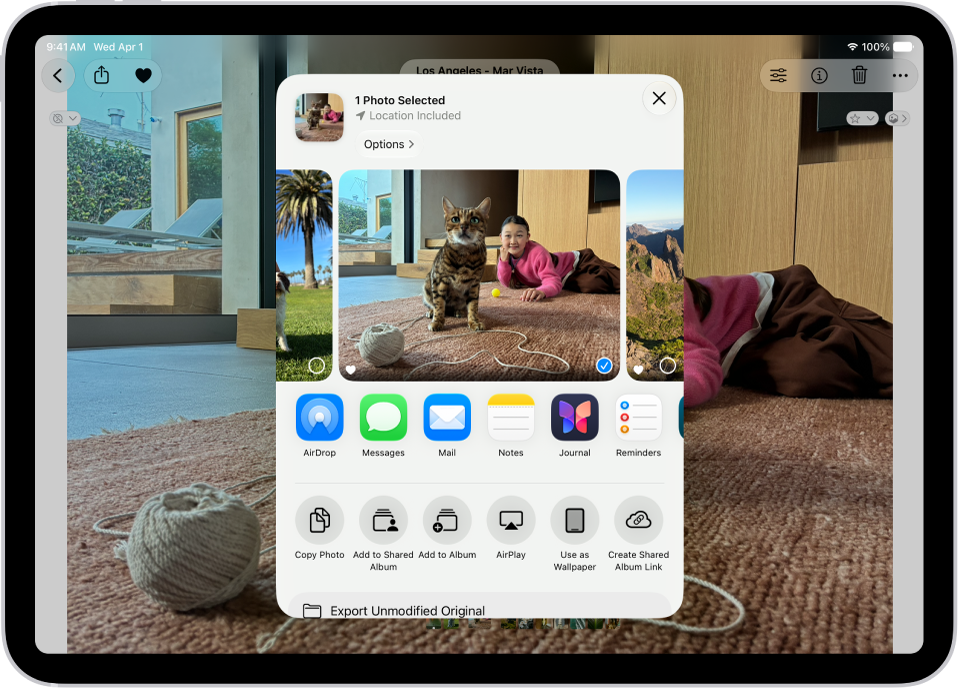
  5. Once you’ve selected your photos, you have a couple of options. You can tap Share to share them via a variety of apps (Gmail, iCloud Photo Sharing, Twitter, etc.). This option also lets you print photos or create a slideshow. The Trash Can icon lets you delete photos, while the Add To option lets you place them in an album.

Master the Photos App on iPhone With These Tips and tricks

Now you know some of the best tips and tricks to help you use Photos app on your iPhone efficiently. Hopefully, the tricks we’ve covered introduced you to some iPhone Photos features that you weren’t aware of previously. What are your favorite Photos tips and tricks? Drop a comment and let us know!

Given how bulky the photos app can get, it’s a good idea to have the occasional photo clear-out to make space on your iPhone. So what happens if you accidentally delete an important photo? Well, with a little luck you can probably get it back. So, how can I recover permanently deleted photos from iPhone?

In this article we walk you through simple methods to retrieve lost or accidentally deleted photos on your iPhone.

See also: How to Recover Permanently Deleted Videos From iPhone

It is usually sad to hear cases like deleted photos from recently deleted folder on iPhone. People are often frustrated in learning that there are no other ways but to leave it like that. However, we would like to set the difference. We will also show you how to recover deleted photos on iPhone from recently deleted.

Recover Deleted Photos from iPhone from recently deleted folder

Photos, logically enough, are stored in the Photos app in iOS. The iOS version of Photos has much in common with its Mac equivalent, and this includes the 30-day grace period for deleted photos and videos.

If you delete a photo from the iPhone and want it back, tap Albums at the bottom-right of the screen. Scroll down until you see an album called Recently Deleted, then tap it.

Tap the photo you deleted by mistake, then Recover at the bottom-right, and finally confirm by tapping Recover Photo. The image will now be transferred back to your Camera Roll.

How to recover permanently deleted photos from iPhone without computer

This is probably the simplest and fastest way to restore permanently deleted photos from iPhone. If you have an iCloud backup from the time before you deleted the photo, you should be able to get it back by restoring your phone to that iCloud backup.

Check to see if your last iCloud backup is before you deleted the photos.
Step 1: Open Settings, tap on your profile at the top.

Step 2: Tap iCloud > Manage Storage > Backups.

Step 3: You’ll be presented with a list of backups for your devices and can tap on the one for your iPhone to see when it was last backed up.

Step 4: Even if you can find appropriate backup, it’s worth noting that you’ll need to completely reset your iPhone to factory settings before setting up your iPhone using the older backup. You will lose any data you’ve added since the backup, so be sure to separately save copies of any recent files you want to keep.

Step 5: To reset your iPhone head over to General > Reset > Erase All Content and Settings. Once your iPhone restarts and begins the setup process, select to restore from an iCloud backup and choose the backup from before you erased the photos.

How to Recover permanently deleted photos from iPhone via iTunes or Finder

If you don’t want to rely on automatic iCloud backups, or don’t have enough iCloud storage space for them, you can back up your iPhone to your PC or Mac using iTunes (or Finder in macOS Catalina or later). Just as with the previous iCloud method, this requires having a backup from before you deleted the photos and the resetting your phone, restoring from that backup. You’ll lose everything from after the backup.

Step 1: Connect your iPhone to the PC or Mac you’ve backed it up with. If iTunes does not open automatically, open it up manually. (If you’re on a Mac running Catalina or later, open Finder instead.)

Step 2: Click on the iPhone icon in the top left-hand corner. On a Mac running macOS Catalina or later, select your device from the lefthand menu bar in Finder.

Step 3: Next, click on Restore Backup. All the data you previously backed up will now replace the data on your iPhone. It will take a few minutes. As long as you haven’t backed up since deleting the photos, they should now appear in the camera roll on your iPhone.

How to recover permanently deleted photos from iPhone without backup

There are quite a few third-party software tools that promise to let you restore permanently deleted data on your iPhone, including deleted photos. It’s a bit of a risk—they’re almost never free and there’s no guarantee they’ll even work. But if you’ve exhausted all other options, it may be worth a try.

Recover Permanently Deleted Photos on iPhone from Third-Party Services

If you take and delete lots of pictures on an iPhone, you may want to invest in another backup solution. Fortunately many services offer instant upload of any photos you snap to a cloud storage space. Consider installing Dropbox, Google Drive or Box and turn on Photo Backup. Here are the steps for Dropbox:

Step 1: Sign up for a Dropbox account and download the Dropbox app for iPad or iPhone.

Step 2: Start the Dropbox app and go to Settings > Camera Upload and turn on Camera Upload.
As you take photos they will be sent to a folder in Dropbox called Camera Uploads.

Step 3: Click on the Photos tab in Dropbox to view recently uploaded images. This will also include any photos you have deleted from the Photos app.

Step 4: Select a photo in Dropbox and tap on the Share icon and choose Save Image.
This will send the deleted image back to the Photos app in iOS.

This isn’t an ideal backup solution, because it requires you to set up Dropbox in advance. However, if you take lots of photos you’ll find this service invaluable. Google Drive, Box and many other cloud services work in largely the same manner.

Conclusion

Realising a second too late that you just deleted the wrong photo: it’s a nightmare we’ve all experienced. But don’t despair, because an inadvertently deleted Photo from iPhone can often be recovered. Follow the above methods to get back permanently deleted photos on your iPhone.

Tag: Photos

In this article, I’ll explain how to move photos from camera roll to album on iPhone.

Camera Roll in the Photos app contains all the pictures and videos in one place. It is sorted by date. However, to keep your photos organized, you might need to add them to respective albums. For this, you can move photos from Camera Roll to an album on iPhone. Once you do that, you will have all images and videos of an event in one place. So, if you want to put photos into albums on iPhone, there are simple steps which you need to follow.
Here are step-by-step instructions for how to move pictures from camera roll to album on iPhone in iOS 15.

How to Move photos from Camera Roll to Album on iPhone in iOS 15

Before we dive into it, it’s worth noting that In iOS 15, you will not see an album named Camera Roll. If you use iCloud Photos, it is called ‘All Photos.’ If you do not use iCloud Photos, then you will see ‘Recents’ where Camera Roll used to be before iOS 15.
with that in mind, here are the steps for adding photos to albums on iphone:

  1. Start the Photos app on your iPhone or iPad.
  2. Now, select the Albums tab at the bottom of the screen
  3. Next, tap on either See All or Recents.
  4. Next on, tap on Select and choose the photos you wish to move to an album.
  5. Tap the share button.
  6. Tap on Add to Album.
    To add to an existing album: Tap on an album under My Albums.
    To create and add to a new album: Tap New Album > give it a name > Save.

You have successfully moved Photos from Camera Roll to album on iPhone.

Now, tap twice on Albums from the bottom row. Swipe right to left or tap See All to reveal all albums and photos inside them.

To remove photos from an album: Open the album, select the photos, tap the delete icon in the bottom right and finally tap Remove from Album. Read also: How to Delete Photo Albums on iPhone & iPad? Know Steps
And that covers everything about how to move photos from your iPhone camera roll to albums. If you have any other questions, please let us know in the comments section below.

Now take time to share this article with a friend or family member to teach them how to put photos into albums on iPhone.
We think you might also like: How to select multiple photos on iPhone: the fastest way

Tag: Photos

Whether you want to delete a few photos or share a bunch with another app, there are times when you need to select multiple photos at once. This would usually be annoying since you’d have to tap every photo you wanted to select, thankfully, there’s a much faster way to select multiple photos on iPhone. If you want to select multiple photos on iPhone, there are a few simple steps which you need to follow.
here is a step-by-step guide which you can follow to learn how to delete all photos from iPhone.

how to select multiple photos on iPhone

here are step-by-step instructions for how to select multiple photos on iPhone.

  1. Start thePhotos app and choose “Select” in the top-right corner of the screen.
  2. Slide your finger left to right across the images of choice, and a blue checkmark will appear on each selected photo.
  3. Now, after sliding sideways to initiate the gesture, you can then slide up or down to continuously select photos while scrolling.

One advantage of this method is you don’t have to do it in one pass. For instant, you can slide your finger across a row, remove it from the screen, then slide it on a new row to continued selecting. As such, you only select the photos you need, while avoiding rows of photos you don’t.
And that covers everything about how to select multiple photos on iPhone to delete or share.
We think you might also likeThese amazing iPhone tips and tricks if you like this iPhone tip, please share it with your friends and family on social media. If you have any other questions, let us know in the comments section below. We also have plenty of other articles that I suggest you check right now.

Tag: Photos

Many apps, especially those used for messaging or photo editing, automatically create albums in the Photos app on iPhone. Even after you delete a particular app, its associated picture album remains. Over time, this may clog up youriPhone. As such, it’s a good thing to regularly delete photo albums in iOS 13 on your iPhone and iPad. You can also remove any image collections you may have created yourself to organize your photos particularly those which you no longer need. If you need to delete photo albums on iPhone or iPad, there are a few simple steps which you need to follow.

How to Delete Photo Albums in iOS 13 and iPadOS

Here are step by step instructions for how to delete photo album on iPhone or iPad running iOS 13 or iPadOS 13.

  1. Start the Photos app and then tap Albums tab located at the bottom of the screen.
  2. Next, tap on See All button located at the upper right.
  3. Next on, tap on Edit.
  4. Now, tap on the red minus button for the specific album.
  5. Lastly, tap on Delete Album.

This will only remove the photo album from the iPhone or iPad and not the photos and videos that are in it.

how to delete multiple photo albums on iPhone or iPad

To delete multiple albums from the iPhone, repeat steps 4 and 5. Note, you can not delete Recent and Favorites. They are in-built permanent albums.

it’s also worth mentioning that you can not delete any album or photo that has been synced to the iOS device via Finder on Mac or iTunes on Windows PC.

We think you might also likethese amazing iPhone tips and tricksAnd that covers everything about how to delete photo album on iPhone or iPad.
Now take time to share this article with your friends and family members to teach them how to delete photo albums on iPhone iniOS 13 and iPadOS. If you have any other questions, let us know in the comments section below.

Tag: Photos

Whether it’s to delete a few photos or share a bunch with another app, there are times when you need to select multiple photos at once. This would usually be cumbersome since you’d have to tap every single photo you wanted to select, fortunately, there’s a much easier and quicker way to select all photos oniPhone. If you want to select multiple photos on your iPhone or iPad, there are a few simple steps which you need to follow. Without any further ado, let’s jump into it.

How to select multiple photos on an iPhone

Follow these steps to select multiple photos on an iPhone:
Launch thePhotos app on your iPhone. It should automatically take you to the Photos tab, set to All Photos. You can go to whatever folder you want to select photos in.
Choose “Select” in the top-right corner. Now, just slide your finger left to right across the images of choice, and a blue checkmark will appear on each selected photo. If you want, after sliding sideways to initiate the gesture, you can then slide up or down to continuously select images while scrolling.
After making your selection, you can display them as a slideshow, share them with another app,or delete them.
How to select multiple photos on an iPhone
The beauty of this method is you don’t need to do it in one pass. For example, you can slide your finger across a row, remove it from the screen, then slide it on a new row to continued selecting. That way, you only select the photos you want, while avoiding rows of photos you don’t.
That’s all folks. Do you usually select all photos on your iPhone? We’d love to hear your thoughts on the comment section below. We aalso have plenty of other articles that I suggest you check right now.

Tag: Photos