Got a tip for us?

Apple Intelligence

With Apple Intelligence on your paired iPhone, you can use Live Translation for text messages on Apple Watch. Live Translation is integrated into the Messages app and uses Apple-built models that run entirely on device, so your personal conversations stay private.

First, you download the input and output languages. Then translations automatically appear inline when you receive a text in another language. If Live Translation isn’t on yet, you’re prompted to turn it on.

Apple Watch showing a conversation translated in the Messages app.

Note: Live Translation in Messages is available in Apple Intelligence-supported languages when your Apple Watch is paired with an Apple Intelligence-enabled iPhone. Apple Intelligence is not available on all iPhone models or in all languages or regions.*

Download languages

To use Live Translation features in the Messages app, you’ll first need to download the input and output languages.

Note: When using Apple Watch with cellular service, cellular data charges may apply.

Translate messages

When you’ve turned on Apple Intelligence on your paired iPhone and you receive a text in another language, translations appear inline automatically.

  1. Open the Messages app on your Apple Watch.
  2. In a Messages conversation, tap the contact icon at the top right.
  3. Turn on Auto-translate. Select the languages you want to translate.

    Note: When you receive a message in a different language, you receive a prompt to turn on Live Translation.

  4. To view the original text, tap the language at the bottom of the conversation. Then choose to see the original text in addition to the translated text.

Choose a different language

  1. Open the Messages app on your Apple Watch.
  2. Tap a conversation. Tap the contact icon at the top right.
  3. Scroll down, tap Translate From or Translate To, and then choose a language.

Turn off Live Translation for the conversation

  1. Open the Messages app on your Apple Watch.
  2. Tap a conversation. Then tap the language at the bottom of the conversation.
  3. Tap Stop Translating.

To start translating again, tap the contact icon at the top right, scroll down, then turn on Auto-translate.

*Apple Intelligence is available with Siri and device language set to Chinese (Simplified), Chinese (Traditional), Danish, Dutch, English, French, German, Italian, Japanese, Korean, Norwegian, Portuguese, Spanish, Swedish, Turkish, or Vietnamese. Some features may not be available in all regions or languages. Some devices may not be available in all regions. Siri AI is available in beta in iOS 27, iPadOS 27, macOS 27, watchOS 27, and visionOS 27 and requires an Apple Intelligence–enabled device set to a supported language. Available in English to start. Siri AI will not be initially available in the EU on iOS, iPadOS, and watchOS. Certain Apple Intelligence features that rely on server-side models are subject to daily usage limits, including but not limited to Siri AI, Intelligent Photo Editing Tools, Image Playground, and AFM 3 Cloud models in Shortcuts. Daily limits may vary by feature, request complexity, system demand, system policies, and other factors. Expanded access to such features will be available for a fee in the future. Use of these features is subject to the Apple Intelligence Terms and Conditions.
Apple Intelligence makes it easy to get more done in your daily routine. Create custom extensions in Safari; create new shortcuts, calendar events, and reminders with a description; and more.

You can also use Apple Intelligence to get summaries of your emails, conversations, audio recordings, phone calls, and more. It works with plain descriptions. Change a lunch meeting to a coffee chat, for example, and the event details are updated in Calendar.

Note: Apple Intelligence on iOS 27 or later is available on an Apple Intelligence-enabled iPhone 15 Pro, iPhone 15 Pro Max, or iPhone 16 model or later. Apple Intelligence is not available in all languages or regions. Usage limits may apply.*

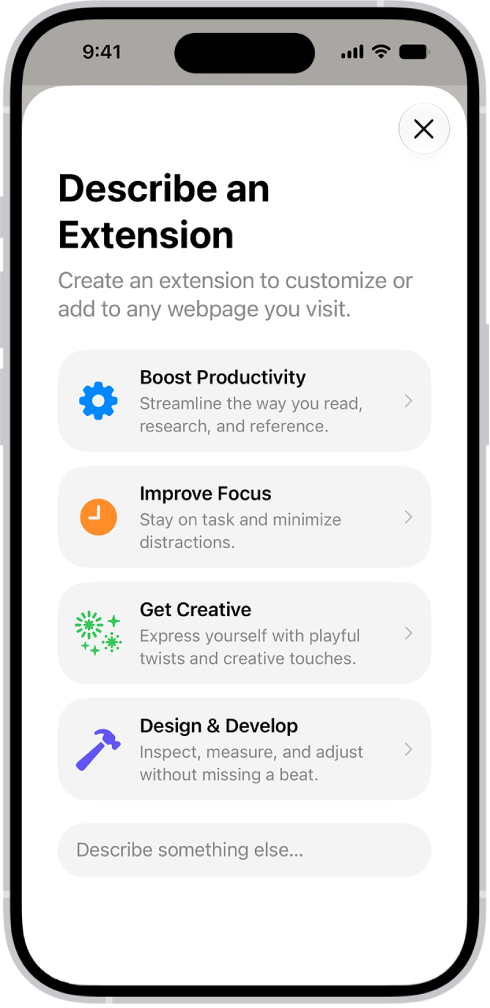
Safari window showing Describe an Extension options.

Customize how you browse in Safari

To automatically organize your tabs by topic, tap the Tabs button, tap the Organize button, then tap Organize Tabs.

Custom extensions you create can personalize website content or automate common actions. And Notify Me can alert you when a webpage has been updated, like when there’s a price change or a restock.

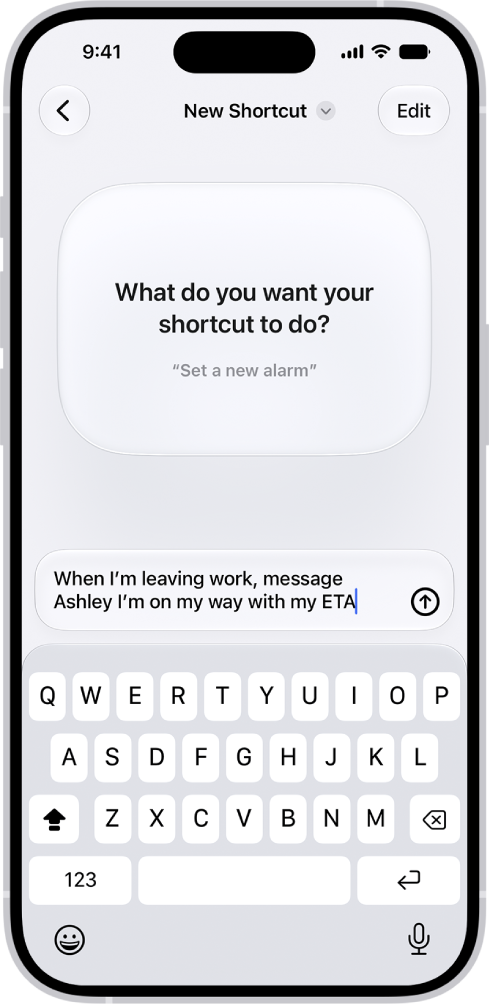
A shortcut created with a description.

Use Apple Intelligence in Shortcuts

Open the Shortcuts app, tap the Add button, then describe what you want the shortcut to do. For example, you can try something like, “When I’m leaving work message Ashley I’m on my way with my ETA.”

You can also summarize text, create images, and tap directly into Apple Intelligence models.

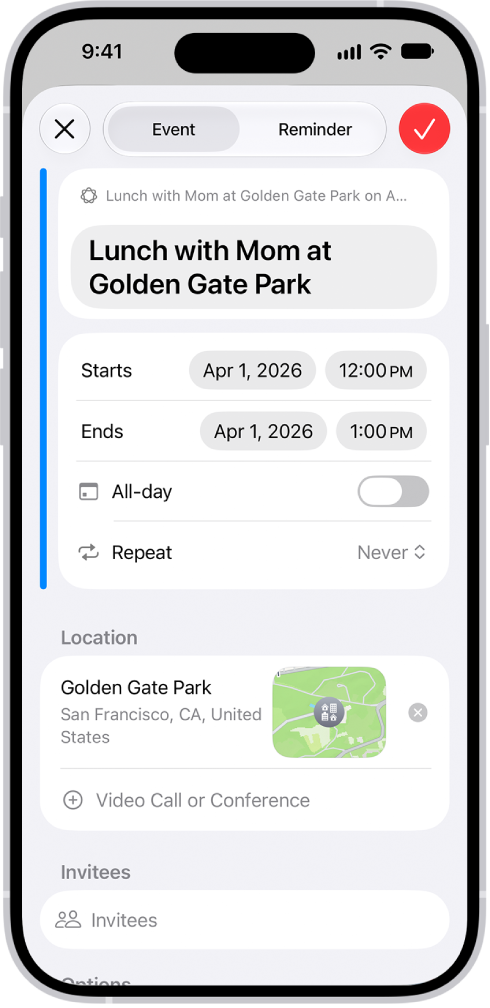
A calendar event created with a description.

Describe a calendar event

A description is all it takes to add and edit calendar events. If you change a lunch meeting to a coffee chat, for example, Calendar updates the event details.

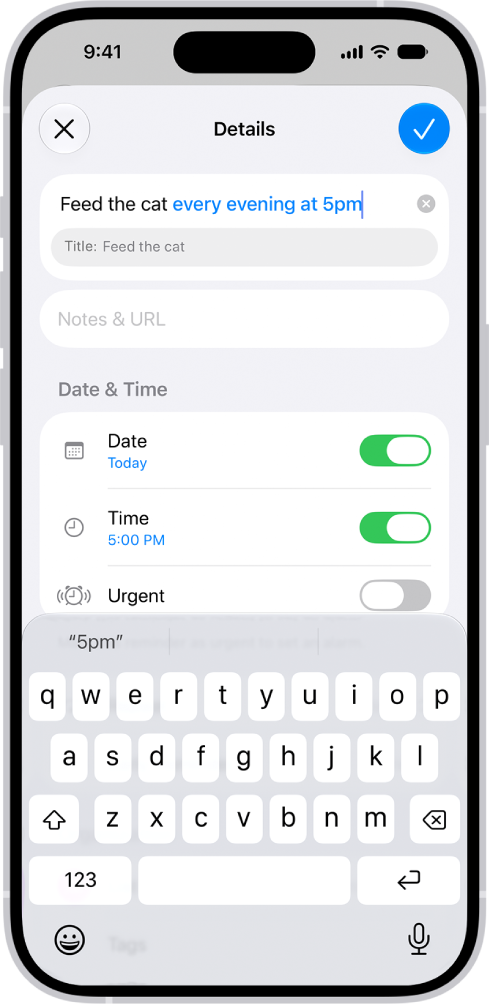
A reminder created with a description.

Describe a reminder

You can enter your reminders as a description, like “Feed the cat every evening at 5pm” or “Buy art supplies on Saturday.” Suggestions for the dates, times, frequency, and more then show up in the reminder details.

Other ways to get things done with Apple Intelligence

Get summaries from your apps

  • Mail

    Get summaries of your emails.

  • Messages

    Get summaries of unread conversations.

  • Notes

    Get summaries of audio you record in Notes—like a class lecture or an important meeting.

  • Phone

    Generate a summary of a phone call you record, and view voicemail summaries.

  • Notifications

    Get summaries of your notifications and prioritize what’s most important to you.

  • Safari

    Use Apple Intelligence to generate a summary of articles in the Safari app.

Even more productivity features

  • Search for photos and videos

    Search for specific images by describing what you want to find. You can also search video clips for key moments. Search for photos and videos

  • Prioritize your emails

    Use Priority Messages to quickly view your most urgent emails, like a same-day dinner invitation or boarding pass. View Priority Messages in your inbox

  • Organize your reminders

    Get suggested reminders, and automatically categorize related reminders into sections within a list. Get suggested reminders

*Apple Intelligence is available with Siri and device language set to Chinese (Simplified), Chinese (Traditional), Danish, Dutch, English, French, German, Italian, Japanese, Korean, Norwegian, Portuguese, Spanish, Swedish, Turkish, or Vietnamese. Some features may not be available in all regions or languages. Some devices may not be available in all regions. Siri AI is available in beta in iOS 27, iPadOS 27, macOS 27, watchOS 27, and visionOS 27 and requires an Apple Intelligence–enabled device set to a supported language. Available in English to start. Siri AI will not be initially available in the EU on iOS, iPadOS, and watchOS. Certain Apple Intelligence features that rely on server-side models are subject to daily usage limits, including but not limited to Siri AI, Intelligent Photo Editing Tools, Image Playground, and AFM 3 Cloud models in Shortcuts. Daily limits may vary by feature, request complexity, system demand, system policies, and other factors. Expanded access to such features will be available for a fee in the future. Use of these features is subject to the Apple Intelligence Terms and Conditions.
With Apple Intelligence, you can use intelligent photo editing tools, create original images and Genmoji, create custom memory movies with a description, and more to power your creativity. Clean Up, Extend, and Reframe let you keep working on a photo after you take it, and Image Playground produces fun, original images in moments.

Note: Apple Intelligence on iOS 27 or later is available on an Apple Intelligence-enabled iPhone 15 Pro, iPhone 15 Pro Max, or iPhone 16 model or later. Apple Intelligence is not available in all languages or regions. Usage limits may apply.*

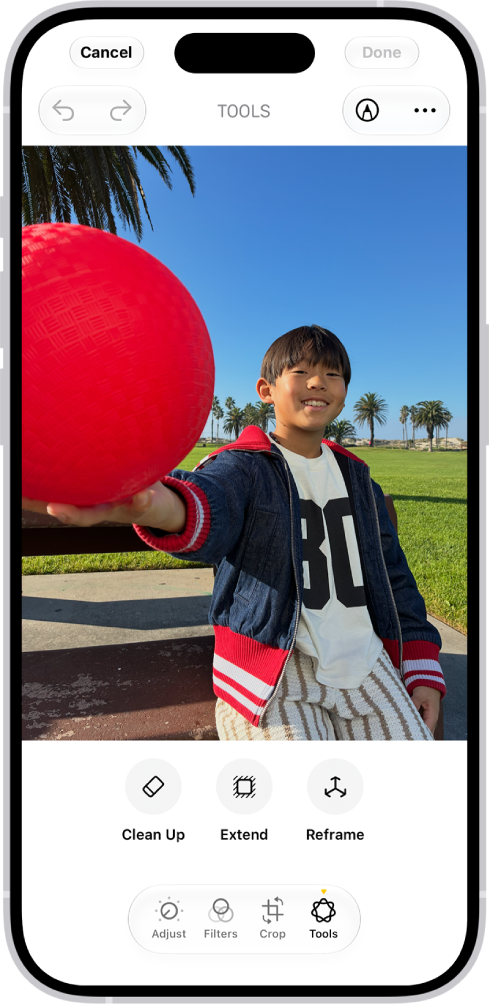
The buttons for Clean Up, Extend, and Reframe are displayed below a photo.

Make your photos frame-worthy

You can remove distracting objects, extend a photo beyond its original frame, and adjust its perspective. With Clean Up, Extend, and Reframe, a photo doesn’t have to be finished once you take it. Open a photo in the Photos app, then tap the Edit button to get started.

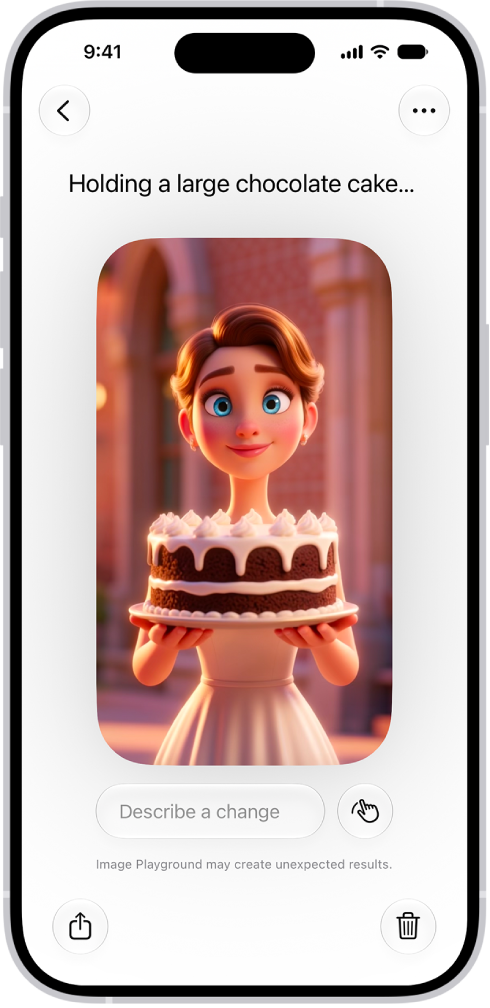
The Image Playground app window showing a created image of a woman holding a cake.

Create one-of-a-kind images with Image Playground

Produce fun, original images in moments with Image Playground. Open the Playground app, tap the Add button, then describe an image. Or choose a photo and apply an image style, like Animation or Sketch.

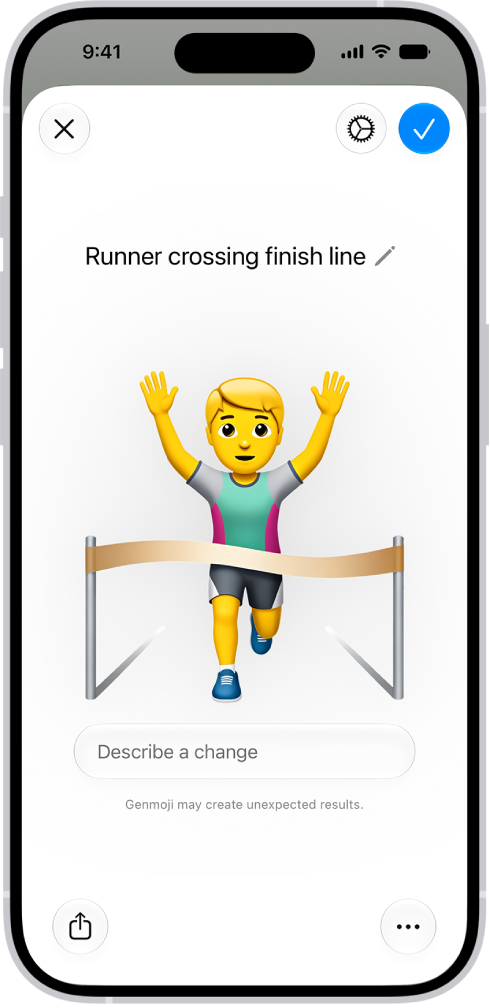
The Genmoji window showing a created Genmoji of a man running across a finish line.

Make your own emoji with Genmoji

You can also make custom emoji from simple text descriptions with Genmoji. To get started tap the Emoji button or the Next Keyboard key on your keyboard, then tap Genmoji.

Even more creativity features

  • Create memory movies

    You can create a custom memory movie of a story you want to see with a description.

  • Transform rough sketches into images

    Use Image Wand in the Notes app to create images based on rough sketches you create. You can also create an image based on words and images from the surrounding area.

  • Create original images in Messages

    You can create images with Image Playground directly in the Messages app.

  • Create backgrounds with Image Playground

    Use Image Playground to create one-of-a-kind images for the backgrounds of your conversations.

  • Create original images in Freeform

    Use Image Playground to create one-of-a-kind images directly in the Freeform app. Create original images in Freeform

*Apple Intelligence is available with Siri and device language set to Chinese (Simplified), Chinese (Traditional), Danish, Dutch, English, French, German, Italian, Japanese, Korean, Norwegian, Portuguese, Spanish, Swedish, Turkish, or Vietnamese. Some features may not be available in all regions or languages. Some devices may not be available in all regions. Siri AI is available in beta in iOS 27, iPadOS 27, macOS 27, watchOS 27, and visionOS 27 and requires an Apple Intelligence–enabled device set to a supported language. Available in English to start. Siri AI will not be initially available in the EU on iOS, iPadOS, and watchOS. Certain Apple Intelligence features that rely on server-side models are subject to daily usage limits, including but not limited to Siri AI, Intelligent Photo Editing Tools, Image Playground, and AFM 3 Cloud models in Shortcuts. Daily limits may vary by feature, request complexity, system demand, system policies, and other factors. Expanded access to such features will be available for a fee in the future. Use of these features is subject to the Apple Intelligence Terms and Conditions.
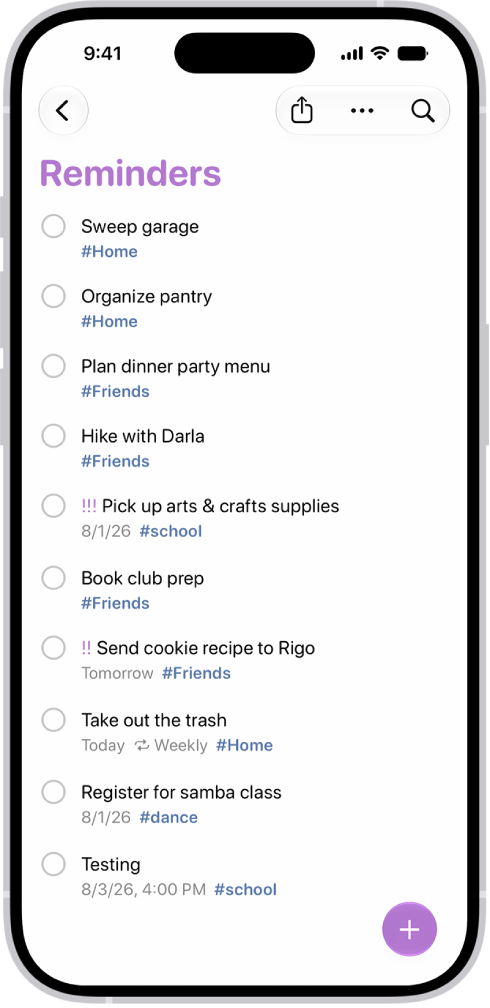
It’s easy to create reminders on your iPhone. You can add them in the Reminders and Calendar apps, or create one instantly without leaving the app you’re currently in.

With Apple Intelligence, you can create a reminder from a description, or get suggested reminders like shopping lists and action items based on text from other apps. A reminder can include a title, date, time, and any other information you want.

Here’s how to create reminders on iPhone.

Siri: Ask Siri something like, “Add artichokes to my groceries list.” Learn how to use Siri.

A new task is being added in the Reminders list.

When you use updated reminders in iCloud, all Reminders features described in this guide are available, though some features aren’t available with other accounts.

Create a reminder

  1. Start the Reminders app on your iPhone.
  2. Tap the New Reminder button. Enter the title, date, time, and any other information you want for the reminder.

    A new "Feed the cat every evening at 5pm" reminder is being created, with Apple Intelligence automatically setting it to appear daily at 5pm.

    Tip: With Apple Intelligence, you can also type a description of the reminder—for example “Feed the cat every evening at 5pm”—and Reminders automatically fills in the details and timing based on what you typed.

  3. Tap the Done button.

    Note: Apple Intelligence on iOS 27 or later is available on an Apple Intelligence-enabled iPhone 15 Pro, iPhone 15 Pro Max, or iPhone 16 model or later. Apple Intelligence is not available in all languages or regions. Usage limits may apply.*

Create a reminder without switching apps

To create a reminder from any app or screen, do either of the following:

  • Add the Reminders button to Control Center, then tap the Reminders button in Control Center.
  • On supported models, assign Reminders to the Action button, then press and hold the Action button.

Create a reminder in Calendar

See Use Reminders in Calendar.

Get suggested reminders

Apple Intelligence can suggest reminders from text in other apps, such as action items from an email in Mail, or a list of grocery items from an online recipe in Safari.

Note: Apple Intelligence on iOS 27 or later is available on an Apple Intelligence-enabled iPhone 15 Pro, iPhone 15 Pro Max, or iPhone 16 model or later. Apple Intelligence is not available in all languages or regions. Usage limits may apply.*

  1. Open the information you want added to a list, like a recipe in Safari or meeting notes in Notes.
  2. Tap the Share button, then tap Reminders.

    Tip: You can also select specific text or bullets you want Apple Intelligence to review. Select text, tap Share, then tap Reminders.

    Suggested reminders may appear below the text you selected.

  3. To change which list the reminders are added to, tap the pop-up menu at the top of the screen and then choose a list.
  4. Tap the Add button next to a suggestion to add it to your list, or tap Include All to add all suggestions.
  5. Tap the Done button.

Your reminders are added to the list you chose. *Apple Intelligence is available with Siri and device language set to Chinese (Simplified), Chinese (Traditional), Danish, Dutch, English, French, German, Italian, Japanese, Korean, Norwegian, Portuguese, Spanish, Swedish, Turkish, or Vietnamese. Some features may not be available in all regions or languages. Some devices may not be available in all regions. Siri AI is available in beta in iOS 27, iPadOS 27, macOS 27, watchOS 27, and visionOS 27 and requires an Apple Intelligence–enabled device set to a supported language. Available in English to start. Siri AI will not be initially available in the EU on iOS, iPadOS, and watchOS. Certain Apple Intelligence features that rely on server-side models are subject to daily usage limits, including but not limited to Siri AI, Intelligent Photo Editing Tools, Image Playground, and AFM 3 Cloud models in Shortcuts. Daily limits may vary by feature, request complexity, system demand, system policies, and other factors. Expanded access to such features will be available for a fee in the future. Use of these features is subject to the Apple Intelligence Terms and Conditions.
With iOS 27, Apple Intelligence is integrated across your apps and experiences to help you communicate, express yourself, and get things done more easily, all while protecting your privacy. You can try Siri AI (Beta), find the perfect words with writing help, and make your photos frame-worthy.

Siri AI (Beta) is your conversational AI assistant, with personal context understanding, onscreen awareness, and broad world knowledge. It can generate a draft from scratch, summarize information, and give feedback on what you’ve written.

Note: Apple Intelligence on iOS 27 or later is available on an Apple Intelligence-enabled iPhone 15 Pro, iPhone 15 Pro Max, or iPhone 16 model or later. Apple Intelligence is not available in all languages or regions. Usage limits may apply.*

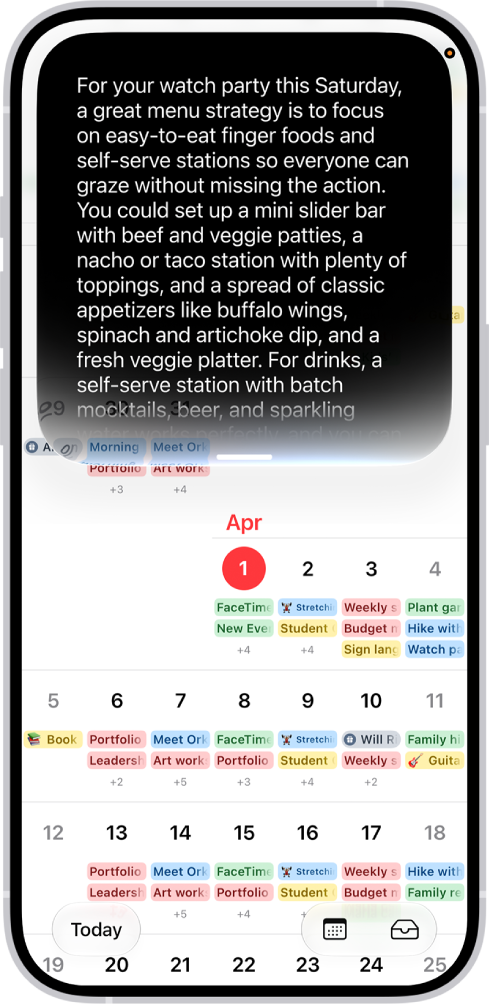
An iPhone showing Siri answering a request to plan a menu based on a calendar event.

Try Siri AI (Beta)

Siri AI (Beta) is your conversational AI assistant with entirely new capabilities, including personal context understanding, onscreen awareness, and broad world knowledge. These new capabilities make Siri a more capable assistant by allowing you to find what you need and get more done. You can also use a dedicated Siri app that brings all your conversations in one place.

Siri AI is available in beta on iOS 27 or later on an Apple Intelligence-enabled iPhone 15 Pro, iPhone 15 Pro Max, or iPhone 16 model or later with Siri and device language set to a supported language. Available in English to start. Siri AI will not initially be available in the EU on iOS. Usage limits may apply.

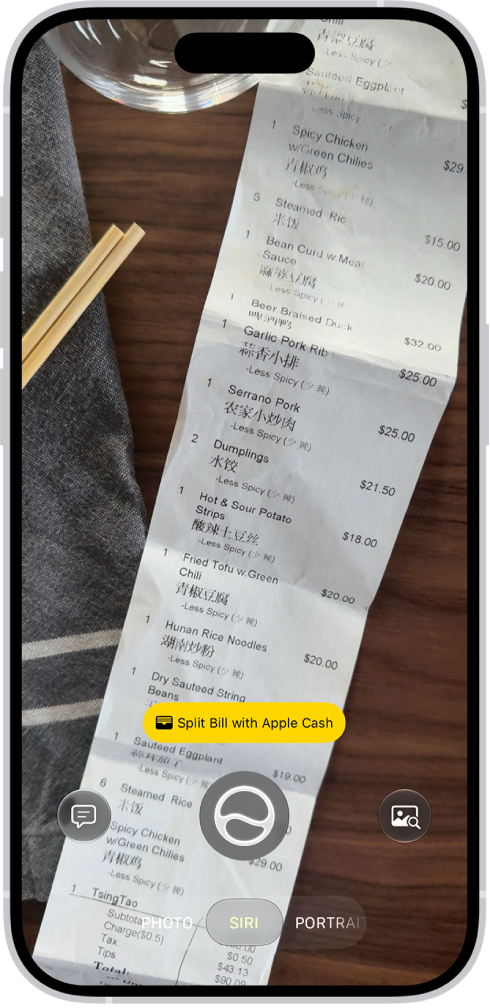
An iPhone with Siri mode in Camera showing a suggestion to split the bill with Apple Cash.

Discover and take action on the world around you

With Visual Intelligence, Siri mode in Camera lets you ask questions, quickly identify something, take quick actions, or search based on what’s in your camera frame. You could split a bill with friends when you get the check, for example, or quickly import a card to Apple Wallet.

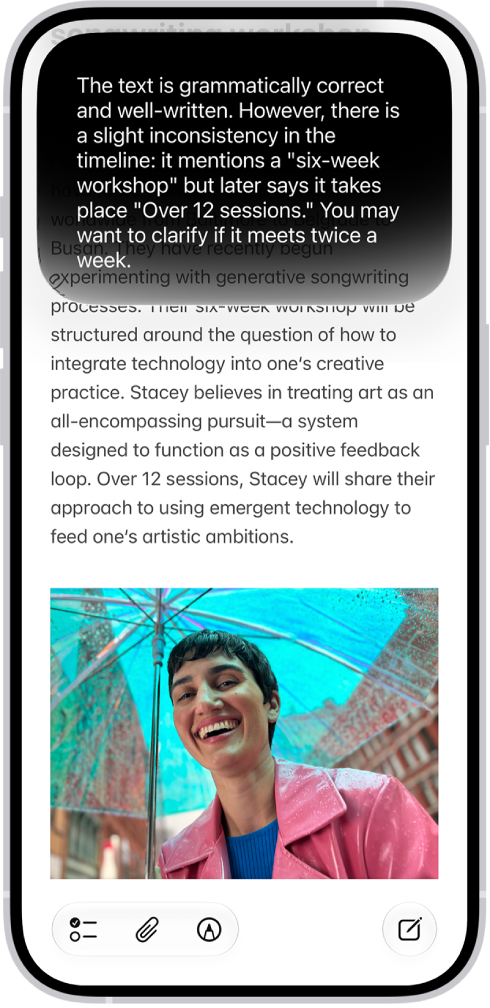
An iPhone showing Siri proofreading and giving feedback on text.

Find the perfect words

Siri AI can generate a draft from scratch, summarize information, and provide feedback on what you’ve written—just describe what you want. For example, ask Siri to proofread an email or to write an itinerary for an upcoming trip.

The buttons for Clean Up, Extend, and Reframe are displayed below a photo.

Make your photos frame-worthy

You can remove distracting objects, extend a photo beyond its original frame, and adjust its perspective. With Clean Up, Extend, and Reframe, a photo doesn’t have to be finished once you take it. Open a photo in the Photos app, then tap the Edit button to get started.

And more…

Even more Apple Intelligence features can help with your daily routine and your creativity, and make it easier to communicate.

Productivity Creativity Communication
Create new shortcuts, calendar events, and reminders with a description. You can also create custom extensions in Safari, automatically organize your tabs by topic, and get alerts when a webpage has been updated (like a price change or restock). Create original images and Genmoji, transform rough sketches into images with Image Wand, create custom memory movies with a description in Photos, and more. Get relevant info in the Phone app during calls, translate across languages, and more.

Important: Check the Apple Intelligence website for more information about features, supported devices, and languages.

*Apple Intelligence is available with Siri and device language set to Chinese (Simplified), Chinese (Traditional), Danish, Dutch, English, French, German, Italian, Japanese, Korean, Norwegian, Portuguese, Spanish, Swedish, Turkish, or Vietnamese. Some features may not be available in all regions or languages. Some devices may not be available in all regions. Siri AI is available in beta in iOS 27, iPadOS 27, macOS 27, watchOS 27, and visionOS 27 and requires an Apple Intelligence–enabled device set to a supported language. Available in English to start. Siri AI will not be initially available in the EU on iOS, iPadOS, and watchOS. Certain Apple Intelligence features that rely on server-side models are subject to daily usage limits, including but not limited to Siri AI, Intelligent Photo Editing Tools, Image Playground, and AFM 3 Cloud models in Shortcuts. Daily limits may vary by feature, request complexity, system demand, system policies, and other factors. Expanded access to such features will be available for a fee in the future. Use of these features is subject to the Apple Intelligence Terms and Conditions.
With Accessibility Reader on iPhone, you can read or listen to text in a full-screen view, and customize fonts, layouts, and background colors, and more. You can use Accessibility Reader with any app on your iPhone, too.

With Apple Intelligence, you can also format content for easier reading, summarize text, and translate it into one of your preferred languages. Accessibility Reader is built into the Magnifier app, too, so you can customize text around you, like in restaurant menus or books.

Note: Apple Intelligence on iOS 27 or later is available on an Apple Intelligence-enabled iPhone 15 Pro, iPhone 15 Pro Max, or iPhone 16 model or later. Apple Intelligence is not available in all languages or regions. Usage limits may apply.*

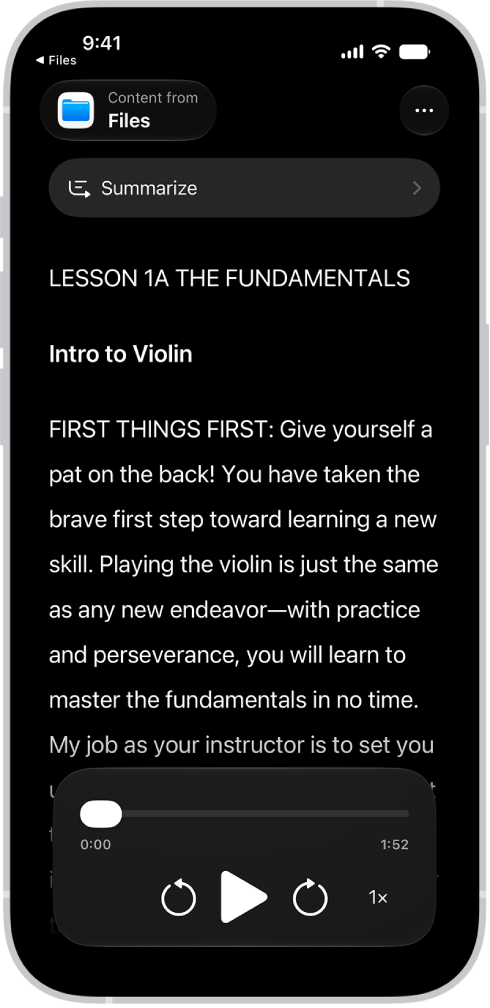
The Accessibility Reader screen showing content from Files in large white text on a black background.

Turn on and use Accessibility Reader

  1. Start the Settings app on your iPhone.
  2. Tap Accessibility and tap Read & Speak.
  3. Tap Accessibility Reader and turn on Accessibility Reader.
  4. To customize Accessibility Reader, do any of the following:
    • Set up autoplay: Turn on Autoplay in Accessibility Reader.
    • Automatically format and structure content for readability with Apple Intelligence: Turn on Content Cleanup.
  5. To start using Accessibility Reader, do one of the following:
    • Use the Accessibility Shortcut: Open an app, triple-click the side button on your iPhone, then tap Accessibility Reader.
    • Use Control Center: Open an app, open Control Center, then tap Accessibility Reader.
    • Use the share menu in any app to send content directly to Accessibility Reader: Tap the Share button, then select Accessibility Reader.

Use Apple Intelligence in Accessibility Reader

Apple Intelligence lets Accessibility Reader summarize long text, translate text into one of your preferred languages, and format content for easier reading.

Note: Apple Intelligence on iOS 27 or later is available on an Apple Intelligence-enabled iPhone 15 Pro, iPhone 15 Pro Max, or iPhone 16 model or later. Apple Intelligence is not available in all languages or regions. Usage limits may apply.*

  1. Open any app on your iPhone, then open Accessibility Reader.
  2. Do any of the following:

    • Summarize text: Tap Summarize at the top of the content to show a summary. To hide it, tap the summary again.
    • Translate text: Tap the Translate button. Choose one of your preferred languages. To see your content in the original language, tap the Translate button. Tap View Original.

      Note: Translation is available for the languages in your Preferred Languages list.

    • Reformat content: Tap the More button and tap Cleanup Content. When you do this, text and some visual elements that aren’t relevant to the content, such as ads, are removed. To remove Cleanup Content formatting, tap the More button again and tap Remove Formatting.

Customize text color, font, and spacing in apps

  1. Open any app on your iPhone, then open Accessibility Reader.
  2. Tap the More button and then tap the Customize Reader button.
  3. Select a theme, then tap Edit.
  4. Do any of the following:

    • Text Color: Choose a color or tap Custom Color.
    • Background Color: Choose a color or tap Custom Color.
    • Text Size: Drag the slider left or right to make the text smaller or larger.
    • Font: Choose a font.
    • High Legibility Characters: Turn on High Legibility Characters.

      Note: This option is only available when using System Font.

    • Bold Text: Turn on Bold Text.
    • Line Spacing: Choose the Default button, the Loose button, or the Open button to customize the space between lines.
    • Word Spacing: Choose the Default button, the Loose button, or the Open button to customize the space between words.
    • Character Spacing: Choose the Default button, the Loose button, or the Open button to customize the space between characters.
    • Hyperlinks: Turn Show Links on or off. When you turn on Show Links, you can customize the color.
    • Playback: Turn Highlighting on or off. When you turn on Highlighting, you can customize the style or highlight color.
    • Rename: Enter a name for the settings you choose.
    • Reset to Default: Reset all themes to their default settings.

Quick tip: If you rename a theme with your custom settings, you can easily find it and reuse it later.

Listen to spoken text in apps

  1. Open any app on your iPhone, then open Accessibility Reader.
  2. Do any of the following:
    • Listen to the text: Tap the Play button.
    • Pause the text: Tap the Pause button.
    • Skip backward or forward: Tap the Rewind button or the Forward button.
    • Increase or decrease the speed: Tap the Speaking Rate One Times button. Then select a speed.
    • Go to a specific time: Drag the slider left or right.

Note: Audio controls in Accessibility Reader can be hidden or shown. Tap the More button, then tap the Hide Audio Controls button.

*Apple Intelligence is available with Siri and device language set to Chinese (Simplified), Chinese (Traditional), Danish, Dutch, English, French, German, Italian, Japanese, Korean, Norwegian, Portuguese, Spanish, Swedish, Turkish, or Vietnamese. Some features may not be available in all regions or languages. Some devices may not be available in all regions. Siri AI is available in beta in iOS 27, iPadOS 27, macOS 27, watchOS 27, and visionOS 27 and requires an Apple Intelligence–enabled device set to a supported language. Available in English to start. Siri AI will not be initially available in the EU on iOS, iPadOS, and watchOS. Certain Apple Intelligence features that rely on server-side models are subject to daily usage limits, including but not limited to Siri AI, Intelligent Photo Editing Tools, Image Playground, and AFM 3 Cloud models in Shortcuts. Daily limits may vary by feature, request complexity, system demand, system policies, and other factors. Expanded access to such features will be available for a fee in the future. Use of these features is subject to the Apple Intelligence Terms and Conditions.
You can allow Apple Intelligence to work with ChatGPT from OpenAI, to help you get things done.

With the ChatGPT extension on, you can choose whether to sign in with a ChatGPT account, send requests to ChatGPT without confirming, and turn ChatGPT off whenever you want. To use it, you need to be at least 13, or the minimum age in your country.

Here’s how to turn on ChatGPT on iPhone.

Note: Apple Intelligence on iOS 27 or later is available on an Apple Intelligence-enabled iPhone 15 Pro, iPhone 15 Pro Max, or iPhone 16 model or later. Apple Intelligence is not available in all languages or regions. Usage limits may apply.* The ChatGPT extension is available only in regions where the ChatGPT app and service are available. **

Turn on ChatGPT

If the ChatGPT extension is off, you can turn it on in Settings.

Note: You must be at least 13 years old or the minimum age required in your country to consent to use ChatGPT.

  1. Start the Settings app on your iPhone.
  2. Tap Siri.
  3. Tap ChatGPT, tap Set Up, and then follow the onscreen instructions. If you’re using Siri AI (Beta), tap Set Up Extensions, tap ChatGPT, and then turn on Use Extension. Note: Siri AI is available in beta on iOS 27 or later on an Apple Intelligence-enabled iPhone 15 Pro, iPhone 15 Pro Max, or iPhone 16 model or later with Siri and device language set to a supported language. Available in English to start. Siri AI will not initially be available in the EU on iOS. Usage limits may apply.
  4. Choose whether to sign in with a ChatGPT account. If you want your requests saved to your ChatGPT chat history, you must be signed in to a ChatGPT account.

Send requests to ChatGPT without confirming

You control when ChatGPT gets used, and you’ll see a request for permission before any of your information is shared. You can also let Siri send requests to ChatGPT automatically, without asking.

  1. Start the Settings app on your iPhone.
  2. Tap Siri.
  3. Below Extensions, tap ChatGPT.
  4. Turn off Confirm Requests.

Note: This option isn’t available if you’re using Siri AI. You must first ask ChatGPT before a prompt, photos, or files are sent to ChatGPT.

Turn off ChatGPT

  1. Start the Settings app on your iPhone.
  2. Tap Siri.
  3. Tap ChatGPT and turn off Use ChatGPT.

If you’re using Siri AI, tap Extensions, tap ChatGPT, then turn off Use Extension. If you want to prevent Siri from suggesting ChatGPT when you make a request, turn off ChatGPT, then turn off Setup Prompts. (This option isn’t available if you’re using Siri AI.) You can also block access to the ChatGPT extension in Screen Time settings.

ChatGPT and privacy

With the ChatGPT extension, it’s your choice what content to send to ChatGPT. To answer your request and provide you accurate and relevant results, ChatGPT receives your request and attachments. It also gets limited data associated with the request, such as your language, country, current time zone, device type, and the feature being used when you make the request.

Your IP address stays obscured from ChatGPT, but ChatGPT does get your general location for purposes such as preventing fraud and complying with applicable law.

If you access the ChatGPT extension without an account, only the information described above will be sent to ChatGPT. OpenAI does not receive any information tied to your Apple Account. Apple says OpenAI must process your data solely for the purpose of fulfilling your request, and not store your request or any responses it provides unless required under applicable laws. OpenAI also must not use your request to improve or train its models.

Once you’re signed in to a ChatGPT account, OpenAI’s data privacy policies apply, along with your ChatGPT account settings.

For more information, go to the Settings app on your iPhone, then tap Siri. Tap ChatGPT, then tap About ChatGPT Extension & Privacy.

*Apple Intelligence is available with Siri and device language set to Chinese (Simplified), Chinese (Traditional), Danish, Dutch, English, French, German, Italian, Japanese, Korean, Norwegian, Portuguese, Spanish, Swedish, Turkish, or Vietnamese. Some features may not be available in all regions or languages. Some devices may not be available in all regions. Siri AI is available in beta in iOS 27, iPadOS 27, macOS 27, watchOS 27, and visionOS 27 and requires an Apple Intelligence–enabled device set to a supported language. Available in English to start. Siri AI will not be initially available in the EU on iOS, iPadOS, and watchOS. Certain Apple Intelligence features that rely on server-side models are subject to daily usage limits, including but not limited to Siri AI, Intelligent Photo Editing Tools, Image Playground, and AFM 3 Cloud models in Shortcuts. Daily limits may vary by feature, request complexity, system demand, system policies, and other factors. Expanded access to such features will be available for a fee in the future. Use of these features is subject to the Apple Intelligence Terms and Conditions.
**ChatGPT uses generative models and outputs may vary. Check important information for accuracy. When using the ChatGPT extension, you choose what content to send to ChatGPT. Your request and attachments, as well as limited data associated with the request, such as current time zone, country, device type, language, and feature being used when making the request, are sent to ChatGPT to answer your request and enable ChatGPT to provide you accurate and relevant results.

With Apple Intelligence, you can communicate and share information with ease—strike the right tone and proofread your writing with Write with Siri, provide relevant info during calls, communicate across languages in real time, and more. Live Translation can translate messages, show live translated captions in FaceTime, and give spoken translations for calls.

Note: Apple Intelligence on iOS 27 or later is available on an Apple Intelligence-enabled iPhone 15 Pro, iPhone 15 Pro Max, or iPhone 16 model or later. Apple Intelligence is not available in all languages or regions. Usage limits may apply.*

An iPhone showing Siri proofreading and giving feedback on text.

Find the perfect words

Siri AI (Beta) can generate a draft from scratch, summarize information, and provide feedback on what you’ve written—just describe what you want. For example, ask Siri to proofread an email or to write an itinerary for an upcoming trip.

Siri AI is available in beta on iOS 27 or later on an Apple Intelligence-enabled iPhone 15 Pro, iPhone 15 Pro Max, or iPhone 16 model or later with Siri and device language set to a supported language. Available in English to start. Siri AI will not initially be available in the EU on iOS. Usage limits may apply.

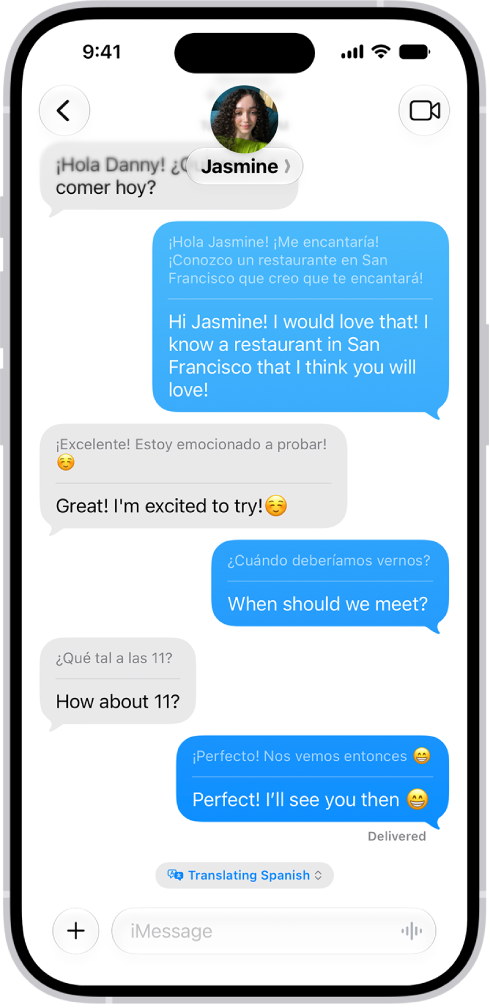
A conversation in the Messages app translated from Spanish to English.

Translate across languages

Live Translation can automatically translate your messages in the Messages app and show live translated captions in FaceTime. In the Phone app, it gives you spoken translations for calls.

To get started, go to the Translate app, tap the More button then download the languages you want to be able to translate between. When you’re on a call, tap the More button, then tap Live Translation.

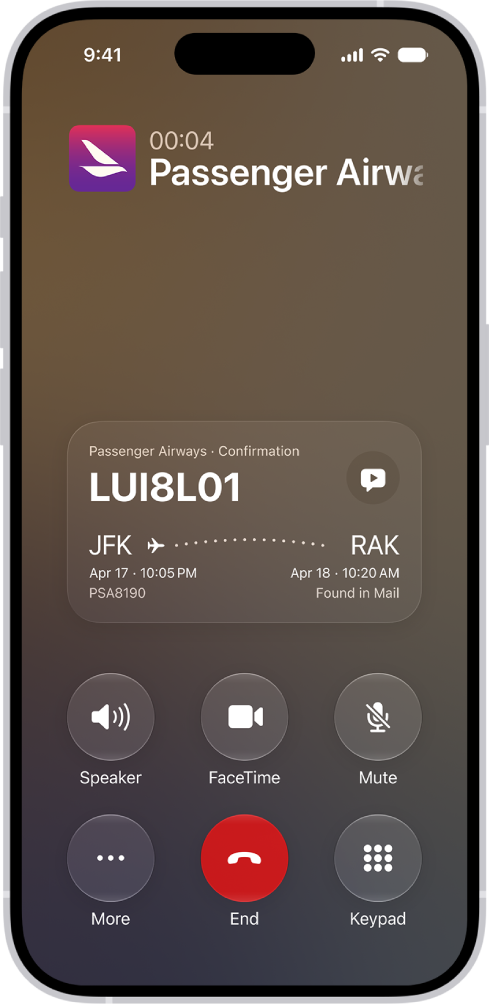
The call screen, showing a Call Context card with a flight confirmation.

Get relevant information while on a call

When you’re calling a business, Call Context can proactively surface relevant information from your apps. Call an airline, for example, and it can bring up a confirmation code from Mail.

Even more communication features

  • Live Translation with AirPods

    When someone nearby speaks to you in a different language, you can use Live Translation with AirPods to hear what they’re saying translated into your preferred language in real time.

  • Craft quick responses in Mail and Messages

    Smart Reply helps you compose fast responses in Mail and Messages to make sure you covered everything.

  • Get suggested polls

    Apple Intelligence can suggest a poll when it detects different options in a conversation.

  • Get suggestions in Mail

    Use suggestions in Mail to take quick actions based on context from your conversations. For example, you can add a calendar event and create reminders with a tap.

*Apple Intelligence is available with Siri and device language set to Chinese (Simplified), Chinese (Traditional), Danish, Dutch, English, French, German, Italian, Japanese, Korean, Norwegian, Portuguese, Spanish, Swedish, Turkish, or Vietnamese. Some features may not be available in all regions or languages. Some devices may not be available in all regions. Siri AI is available in beta in iOS 27, iPadOS 27, macOS 27, watchOS 27, and visionOS 27 and requires an Apple Intelligence–enabled device set to a supported language. Available in English to start. Siri AI will not be initially available in the EU on iOS, iPadOS, and watchOS. Certain Apple Intelligence features that rely on server-side models are subject to daily usage limits, including but not limited to Siri AI, Intelligent Photo Editing Tools, Image Playground, and AFM 3 Cloud models in Shortcuts. Daily limits may vary by feature, request complexity, system demand, system policies, and other factors. Expanded access to such features will be available for a fee in the future. Use of these features is subject to the Apple Intelligence Terms and Conditions.
With Apple Intelligence, Visual Intelligence helps you learn more about what you’re viewing on your iPhone screen, across your apps.

It starts the same way as when you take a screenshot, and then you can search visually, ask questions, and take action, like turning a flyer or invite into a calendar event. The tools you see vary depending on your screenshot. And if you’re using Siri AI (Beta), you can use Siri AI to learn about what’s on your iPhone screen.

Note: Siri AI is available in beta on iOS 27 or later on an Apple Intelligence-enabled iPhone 15 Pro, iPhone 15 Pro Max, or iPhone 16 model or later with Siri and device language set to a supported language. Available in English to start. Siri AI will not initially be available in the EU on iOS. Usage limits may apply.

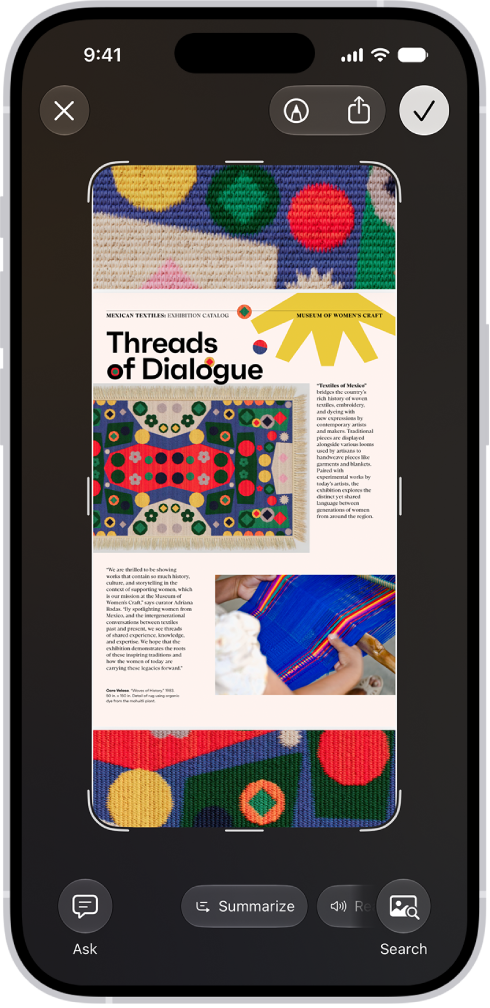
A document from the Preview app open in Visual Intelligence. A button to summarize the document appears at the bottom of the screen.

Note: Apple Intelligence on iOS 27 or later is available on an Apple Intelligence-enabled iPhone 15 Pro, iPhone 15 Pro Max, or iPhone 16 model or later. Apple Intelligence is not available in all languages or regions. Usage limits may apply.*

Learn more about the content on your iPhone screen

Visual Intelligence can tell you more about whatever you’re viewing on your iPhone. From there, search across apps, add an event to your calendar, go straight to relevant websites, and more.

  1. Quickly press and release the side button and the volume up button at the same time to take a screenshot.

    The Visual Intelligence tools at the bottom of the screen vary depending on your screenshot.

  2. Depending on the tools you see, do any of the following:

    • Tap the Search button to search the web for similar items.
    • Swipe your finger on a specific item to highlight it and search for that particular item.
    • Tap the Ask button to ask a question about what’s onscreen.
    • Tap Add to Calendar to create a calendar event.
    • Tap the website to go to the relevant website.
    • Tap Summarize for a short summary of the text.
    • Tap Read Aloud to play audio of the text.
    • Tap the plant or animal identified to learn more about it.
  3. Tap the Close button to delete the screenshot or tap the Selected button to save it.

*Apple Intelligence is available with Siri and device language set to Chinese (Simplified), Chinese (Traditional), Danish, Dutch, English, French, German, Italian, Japanese, Korean, Norwegian, Portuguese, Spanish, Swedish, Turkish, or Vietnamese. Some features may not be available in all regions or languages. Some devices may not be available in all regions. Siri AI is available in beta in iOS 27, iPadOS 27, macOS 27, watchOS 27, and visionOS 27 and requires an Apple Intelligence–enabled device set to a supported language. Available in English to start. Siri AI will not be initially available in the EU on iOS, iPadOS, and watchOS. Certain Apple Intelligence features that rely on server-side models are subject to daily usage limits, including but not limited to Siri AI, Intelligent Photo Editing Tools, Image Playground, and AFM 3 Cloud models in Shortcuts. Daily limits may vary by feature, request complexity, system demand, system policies, and other factors. Expanded access to such features will be available for a fee in the future. Use of these features is subject to the Apple Intelligence Terms and Conditions.
You can turn off Apple Intelligence features like Siri AI (Beta), summarization features, and more. That includes Messages, email, and notification summaries, priority notifications, and Writing Prompts in Journal, and you can switch to Siri Classic instead of Siri AI. You can also restrict access to Apple Intelligence features in Screen Time.

Note: Apple Intelligence on iOS 27 or later is available on an Apple Intelligence-enabled iPhone 15 Pro, iPhone 15 Pro Max, or iPhone 16 model or later. Apple Intelligence is not available in all languages or regions. Usage limits may apply.*

Go to the Settings app on your iPhone to change these settings, then do any of the following:

Option Description
Siri AI (Beta) Tap Siri, scroll down, then tap Turn Off Siri. Tap Turn Off Siri again to confirm. Note: Siri AI is available in beta on iOS 27 or later on an Apple Intelligence-enabled iPhone 15 Pro, iPhone 15 Pro Max, or iPhone 16 model or later with Siri and device language set to a supported language. Available in English to start. Siri AI will not initially be available in the EU on iOS. Usage limits may apply.
Switch to Siri Classic To use Siri Classic instead of Siri AI, follow the steps above to turn off Siri. Tap Turn on Siri, then tap Siri Classic.
Messages summaries Tap Apps, tap Messages, then turn off Summarize Messages.
Email summaries Tap Apps, tap Mail, then turn off Summarize Message Previews.
Notification summaries Tap Notifications, tap Summarize Notifications, then turn off Summarize Notifications.
Priority notifications Tap Notifications, tap Prioritize Notifications, then turn off Prioritize Notifications.
Personalized Smart Replies in Mail Tap Apps, tap Mail, then turn Personalize Smart Replies on or off.
Voicemail suggestions in Phone Tap Apps, tap Phone, then turn Suggestions in Voicemail on or off.
Call Context cards Tap Apps, tap Phone, tap Apple Intelligence & Siri, then tap Show When Calling.
Writing Prompts in Journal Tap Apps, tap Journal, then turn Get Writing Prompts on or off.
Restrict access to Apple Intelligence features in Screen Time See Block or allow Siri and Apple Intelligence features for restricting access for yourself. For your child, see Block or allow access and changes to features on your kid’s device in Apple Devices for Kids and Families.
Change how you see suggestions from your apps See Customize where suggestions appear.

*Apple Intelligence is available with Siri and device language set to Chinese (Simplified), Chinese (Traditional), Danish, Dutch, English, French, German, Italian, Japanese, Korean, Norwegian, Portuguese, Spanish, Swedish, Turkish, or Vietnamese. Some features may not be available in all regions or languages. Some devices may not be available in all regions. Siri AI is available in beta in iOS 27, iPadOS 27, macOS 27, watchOS 27, and visionOS 27 and requires an Apple Intelligence–enabled device set to a supported language. Available in English to start. Siri AI will not be initially available in the EU on iOS, iPadOS, and watchOS. Certain Apple Intelligence features that rely on server-side models are subject to daily usage limits, including but not limited to Siri AI, Intelligent Photo Editing Tools, Image Playground, and AFM 3 Cloud models in Shortcuts. Daily limits may vary by feature, request complexity, system demand, system policies, and other factors. Expanded access to such features will be available for a fee in the future. Use of these features is subject to the Apple Intelligence Terms and Conditions.