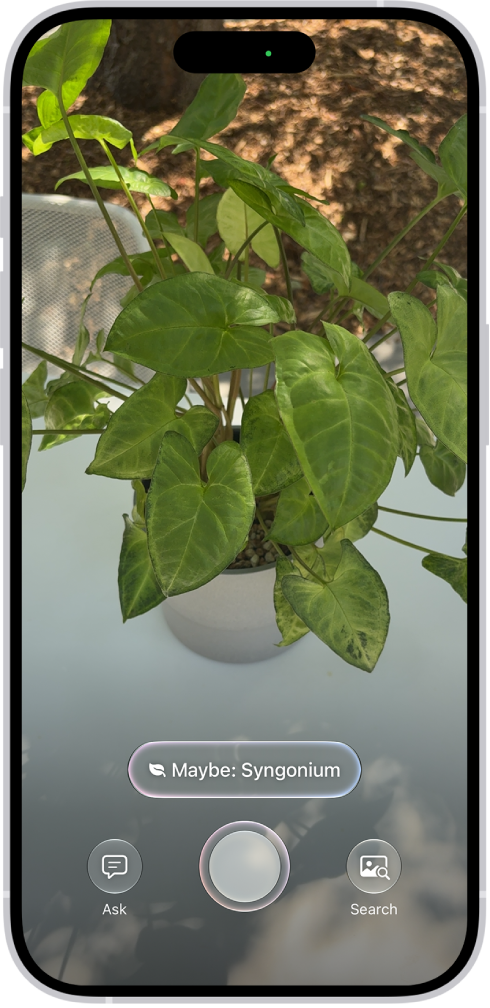
With Apple Intelligence, Visual Intelligence helps you learn more about what you’re viewing on your iPhone screen, across your apps.
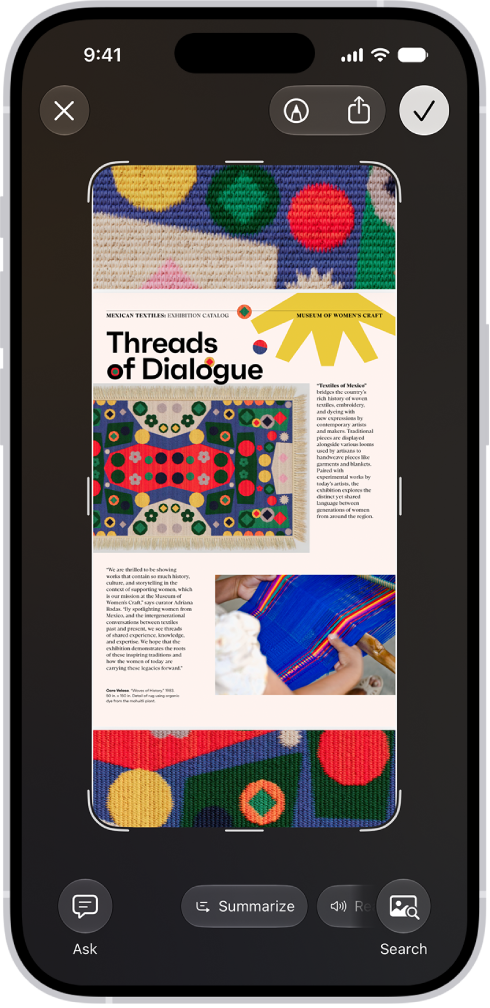
It starts the same way as when you take a screenshot, and then you can search visually, ask questions, and take action, like turning a flyer or invite into a calendar event. The tools you see vary depending on your screenshot. And if you’re using Siri AI (Beta), you can use Siri AI to learn about what’s on your iPhone screen.
Note: Siri AI is available in beta on iOS 27 or later on an Apple Intelligence-enabled iPhone 15 Pro, iPhone 15 Pro Max, or iPhone 16 model or later with Siri and device language set to a supported language. Available in English to start. Siri AI will not initially be available in the EU on iOS. Usage limits may apply.
Note: Apple Intelligence on iOS 27 or later is available on an Apple Intelligence-enabled iPhone 15 Pro, iPhone 15 Pro Max, or iPhone 16 model or later. Apple Intelligence is not available in all languages or regions. Usage limits may apply.*
Learn more about the content on your iPhone screen
Visual Intelligence can tell you more about whatever you’re viewing on your iPhone. From there, search across apps, add an event to your calendar, go straight to relevant websites, and more.
-
Quickly press and release the side button and the volume up button at the same time to take a screenshot.
The Visual Intelligence tools at the bottom of the screen vary depending on your screenshot.
-
Depending on the tools you see, do any of the following:
- Tap the Search button to search the web for similar items.
- Swipe your finger on a specific item to highlight it and search for that particular item.
- Tap the Ask button to ask a question about what’s onscreen.
- Tap Add to Calendar to create a calendar event.
- Tap the website to go to the relevant website.
- Tap Summarize for a short summary of the text.
- Tap Read Aloud to play audio of the text.
- Tap the plant or animal identified to learn more about it.
- Tap the Close button to delete the screenshot or tap the Selected button to save it.
*Apple Intelligence is available with Siri and device language set to Chinese (Simplified), Chinese (Traditional), Danish, Dutch, English, French, German, Italian, Japanese, Korean, Norwegian, Portuguese, Spanish, Swedish, Turkish, or Vietnamese. Some features may not be available in all regions or languages. Some devices may not be available in all regions. Siri AI is available in beta in iOS 27, iPadOS 27, macOS 27, watchOS 27, and visionOS 27 and requires an Apple Intelligence–enabled device set to a supported language. Available in English to start. Siri AI will not be initially available in the EU on iOS, iPadOS, and watchOS. Certain Apple Intelligence features that rely on server-side models are subject to daily usage limits, including but not limited to Siri AI, Intelligent Photo Editing Tools, Image Playground, and AFM 3 Cloud models in Shortcuts. Daily limits may vary by feature, request complexity, system demand, system policies, and other factors. Expanded access to such features will be available for a fee in the future. Use of these features is subject to the Apple Intelligence Terms and Conditions.