You can quickly turn many accessibility features on or off using an iPhone button or the back of iPhone. You can also use Control Center, Siri, or Vocal Shortcuts.
The Accessibility Shortcut is one example, and it turns the accessibility features of your choice on or off with the side button or Home button. On supported iPhone models, you can also use the Action button, and there’s Back Tap and the Shortcuts app, too.
Use the Accessibility Shortcut
Triple-click the side button or Home button to turn the accessibility features of your choice on or off.
- Open Settings, tap Accessibility, tap Accessibility Shortcut, and select the features you want.
If you select only one feature, the feature is immediately turned on or off when you click the button shortcut.
- Triple-click one of the following:
- The side button (on an iPhone with Face ID)
- The Home button (on other iPhone models)
- Tap the feature you want to turn on or off (if Accessibility Shortcut is set up with more than one feature).
Note: Some features, like Assistive Access or Guided Access, need to be set up before you can add them to the Accessibility Shortcut. The shortcut can enter and exit Assistive Access, but while Assistive Access is active, you can’t use it to turn on other features. And if you want the Accessibility Shortcut to work while Guided Access is on, turn on Accessibility Shortcut in Guided Access settings.
Press the Action button
On supported iPhone models, you can press the Action button to open the Magnifier app or an accessibility feature of your choice.
Tap the back of iPhone
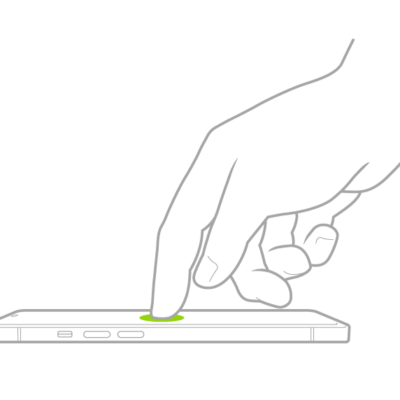
You can double- or triple-tap the back of iPhone to open an accessibility feature of your choice.
Use Control Center
For quick access, add accessibility features to Control Center.
- To change the features available in Control Center, open Control Center, tap the Add button in the top-left corner, and then tap Add a Control at the bottom of the screen.
- Tap a control to add it to Control Center. Scroll down to see more controls, including categories of controls for accessibility, hearing, mobility, and vision.
You can change which features appear when you tap the Hearing button in Control Center. Go to Settings > Accessibility > Hearing Control Center, then add or remove features.
Use Siri
Siri: Ask Siri something like, “Turn on Voice Control.”
Use a Vocal Shortcut
Teach iPhone a word or another sound of your choosing, and it can turn on an accessibility feature when you speak it.
Use the Shortcuts app
You can create a shortcut to get one or more tasks done with your apps using just a tap or by asking Siri. For example, if you have short-term memory loss, you can use Remember This to log what happens throughout the day. You can also run the In Case of Emergency shortcut to send your location to your chosen emergency contacts, share a message with custom instructions, and display a message of your choice onscreen for first responders to see.