








Got a tip for us?

Apple Intelligence

Apple Intelligence delivers intelligence that is relevant for you and grounded in your personal context while protecting your privacy. In many cases, Apple Intelligence models run entirely on device, so a task can be completed without data leaving your iPhone.

For more complex requests that require more computational capacity, Apple Intelligence can use Private Cloud Compute, which extends the privacy and security of your Apple products like iPhone into the cloud. Private Cloud Compute uses larger, server-based models, but your data isn’t stored there or made accessible to Apple. It’s processed only to fulfill your request, the results are returned securely to your device, and nothing is retained by Private Cloud Compute.

And you don’t have to take Apple’s word for it. Independent privacy and security researchers can verify this privacy promise at any time, and you can generate a report of the requests your iPhone has sent to Private Cloud Compute.

Note: Apple Intelligence on iOS 27 or later is available on an Apple Intelligence-enabled iPhone 15 Pro, iPhone 15 Pro Max, or iPhone 16 model or later. Apple Intelligence is not available in all languages or regions. Usage limits may apply.*

About Private Cloud Compute

When a user makes a request, Apple Intelligence analyzes whether it can be processed on device. For more complex requests, it can draw on Private Cloud Compute, which extends the privacy and security of your iPhone into the cloud. With Private Cloud Compute, only the data that is relevant to your request is processed on Apple silicon servers, before being removed. The data being processed in Private Cloud Compute is not stored or made accessible to Apple.

It is processed only to fulfill your request, after which point the results are returned securely to your device and are not retained by Private Cloud Compute. Independent privacy and security researchers can inspect the code that runs on Apple silicon servers that enable Private Cloud Compute to verify this privacy promise at any time.

The Apple silicon servers that form the foundation of Private Cloud Compute provide unprecedented cloud security, Apple says. This starts with the Secure Enclave, which protects critical encryption keys on the server just as it does on a user’s iPhone, while Secure Boot ensures the OS running on the server is signed and verified, just like in iOS.

Trusted Execution Monitor makes sure only signed and verified code runs, and attestation enables a user’s device to securely verify the identity and configuration of a Private Cloud Compute cluster before sending a request. And to verify Apple’s privacy promise, independent experts can inspect the software that runs on Private Cloud Compute servers.

Note: Private Cloud Compute isn’t available in all regions.

Create an Apple Intelligence Report

Want to see what your iPhone has sent to Private Cloud Compute? You can generate a report of those requests.

  1. Start the Settings app on your iPhone.
  2. Tap Privacy & Security.
  3. Tap Apple Intelligence Report. Then choose a report duration for the last 15 minutes (default) or last 7 days. Choose off to disable the report. Note: The report may be empty if there haven’t been any Private Cloud Compute requests since you changed the duration.
  4. Tap Export Activity and choose a place to store the file. Tap Export. The report is saved as a file named Apple_Intelligence_Report.json.
  5. Open the file with a text reader.

*Apple Intelligence is available with Siri and device language set to Chinese (Simplified), Chinese (Traditional), Danish, Dutch, English, French, German, Italian, Japanese, Korean, Norwegian, Portuguese, Spanish, Swedish, Turkish, or Vietnamese. Some features may not be available in all regions or languages. Some devices may not be available in all regions. Siri AI is available in beta in iOS 27, iPadOS 27, macOS 27, watchOS 27, and visionOS 27 and requires an Apple Intelligence–enabled device set to a supported language. Available in English to start. Siri AI will not be initially available in the EU on iOS, iPadOS, and watchOS. Certain Apple Intelligence features that rely on server-side models are subject to daily usage limits, including but not limited to Siri AI, Intelligent Photo Editing Tools, Image Playground, and AFM 3 Cloud models in Shortcuts. Daily limits may vary by feature, request complexity, system demand, system policies, and other factors. Expanded access to such features will be available for a fee in the future. Use of these features is subject to the Apple Intelligence Terms and Conditions.
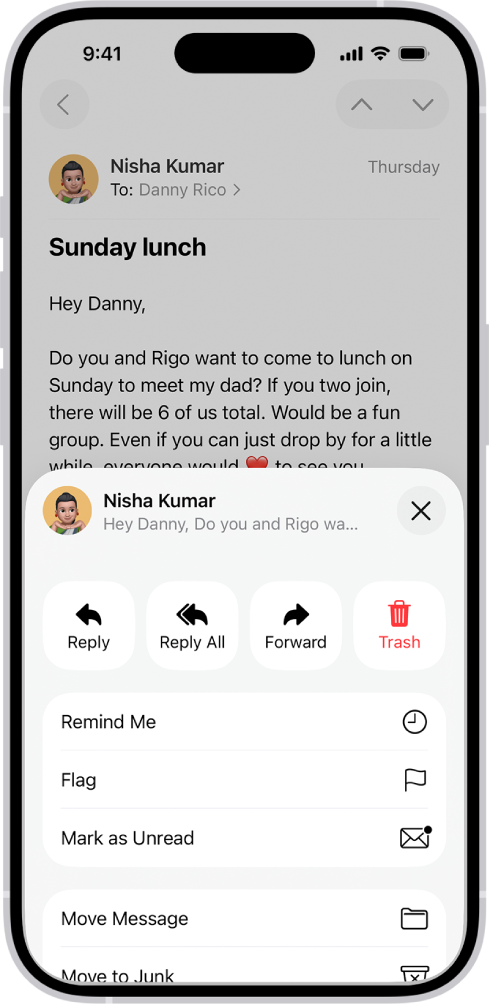
In the Mail app, you can read emails yourself or have Apple Intelligence summarize them for you. You can also add contacts and preview an email’s contents without opening it.

If you don’t have time for a primary message right away, Remind Me brings it back to the top of the list at a time and date you choose. You can also quickly mark multiple emails as read, right from the message list.

Quick tip: Apple Intelligence might suggest actions you can take when you check your email, like adding a reminder or creating a calendar event.

Click the suggestion to accept it.

Note: Suggested actions in Mail on iOS 27 or later is an Apple Intelligence feature available on iPhone 15 Pro, iPhone 15 Pro Max, and iPhone 16 models or later in supported regions when device language is set to English.*

Read an email

  1. Open the Mail app on your iPhone.
  2. Tap the message you want to read.

Use Remind Me to come back to a Primary message later

Can’t handle a primary message right away? Set a time and date for a reminder, and the message comes back to the top of your inbox.

  1. Open the Mail app on your iPhone.
  2. Tap a Primary message, tap the Reply button, tap Remind Me, and then choose when to be reminded.

Quickly mark multiple emails as read

  1. Open the Mail app on your iPhone.
  2. While viewing a message list, tap the More button, tap Select, and then select the messages you want to mark.

    Important: When you select a Transactions, Updates, or Promotions message, you’re selecting all the messages in that category from the sender.

  3. Tap the Mark button at the bottom of the message list and then choose Mark as Read.

    Note: The number of unread messages shown on your Home Screen reflects the number of unread messages in your Primary category.

    To show your total number of unread messages in all categories, go to Settings > Notifications > Mail > Customize Notifications, then turn on All Unread Messages.

Preview a Primary message and a list of options

To see what a Primary message is about without opening it completely, preview it.

  1. Open the Mail app on your iPhone.

    In the Primary message list, touch and hold a message to preview its contents and see a list of options for replying, moving it, and more.

Show a longer preview for every email

By default, Mail shows two lines of text for each email message in your inbox.

Without opening the message, you can choose to see more lines of text.

  1. Open Settings, tap Apps, tap Mail, tap Preview (below Message List), and choose up to five lines.

Show the whole conversation

  1. Open Settings, tap Apps, tap Mail, and then turn on Organize by Thread.

    Tip: You can also change other settings here—such as Collapse Read Messages or Most Recent Message on Top.

Show To and Cc labels in your Inbox

  1. Open Settings, tap Apps, tap Mail, and turn on Show To/Cc Labels (below Message List).

    You can also view the To/Cc mailbox, which gathers all mail addressed to you.

    To show or hide it, tap the Mailboxes button in the Mail app until you see Mailboxes, tap Edit, then select “To or Cc.”

Add someone to your contacts or make them a VIP

Saving someone to your contacts makes their email messages easy to find again in the future. Or make them a VIP, and any message you receive from them is automatically starred.

  1. Open the Mail app on your iPhone.
  2. In a message, tap a person’s name or email address and then do one of the following: Add a new contact: Tap View Contact Card, then tap Create New Contact.

    Fill in any other contact information, then tap the Done button.

  3. Add the email address to an existing contact: Tap View Contact Card and tap Add to Existing Contact.
  4. Select a contact and then tap the Done button.
  5. Add to your VIP list: Tap Add to VIP.

Show or hide contact photos

  1. Open the Mail app on your iPhone.
  2. In an inbox, tap the More button at the top of the screen. Select or deselect Show Contact Photos.

Summarize your email

To catch up on a long email thread in seconds, or summarize a complex email, you can get help from Apple Intelligence.

Note: Apple Intelligence on iOS 27 or later is available on an Apple Intelligence-enabled iPhone 15 Pro, iPhone 15 Pro Max, or iPhone 16 model or later.

According to Apple, Apple Intelligence is not available in all languages or regions.

Usage limits may apply.* Go to the Mail app on your iPhone.

Under each email in your inbox, a short summary appears automatically.

  1. Tap an email, then tap Summarize.

    A summary appears at the top of the screen.

    If the message is part of an email thread, the contents of the thread are summarized.

    *Apple Intelligence is available with Siri and device language set to Chinese (Simplified), Chinese (Traditional), Danish, Dutch, English, French, German, Italian, Japanese, Korean, Norwegian, Portuguese, Spanish, Swedish, Turkish, or Vietnamese.

    Some features may not be available in all regions or languages.

    Some devices may not be available in all regions.

    Siri AI is available in beta in iOS 27, iPadOS 27, macOS 27, watchOS 27, and visionOS 27 and requires an Apple Intelligence–enabled device set to a supported language.

    Available in English to start.

    Siri AI will not be initially available in the EU on iOS, iPadOS, and watchOS.

    Certain Apple Intelligence features that rely on server-side models are subject to daily usage limits, including but not limited to Siri AI, Intelligent Photo Editing Tools, Image Playground, and AFM 3 Cloud models in Shortcuts.

    Daily limits may vary by feature, request complexity, system demand, system policies, and other factors.

    Expanded access to such features will be available for a fee in the future.

  2. Use of these features is subject to the Apple Intelligence Terms and Conditions.

In the Mail app, you can reply to or forward emails yourself, or use Apple Intelligence to draft quick, personalized responses.

You can reply to just the sender or reply to everyone, quote some text when you reply, and forward an email. You can also follow up on emails and set up an automatic reply in Mail. Smart Reply can help, too.

Here’s how to reply to and forward emails in Mail on iPhone.

An email showing reply options. Across the middle of the screen, from left to right, are Reply, Reply All, Forward, and Trash.

Reply to an email

  1. Open the Mail app on your iPhone.
  2. Tap the message, tap the Reply button, and do one of the following: Reply to just the sender: Tap Reply.

    • Reply to the sender and the other recipients: Tap Reply All.

    Type your response, then tap the Send button to send.

Quote some text when you reply to an email

To make clear what you’re responding to, you can include text from the sender in your reply.

  1. Open the Mail app on your iPhone.
  2. In the sender’s message, touch and hold the first word of the text and drag to the last word.
  3. Tap the Reply button, tap Reply, and type your message.

    Note: To turn off the indentation of quoted text, go to Settings > Apps > Mail > Increase Quote Level (below Composing), then turn off Increase Quote Level.

Forward an email

You can send an email message forward to new recipients.

  1. Open the Mail app on your iPhone.
  2. Tap the message, tap the Reply button, and then tap Forward.

    If there are attachments in the original message—like photos or documents—you can decide whether to include them in the forwarded message.

  3. Choose Include or Don’t Include.
  4. Enter the email addresses of the new recipients.
  5. Tap in the message, then type your response.

    The forwarded message appears below.

Follow up on emails

Sent an email message and haven’t heard back for several days? The message automatically returns to the top of your inbox, so you remember to follow up.

  1. To turn off Follow Up Suggestions, open Settings, tap Apps and tap Mail. Then turn off Follow Up Suggestions.

Set up an automatic reply in Mail

You can set up an automatic reply on iCloud.com that responds to incoming email messages, or have messages forwarded automatically to another inbox.

Use Smart Reply

If you have Apple Intelligence, Smart Reply can quickly draft an email response in your personalized writing style.

Note: Apple Intelligence on iOS 27 or later is available on an Apple Intelligence-enabled iPhone 15 Pro, iPhone 15 Pro Max, or iPhone 16 model or later.

Apple Intelligence is not available in all languages or regions, according to Apple.

Usage limits may apply.* Go to the Mail app on your iPhone.

  1. Tap an email, tap the Reply button, and then tap Reply.

    In the keyboard, tap a suggested reply.

    Apple Intelligence drafts a reply in the email.

    When you’re ready to send your reply, tap the Send button.

    *Apple Intelligence is available with Siri and device language set to Chinese (Simplified), Chinese (Traditional), Danish, Dutch, English, French, German, Italian, Japanese, Korean, Norwegian, Portuguese, Spanish, Swedish, Turkish, or Vietnamese.

    Some features may not be available in all regions or languages.

    Some devices may not be available in all regions.

    Siri AI is available in beta in iOS 27, iPadOS 27, macOS 27, watchOS 27, and visionOS 27 and requires an Apple Intelligence–enabled device set to a supported language.

    Available in English to start.

    Siri AI will not be initially available in the EU on iOS, iPadOS, and watchOS.

    Certain Apple Intelligence features that rely on server-side models are subject to daily usage limits, including but not limited to Siri AI, Intelligent Photo Editing Tools, Image Playground, and AFM 3 Cloud models in Shortcuts.

    Daily limits may vary by feature, request complexity, system demand, system policies, and other factors.

    Expanded access to such features will be available for a fee in the future.

  2. Use of these features is subject to the Apple Intelligence Terms and Conditions.

With its deep understanding of language, Apple Intelligence can help condense the information most important to you. Notifications are summarized so you can scan them for key details, such as when a group chat is particularly active.

Your iPhone can also determine which notifications have priority over others. And the Reduce Interruptions Focus shows you only the notifications that might need immediate attention, like a text about an early pickup from daycare. You can customize notification summaries, or turn them off.

Note: Apple Intelligence on iOS 27 or later is available on an Apple Intelligence-enabled iPhone 15 Pro, iPhone 15 Pro Max, or iPhone 16 model or later. Apple Intelligence is not available in all languages or regions. Usage limits may apply.*

Customize notification summaries

To make long or stacked notifications easier to understand at a glance, your iPhone can summarize them.

  1. Start the Settings app on your iPhone.
  2. Tap Notifications.
  3. Tap Summarize Notifications, turn on Summarize Notifications, and then tap Choose Notifications to Summarize.
  4. Tap the notifications you want to summarize and tap Summarize Selected Notifications.

To change which notifications you want to summarize, tap the button next to an app.

Turn notification summaries on or off

  1. Start the Settings app on your iPhone.
  2. Tap Notifications.
  3. Tap Summarize Notifications. Turn Summarize Notifications on or off.

Turn priority notifications on

Your iPhone can work out which notifications have priority over others. Those priority notifications show up at the top of the stack, which helps you catch up on anything you may have missed.

  1. Start the Settings app on your iPhone.
  2. Tap Notifications.
  3. Tap Prioritize Notifications, then turn Prioritize Notifications on.

To turn off priority notifications, turn Prioritize Notifications off. To change which notifications you want to prioritize, tap the button next to an app. You can also change settings when you receive a priority notification on the Lock Screen. When a priority notification appears, do one of the following:

  • Turn off Priority Notifications for a specific app: Swipe left, tap Options, then tap Turn Off All [app] Notifications.
  • Turn off all Priority Notifications: Swipe left, tap Options, then tap Turn Off Prioritization.

Use the Reduce Interruptions Focus

The Reduce Interruptions Focus understands what’s in your notifications, so it shows you the most important ones and silences those that are less important.

You can customize a Reduced Interruptions Focus.

  1. Start the Settings app on your iPhone.
  2. Tap Focus.
  3. Tap the Add button at the top right. Then tap Reduce Interruptions.
  4. Tap Customize Focus and tap People or Apps.
  5. Choose the people and apps to allow notifications from.

Note: Notifications you’ve specifically allowed or silenced stay that way, even when you turn on Intelligent Breakthrough & Silencing for any Focus.

*Apple Intelligence is available with Siri and device language set to Chinese (Simplified), Chinese (Traditional), Danish, Dutch, English, French, German, Italian, Japanese, Korean, Norwegian, Portuguese, Spanish, Swedish, Turkish, or Vietnamese. Some features may not be available in all regions or languages. Some devices may not be available in all regions. Siri AI is available in beta in iOS 27, iPadOS 27, macOS 27, watchOS 27, and visionOS 27 and requires an Apple Intelligence–enabled device set to a supported language. Available in English to start. Siri AI will not be initially available in the EU on iOS, iPadOS, and watchOS. Certain Apple Intelligence features that rely on server-side models are subject to daily usage limits, including but not limited to Siri AI, Intelligent Photo Editing Tools, Image Playground, and AFM 3 Cloud models in Shortcuts. Daily limits may vary by feature, request complexity, system demand, system policies, and other factors. Expanded access to such features will be available for a fee in the future. Use of these features is subject to the Apple Intelligence Terms and Conditions.
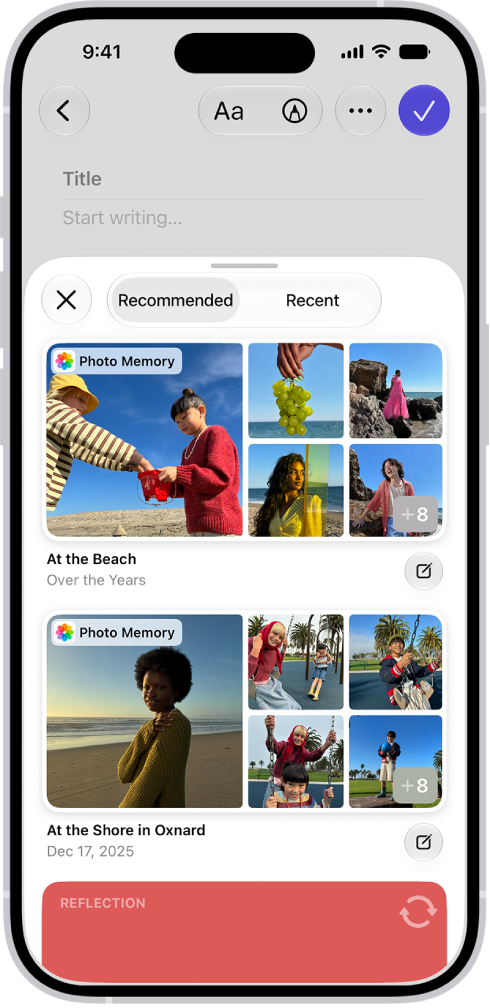
The Journal app makes it easy to capture your thoughts on everyday moments and special events. You can also get suggestions for topics to write about.

It’s simple to begin. You can start writing right away, or begin with a journaling suggestion or reflection prompt, and you can also use Writing Prompts while you write and create multiple journals.

Journaling Suggestions can even pull together outings, photos, and workouts to help you remember your experiences.

Here’s how to write in your journal on iPhone.

Create a journal entry

  1. Start the Journal app on your iPhone.
  2. Choose a journal and then tap the Create an Entry button.
  3. Start writing or choose a journaling suggestion or reflection prompt.

Use Journaling Suggestions

To help you remember and reflect on your experiences, Journaling Suggestions intelligently group outings, photos, workouts, and more.

A screen in the Journal app showing photos highlighted as journaling suggestions.

  1. Start the Journal app on your iPhone.
  2. Choose a journal and then tap the Create an Entry button.
  3. Browse the recommended suggestions or tap Recent to see suggestions sorted by date.
  4. To start a new entry with all the suggested attachments, tap the Journal Now button at the bottom-right corner of the suggestion.
  5. To preview the attachments before creating the entry, tap the suggestion. Do any of the following:
    • Browse the attachments: Swipe through the attachments.
    • Change to list view: To see the details for all attachments, tap the List View button.
    • Choose the attachments you want: Tap an attachment to select or deselect it.
  6. Tap Add to Entry to start writing or the Back button to return to the suggestions list.

To delete a suggestion, touch and hold the suggestion, then tap Remove.

Use Writing Prompts while you write

If you have Apple Intelligence, Journal can offer customized writing prompts based on what you write, plus any photos or drawings you add to your entry.

Note: Apple Intelligence on iOS 27 or later is available on an Apple Intelligence-enabled iPhone 15 Pro, iPhone 15 Pro Max, or iPhone 16 model or later. Apple Intelligence is not available in all languages or regions. Usage limits may apply.* You must be an adult to use this feature.

  1. Start the Journal app on your iPhone.
  2. While composing an entry, tap the Show Writing Prompts button in the toolbar.
  3. Swipe through the prompts. Then tap a prompt to add it to your entry. You can add up to three prompts to an entry.

Create multiple journals

  1. Start the Journal app on your iPhone.
  2. Tap the New Journal button and then name the new journal.
  3. To reorder journals, touch and hold the journal name and drag up or down.
  4. To edit the journal name, color, or icon, touch and hold the journal. Choose Edit Journal.

Take action from the Home Screen

  1. On the iPhone Home Screen, touch and hold.
  2. Choose New Entry, View Suggestions, Add Photos, or Record Audio.

Start a journal entry from another app

You can quickly capture your thoughts in a new journal entry while you’re doing something in another app, like reading an article in the News app or listening to a song in the Music app.

  1. In the app you’re using, tap the Share button or Share and tap Journal.

If you don’t see Journal, you may need to add it to the sharing options.

  1. Enter your thoughts, then tap the Done button.

You can review your entry and add more details later in the Journal app.

*Apple Intelligence is available with Siri and device language set to Chinese (Simplified), Chinese (Traditional), Danish, Dutch, English, French, German, Italian, Japanese, Korean, Norwegian, Portuguese, Spanish, Swedish, Turkish, or Vietnamese. Some features may not be available in all regions or languages. Some devices may not be available in all regions. Siri AI is available in beta in iOS 27, iPadOS 27, macOS 27, watchOS 27, and visionOS 27 and requires an Apple Intelligence–enabled device set to a supported language. Available in English to start. Siri AI will not be initially available in the EU on iOS, iPadOS, and watchOS. Certain Apple Intelligence features that rely on server-side models are subject to daily usage limits, including but not limited to Siri AI, Intelligent Photo Editing Tools, Image Playground, and AFM 3 Cloud models in Shortcuts. Daily limits may vary by feature, request complexity, system demand, system policies, and other factors. Expanded access to such features will be available for a fee in the future. Use of these features is subject to the Apple Intelligence Terms and Conditions.
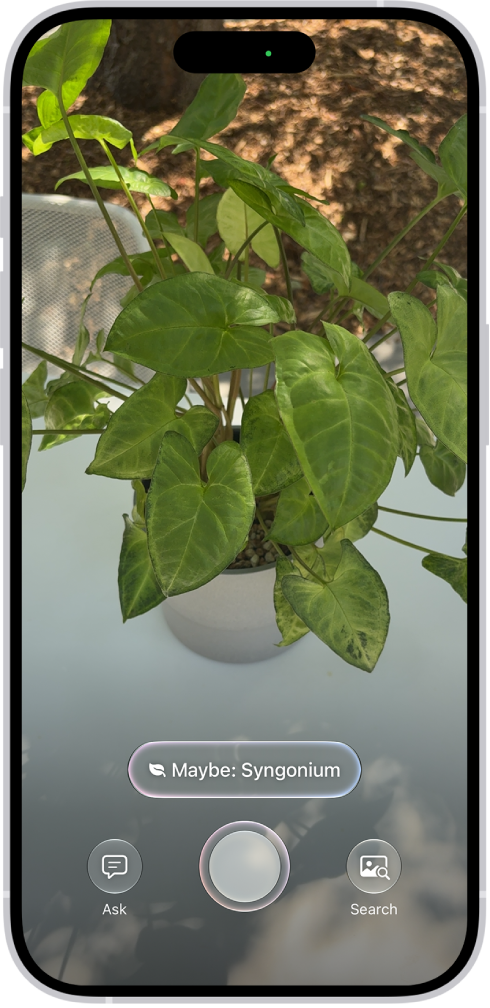
With Apple Intelligence, you can use Visual Intelligence to quickly learn more about what’s around you with the iPhone camera. When you activate Visual Intelligence, you can search for visually similar images online, look up details about a restaurant or business, translate or summarize text, identify plants and animals, and more.

You can choose how to activate it, too, and you can even use Visual Intelligence to ask ChatGPT for information.

Here’s how to learn about what’s around you with Visual Intelligence on iPhone.

Note: Siri AI is available in beta on iOS 27 or later on an Apple Intelligence-enabled iPhone 15 Pro, iPhone 15 Pro Max, or iPhone 16 model or later with Siri and device language set to a supported language. Available in English to start. Siri AI will not initially be available in the EU on iOS. Usage limits may apply.

An iPhone in Visual Intelligence showing a plant.

Note: Apple Intelligence on iOS 27 or later is available on an Apple Intelligence-enabled iPhone 15 Pro, iPhone 15 Pro Max, or iPhone 16 model or later. Apple Intelligence is not available in all languages or regions. Usage limits may apply.*

Choose how to activate Visual Intelligence

  • Camera app: If you have Siri AI, open Camera , then tap Siri.
  • Camera Control: On supported models, click and hold the Camera Control.
  • Action button: Customize the Action button on the left side of your iPhone to use Visual Intelligence.
  • Lock Screen: You can add the Visual Intelligence control to the bottom of your Lock Screen to use visual intelligence.
  • Control Center: Swipe down from the top-right corner of the screen to open Control Center, then tap the Visual Intelligence button to use Visual Intelligence. If you don’t see the Visual Intelligence icon , you may need to add it to Control Center.

Use your iPhone to learn about what’s in front of you

When you activate Visual Intelligence, your iPhone camera can help you learn more about your physical surroundings.

  1. Activate Visual Intelligence.
  2. Point your iPhone camera at what’s in front of you. Do any of the following:
    • Get information about a place: Click the Camera Control or tap the name of the business at the bottom of the screen. Tap an option to view hours of operation, place an order for delivery, view the menu or services offered, and more.
    • Identify plants and animals: Tap the result at the bottom of the screen.
    • Create a calendar event: Tap Add to Calendar, then tap Create Event.
    • Interact with text: Depending on the text, choose an option at the bottom of the screen.

Search for visually similar images online

To find items similar to those around you, use Visual Intelligence to search.

  1. Activate Visual Intelligence.
  2. Point your iPhone camera at an object in front of you.
  3. Tap the Search button to search for similar images.
  4. Tap the Close button to close the search results and swipe up from the bottom of the screen to close Visual Intelligence.

Note: Subject to your search provider’s terms of use and data privacy policies.

Use Visual Intelligence to ask ChatGPT for information

With the ChatGPT extension turned on, you can ask ChatGPT about things around you through Visual Intelligence.

  1. Activate Visual Intelligence.
  2. Point your iPhone camera at an object in front of you.
  3. Tap the Ask button to ask ChatGPT about the object. After you tap the Ask button, you can type or dictate a follow-up question in the text field at the bottom of the screen.
  4. Tap the Close button to close the ChatGPT results and swipe up from the bottom of the screen to close Visual Intelligence.

*Apple Intelligence is available with Siri and device language set to Chinese (Simplified), Chinese (Traditional), Danish, Dutch, English, French, German, Italian, Japanese, Korean, Norwegian, Portuguese, Spanish, Swedish, Turkish, or Vietnamese. Some features may not be available in all regions or languages. Some devices may not be available in all regions. Siri AI is available in beta in iOS 27, iPadOS 27, macOS 27, watchOS 27, and visionOS 27 and requires an Apple Intelligence–enabled device set to a supported language. Available in English to start. Siri AI will not be initially available in the EU on iOS, iPadOS, and watchOS. Certain Apple Intelligence features that rely on server-side models are subject to daily usage limits, including but not limited to Siri AI, Intelligent Photo Editing Tools, Image Playground, and AFM 3 Cloud models in Shortcuts. Daily limits may vary by feature, request complexity, system demand, system policies, and other factors. Expanded access to such features will be available for a fee in the future. Use of these features is subject to the Apple Intelligence Terms and Conditions.
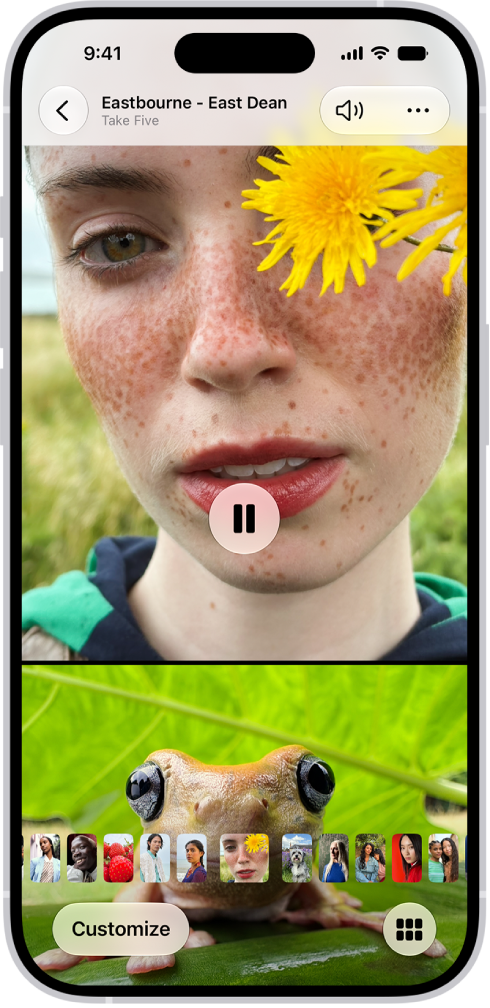
View each memory in your Memories collection as a movie that’s set to music. Every collection and album in the Photos app can play as a memory movie, too, which you can watch or edit to make more personal.

With Apple Intelligence, you can create a custom memory movie of the story you want to see. Just type a description, and Apple Intelligence chooses photos and videos, builds a storyline with unique chapters, and sets it to music. While a memory movie plays, you can pause it, mute it, or go backward or forward.

Note: Apple Intelligence on iOS 27 or later is available on an Apple Intelligence-enabled iPhone 15 Pro, iPhone 15 Pro Max, or iPhone 16 model or later. Apple Intelligence is not available in all languages or regions. Usage limits may apply.*

A memory is playing in the middle of the screen. At the bottom of the screen are the Memory Mixes and Browse buttons. At the top of the screen are the Back, Mute, and More buttons. At the top center of the screen are the location of the photo and the name of the song playing.

Play a memory movie

  1. Open the Photos app on your iPhone.
  2. Tap Collections.
  3. Swipe left under Memories to scroll through a selection of your memories, or tap Memories to view them all.
  4. Tap the Play button in the bottom-right corner of a memory to play it.
  5. As the memory movie plays, do any of the following:
    • Pause: Tap the screen and tap the Pause button.
    • Go backward or forward: Swipe left or right. Or tap the screen. Slide the frames at the bottom of the screen left or right.
    • Mute: Tap the screen, then tap the Mute button.
    • Close a memory: Tap the screen and tap the Close button.

Play a memory movie from a collection or album

The collections and albums you have in the Photos app can all be viewed as memory movies.

  1. Open the Photos app on your iPhone.
  2. Tap Collections.
  3. Select an existing collection or album. Then tap the Play button to watch the photos and videos as a memory movie.

Create a memory movie with Apple Intelligence

Want a custom memory movie of a particular story? Create one right in Photos. Type a description, and Apple Intelligence picks the best photos and videos and sets them to music, with a storyline built from unique chapters and a narrative arc.

  1. Open the Photos app on your iPhone.
  2. Tap Collections, tap Memories, and tap Create.
  3. Enter a description of the movie you want to create, then tap Done.

*Apple Intelligence is available with Siri and device language set to Chinese (Simplified), Chinese (Traditional), Danish, Dutch, English, French, German, Italian, Japanese, Korean, Norwegian, Portuguese, Spanish, Swedish, Turkish, or Vietnamese. Some features may not be available in all regions or languages. Some devices may not be available in all regions. Siri AI is available in beta in iOS 27, iPadOS 27, macOS 27, watchOS 27, and visionOS 27 and requires an Apple Intelligence–enabled device set to a supported language. Available in English to start. Siri AI will not be initially available in the EU on iOS, iPadOS, and watchOS. Certain Apple Intelligence features that rely on server-side models are subject to daily usage limits, including but not limited to Siri AI, Intelligent Photo Editing Tools, Image Playground, and AFM 3 Cloud models in Shortcuts. Daily limits may vary by feature, request complexity, system demand, system policies, and other factors. Expanded access to such features will be available for a fee in the future. Use of these features is subject to the Apple Intelligence Terms and Conditions.

In some countries and regions, you can record a phone call when you’re talking to one other person. In select regions and languages, you can view the transcript of the call in the Notes app. And with Apple Intelligence,* you can read a summary of the phone call in the Notes app.

It’s all saved for you. iPhone automatically saves call recordings in a Call Recordings folder in the Notes app, where you can play a recorded call or delete it, and you can turn off Audio Call Recording entirely.

Note: Call recording isn’t currently available in Azerbaijan, Bahrain, Egypt, the European Union, Iran, Iraq, Jordan, Kuwait, Morocco, Nigeria, Oman, Pakistan, Qatar, Russia, Saudi Arabia, South Africa, Turkey, United Arab Emirates, and Yemen. Apple Intelligence on iOS 27 or later is available on an Apple Intelligence-enabled iPhone 15 Pro, iPhone 15 Pro Max, or iPhone 16 model or later. Apple Intelligence is not available in all languages or regions. Usage limits may apply.*

Record a call

Before you begin, check the iOS and iPadOS Feature Availability website to see if call recording is available in your language and region, and make sure the other call participant is willing to be recorded.

  1. Open the Phone app on your iPhone.
  2. Make a call.
  3. During the call, tap the More button and then tap Call Recording.
  4. Both call participants hear an audio notice that the call is being recorded.
  5. To stop recording, tap the Stop button or just hang up.

iPhone automatically saves call recordings to a Call Recordings folder in the Notes app. To see the call in the Notes app, tap View Saved Call.

Play a recorded call

  1. Open the Notes app on your iPhone.
  2. Tap a note in the Call Recordings folder and tap the Play button.

View a call transcript

In select regions and languages, the transcript of a recorded call appears in the Notes app. It may not be available right away, though, and you may see a message that the transcription is in progress.

Note: A transcription might not be a perfect representation of the conversation, so verify its accuracy before relying on it.

  1. Open the Notes app on your iPhone.
  2. In the Call Recordings folder, tap a note. Tap the recording. Note: Spoken words in supported languages are automatically transcribed. If you don’t see a transcript, your iPhone doesn’t meet the minimum requirements or detect a supported language. In the transcript, the speaker of each statement is identified.
  3. While viewing the transcript, you can do any of the following:
    • Play the audio from a specific point: Select the text you want to hear.
    • Search the transcript: Tap the More button and then tap Find in Transcript.
    • Copy the transcript: Tap the More button and choose Add Transcript to Note or Copy Transcript.
    • Save the audio recording: Tap the More button and tap Save Audio Files. Then select where you want to save the recording.
    • Share the audio recording: Tap the More button, tap Share Audio, and select how you want to share the recording.
    • Delete the audio recording: Tap the More button and then tap Delete. Note: Deleting the audio recording also deletes the transcript.
    • View the waveform of the recording: Tap the Hide Transcript button.
    • View a summary of the voicemail: If your iPhone supports Apple Intelligence,* tap Summary. Tip: To copy or share a summary, tap the More button at the top of the summary.

Delete a recorded call

  1. Open the Notes app on your iPhone.
  2. Tap a note in the Call Recordings folder, tap the More button, and then tap Delete.

Note: Deleting the audio recording also deletes the transcript.

Turn off Audio Call Recording

You can turn off Call Recording, which is on by default.

  1. Open the Settings app on your iPhone.
  2. Tap Apps, then tap Phone.
  3. Tap Audio Call Recording, then turn it off.

*Apple Intelligence is available with Siri and device language set to Chinese (Simplified), Chinese (Traditional), Danish, Dutch, English, French, German, Italian, Japanese, Korean, Norwegian, Portuguese, Spanish, Swedish, Turkish, or Vietnamese. Some features may not be available in all regions or languages. Some devices may not be available in all regions. Siri AI is available in beta in iOS 27, iPadOS 27, macOS 27, watchOS 27, and visionOS 27 and requires an Apple Intelligence–enabled device set to a supported language. Available in English to start. Siri AI will not be initially available in the EU on iOS, iPadOS, and watchOS. Certain Apple Intelligence features that rely on server-side models are subject to daily usage limits, including but not limited to Siri AI, Intelligent Photo Editing Tools, Image Playground, and AFM 3 Cloud models in Shortcuts. Daily limits may vary by feature, request complexity, system demand, system policies, and other factors. Expanded access to such features will be available for a fee in the future. Use of these features is subject to the Apple Intelligence Terms and Conditions.

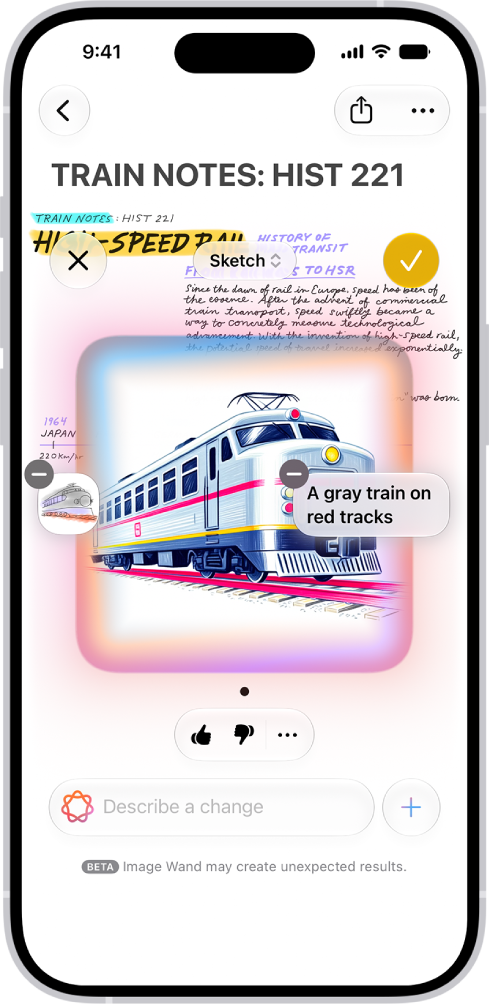
With Apple Intelligence, you can use Image Wand in the Notes app to create images based on rough sketches you create. You can also select empty space to create an image based on words and images from the surrounding area.

Nothing’s lost, either. All the elements used to create an image are saved, so you can modify, add, or remove elements in an existing image.

Here’s how to use Image Wand with Apple Intelligence on iPhone.

The Image Wand window showing a created image of a train.

Note: Apple Intelligence on iOS 27 or later is available on an Apple Intelligence-enabled iPhone 15 Pro, iPhone 15 Pro Max, or iPhone 16 model or later. Apple Intelligence is not available in all languages or regions. Usage limits may apply.*

Create an image from a rough sketch

  1. Start the Notes app on your iPhone.
  2. Open an existing note or tap the New Note button to start a new note.
  3. Tap the Handwriting Tools button and then create a sketch.
  4. Tap the Image Wand button, circle your sketch. Then do any of the following:
    • Add a new element: Enter a description and then tap the Send button.
    • Modify an element: Tap a description, edit the text and then tap the Send button.
    • Remove an element: Tap the Delete button.
    • Change the style: Tap Style to choose a different style—Any Style, Animation, Illustration, or Sketch. Note: If you choose Any Style, you can describe the style you want as part of your image description.
  5. When you’re finished, tap the Done button.

Create an image from surrounding content

Apple Intelligence can create images based on the words and images around it.

  1. Start the Notes app on your iPhone.
  2. Open a note, scroll to the bottom, tap the Handwriting Tools button, and then tap the Image Wand.
  3. Circle an area below the content you want to illustrate.

Refine an existing image

Image Wand saves every element used to create an image, including sketches, descriptions, and surrounding content. That means you can modify, add, or remove elements in an existing image later.

  1. Tap a created image.
  2. Tap the Image Playground button.

    The image shows the elements used to create it.

  3. Tap an element to change it, or enter a new description to transform the background, change the style, or add something entirely new.
  4. When you’re finished, tap the Done button.

You can block access to image creation features, like Image Wand, in Screen Time settings.

The recommended age for realistic images is 18+, Apple says.

*Apple Intelligence is available with Siri and device language set to Chinese (Simplified), Chinese (Traditional), Danish, Dutch, English, French, German, Italian, Japanese, Korean, Norwegian, Portuguese, Spanish, Swedish, Turkish, or Vietnamese. Some features may not be available in all regions or languages. Some devices may not be available in all regions. Siri AI is available in beta in iOS 27, iPadOS 27, macOS 27, watchOS 27, and visionOS 27 and requires an Apple Intelligence–enabled device set to a supported language. Available in English to start. Siri AI will not be initially available in the EU on iOS, iPadOS, and watchOS. Certain Apple Intelligence features that rely on server-side models are subject to daily usage limits, including but not limited to Siri AI, Intelligent Photo Editing Tools, Image Playground, and AFM 3 Cloud models in Shortcuts. Daily limits may vary by feature, request complexity, system demand, system policies, and other factors. Expanded access to such features will be available for a fee in the future. Use of these features is subject to the Apple Intelligence Terms and Conditions.

In the Notes app, you can record audio and have the spoken words transcribed to text. You can search the transcript, add the text to the note, or copy the text to other documents.

The transcript appears live as you record. You can also view a summary of an audio recording, and see transcripts of phone and FaceTime audio calls. You can take notes while recording, too, and pause or resume a recording.

Here’s how to record and transcribe audio in Notes on iPhone.

Note: Audio transcription works on iPhone 12 and later if your device language is English, Spanish, Portuguese, Italian, French, German, Japanese, Korean, Simplified Chinese, or Traditional Chinese.

Record audio and see the live transcript

Record audio in a note and have the spoken words transcribed.

  1. Start the Notes app on your iPhone.
  2. In a note, tap the Attachments button. Tap Record Audio.
  3. To start the recording, tap the Record button. Tip: To take notes while recording, swipe down from the top of the screen.
  4. Do any of the following:

    • Pause recording: Tap the Pause button.
    • Resume recording: Tap the Resume button.
    • See the live transcript: Tap the Transcription button.

    Note: Spoken words in supported languages are automatically transcribed. If you don’t see the Transcription button, your iPhone either doesn’t meet the minimum requirements or doesn’t detect a supported language.

  5. When you’re finished recording, tap the Pause button. Then tap the Done button.

Play an audio recording and review the transcript

  1. Start the Notes app on your iPhone.
  2. In a note with an audio recording, tap the Play button to play it.
  3. To review the transcript, tap the audio recording. Tap the Transcription button. Note: Spoken words in supported languages are automatically transcribed. If you don’t see the Transcription button, your iPhone doesn’t meet the minimum requirements or doesn’t detect a supported language. While viewing the transcript, you can do any of the following:

    • Play the audio at a specific point: Tap the text you want to hear.
    • Search the transcript: Tap the More button and then tap Find in Transcript.
    • Copy the transcript: Tap the More button and choose Add Transcript to Note or Copy Transcript.
    • Name your recording: Tap the boldfaced title, type a name for your recording, then tap Save.
    • Save or delete the audio recording: Tap the More button and then choose an option.

    Note: Deleting the audio recording also deletes the transcript.

View a summary of an audio recording

You can use Apple Intelligence to generate a summary of the transcript, so you can get to the most important information at a glance. You can also copy and share summaries. Note: Apple Intelligence on iOS 27 or later is available on an Apple Intelligence-enabled iPhone 15 Pro, iPhone 15 Pro Max, or iPhone 16 model or later. Apple Intelligence is not available in all languages or regions. Usage limits may apply.* Some languages that support Apple Intelligence summaries are not available for audio transcription.

  1. Start the Notes app on your iPhone.
  2. Open a note with a recording.
  3. Tap the recording, then tap Summary. Tip: You can copy or share a summary. Tap the More button at the top of the summary, then choose an option.

View transcripts of phone and FaceTime audio calls

You can record a call in the Phone or FaceTime app and view the spoken words transcribed in the Notes app (requires iOS 18.1 or later). *Apple Intelligence is available with Siri and device language set to Chinese (Simplified), Chinese (Traditional), Danish, Dutch, English, French, German, Italian, Japanese, Korean, Norwegian, Portuguese, Spanish, Swedish, Turkish, or Vietnamese. Some features may not be available in all regions or languages. Some devices may not be available in all regions. Siri AI is available in beta in iOS 27, iPadOS 27, macOS 27, watchOS 27, and visionOS 27 and requires an Apple Intelligence–enabled device set to a supported language. Available in English to start. Siri AI will not be initially available in the EU on iOS, iPadOS, and watchOS. Certain Apple Intelligence features that rely on server-side models are subject to daily usage limits, including but not limited to Siri AI, Intelligent Photo Editing Tools, Image Playground, and AFM 3 Cloud models in Shortcuts. Daily limits may vary by feature, request complexity, system demand, system policies, and other factors. Expanded access to such features will be available for a fee in the future. Use of these features is subject to the Apple Intelligence Terms and Conditions.