








Got a tip for us?

Apple Intelligence

After you take a photo or video, use the tools in the Photos app to edit it on your iPhone. You can adjust the light and color, add a filter, and more, and when you use iCloud Photos, any edits you make are saved across all your devices.

Enhance can automatically improve light and color, and if you took a photo with iPhone 16 or later, you can change its Photographic Style.

Edit the light or color of a photo or video

To make your photos and videos look their best, adjust light and color settings.
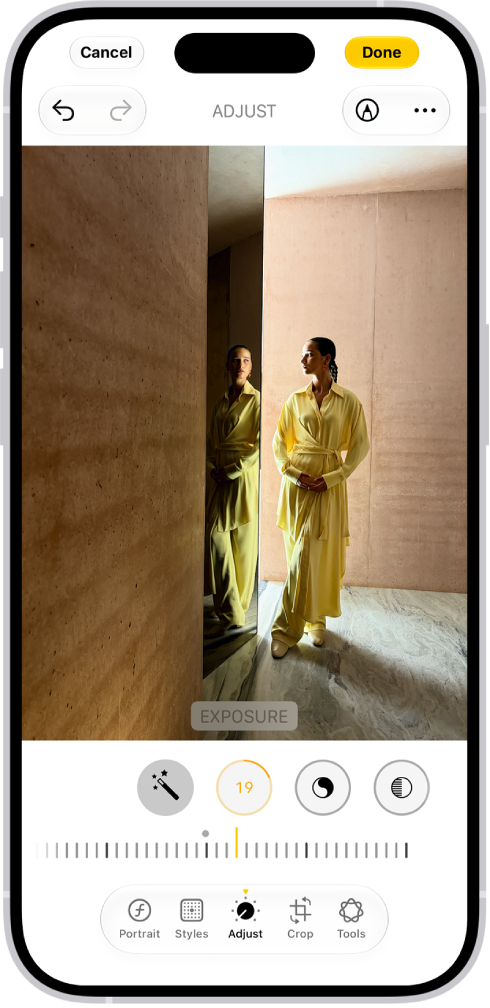
On iPhone, a phot is being edited in the Photos app. The Adjust button is selected, and a slider is available below the Exposure setting to adjust its level. The Cancel button is in the top-left corner of the screen and the Done button is in the top-right corner.

  1. Start the Photos app on your iPhone.
  2. Tap a photo or video to open it, then tap the Edit button.
  3. Tap Adjust.
  4. Swipe left under the photo to view the settings you can adjust—for example, Exposure, Brilliance, or Highlights.
  5. Tap a setting and drag the slider to make precise adjustments.

    The outline around each button indicates the level of change for that setting. Tap the button to compare the edited version to the original.

  6. Tap Done to save your edits, or if you don’t like your changes, tap Cancel, and then tap Discard Changes.

Quick tip: To automatically enhance the light and color, tap the Enhance button.

Edit the Photographic Style of a photo

On models that support Photographic Styles, you can apply a new style to photos in your library or edit the Photographic Style.

Note: Editing Photographic Styles in the Photos app only works if Camera captures photos with High Efficiency image capture. To turn on High Efficiency first, go to Settings app , tap Camera, tap Formats, and then tap High Efficiency.
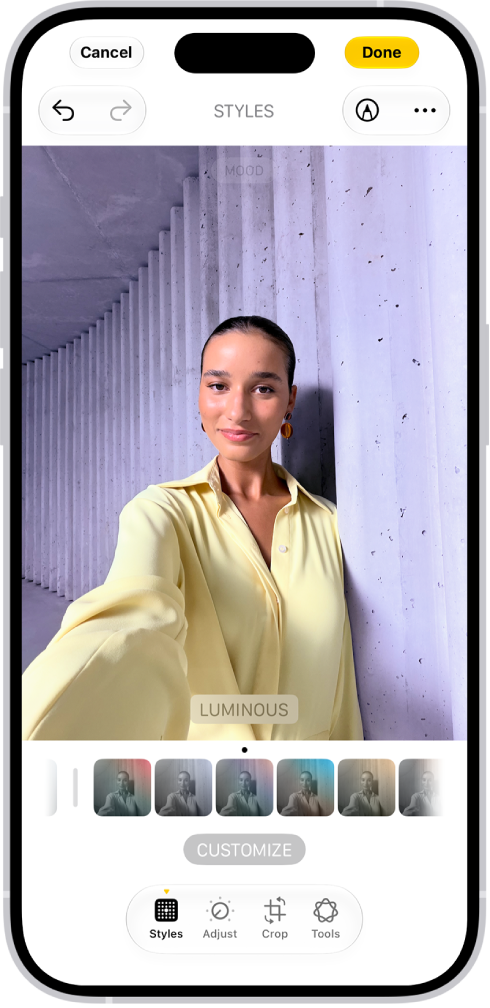
On iPhone, a photo is being edited in the Photos app. The Styles button is selected, and Luminous is selected.

  1. Start the Photos app on your iPhone.
  2. Open a photo taken with a Photographic Style and tap the Edit button.
  3. Tap Styles and then do any of the following:

    • Choose a new style: Swipe left or right on the style choices below the image.
    • Adjust the tone, color, and intensity: Tap Customize. Then drag your finger on the Styles Chooser to adjust the tone and color. On iPhone 18 Pro models, tap Palette first. Drag your finger left or right on the slider below to adjust the intensity level. When you’re done making adjustments, tap the image.
    • Change the texture: Tap Texture and choose a texture such as Soft Skin, Glow, or Film. Drag the slider to adjust the intensity, or choose Standard to apply no texture. Tap Grain to add film grain to any texture. (Available on models that support Photographic Styles 2 and Photographic Styles 3 and captured on iPhone 18 Pro or iPhone 18 Pro Max).

    Note: As you make adjustments, the values for tone, color, and intensity are shown at the top of the screen. Tap the Reset button to reset these values.

  4. Tap the Done button.

Apply filter effects to a photo or video

To change the tint of a photo or video, apply filter effects.

Note: On iPhone 16 models or later, Photographic Styles take the place of filters for giving your photos a customized look. If you haven’t turned on Photographic Styles, though, filter effects are still available on these models.
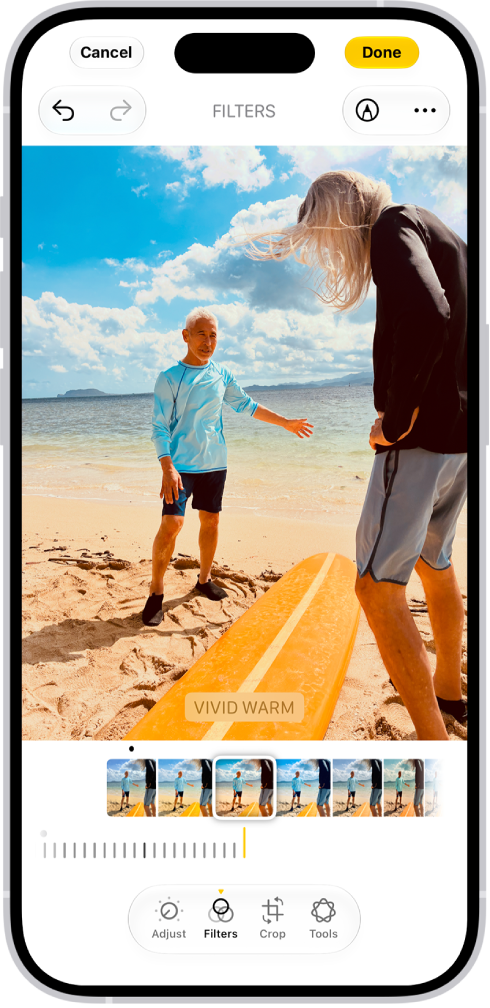
On iPhone, a photo is being edited in the Photos app. The Filters button is selected, and the Vivid Warm filter is selected. A slider is available below the filter options to adjust the intensity of the filter. The Cancel button is in thetop-left corner of the screen and the Done button is in the top-right corner.

  1. Start the Photos app on your iPhone.
  2. Open a photo or video, then tap the Edit button.
  3. Tap the Filters button to apply filter effects such as Vivid or Dramatic.

    To remove a filter that was applied when you took the photo, tap Original.

  4. Tap a filter. Then drag the slider to adjust the effect.

    To compare the edited photo to the original, tap the photo.

  5. Tap Done to save your edits, or if you don’t like your changes, tap Cancel, and then tap Discard Changes.

Copy and paste edits to multiple photos

Once you’ve edited one photo or video, you can copy those edits and paste them onto another photo, or onto a batch of photos all at the same time.

  1. Start the Photos app on your iPhone.
  2. Open the photo or video that contains the edits you want to copy.
  3. Tap the More button, then tap Copy Edits.
  4. Review and turn off any edits you don’t want to copy. Tap Copy.
  5. Tap the Back button to return to your library.
  6. Tap Select and tap the thumbnails of the photos you want to paste the edits onto, or open a single photo or video.
  7. Tap the More button and then tap Paste Edits.

Note: To make the edited photos look even more similar, Photos automatically adjusts their white balance and exposure for a better match.

Add stickers, text, and more

  1. Start the Photos app on your iPhone.
  2. Tap a photo to open it.
  3. Tap the Edit button, then tap the Markup button.
  4. Tap the Add Annotations button to add stickers, captions, text, shapes, or even your signature.
  5. Tap the Done button to save your edits.

Set the background color of Edit mode

The background of Edit mode matches your iPhone’s light or dark appearance by default. You can change its color, though. If you prefer to edit photos against a dark background, for example, set it to always appear dark.

  1. Start the Photos app on your iPhone.
  2. Tap a photo or video to open it, then tap the Edit button.
  3. Tap the More button, tap Appearance, and then do one of the following:
    • Match Edit mode to the light or dark appearance of your iPhone: Tap System.
    • Make Edit mode always appear dark: Tap Dark.
    • Make Edit mode always appear light: Tap Light.

Use Apple Intelligence editing tools

Apple Intelligence gives you the Clean Up, Extend, and Reframe tools to edit your photos.

Note: Apple Intelligence on iOS 27 or later is available on an Apple Intelligence-enabled iPhone 15 Pro, iPhone 15 Pro Max, or iPhone 16 model or later. Apple Intelligence is not available in all languages or regions. Usage limits may apply.*

*Apple Intelligence is available with Siri and device language set to Chinese (Simplified), Chinese (Traditional), Danish, Dutch, English, French, German, Italian, Japanese, Korean, Norwegian, Portuguese, Spanish, Swedish, Turkish, or Vietnamese. Some features may not be available in all regions or languages. Some devices may not be available in all regions. Siri AI is available in beta in iOS 27, iPadOS 27, macOS 27, watchOS 27, and visionOS 27 and requires an Apple Intelligence–enabled device set to a supported language. Available in English to start. Siri AI will not be initially available in the EU on iOS, iPadOS, and watchOS. Certain Apple Intelligence features that rely on server-side models are subject to daily usage limits, including but not limited to Siri AI, Intelligent Photo Editing Tools, Image Playground, and AFM 3 Cloud models in Shortcuts. Daily limits may vary by feature, request complexity, system demand, system policies, and other factors. Expanded access to such features will be available for a fee in the future. Use of these features is subject to the Apple Intelligence Terms and Conditions.
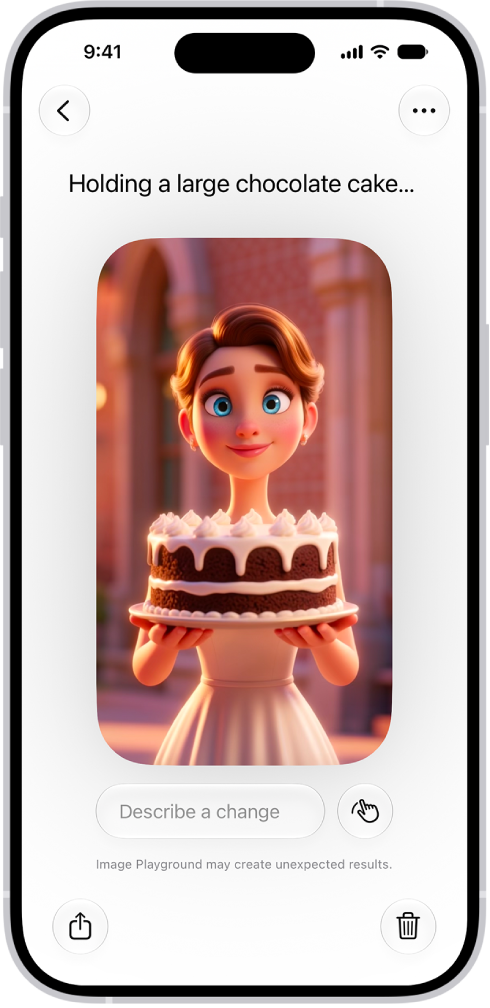
In the Image Playground app, you can use Apple Intelligence to create original images within seconds. Get started using simple text descriptions, photos, and people from your Photos library. You can also use Image Playground to create images in Messages, Lock Screen wallpapers, contact posters, and more.

You can choose a style, like Illustration, add up to three people from your Photos library, and pick an aspect ratio. Everything you make is saved to your gallery automatically.

Here’s how to create original images with Image Playground on iPhone.

The Image Playground app window showing a created image of a woman holding a cake.

Note: Apple Intelligence on iOS 27 or later is available on an Apple Intelligence-enabled iPhone 15 Pro, iPhone 15 Pro Max, or iPhone 16 model or later. Apple Intelligence is not available in all languages or regions. Usage limits may apply.*

Create an image

  1. Start the Image Playground app on your iPhone.
  2. Tap the New Image button.
  3. Do any of the following to customize your image:
    • Describe it: Enter a description.
    • Choose a style: Tap the Style button and then choose an Apple Intelligence style (like Any Style or Illustration) or tap ChatGPT** to describe the style you want. Note: If you choose Any Style, you can describe the style you want as part of your image description. If you choose Genmoji, you can save it with your stickers.
    • Add a person from your Photos library: Tap the Add Person button and select a person. You can add up to three people. Note: If you provide a text description that doesn’t match the person you selected, your image is personalized based on the photo you selected rather than the text description.
    • A photo of something else, like a pet, nature, or food: Tap the Add Photo button and choose an option.
    • Choose the aspect ratio: Tap the Aspect Ratio button and then choose an option.
  4. Tap the Submit button to create your image.

All changes are automatically saved to your gallery. If you created a Genmoji, tap Add Emoji to add it with your stickers. To view the images in your gallery, tap the Back button. All the versions you create for a single idea are grouped together.

Besides the Image Playground app, you can use Image Playground features to create original images in apps like Messages and Freeform. You’ll also find Image Playground in Pages, Keynote, Apple Invites, supported third-party apps, and more.

Edit an existing image

  1. Start the Image Playground app on your iPhone.
  2. Tap an image in the gallery.
  3. Do any of the following to refine your image:
    • Describe a change: Enter a description to transform the background, change the style, or add something entirely new.
    • Make targeted edits: Tap the Edit button and then tap, brush, or circle a specific object. You can move it, resize it, or swap it out with another image. Use the buttons at the bottom of the screen to add elements, or to change or remove the object you selected. Tap Apply Change when you’re ready to save your edits. Note: Swipe up or down to move between versions of your image. You can move to a different version at any time and keep refining from there.
  4. When you’re finished, tap the Done button.

Share, copy, or delete an image

  1. Start the Image Playground app on your iPhone.
  2. Tap an image, then do any of the following:
    • Share your image: Tap the Share button and choose a share option.
    • Copy your image: Tap the More button, then tap Copy or Duplicate.
    • Delete your image: Tap the More button and then tap Delete.

Note: If you delete an image from Image Playground, it disappears from every device where you’re signed in to the same Apple Account.

In Screen Time settings, you can block access to image creation features, like Image Playground.

The recommended age for realistic images is 18+, according to Apple.

*Apple Intelligence is available with Siri and device language set to Chinese (Simplified), Chinese (Traditional), Danish, Dutch, English, French, German, Italian, Japanese, Korean, Norwegian, Portuguese, Spanish, Swedish, Turkish, or Vietnamese. Some features may not be available in all regions or languages. Some devices may not be available in all regions. Siri AI is available in beta in iOS 27, iPadOS 27, macOS 27, watchOS 27, and visionOS 27 and requires an Apple Intelligence–enabled device set to a supported language. Available in English to start. Siri AI will not be initially available in the EU on iOS, iPadOS, and watchOS. Certain Apple Intelligence features that rely on server-side models are subject to daily usage limits, including but not limited to Siri AI, Intelligent Photo Editing Tools, Image Playground, and AFM 3 Cloud models in Shortcuts. Daily limits may vary by feature, request complexity, system demand, system policies, and other factors. Expanded access to such features will be available for a fee in the future. Use of these features is subject to the Apple Intelligence Terms and Conditions.
**ChatGPT uses generative models and outputs may vary. Check important information for accuracy. When using the ChatGPT extension, you choose what content to send to ChatGPT. Your request and attachments, as well as limited data associated with the request, such as current time zone, country, device type, language, and feature being used when making the request, are sent to ChatGPT to answer your request and enable ChatGPT to provide you accurate and relevant results.

With Screen Time, you can allow or block content that’s labeled sensitive or explicit in the Music app, Apple TV app, Books app, and more. You can also allow or block built-in apps and features like AirDrop, Camera, and more.

It goes beyond apps. Screen Time can also control Siri and Apple Intelligence features, though the settings you see there may vary depending on your Siri version. All of these restrictions are in Content & Privacy Restrictions, inside Screen Time in the Settings app.

Note: You’ll need iOS 27, iPadOS 27, macOS 27, watchOS 27, or visionOS 27 or later on all your Apple devices for the latest Screen Time features. In a Family Sharing group, all devices have to be upgraded to iOS 27, iPadOS 27, macOS 27, watchOS 27, or visionOS 27 or later before you set these features up.

Set content restrictions in the Music app, Apple TV app, Books app, and more

  1. Open the Settings app on your iPhone.
  2. Tap Screen Time, tap Content & Privacy Restrictions, and allow or block any of the settings shown under Content Restrictions, like Books, Movies, TV Shows, and Music.

Block or allow built-in apps or features

  1. Open the Settings app on your iPhone.
  2. Tap Screen Time, tap Content & Privacy Restrictions and tap Other Features. Allow or block any of the settings shown, like AirDrop, Camera, and more.

Block or allow Siri and Apple Intelligence features

Note: The settings that appear here may vary depending on your Siri version. Siri AI is available in beta on iOS 27 or later on an Apple Intelligence-enabled iPhone 15 Pro, iPhone 15 Pro Max, or iPhone 16 model or later with Siri and device language set to a supported language. Available in English to start. Siri AI will not initially be available in the EU on iOS. Usage limits may apply.

Apple Intelligence on iOS 27 or later is available on an Apple Intelligence-enabled iPhone 15 Pro, iPhone 15 Pro Max, or iPhone 16 model or later. Apple Intelligence is not available in all languages or regions. Usage limits may apply.

  1. Open the Settings app on your iPhone.
  2. Tap Screen Time, tap Content & Privacy Restrictions, tap Siri, and do any of the following:
    • Block Siri: Tap Don’t Allow Siri.
    • Allow use of Siri without AI capabilities: Tap Siri (Classic Version).
    • Allow use of Siri with AI capabilities: Tap Siri AI (Beta).*
    • Allow or block specific capabilities: Select Allow or Block under any of the Siri AI capabilities, such as Image Creation, Sensitive Topics, or Explicit Language.

*Apple Intelligence is available with Siri and device language set to Chinese (Simplified), Chinese (Traditional), Danish, Dutch, English, French, German, Italian, Japanese, Korean, Norwegian, Portuguese, Spanish, Swedish, Turkish, or Vietnamese. Some features may not be available in all regions or languages. Some devices may not be available in all regions.

Siri AI is available in beta in iOS 27, iPadOS 27, macOS 27, watchOS 27, and visionOS 27 and requires an Apple Intelligence–enabled device set to a supported language. Available in English to start. Siri AI will not be initially available in the EU on iOS, iPadOS, and watchOS.

Certain Apple Intelligence features that rely on server-side models are subject to daily usage limits, including but not limited to Siri AI, Intelligent Photo Editing Tools, Image Playground, and AFM 3 Cloud models in Shortcuts. Daily limits may vary by feature, request complexity, system demand, system policies, and other factors. Expanded access to such features will be available for a fee in the future. Use of these features is subject to the Apple Intelligence Terms and Conditions.
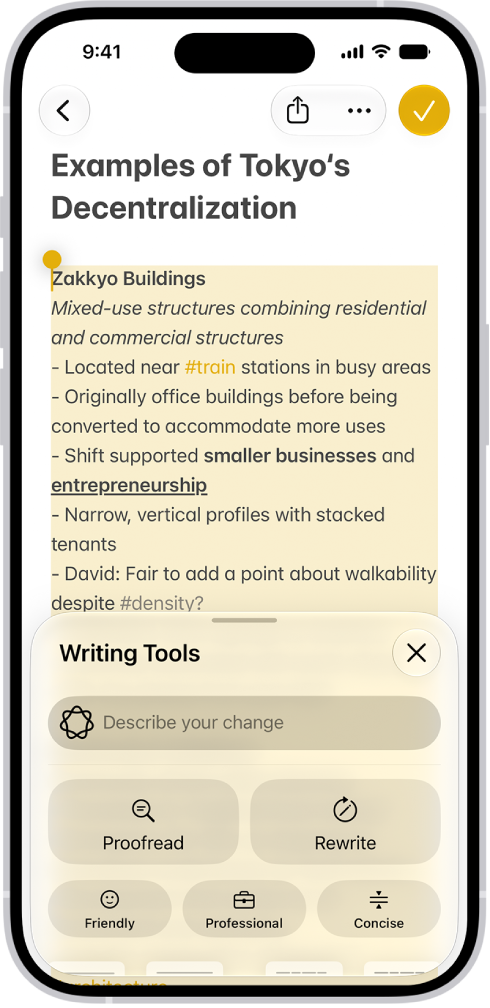
With Apple Intelligence, you can use Writing Tools to write text and rewrite selected text to find the right wording and tone. You can also proofread and summarize documents. Writing Tools are available in most places you write, including third-party apps and websites.

You can describe a change you want to make, or rewrite text in a Friendly, Professional, or Concise tone. Writing Tools can also summarize the key points of your text, and you can even compose text with ChatGPT.

Note: Siri AI is available in beta on iOS 27 or later on an Apple Intelligence-enabled iPhone 15 Pro, iPhone 15 Pro Max, or iPhone 16 model or later with Siri and device language set to a supported language. Available in English to start. Siri AI will not initially be available in the EU on iOS. Usage limits may apply.

An iPhone showing a story being written in the Notes app. At the bottom of the screen is the Compose with Writing Tools dialog that includes options to refine with ChatGPT, rewrite, choose ChatGPT suggestions, and more.

Note: Apple Intelligence on iOS 27 or later is available on an Apple Intelligence-enabled iPhone 15 Pro, iPhone 15 Pro Max, or iPhone 16 model or later. Apple Intelligence is not available in all languages or regions. Usage limits may apply.*

Proofread, rewrite, summarize, and organize text with Writing Tools

  1. While writing, select the text you want to refine. Then tap the Writing Tools button.
  2. Choose an option to refine or summarize your text. Here are some of the things you can do:
    • Tap “Describe a change” to describe the kind of change you want to make.
    • Tap Rewrite. To choose a particular tone, tap Friendly, Professional, or Concise.
    • Tap Proofread.
    • Tap Summarize or Key Points to only summarize the most important points of your text.
  3. When you’re finished, tap the Done button.

Compose text with ChatGPT in Writing Tools

  1. While typing, tap the text field and tap the Writing Tools button.
  2. Swipe up, then tap Compose.
  3. Describe what you want ChatGPT** to write—for example, “A bedtime story about a girl who visits a magical world where she befriends a caterpillar on its journey to becoming a butterfly”— choose Include All Text or Selected Text. Tap the Send button.
  4. If you’re asked for more details, tap a field and enter a response. Then tap the Send button—or tap Ignore to continue without adding details.

After you view the text, you can rewrite text, incorporate ChatGPT’s suggestions, and revert to the original version of your text.

*Apple Intelligence is available with Siri and device language set to Chinese (Simplified), Chinese (Traditional), Danish, Dutch, English, French, German, Italian, Japanese, Korean, Norwegian, Portuguese, Spanish, Swedish, Turkish, or Vietnamese. Some features may not be available in all regions or languages. Some devices may not be available in all regions. Siri AI is available in beta in iOS 27, iPadOS 27, macOS 27, watchOS 27, and visionOS 27 and requires an Apple Intelligence–enabled device set to a supported language. Available in English to start. Siri AI will not be initially available in the EU on iOS, iPadOS, and watchOS. Certain Apple Intelligence features that rely on server-side models are subject to daily usage limits, including but not limited to Siri AI, Intelligent Photo Editing Tools, Image Playground, and AFM 3 Cloud models in Shortcuts. Daily limits may vary by feature, request complexity, system demand, system policies, and other factors. Expanded access to such features will be available for a fee in the future. Use of these features is subject to the Apple Intelligence Terms and Conditions.
**ChatGPT uses generative models and outputs may vary. Check important information for accuracy. When using the ChatGPT extension, you choose what content to send to ChatGPT. Your request and attachments, as well as limited data associated with the request, such as current time zone, country, device type, language, and feature being used when making the request, are sent to ChatGPT to answer your request and enable ChatGPT to provide you accurate and relevant results.

With Apple Intelligence in the Home app, you can automatically generate video descriptions for recorded clips from compatible Home cameras. You can then search your recordings using natural language.

It cuts down on alerts, too. Related notifications are grouped together, so you get fewer alerts from the Home app, and you’ll need a home hub, such as HomePod or Apple TV 4K, to use it.

Here’s how to use Apple Intelligence with Home cameras and notifications on iPhone.

Note: Requires a home hub such as HomePod (2nd generation), HomePod mini, or Apple TV 4K with the latest operating system software. The owner of the home must have an Apple Intelligence–enabled iPhone,* have Apple Intelligence enabled in the Home app, and subscribe to a 2TB iCloud+ plan. Apple Intelligence on iOS 27 or later is available on an Apple Intelligence-enabled iPhone 15 Pro, iPhone 15 Pro Max, or iPhone 16 model or later. Apple Intelligence is not available in all languages or regions. Usage limits may apply.*

Generate Home camera video descriptions on iPhone

By analyzing your Home camera footage, Apple Intelligence can generate searchable video descriptions.

  1. Start the Home app on your iPhone.
  2. On the Home tab, tap the More button and then tap Home Settings.
  3. Turn on Apple Intelligence. Enable or disable video descriptions for each camera.

Reduce notifications from the Home app

To reduce notifications, Apple Intelligence can bundle similar Home notifications, such as a door locking and unlocking repeatedly.

  1. Start the Home app on your iPhone.
  2. On the Home tab, tap the More button and then tap Home Settings.
  3. Tap Apple Intelligence, then enable or disable Reduce Notifications.

*Apple Intelligence is available with Siri and device language set to Chinese (Simplified), Chinese (Traditional), Danish, Dutch, English, French, German, Italian, Japanese, Korean, Norwegian, Portuguese, Spanish, Swedish, Turkish, or Vietnamese. Some features may not be available in all regions or languages. Some devices may not be available in all regions. Siri AI is available in beta in iOS 27, iPadOS 27, macOS 27, watchOS 27, and visionOS 27 and requires an Apple Intelligence–enabled device set to a supported language. Available in English to start. Siri AI will not be initially available in the EU on iOS, iPadOS, and watchOS. Certain Apple Intelligence features that rely on server-side models are subject to daily usage limits, including but not limited to Siri AI, Intelligent Photo Editing Tools, Image Playground, and AFM 3 Cloud models in Shortcuts. Daily limits may vary by feature, request complexity, system demand, system policies, and other factors. Expanded access to such features will be available for a fee in the future. Use of these features is subject to the Apple Intelligence Terms and Conditions.

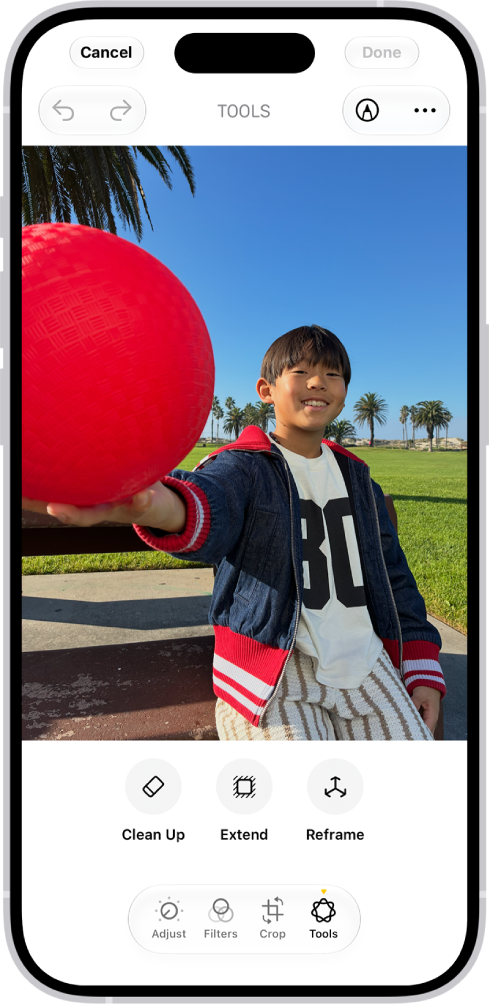
With Apple Intelligence, you can remove distracting objects, extend a photo beyond its original frame, and adjust its perspective.

The Clean Up tool removes distracting objects from a photo, and it may even highlight some items for you to remove. You can also extend the background or reframe the perspective, though Clean Up isn’t available in all languages or regions.

Here’s how to clean up, extend, and reframe photos on iPhone.

Note: Apple Intelligence on iOS 27 or later is available on an Apple Intelligence-enabled iPhone 15 Pro, iPhone 15 Pro Max, or iPhone 16 model or later. Apple Intelligence is not available in all languages or regions. Usage limits may apply.*

The buttons for Clean Up, Extend, and Reframe are displayed below a photo.

Clean up distractions

To remove distracting objects from a photo, use the Clean Up tool.

Note: Clean Up is not available in all languages or regions.

  1. Start the Photos app on your iPhone.
  2. Open a photo and then tap the Edit button.
  3. Tap Tools, then tap Clean Up.
  4. Tap, brush, or circle what you want to remove.
    • Some items may be highlighted automatically so you can quickly tap to remove them.
    • You can use two fingers to pinch, zoom, or pan the image.
    • Tap the Undo button if you want to restore something you removed
  5. Tap Clean Up (if you’re using High Quality processing).
  6. Tap the Done button. Then tap Done to close the photo.

To undo Clean Up changes after saving, follow steps 1 through 3 above, then tap Reset.

You can choose the processing type Photos uses for Clean Up—Auto, Fast, or High Quality. Tap Auto during the Clean Up process, then choose an option.

Extend the background

To expand the edges of the original photo frame, use the Extend tool.

  1. Start the Photos app on your iPhone.
  2. Open a photo and then tap the Edit button.
  3. Tap Tools, then tap Extend.
  4. Pinch or drag the photo to extend the background; drag the edge of the frame to crop.
  5. Tap Extend.
  6. Tap the Done button. Then tap Done to close the photo.

After you save, you can undo the changes you made with the Extend tool. Follow steps 1 through 3 above, then tap Reset.

Reframe the perspective

After you take a photo, the Reframe tool changes its point of capture.

  1. Start the Photos app on your iPhone.
  2. Open a photo and then tap the Edit button.
  3. Tap Tools, then tap Reframe.
  4. Touch and drag the photo to adjust the perspective or use two fingers to pan, zoom, and rotate.
  5. Tap Reframe.

    Tap the photo to compare the reframed version to the original.

  6. Tap the Done button. Then tap Done to close the photo.

After you save, you can undo the changes you made with the Reframe tool. Follow steps 1 through 3 above, then tap Reset.

*Apple Intelligence is available with Siri and device language set to Chinese (Simplified), Chinese (Traditional), Danish, Dutch, English, French, German, Italian, Japanese, Korean, Norwegian, Portuguese, Spanish, Swedish, Turkish, or Vietnamese. Some features may not be available in all regions or languages. Some devices may not be available in all regions. Siri AI is available in beta in iOS 27, iPadOS 27, macOS 27, watchOS 27, and visionOS 27 and requires an Apple Intelligence–enabled device set to a supported language. Available in English to start. Siri AI will not be initially available in the EU on iOS, iPadOS, and watchOS. Certain Apple Intelligence features that rely on server-side models are subject to daily usage limits, including but not limited to Siri AI, Intelligent Photo Editing Tools, Image Playground, and AFM 3 Cloud models in Shortcuts. Daily limits may vary by feature, request complexity, system demand, system policies, and other factors. Expanded access to such features will be available for a fee in the future. Use of these features is subject to the Apple Intelligence Terms and Conditions.

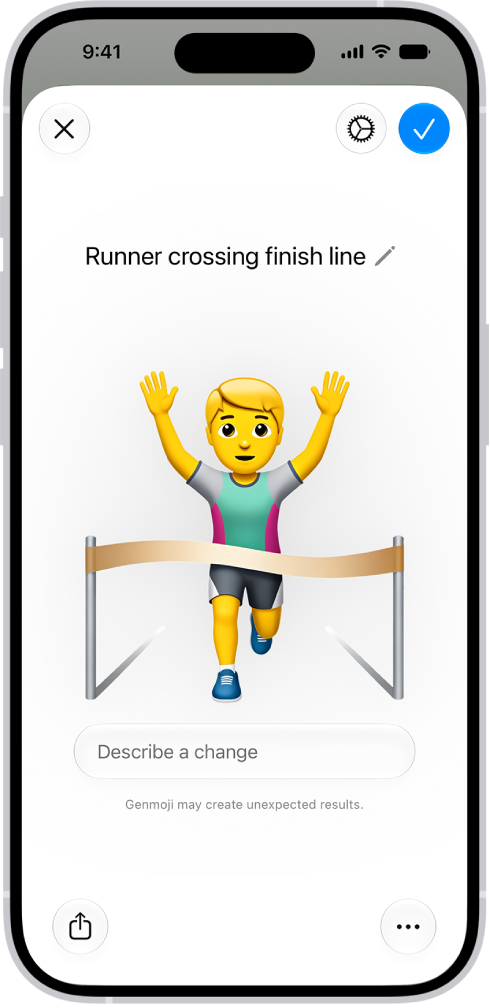
With Apple Intelligence, you can create custom emoji, called Genmoji. Simply describe what you want the Genmoji to look like, combine existing emoji with descriptions, or create one of friends and family based on their photos.

You can add Genmoji to messages, share them as a sticker or Tapback, and more. You make them right from the emoji keyboard, with the Genmoji button at the top right.

Here’s how to create your own emoji with Genmoji on iPhone.

The Genmoji window showing a created Genmoji of a man running across a finish line.

Note: Apple Intelligence on iOS 27 or later is available on an Apple Intelligence-enabled iPhone 15 Pro, iPhone 15 Pro Max, or iPhone 16 model or later. Apple Intelligence is not available in all languages or regions. Usage limits may apply.*

Create Genmoji

  1. Tap a text field. Then tap the Emoji button or the Next Keyboard key to switch to the emoji keyboard.
  2. Tap Genmoji at the top right of the onscreen keyboard.
  3. Do any of the following:

    • Describe it: Enter a description.
    • Use existing emoji or Genmoji as a base: Tap the Emoji button to choose emoji or Genmoji.
    • Add a person from your Photos library: Tap the Choose Person button, then select a person. You can add up to three people. Note: If you provide a text description that doesn’t match the person you selected, your image is personalized based on the photo you selected rather than the text description.
    • Add a photo of something else, like a pet, nature, or food: Tap the Choose or Take Photo button. Then choose an option.
  4. Tap the Submit button to create your Genmoji.
  5. To refine your Genmoji, describe a change or add existing emoji or Genmoji to the one you created.

    Note: Scroll up or down to move between versions of your Genmoji. You can move to a different version at any time and keep refining from there.

  6. When you’re happy with your Genmoji, tap the Done button.

Each Genmoji you create is saved with your stickers. And you can create a Genmoji in Image Playground, too.

Delete Genmoji

  1. Tap a text field. Then tap the Emoji button or the Next Keyboard key to switch to the emoji keyboard.
  2. Swipe right or tap the Stickers button.
  3. Touch and hold a Genmoji, then tap Delete.

You can also tap the Add button in a Messages conversation, then tap Stickers. Tap the Stickers button, touch and hold a Genmoji, then tap Delete.

To block access to image creation features, like Genmoji, use Screen Time settings.

Apple notes that the recommended age for realistic images is 18+.

*Apple Intelligence is available with Siri and device language set to Chinese (Simplified), Chinese (Traditional), Danish, Dutch, English, French, German, Italian, Japanese, Korean, Norwegian, Portuguese, Spanish, Swedish, Turkish, or Vietnamese. Some features may not be available in all regions or languages. Some devices may not be available in all regions. Siri AI is available in beta in iOS 27, iPadOS 27, macOS 27, watchOS 27, and visionOS 27 and requires an Apple Intelligence–enabled device set to a supported language. Available in English to start. Siri AI will not be initially available in the EU on iOS, iPadOS, and watchOS. Certain Apple Intelligence features that rely on server-side models are subject to daily usage limits, including but not limited to Siri AI, Intelligent Photo Editing Tools, Image Playground, and AFM 3 Cloud models in Shortcuts. Daily limits may vary by feature, request complexity, system demand, system policies, and other factors. Expanded access to such features will be available for a fee in the future. Use of these features is subject to the Apple Intelligence Terms and Conditions.

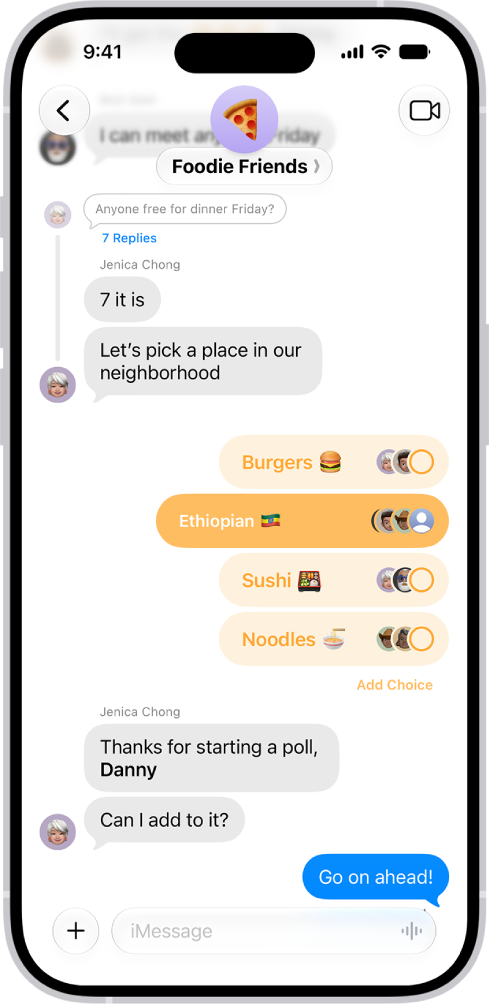
You can send a poll in any iMessage conversation to decide what to eat, which movie to see, where to travel, when to meet, and more. Everyone in the conversation can contribute options and watch as votes come in.

You start one from the Add button in a conversation, and with Apple Intelligence, you can even create a suggested poll quickly. You can also add an option to a poll, vote, and check on the results of a poll.

Note: Starting, seeing, or voting in a poll requires iMessage on iOS 26, iPadOS 26, macOS 26, watchOS 26, or visionOS 26 or later. Anyone who can’t see it gets a message saying a poll was sent to the group.

In a Messages conversation, a poll shows options and vote tallies in horizontal bars and.

Start a poll

  1. Start the Messages app on your iPhone.
  2. In a conversation, tap the Add button, then tap Polls.
  3. Tap each row to add options.

    A poll can have up to 12 options.

  4. Tap the Send button.

Quickly create a suggested poll with Apple Intelligence

  1. Start the Messages app on your iPhone.
  2. Open a conversation or start a new message.
  3. Mention several options in the conversation.
  4. When Apple Intelligence detects that a poll might come in handy, the Create a Poll button appears—tap it to create the suggested poll.

    Tap the Send button to send the poll to everyone in the conversation who can participate in the poll. Those who can’t participate receive a message that you sent a poll.

Note: Apple Intelligence on iOS 27 or later is available on an Apple Intelligence-enabled iPhone 15 Pro, iPhone 15 Pro Max, or iPhone 16 model or later. Apple Intelligence is not available in all languages or regions. Usage limits may apply.*

Vote in a poll

  1. Start the Messages app on your iPhone.
  2. Open a conversation with a poll in it.
  3. Tap an option to add your vote.

    Tap again to remove your vote. You can vote for none or all of the options.

Add an option to a poll

Regardless of who started the poll, anyone participating in it can add other options.

  1. Start the Messages app on your iPhone.
  2. Open a conversation with a poll in it.
  3. Tap Add Choice, then enter another option.
  4. Tap the Send button to add the option to the poll.

Note: Options are added without any votes, so tap to vote for any option you add.

Check on the results of a poll

You can see who hasn’t voted yet, or how people voted.

  1. Start the Messages app on your iPhone.
  2. Open a conversation with a poll in it.
  3. Touch and hold the poll and tap Poll Details.

*Apple Intelligence is available with Siri and device language set to Chinese (Simplified), Chinese (Traditional), Danish, Dutch, English, French, German, Italian, Japanese, Korean, Norwegian, Portuguese, Spanish, Swedish, Turkish, or Vietnamese. Some features may not be available in all regions or languages. Some devices may not be available in all regions. Siri AI is available in beta in iOS 27, iPadOS 27, macOS 27, watchOS 27, and visionOS 27 and requires an Apple Intelligence–enabled device set to a supported language. Available in English to start. Siri AI will not be initially available in the EU on iOS, iPadOS, and watchOS. Certain Apple Intelligence features that rely on server-side models are subject to daily usage limits, including but not limited to Siri AI, Intelligent Photo Editing Tools, Image Playground, and AFM 3 Cloud models in Shortcuts. Daily limits may vary by feature, request complexity, system demand, system policies, and other factors. Expanded access to such features will be available for a fee in the future. Use of these features is subject to the Apple Intelligence Terms and Conditions.