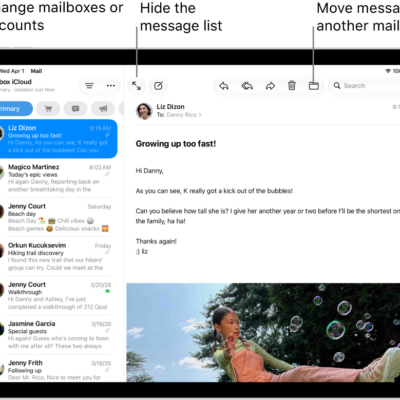
In the Mail app, you can read emails yourself or have Apple Intelligence summarize them for you. You can also add contacts and preview an email’s contents without opening it.
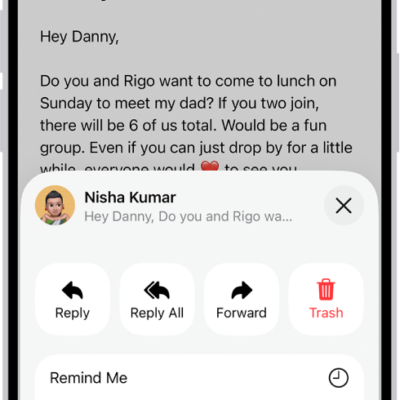
If you don’t have time for a primary message right away, Remind Me brings it back to the top of the list at a time and date you choose. You can also quickly mark multiple emails as read, right from the message list.
Quick tip: Apple Intelligence might suggest actions you can take when you check your email, like adding a reminder or creating a calendar event.
Click the suggestion to accept it.
Note: Suggested actions in Mail on iOS 27 or later is an Apple Intelligence feature available on iPhone 15 Pro, iPhone 15 Pro Max, and iPhone 16 models or later in supported regions when device language is set to English.*
Read an email
- Open the Mail app on your iPhone.
- Tap the message you want to read.
Use Remind Me to come back to a Primary message later
Can’t handle a primary message right away? Set a time and date for a reminder, and the message comes back to the top of your inbox.
- Open the Mail app on your iPhone.
- Tap a Primary message, tap the Reply button, tap Remind Me, and then choose when to be reminded.
Quickly mark multiple emails as read
- Open the Mail app on your iPhone.
-
While viewing a message list, tap the More button, tap Select, and then select the messages you want to mark.
Important: When you select a Transactions, Updates, or Promotions message, you’re selecting all the messages in that category from the sender.
-
Tap the Mark button at the bottom of the message list and then choose Mark as Read.
Note: The number of unread messages shown on your Home Screen reflects the number of unread messages in your Primary category.
To show your total number of unread messages in all categories, go to Settings > Notifications > Mail > Customize Notifications, then turn on All Unread Messages.
Preview a Primary message and a list of options
To see what a Primary message is about without opening it completely, preview it.
-
Open the Mail app on your iPhone.
In the Primary message list, touch and hold a message to preview its contents and see a list of options for replying, moving it, and more.
Show a longer preview for every email
By default, Mail shows two lines of text for each email message in your inbox.
Without opening the message, you can choose to see more lines of text.
- Open Settings, tap Apps, tap Mail, tap Preview (below Message List), and choose up to five lines.
Show the whole conversation
-
Open Settings, tap Apps, tap Mail, and then turn on Organize by Thread.
Tip: You can also change other settings here—such as Collapse Read Messages or Most Recent Message on Top.
Show To and Cc labels in your Inbox
-
Open Settings, tap Apps, tap Mail, and turn on Show To/Cc Labels (below Message List).
You can also view the To/Cc mailbox, which gathers all mail addressed to you.
To show or hide it, tap the Mailboxes button in the Mail app until you see Mailboxes, tap Edit, then select “To or Cc.”
Add someone to your contacts or make them a VIP
Saving someone to your contacts makes their email messages easy to find again in the future. Or make them a VIP, and any message you receive from them is automatically starred.
- Open the Mail app on your iPhone.
-
In a message, tap a person’s name or email address and then do one of the following: Add a new contact: Tap View Contact Card, then tap Create New Contact.
Fill in any other contact information, then tap the Done button.
- Add the email address to an existing contact: Tap View Contact Card and tap Add to Existing Contact.
- Select a contact and then tap the Done button.
- Add to your VIP list: Tap Add to VIP.
Show or hide contact photos
- Open the Mail app on your iPhone.
- In an inbox, tap the More button at the top of the screen. Select or deselect Show Contact Photos.
Summarize your email
To catch up on a long email thread in seconds, or summarize a complex email, you can get help from Apple Intelligence.
Note: Apple Intelligence on iOS 27 or later is available on an Apple Intelligence-enabled iPhone 15 Pro, iPhone 15 Pro Max, or iPhone 16 model or later.
According to Apple, Apple Intelligence is not available in all languages or regions.
Usage limits may apply.* Go to the Mail app on your iPhone.
Under each email in your inbox, a short summary appears automatically.
-
Tap an email, then tap Summarize.
A summary appears at the top of the screen.
If the message is part of an email thread, the contents of the thread are summarized.
*Apple Intelligence is available with Siri and device language set to Chinese (Simplified), Chinese (Traditional), Danish, Dutch, English, French, German, Italian, Japanese, Korean, Norwegian, Portuguese, Spanish, Swedish, Turkish, or Vietnamese.
Some features may not be available in all regions or languages.
Some devices may not be available in all regions.
Siri AI is available in beta in iOS 27, iPadOS 27, macOS 27, watchOS 27, and visionOS 27 and requires an Apple Intelligence–enabled device set to a supported language.
Available in English to start.
Siri AI will not be initially available in the EU on iOS, iPadOS, and watchOS.
Certain Apple Intelligence features that rely on server-side models are subject to daily usage limits, including but not limited to Siri AI, Intelligent Photo Editing Tools, Image Playground, and AFM 3 Cloud models in Shortcuts.
Daily limits may vary by feature, request complexity, system demand, system policies, and other factors.
Expanded access to such features will be available for a fee in the future.
- Use of these features is subject to the Apple Intelligence Terms and Conditions.