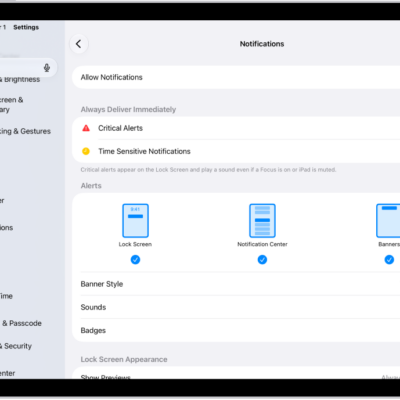
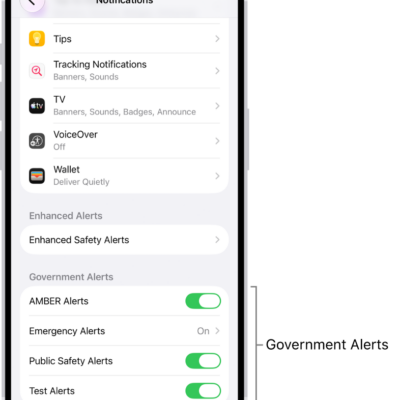
Your notification settings let you choose when and how notifications appear, which apps can send them, and what sounds they make, and you can also set up location-based alerts.
Many notification settings apply to all app notifications, while others can be customized for individual apps. You can decide where an app’s notifications show up, from the Lock Screen to banners, and allow time-sensitive notifications. If an app supports it, you can choose its notification sound, too.
Here’s how to change notification settings on iPad.
Customize notifications for an app
- Start the Settings app on your iPad.
- Tap Notifications, then tap an app below Notification Style.
- Do any of the following:
- Turn off notifications for the app: Turn off Allow Notifications.
- Allow time-sensitive notifications: If the app supports it, turn on Time Sensitive Notifications.
- Choose where notifications appear: Under Alerts, choose whether notifications appear on the Lock Screen, in Notification Center, or as banners.
- Choose a notification sound: If the app supports it, tap Sounds and then select a sound.
- Show a badge on the app icon: Turn on Badges.
- Customize the Lock Screen appearance: Under Lock Screen Appearance, set how previews appear and how notifications are grouped.
- Prioritize notifications from the app: If you use Priority Notifications, turn Prioritize Notifications on or off under Lock Screen Appearance. See Summarize notifications and reduce interruptions with Apple Intelligence on iPad.
- Choose when notifications are delivered: If you use Scheduled Summary, under Notification Delivery choose Immediate Delivery or Scheduled Summary.
- Customize notification types: If the app supports it, tap Customize Notifications to choose which types of notifications to receive from the app.
- Change notification settings in the app: For some apps, tap App Name Notification Settings at the bottom of the screen to open the app’s own notification settings.
Change the appearance of notifications
- Start the Settings app on your iPad.
-
Tap Notifications and choose how you want notifications displayed on the Lock Screen:
- View just the number of notifications: Tap Count.
- View the notifications grouped into stacks by app: Tap Stack.
- View the notifications in a list: Tap List.
When notifications arrive, you can change the layout by pinching the notifications on the Lock Screen.
Change the frequency of notifications
To cut down on interruptions throughout the day, schedule a notification summary covering several apps at once.
- Start the Settings app on your iPad.
- Tap Notifications, tap Scheduled Summary, turn on Scheduled Summary, and tap Continue (if it appears).
- Schedule times for the notification summary.
- Tap A to Z, turn on the apps you want to appear in your Scheduled Summary, and tap the Back button at the top of the screen.
-
To choose when you want notification previews to appear, tap Show Previews, select an option, and tap the Back button at the top of the screen.
Previews can include things like text (from Messages and Mail) and invitation details (from Calendar). You can override this setting for individual apps.
Focus delays notifications on iPad to prevent interruptions, and you can schedule a time to receive a summary of the ones you missed. Check out our article, Schedule a Focus to turn on or off, to see how.
Prevent notification previews from appearing on the Lock Screen
You can choose when to have notification previews from an app appear on your Lock Screen.
Note: Not all apps support notification previews.
- Start the Settings app on your iPad.
- Tap Notifications, then tap an app below Notification Style.
- Scroll down, tap Show Previews, and select one of the following:
- Always
- When Unlocked
- Never
Show or hide notifications during screen sharing
Notifications are allowed by default when you share your screen using SharePlay or Screen Mirroring. If you’d rather they not appear, you can turn them off.
- Start the Settings app on your iPad.
- Tap Notifications, then tap Screen Sharing.
- Turn Allow Notifications on or off.
Use Apple Intelligence to summarize notifications and prioritize time-sensitive ones
Apple Intelligence can summarize long or stacked notifications so they’re easier to understand at a glance, and it can prioritize time-sensitive notifications to help you catch up on what you may have missed. Read our guide, Summarize notifications and reduce interruptions with Apple Intelligence, to find out more.
Note: Apple Intelligence on iPadOS 27 or later is available on an Apple Intelligence-enabled iPad mini (A17 Pro) and iPad models with M1 or later. Apple Intelligence is not available in all languages or regions. Usage limits may apply.*
Turn off location-based alerts
Some apps send relevant alerts based on where you are, using your location. The Weather app might do this, for example.
If you don’t want to see these types of alerts, you can turn them off.
- Start the Settings app on your iPad.
- Tap Privacy & Security and tap Location Services. Turn on Location Services.
- Tap an app (if any appear in the list) and choose whether you want to share your location while using that app.
*Apple Intelligence is available with Siri and device language set to Chinese (Simplified), Chinese (Traditional), Danish, Dutch, English, French, German, Italian, Japanese, Korean, Norwegian, Portuguese, Spanish, Swedish, Turkish, or Vietnamese. Some features may not be available in all regions or languages. Some devices may not be available in all regions. Siri AI is available in beta in iOS 27, iPadOS 27, macOS 27, watchOS 27, and visionOS 27 and requires an Apple Intelligence–enabled device set to a supported language. Available in English to start. Siri AI will not be initially available in the EU on iOS, iPadOS, and watchOS. Certain Apple Intelligence features that rely on server-side models are subject to daily usage limits, including but not limited to Siri AI, Intelligent Photo Editing Tools, Image Playground, and AFM 3 Cloud models in Shortcuts. Daily limits may vary by feature, request complexity, system demand, system policies, and other factors. Expanded access to such features will be available for a fee in the future. Use of these features is subject to the Apple Intelligence Terms and Conditions.
See also