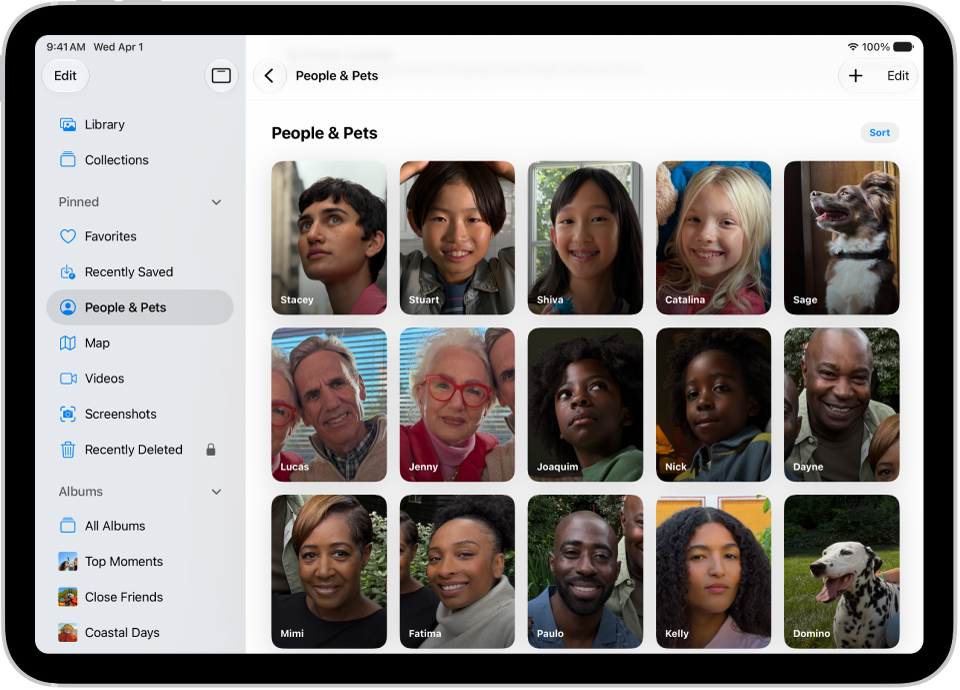
The Photos app sorts photos and videos of people, dogs, and cats in the People & Pets collection (or the People collection if no pets appear). You can name a person, dog, or cat directly from a photo or video in your photo library, or in the People & Pets collection.
When you name someone, they’re automatically added to People & Pets and named in other photos. A question mark appears next to anyone you haven’t named yet.
Name a person or pet in a photo or video
Name a person or pet in a photo or video, and they’re automatically added to the People & Pets collection, along with being named in other photos and videos in your library.
- Start the Photos app on your iPad.
-
Open a photo or video and then swipe up to see the details.
People or pets in the photo or video appear in the bottom-left corner. A question mark appears next to those you haven’t named.
-
Tap the person or pet with a question mark next to their picture. Tap Edit Name and Photos.
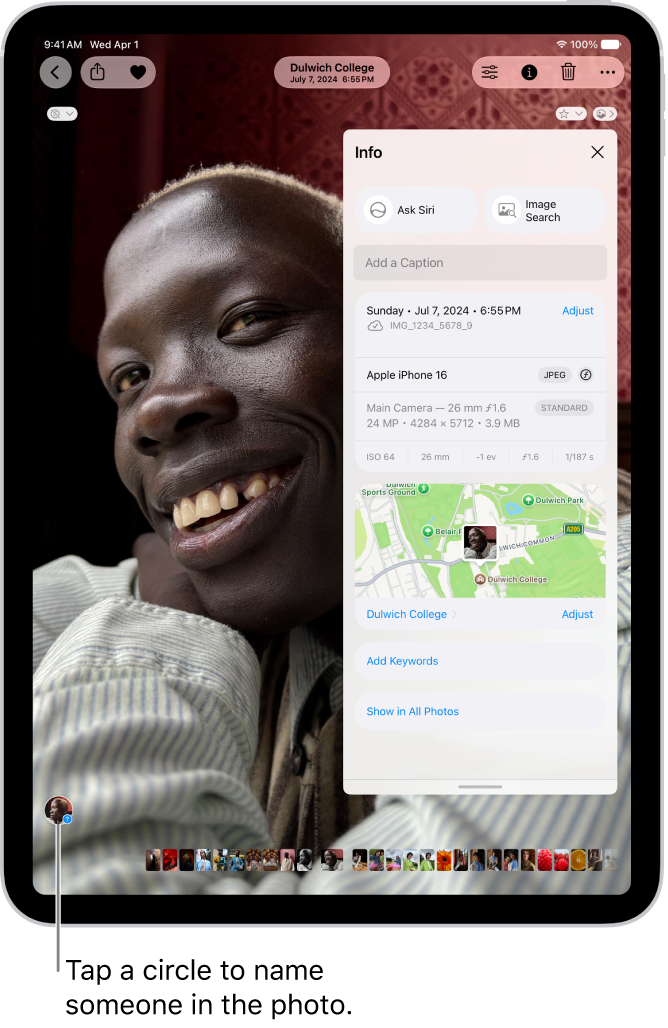
- Tap Name This Person or Name This Pet and enter their name. Tap the Done button.
Name a person or pet in the People & Pets collection
- Start the Photos app on your iPad.
- Tap Collections.
- Tap People & Pets. Tap the person or pet you want to name.
-
Tap Name This Person or Name This Pet and enter their name.
If the person is listed in your contacts, you can tap their name below Results.
- Tap the Done button.
If the person or pet you want to name doesn’t appear, tap Add People at the bottom of the People & Pets collection to see more faces.
For a collection of a group of people and pets, check out our guide, Find group photos.
Change the key photo for a person or pet
You can change the key photo of a person or pet in the People & Pets collection.
- Start the Photos app on your iPad.
- Tap Collections.
- Tap People & Pets and touch and hold the key photo you want to change.
- Tap Edit Name and Photos and tap the photo icon in the bottom-right corner of the current key photo.
- Select a new photo from the choices in the photo grid and tap the Done button.
Mark a person or pet as a favorite
Marking the people or pets you interact with the most as favorites makes them easier to find in the People & Pets collection.
- Start the Photos app on your iPad.
- Tap Collections.
- Tap People & Pets and touch and hold a person or pet’s key photo. Tap Favorite.
To remove a person or pet from your favorites, touch and hold their key photo in the People & Pets collection, then tap Unfavorite.
Fix incorrect names
You can fix misidentifications in the People & Pets collection.
- Start the Photos app on your iPad.
- Tap Collections, then tap People & Pets.
- Tap the misidentified person or pet. Tap the More button at the top of the screen.
- Tap the incorrect name at the top of the menu, tap the name again, enter the correct name, and then tap the Done button.
You can also fix misidentifications while viewing a photo or video in your library. Swipe up to see the photo or video information. Tap the misidentified person or pet in the circle at the bottom-left corner. Tap This is Not [name], then tap Rename This Person or Rename This Pet.
Sort the People & Pets collection alphabetically or manually
- Start the Photos app on your iPad.
- Tap Collections.
- Tap People & Pets, tap Sort, and choose one of the following:
- Sort alphabetically: Tap Sort by Name.
- Sort manually: Tap Sort by Custom Order. Touch and hold a key photo and drag it to a new position.
Hide a person or pet
- Start the Photos app on your iPad.
- Tap Collections.
- Tap People & Pets and then touch and hold the person or pet’s key photo.
- Tap Hide [name] or Don’t Feature [name].
Quick tip: Rather than removing a person or pet, you can feature them less often. Check out our article, Show a person less frequently or not at all.
When you use iCloud Photos, People & Pets is kept up to date on all your devices.
See also
- Search for photos and videos on iPad
- View your memories in Photos on iPad
- Find group photos and videos on iPad