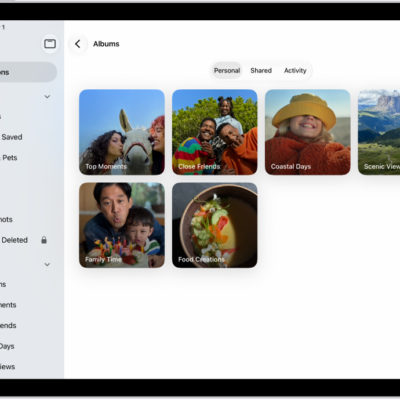
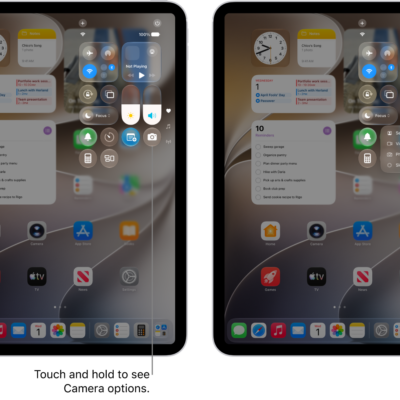
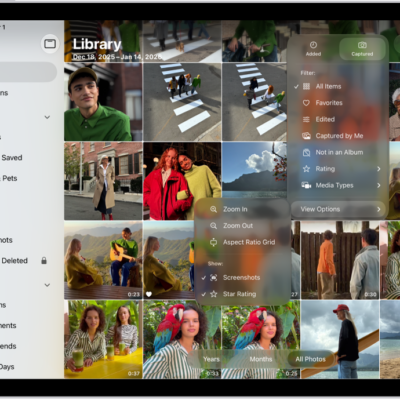
The Memories collection in the Photos app includes personalized collections of photos and videos that feature a significant person, pet, place, activity, or event from your photo library.
In a memory, you can filter and sort the photos and videos, view all of them, or search for photos and videos. You can share a memory, delete it, show its location on a map, or play the memory movie, and you can add a memory to Favorites to make your favorite memories easier to find.
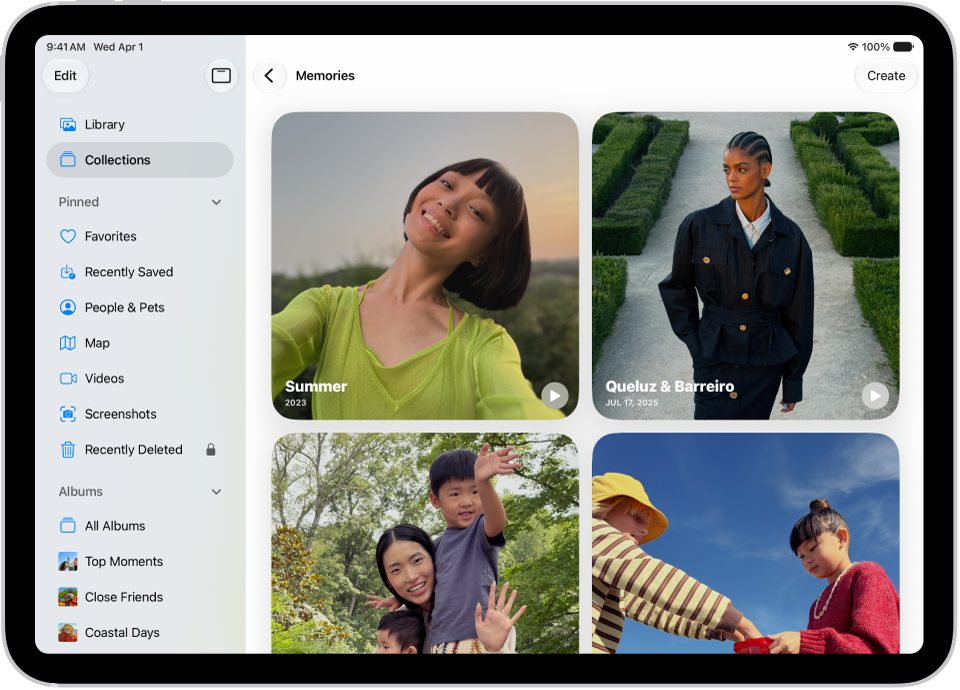
View your memories
- Open the Photos app on your iPad.
- Tap Collections.
- Swipe left under Memories to scroll through a selection of your memories, or tap Memories to view them all.
- Select a memory to view all the photos and videos included in that memory.
- As you view a memory, you can do any of the following:
- Filter and sort the photos and videos in the memory: Tap the Sort and Filter button.
- View all the photos and videos in the memory: Tap Show All.
- Search for photos and videos in the memory: Tap the Search button.
- Share the memory, delete the memory, or show the memory location on a map: Tap the More button.
- Share specific photos and videos in the memory: Tap Select, tap the photos and videos you want to share, and then tap the Share button.
- Play the memory movie: Tap the Play button.
- Tap the Back button to close the memory and return to Collections.
Add a memory to Favorites
Identify your favorite memories to make them easier to find.
- Open the Photos app on your iPad.
- Tap Collections.
- Touch and hold a memory and tap Add to Favorite Memories.
To view your favorite memories, tap Collections, tap Memories, then tap Favorites.
See also
- Personalize your memory movies in Photos on iPad
- Hide people, memories, and holidays in Photos on iPad
Tag: Photos