You can send a poll, play a game, record audio messages, share songs, and more—all with iMessage apps—without leaving the Messages app. You can customize your list of available apps or add iMessage apps you find in the App Store.
The Messages app comes with iMessage apps for sending photos, videos, audio messages, stickers, and more, and you can rearrange them in the order you like. You can even download additional iMessage apps for more options.
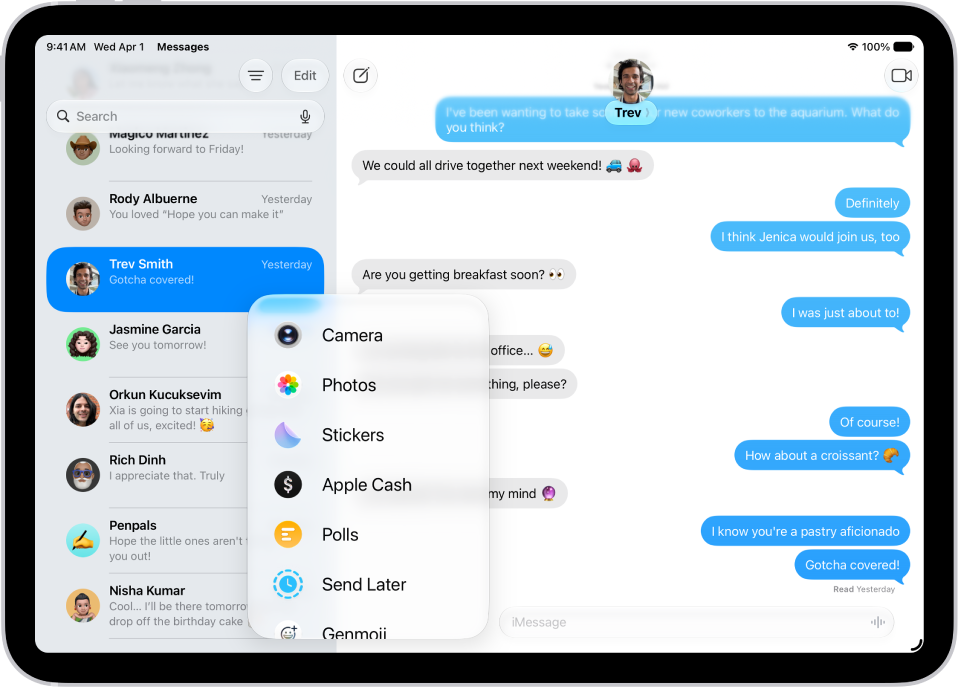
Rearrange iMessage apps
- Open the Messages app on your iPad.
- In a conversation, tap the Add button.
-
Touch and hold any app icon in the list until it shrinks a little. Then drag it to the location where you want it.
To move the app icon to a different page, drag it to the top or bottom edge of the screen. You might need to wait a moment for the new page to appear.
Add iMessage apps
Built-in iMessage apps in the Messages app let you send photos, videos, audio messages, stickers, and more, and downloading additional iMessage apps gives you even more options.
- Open the Messages app on your iPad.
- In a conversation, tap the Add button.
- Tap Store to open the App Store for iMessage.
- Tap an app to see more details and reviews and then do one of the following:
- Purchase an app: Tap the price. Payments are made using the method associated with your Apple Account.
- Download a free app: Tap Get.
See also