Before you start texting, turn on iMessage, and you can sync your messages across all your Apple devices with Messages in iCloud and share your name and photo. There are two different ways to send text messages in the Messages app:
- Using iMessage with others who also use iMessage. Your iMessage texts appear in blue bubbles.
- With SMS, MMS, and RCS messages forwarded from your iPhone. Your SMS, MMS, and RCS messages appear in green bubbles. (RCS messages aren’t supported by all carriers or in all countries or regions.)
Turn on iMessage
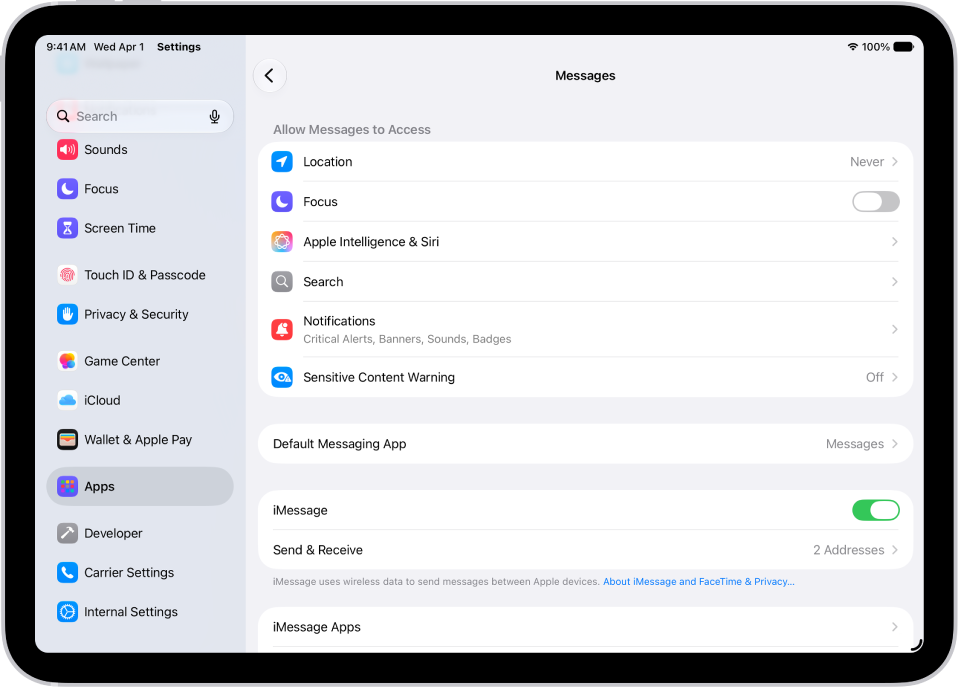
- Start the Settings app on your iPad.
- Tap Apps, then tap Messages.
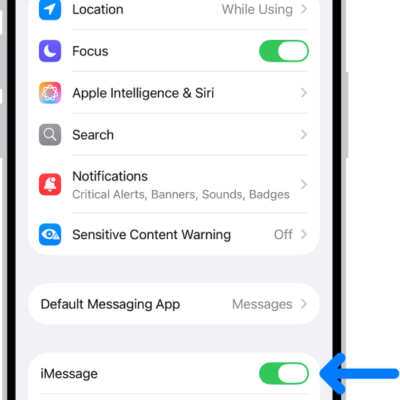
- Turn on iMessage.
- To select which of your phone numbers and email addresses you want to use with iMessage, tap Send & Receive and choose from the available options below You can receive iMessages to and reply from.
Learn more about iMessage.
Sync messages on all your Apple devices
Turning on Messages in iCloud saves the messages you send and receive on your iPad in iCloud. On another device signed in to the same Apple Account, turn on Messages in iCloud, and your conversations show up there too. Your entire messages history, including messages sent or received with SMS, MMS, RCS, or iMessage, stays current across those devices, even when you set up a new device.
- Make sure that your iPad is turned on and connected to a Wi-Fi network, and that you sign in to the same Apple Account on each device.
- Start the Settings app on your iPad.
-
Tap your name and tap iCloud. Tap Messages.
If Messages doesn’t appear, tap See All in the Saved to iCloud section.
- Turn on Use on this iPad (if it’s not already turned on).
If you have an iPhone, you can set it up so the SMS, MMS, or RCS messages you send or receive also appear on your iPad.
With Messages in iCloud on, messages or attachments you delete from iPad also disappear from your other Apple devices that have Messages in iCloud turned on and run iPadOS 13, iOS 11.4, watchOS 1, macOS 10.13.5, visionOS 1, or later.
Note: Messages in iCloud draws on your iCloud storage. See our guide, Sign in and manage your Apple Account.
Share your name and photo
In Messages, you can share your name and photo** with others. You decide whether to share it whenever you send or receive a message from someone new.
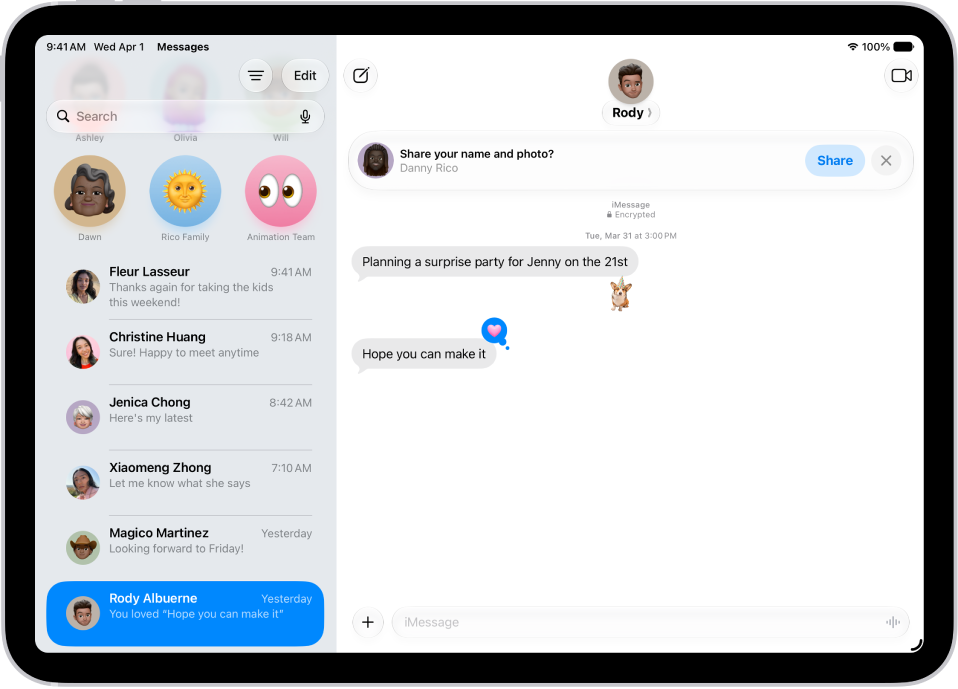
- Start the Messages app on your iPad.
- Do one of the following:
- At the top of the conversation list, tap Edit, then tap Set Up Name & Photo.
- Swipe up to the top of the conversation list, then tap Share Your Name & Photo.
- Choose how you want to be represented, scroll down, and then turn on Name and Photo Sharing.
- Tap Share Automatically and then choose one of the following:
- Contacts Only: Anyone who is a saved contact receives the option of using the name and image you chose when they communicate with you.
- Always Ask: You decide to share your name and photo as you communicate with each contact.
- Tap the Done button to save your changes.
To change these settings after you set them up, tap Edit, then tap Name & Photo.
Note: If you message recipients who use non-Apple devices, your name and photo may not appear as expected.
**Availability varies by region.
See also