You can change whether or not you’re notified about text messages you receive, and how the notifications appear or sound. For example, you can turn off message notifications so you aren’t distracted when you’re in a meeting, or assign a special sound for certain contacts so you know when you get a message from them.
With notifications off, you still receive messages, and senders see a note that you have notifications silenced. You can also stop sharing your Focus status with one person, and mute the sounds for sent and received messages.
Here’s how to stop, mute, and change message notifications on iPad.
Stop all notifications
Notifications about activity in the Messages app can stop without stopping the messages themselves. When you’re ready, open Messages to read the texts you missed while notifications were off and catch up on messages you missed.
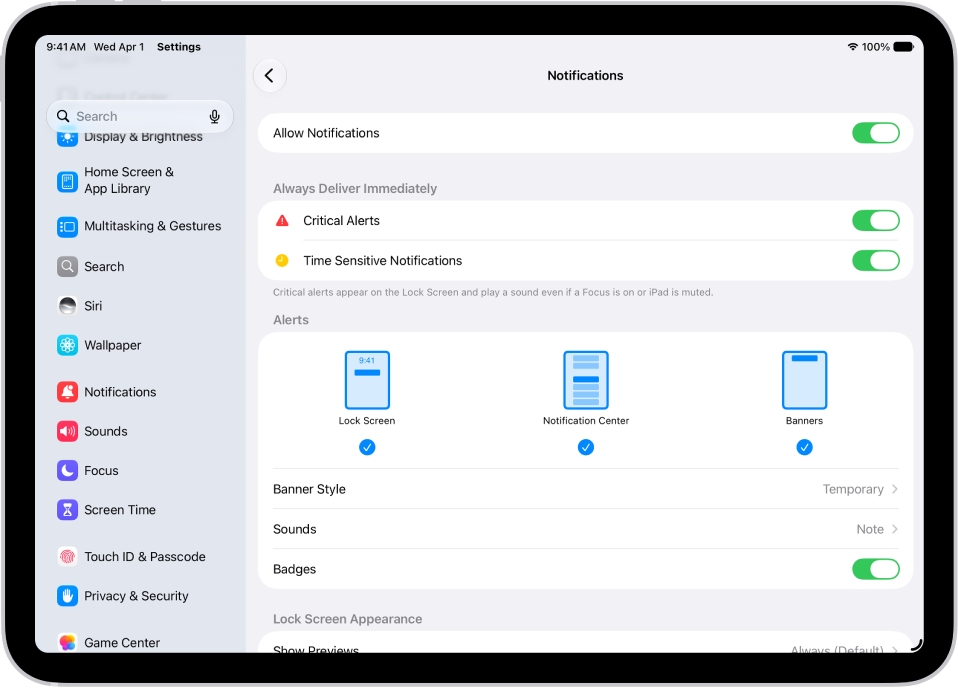
- Open the Settings app on your iPad.
- Tap Notifications, then tap Messages.
- Turn off Allow Notifications.
Note: Senders receive a note indicating that you have notifications silenced.
You can turn on read receipts so people know you’ve read their messages.
Turn on Allow Notifications when you want to get notified again. To hear them too, the Ring/Silent switch can’t be in Silent mode, and your volume needs to be audible.
It’s also possible to stop notifications from other Apple apps and third-party apps. Read our guide, Change notification settings.
Stop sharing your Focus Status with one person
If a Focus pauses your notifications, the Messages app shows your status so people know you’re not receiving messages, though you can turn this off in one-to-one conversations.
- Open the Messages app on your iPad.
- Tap a conversation, then tap the contact icon at the top of the conversation.
- Turn off Share Focus Status.
Mute sounds for sent and received messages
By default, a swoosh sound plays when you send a message, and a tone plays when you receive one. If you don’t want to hear these sounds, set your text tone to None.
- Open the Settings app on your iPad.
- Tap Notifications, then tap Messages.
- Tap Sounds, then tap None (below Alert Tones).
Or put the Ring/Silent switch in Silent mode.
Note: The None setting and the Ring/Silent switch setting each affect incoming and outgoing sounds alike, so you can’t mute only one.
See also Flash the indicator light for notifications.
Change the sound for notifications
For alerts, you can set the sound volume and choose between a tone or sound.
- Open the Settings app on your iPad.
- Tap Sounds.
-
Do any of the following:
- Make notifications quieter or louder: Adjust the volume with the slider.
- Choose a tone or sound: Tap Text Tone. Then tap a sound below Alert Tones (or tap Tone Store to download one).
Tip: The tone you choose applies to both the Messages app and other apps that have notifications on, such as Mail, Phone, and other Apple or third-party apps. To change it just for the Messages app, go to Settings > Notifications > Messages, then tap Sounds.
You can set how many times to repeat a notification (from Never to 10 Times) in Settings > Notifications > Messages > Customize Notifications.
Change the notification sound for certain people
A message from one specific contact can play a specific sound you’ve chosen.
- Open the Messages app on your iPad.
- In a conversation with one person, tap the contact icon at the top of the conversation.
-
Tap Info, tap Edit and tap Edit Contact Info. Then tap Text Tone.
If you don’t see Edit, tap Create New Contact or Add to Existing Contact.
-
Do any of the following:
- Specify a tone or sound: Tap a sound below Alert Tones (or tap Tone Store to download one).
- Mute the sound: Tap None below Alert Tones.
- Mute notifications for this conversation: Tap None below both Haptics and Alert Tones.
Emergency Bypass lets this contact override a Focus so their important messages can get through. It’s something you might turn on for a family member, caretaker, or colleague.
Mute one conversation
You can stop a conversation’s notifications while you continue to receive its messages.
- Open the Messages app on your iPad.
- In the conversation list, do one of the following:
- Swipe left on a conversation, then tap the Mute button.
- Tap a conversation, tap the contact or icon at the top of the conversation, then turn on Hide Alerts.
Note: Senders receive a note indicating that you have notifications silenced.
If you want to completely stop getting messages for one conversation, block a specific person or number or leave a group conversation.
Announce messages
Siri can announce messages on your iPad speaker or supported headphones.
To hear incoming messages on MFi hearing devices, read our guide, Announce calls and notifications for specific apps.
See also
- Change notification settings on iPad
- Schedule a Focus to turn on or off
- Change iPad sounds
- Schedule a notification summary