On supported models, you can use your iPhone camera to record and edit videos in ProRes, which offers higher color fidelity and less compression. ProRes is available on all cameras, including the front camera.
It isn’t available everywhere, though. ProRes isn’t supported in Cinematic, Time-lapse, or Slo-Mo mode. You can also choose the ProRes Log format, and on iPhone 18 Pro models, configure Pro Video Storage. You can change or remove Pro Video Storage later, too.
Note: ProRes videos result in larger file sizes.
Turn on ProRes video recording
- Open the Settings app on your iPhone.
- Tap Camera, tap Formats, and turn on Apple ProRes.
- To turn on Apple ProRes on iPhone 18 Pro models, tap Configure Pro Video Storage, set the amount of storage to reserve and tap Update Pro Video Storage. Then tap the Close button. You only have to do this the first time you turn on Apple ProRes.
Repeat these steps when you want to turn off ProRes video recording.
Change or remove Pro Video Storage
On iPhone 18 Pro models, you can adjust how much storage is reserved for pro video recordings, or reclaim space by removing the reserved storage.
- Open the Settings app on your iPhone.
- Tap Camera, then tap Formats.
- Tap Configure Pro Video Storage, set the amount, tap Update Pro Video Storage, and then tap the Close button.
Choose the ProRes Log format
On iPhone 17 Pro models and iPhone 18 Pro models, the Log format used when you record ProRes video is up to you. First, though, iPhone 18 Pro and iPhone 18 Pro Max need Apple ProRes turned on and Pro Video Storage configured.
- Open the Settings app on your iPhone.
- Tap Camera, then tap Formats.
- Tap ProRes Log Video Encoding and tap Log or Log 2.
Record a video with ProRes
- Open Camera on your iPhone.
- Select Video mode and tap the resolution and fps values in the corner of the screen. Then tap a ProRes option.
-
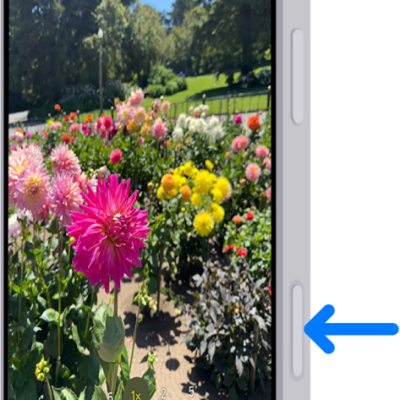
Tap the Record button, press either volume button, or click the Camera Control (on supported models) to start recording.
While recording, you can pinch to zoom in or out, tap .5x, 1x, 2x, 3x, 4x, 5x, and 8x (depending on your model) to switch between lenses, or touch and hold the lens chooser, then slide the dial for more precise zoom control.
- Tap the Record button, press either volume button, or click the Camera Control (on supported models) to stop recording.
ProRes can record up to 4K at 30 fps. Connected to a compatible external storage device, iPhone 15 Pro Max and iPhone 15 Pro can record 4K at 60 fps, while iPhone 18 Pro models, iPhone 17 Pro models, and iPhone 16 Pro models can record 4K at 120 fps.
With 128 GB, iPhone 15 Pro models and iPhone 16 Pro models can only record to internal storage at 1080p at 30 fps. When connected to a compatible external storage device, you can record 4K at up to 60 fps on iPhone 15 Pro models, and at up to 120 fps on iPhone 18 Pro models, iPhone 17 Pro models, and iPhone 16 Pro models.
To maximize the amount of detail and information the camera system captures, you can record videos in ProRes RAW on iPhone 17 Pro models and iPhone 18 Pro models using applications such as Final Cut Camera.